

Having a response playbook does not mean your team is ready to use it. Procedures need to be tested, teams need to practise their roles, and when something does not work you need to know exactly what to improve.
Cymph lets you take the same operational playbooks your team maintains and run them as exercises. The loop looks like this:
- Turn a playbook into an exercise by starting an execution.
- Test roles and responsibilities by assigning steps to the people who would perform them.
- Run the exercise against the timers and collect evidence while it happens.
- Measure performance across exercises.
- Capture what needs to improve as findings tied to the procedure.
- Close the learning loop by updating the playbook and recording the test.
1. Turn a playbook into an exercise
Pick the playbook you want to test, for example a ransomware response playbook, and start an execution. From the Playbook Management System, open the playbook’s action menu and select Run Playbook. You can also start one from inside the editor. Give the execution a name that identifies the exercise, such as “Ransomware tabletop, Q3”, and optionally a description of the scenario. Cymph creates a workbook for the execution: a copy of the workflow where every step carries a status, an assignee, notes and attachments. This becomes the collaborative workspace for the exercise. Every participant sees the same procedure and works through it exactly as they would during a real event. An exercise should also test whether the team can respond fast enough. Set a timer on the execution as a whole to give the exercise a time limit, and set timers on individual steps to define how long each activity should take, for example fifteen minutes to isolate the affected endpoints or one hour to notify the data protection officer. The execution editor shows the elapsed time against each timer, so both participants and the exercise owner can see when a step or the whole exercise is running over. By default, timers are inherited from the timeout properties of the playbook and its steps, so a well-maintained playbook already carries the expectations the exercise is measured against. See Timers.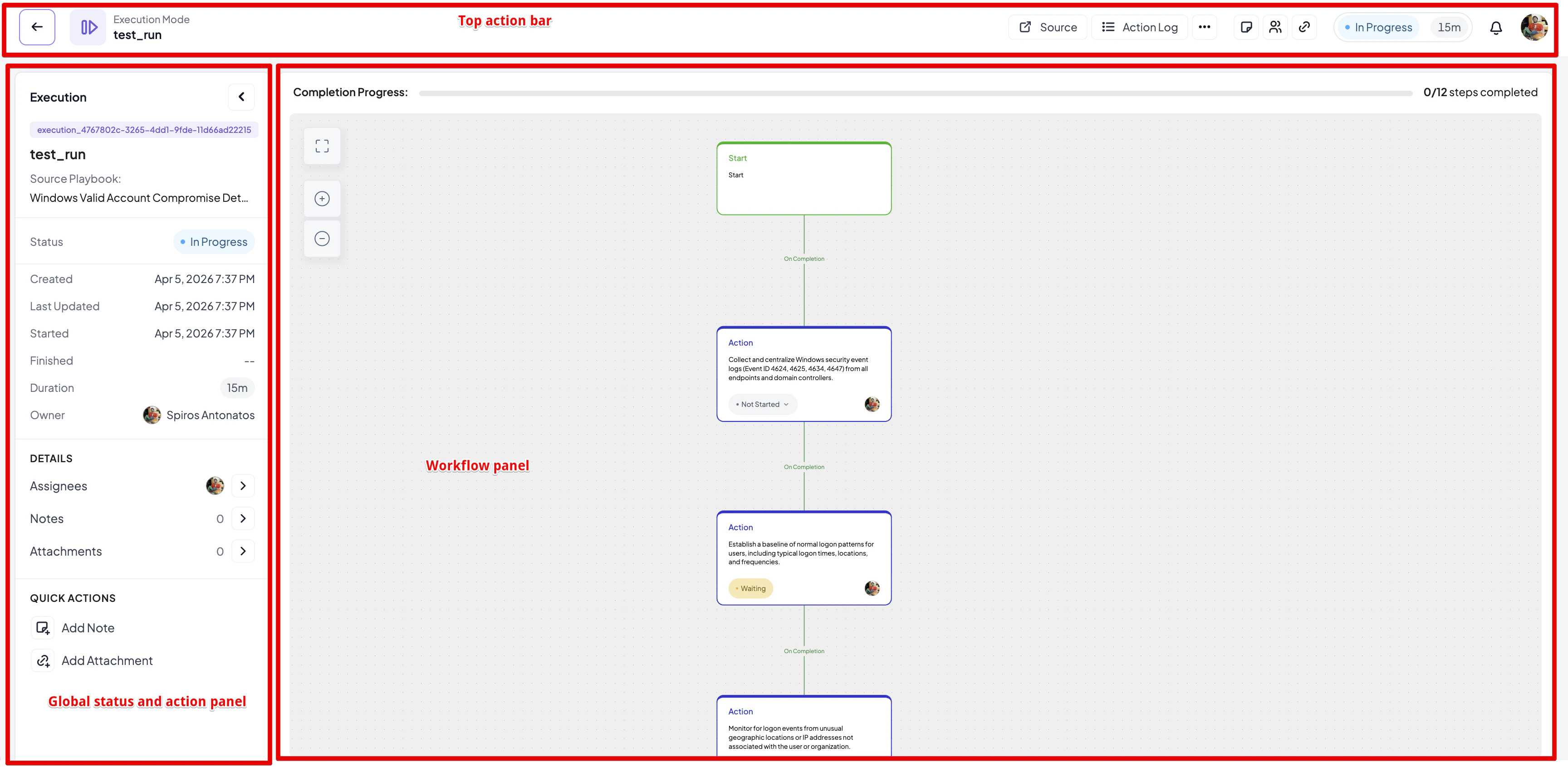
Only playbooks that consist entirely of manual steps, have no validation errors and are not revoked can be executed. If Run Playbook is greyed out, check the eligibility criteria. Playbooks that combine manual and automated steps are better exercised on the SOAR side; see Deploy playbooks.
2. Test roles and responsibilities
An exercise tests the team as much as the procedure. Assign each step to the person who would actually perform it during an incident: the SOC analyst for triage and containment, the incident commander for decisions and escalation, IT operations for recovery, and communications or legal for notifications. Assignees come from the source playbook. If a step in the playbook already has an assignee, the execution keeps it. Otherwise the step is assigned to the execution owner. You can change the default assignees before starting, from the Run Playbook dialog, or reassign any unfinished step during the exercise by clicking the assignee avatar on the step.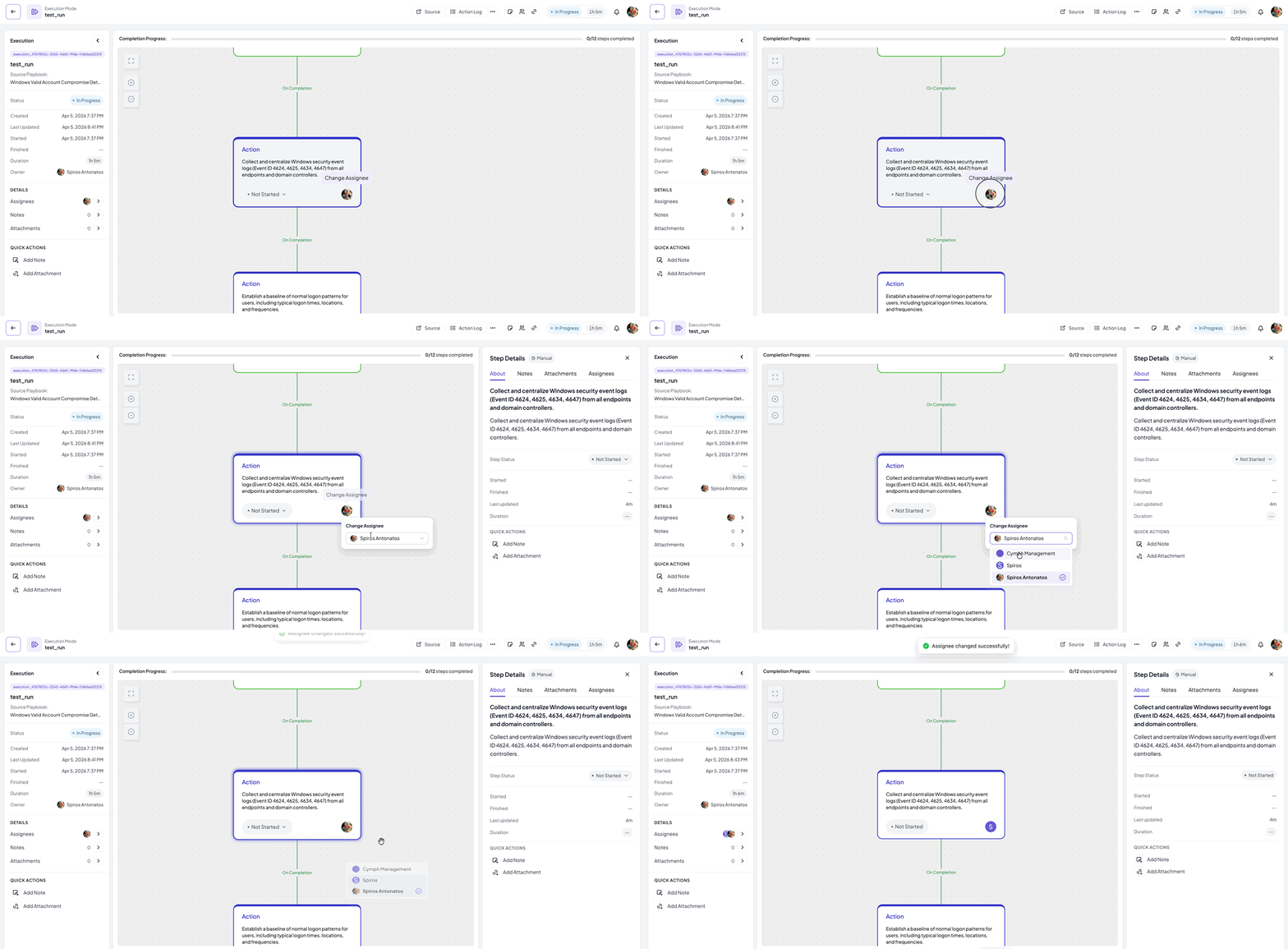
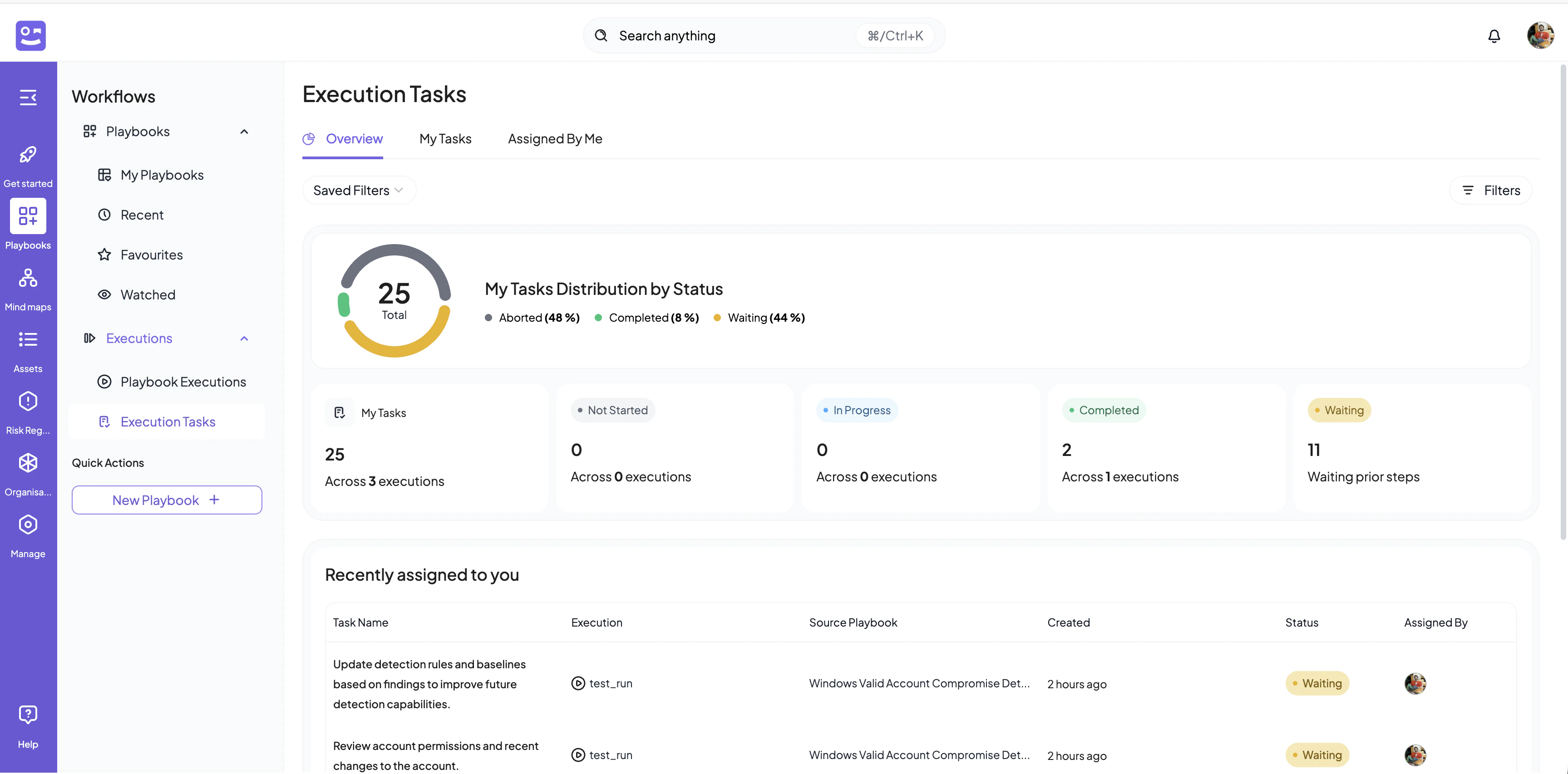
3. Run the exercise
As the exercise progresses, participants work through their steps and record what happened. Each step moves through a small set of statuses: Not Started, Planned, In Progress, In Review, and then one of the final states Completed, Skipped or Failed. Only the assignee can change a step’s status.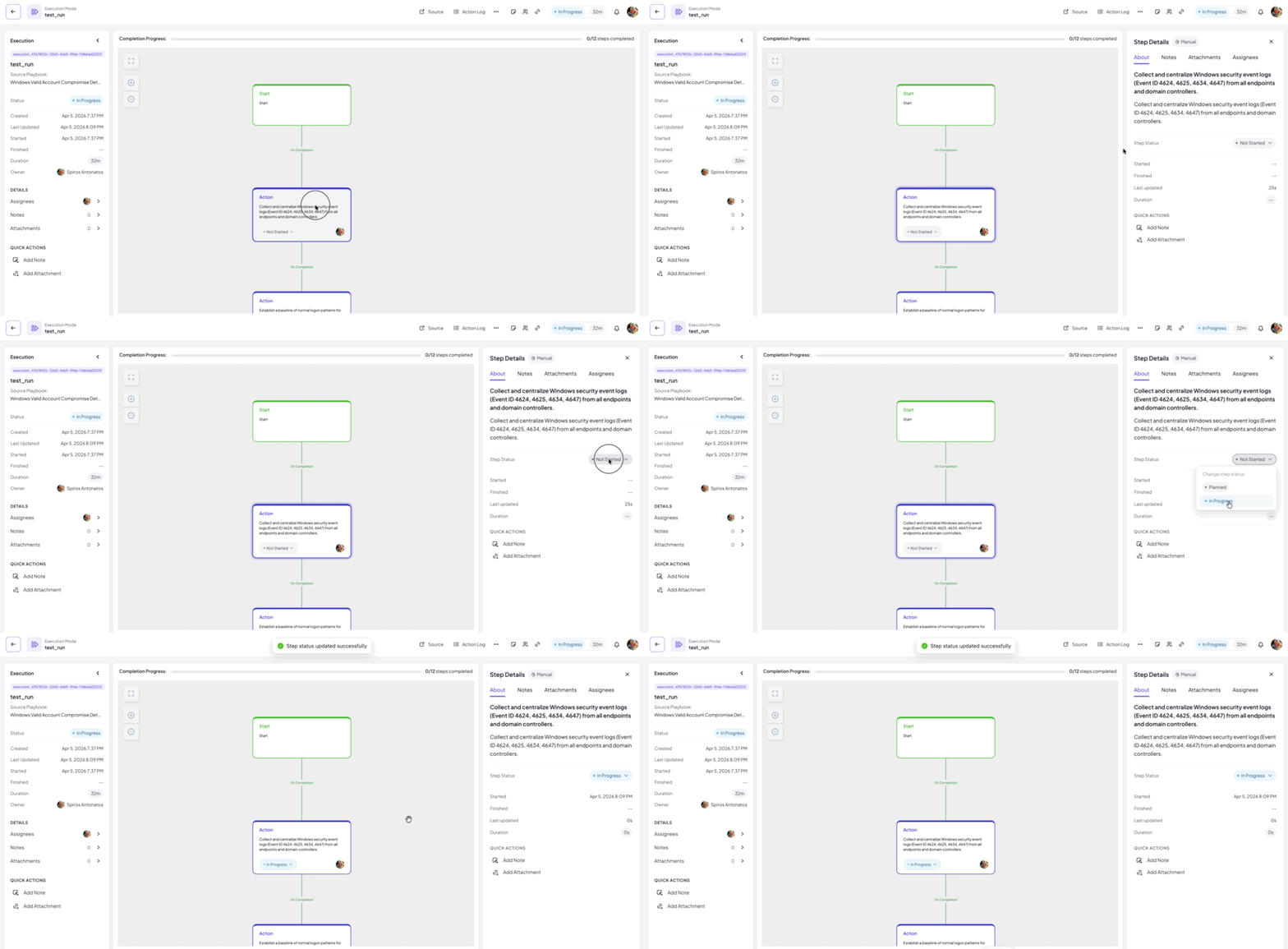
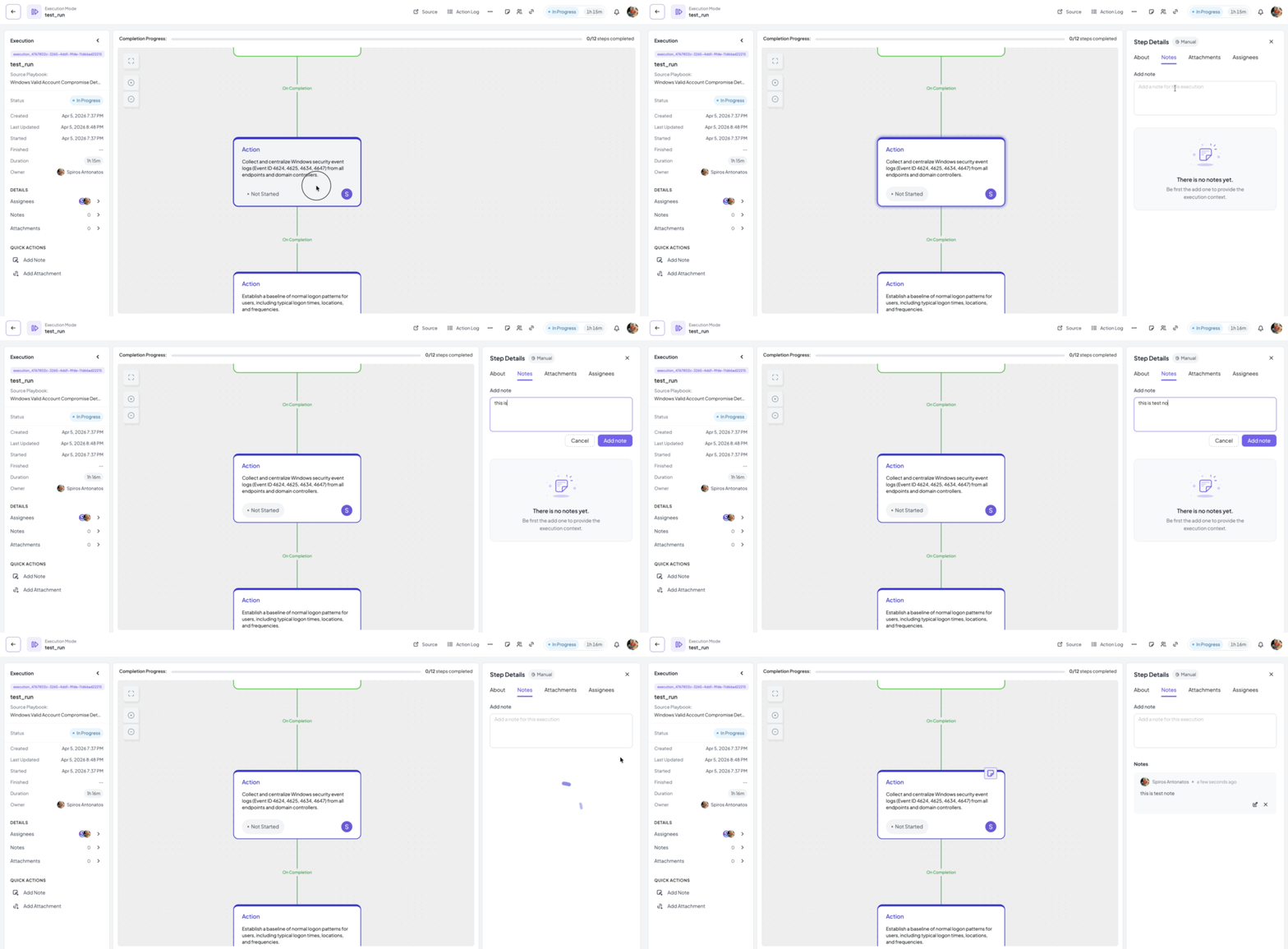
- Evidence is captured while it happens. Every status change is recorded with a timestamp and the identity of the operator. Participants add notes and attachments to a step, such as a screenshot of the isolation command, the ticket that was raised or the message that was sent. See Adding notes to a step and Managing step attachments.
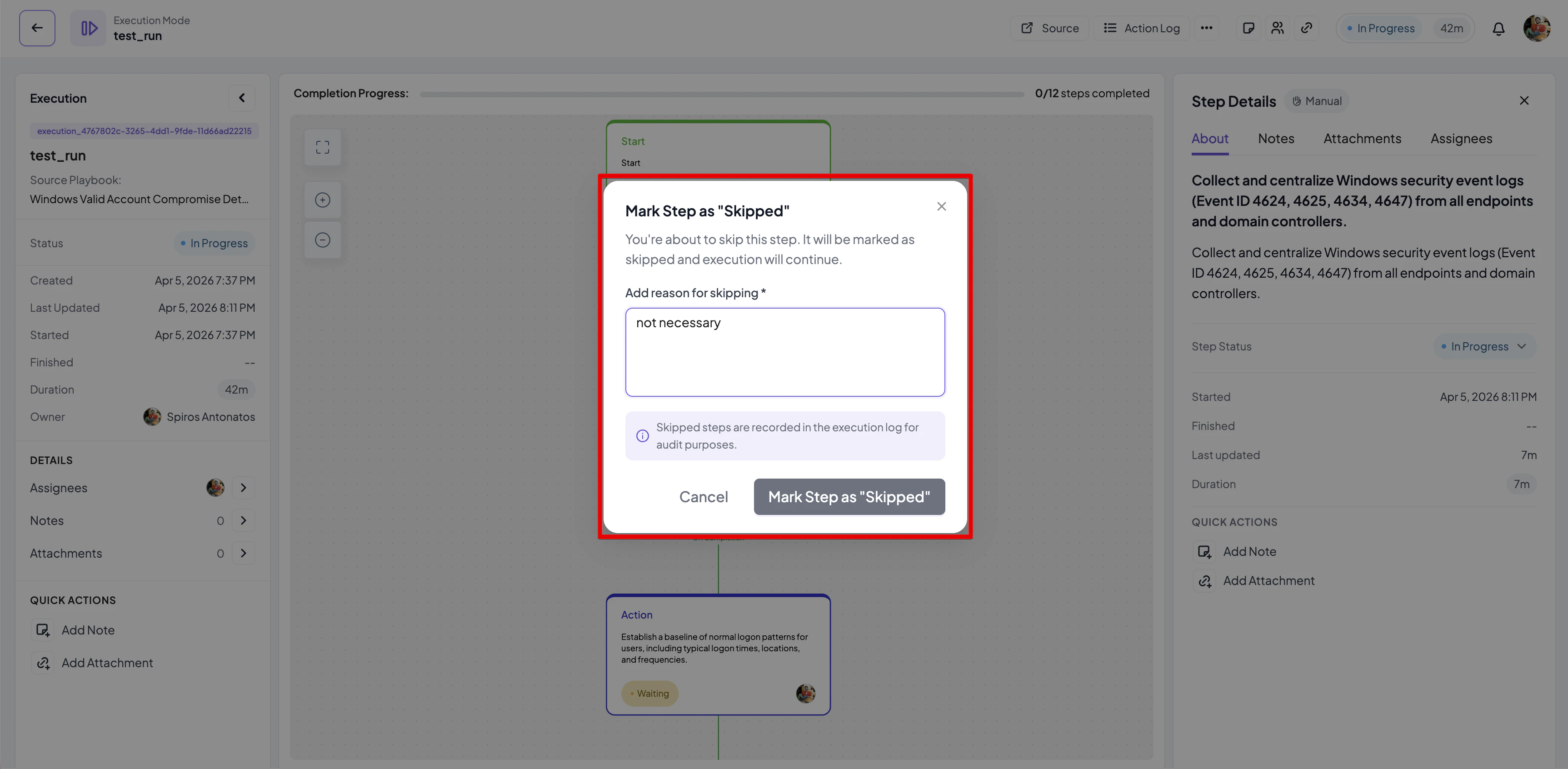
- Deviations are recorded with a reason. If a step cannot be performed as documented, mark it Skipped and enter why. If it blocks the exercise, mark it Failed with a reason. Both reasons are mandatory, so the gap between the procedure and reality is written down at the moment it is discovered.
4. Measure performance
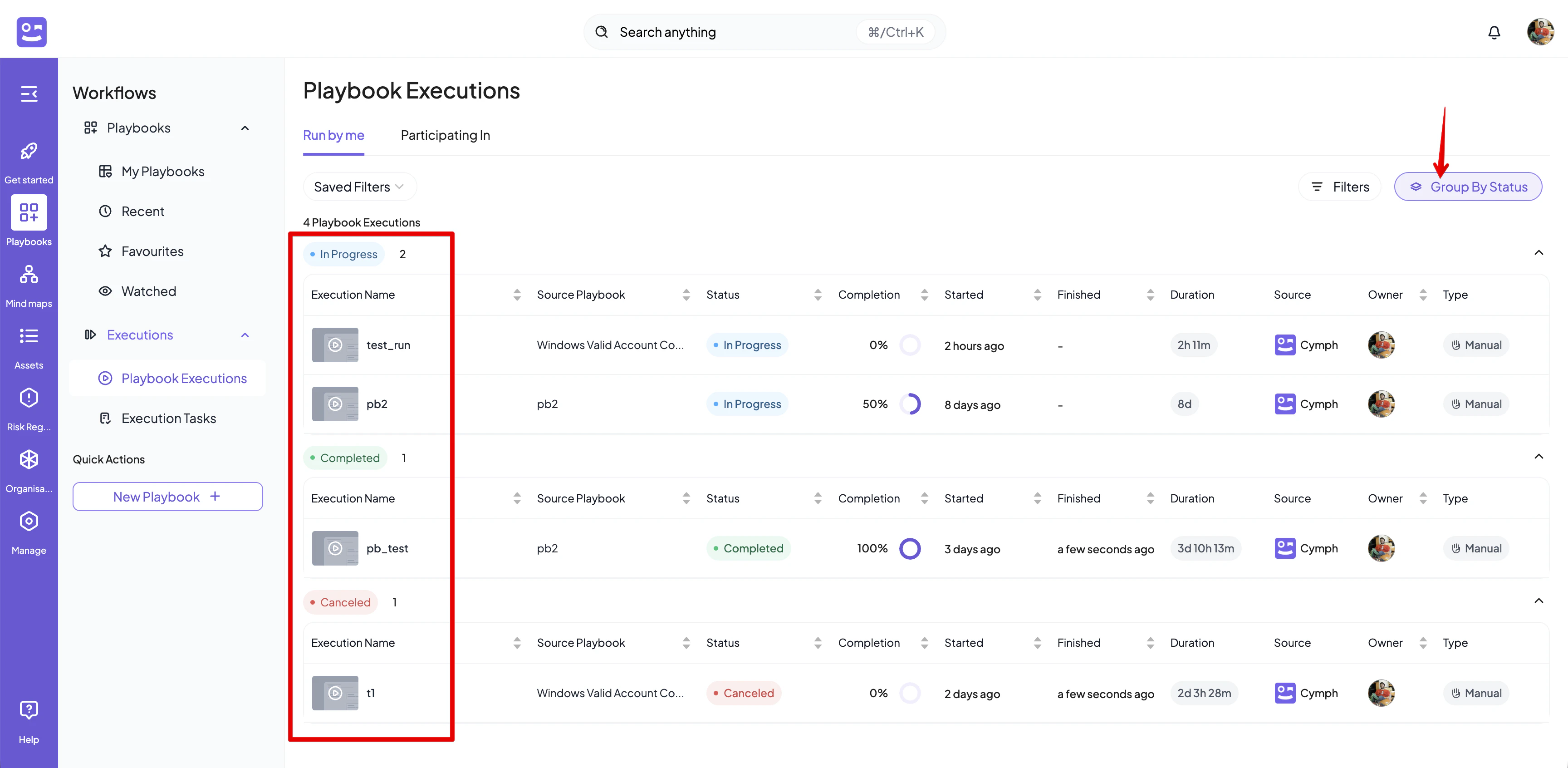
Cymph times every execution and every step. While an exercise is running, the duration is shown in the top action bar of the execution editor. Once exercises complete, the Overview of the Playbook Executions page turns those timings into performance metrics:- Average Duration, Slowest Execution and Fastest Execution across completed executions.
- Slowest Step, the individual step with the highest average time across all runs.
- Performance by Playbook, ranking procedures by average run time.
- Performance by Step, ranking individual steps so you can spot the ones that consistently take the longest, for example an approval that always waits on legal.
5. Capture what needs to improve
Most importantly, capture what you learn. Missing information, unclear responsibilities, outdated instructions and process bottlenecks should become concrete findings tied to the procedure that was tested. Cymph has a dedicated place for this: improvements. An improvement is a distinct entry, separate from notes, that records something the exercise showed should change. Improvements can be captured on a specific step, for example “Escalation contact in this step is outdated” or “EDR isolation procedure unclear, analyst had to look up the console path”, or on the execution as a whole, for example “Legal approval caused a 40-minute delay” or “Nobody was sure who could authorise a shutdown”. Because they are tied to the step and the execution where they were observed, they do not get lost in a chat thread or a post-exercise document. Improvements sit alongside the other evidence the workbook already holds:- Notes on a step or on the execution, for context and observations that are not findings in themselves.
- Attachments as evidence of what was done.
- Skip and fail reasons, which are findings by definition.
- Timers, which show where the procedure ran over.
6. Close the learning loop
The exercise does not end with a report. Turn the findings into changes to the playbook and record that the test took place:- Let Cymph AI propose the improvements. Open the Cymph AI assistant and ask it to improve the playbook based on the exercise. The assistant already has the context it needs: the playbook itself and the execution with its improvements, notes, skip and fail reasons and timer results. It can turn the captured improvements into concrete changes such as updated contacts, clearer instructions, missing steps or more realistic step timers. Review the proposal, refine it in the editor and save it once the team agrees.
- Fix ownership. If the exercise showed that responsibilities were unclear, update the RACI matrix and the step assignees so the next execution starts with the right people. See the governance use case.
- Record the test. Set Last tested in the playbook settings with the date and mode of testing, and mark the playbook as reviewed if the review covered it. See How to change playbook settings.
- Check the signals. The Playbooks not tested the last 6 months risk signal in the Library overview clears for this playbook, and the Last Test Distribution chart reflects the exercise. See Playbook Insights.
- Run it again. Schedule the next exercise and compare the performance metrics with the previous run.