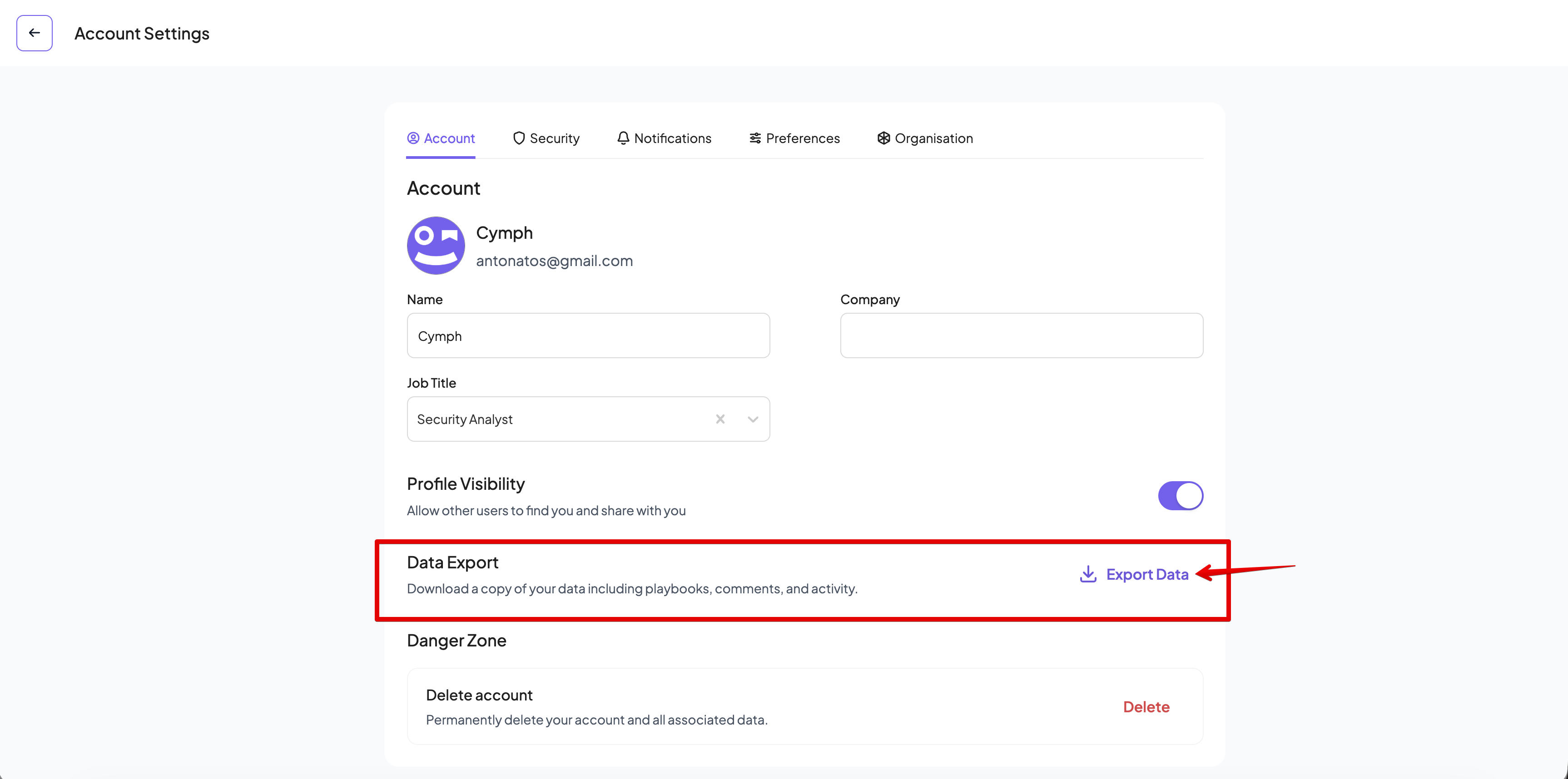

How to edit your account settings
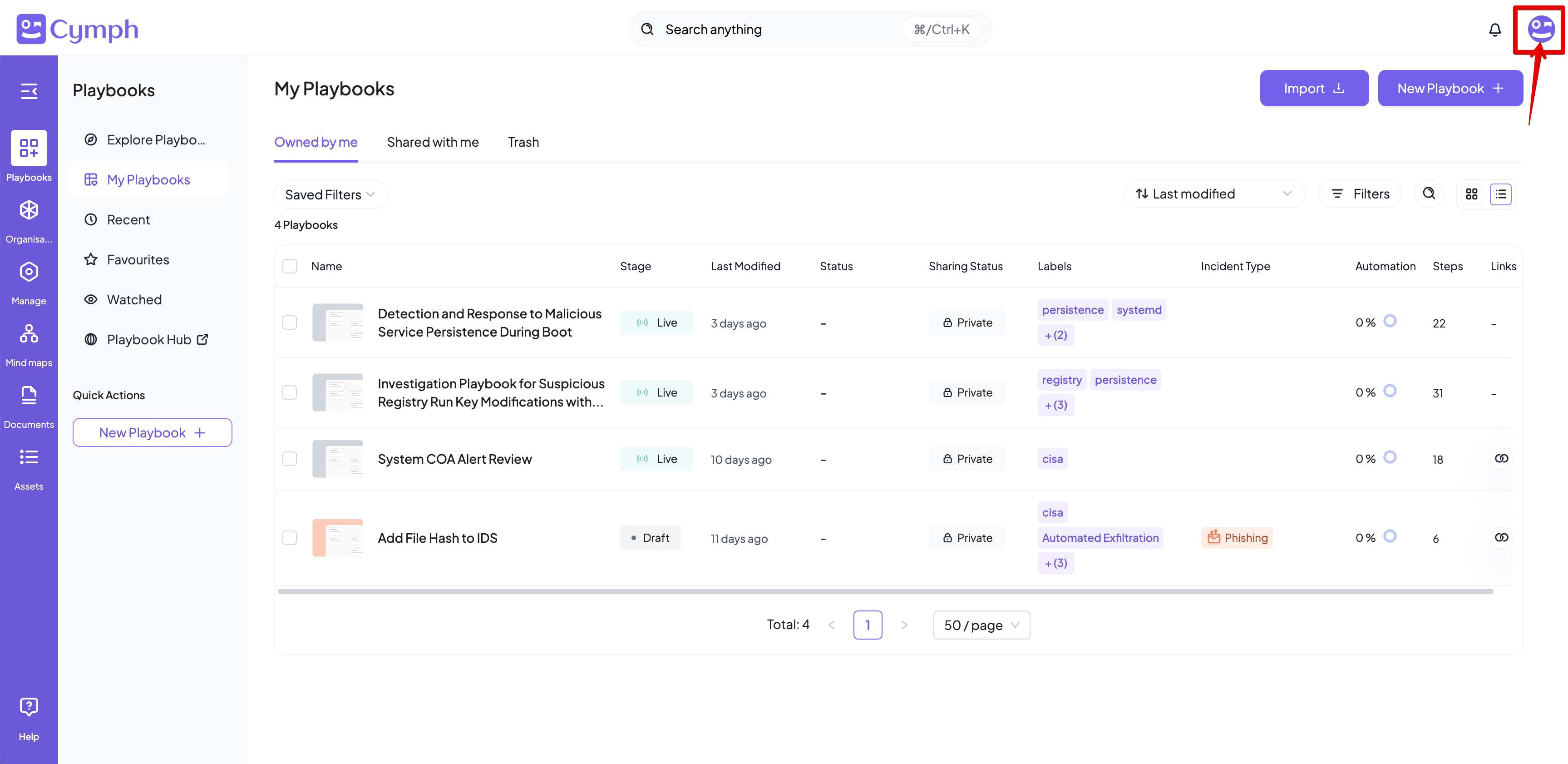
- Go to your profile menu.
- Click your profile picture on the top right corner of the dashboard.
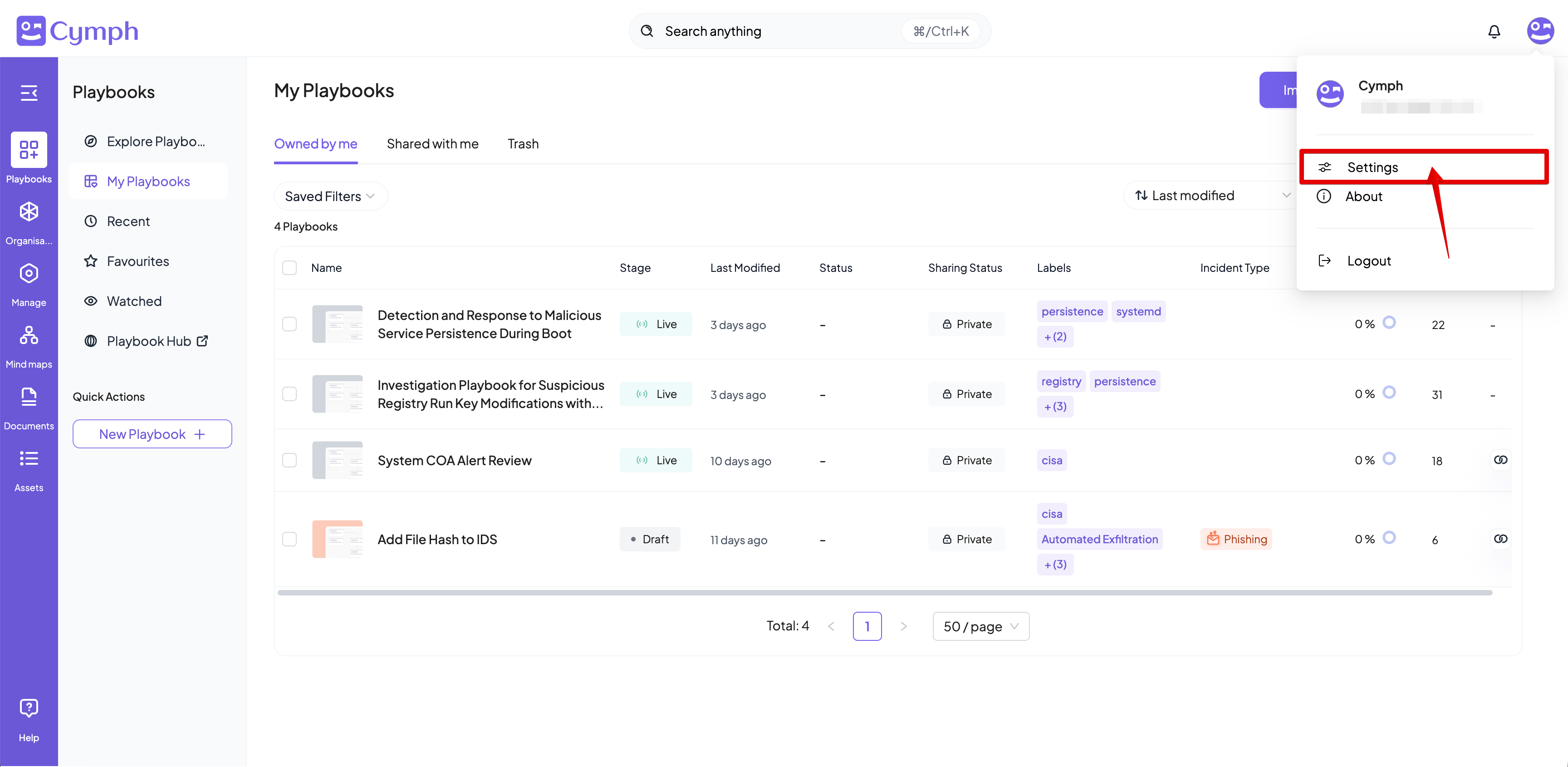
- Go to your settings.
- Click Settings.
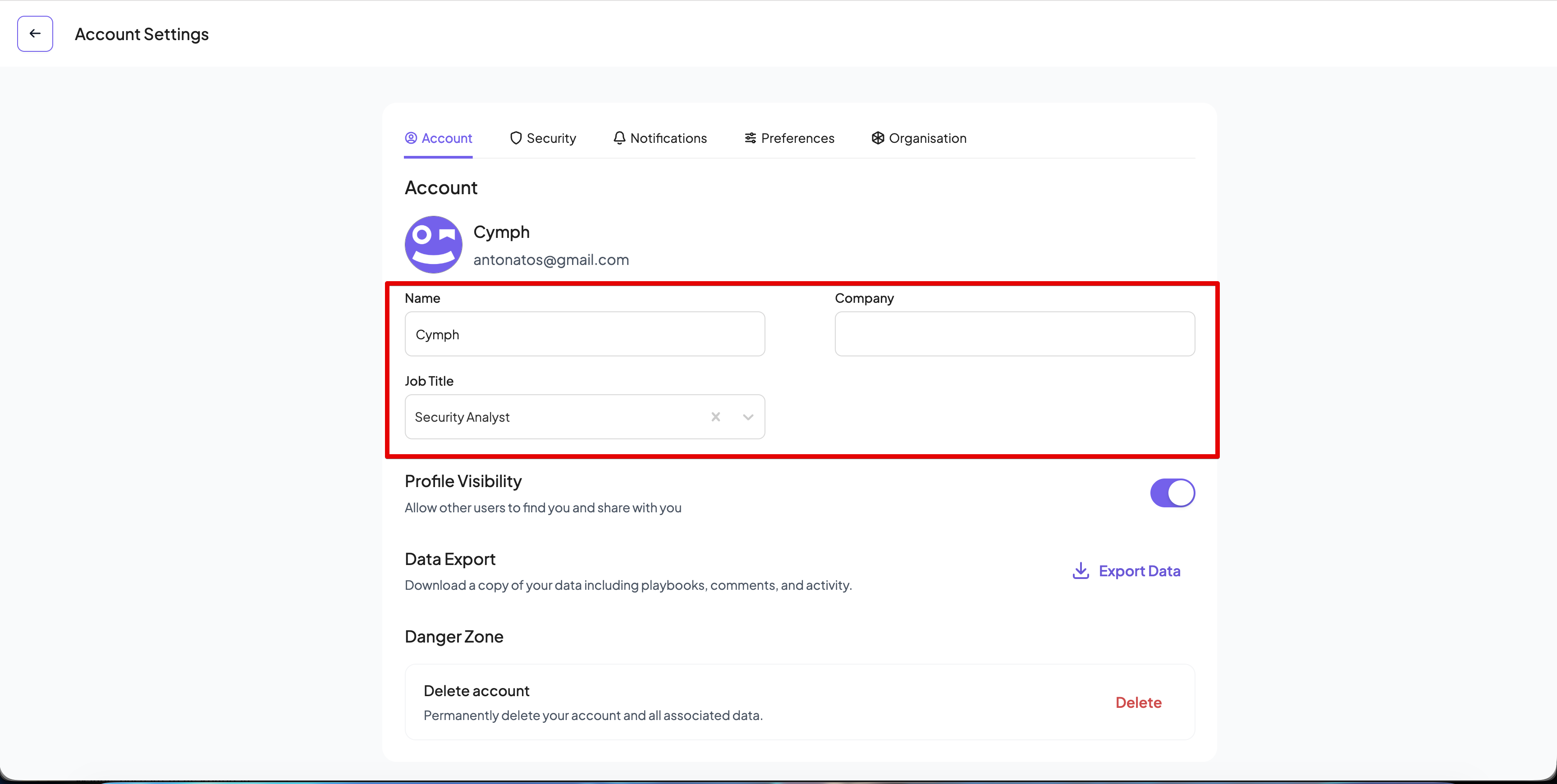
- Go to the account settings.
- Click the Account tab of the settings panel, if not selected already.
- Edit your basic account settings.
- Change your name (optional). Click on the pencil icon next to the Name field to edit your name. Press Enter to submit your changes.
- Change your job title (optional). Click on the pencil icon next to the Job Title field to edit your name. Press Enter to submit your changes.
- Change your company name. Click on the pencil icon next to the Company field to edit your name. Press Enter to submit your changes
- Update or remove your profile picture (optional). Click on your current profile picture displayed on the left of the panel. From the panel that appears you can select to either remove your profile picture or upload a new one. You can upload PNG and JPG pictures up to 2MB large. Your profile picture will be updated once the upload is successful. You will also be able to scale and rotate your picture before it is saved.
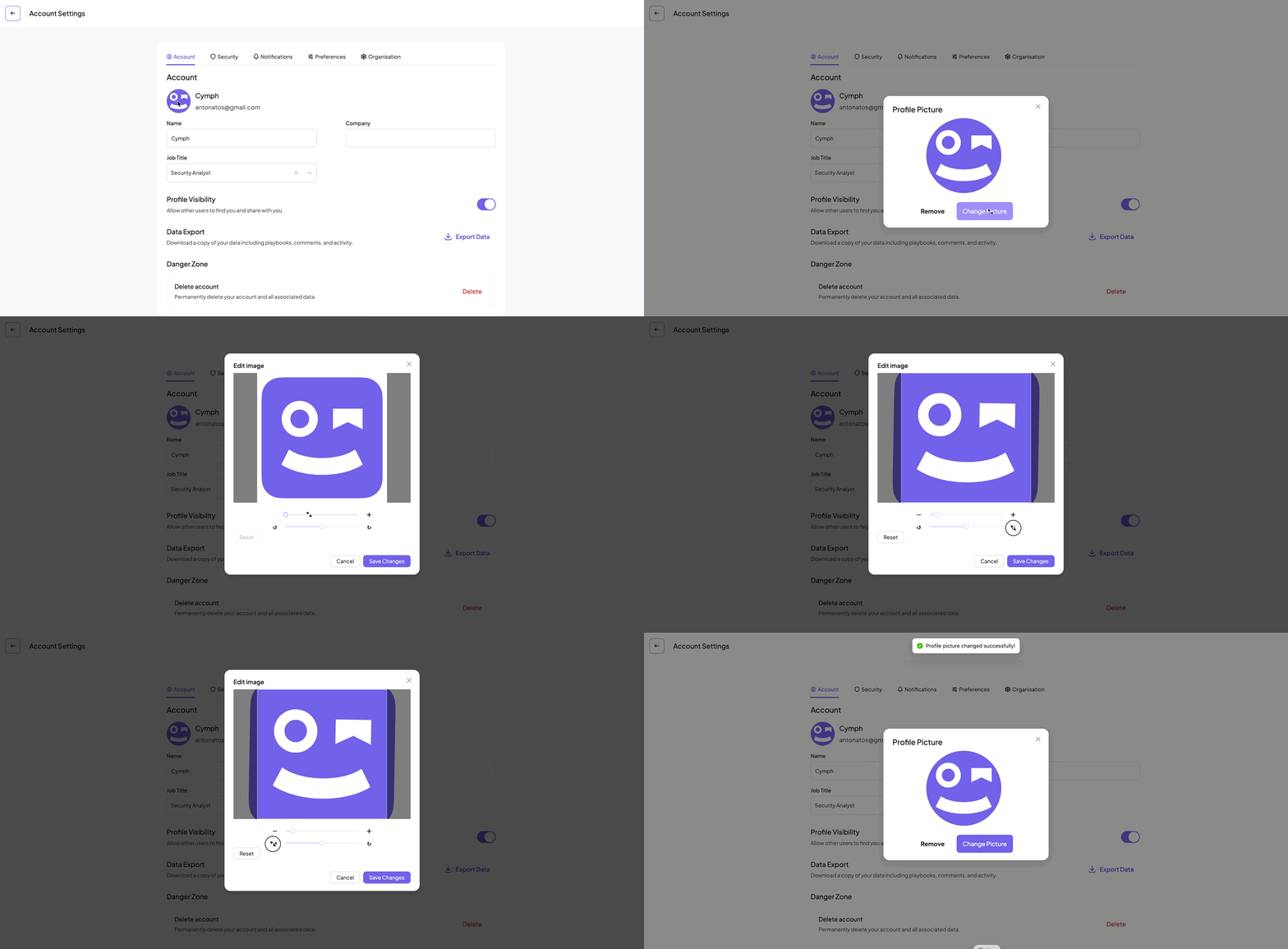
- Change your profile visibility (optional). By default, your account is discoverable by all Cymph users. You can turn this behavior off.
- Export your data. By clicking on Export Data you will receive a compressed file with all your playbooks for your records.