

- Agree who decides before the incident with contacts, decision roles, the ownership matrix and escalation ladders, approved by the person accountable for them.
- Open a war room and establish command with the right people, one incident commander and the right visibility.
- Run the response from the room by executing playbooks that stay attached to the incident.
- Take decisions on agreed authority through the approval gate and the escalation ladder.
- Keep stakeholders informed with broadcasts and a promise of when the next one comes.
- Keep the record of activity, evidence and communication, ready to export.
- Review and feed the lessons back into the playbooks.
War Rooms are a licensed feature. If the section does not appear in your navigation menu, your license does not include it. Contact us to enable it.
Why ownership and escalation come first
The questions that stall a response are the same in every organisation, but who has to answer them differs:
In both cases the answer has to exist before the incident, be approved by the person accountable for it, and still be correct on the day. That is what step 1 sets up, and it is why this use case starts well before the first alert.
1. Agree who decides before the incident
Open Workspaces, select the workspace and choose the Ownership & Escalation tab. Build the four parts in order, because each one uses the one before it:- Contacts: the people who can be named or called. Members of the workspace are added as Cymph users and follow their profile; a customer’s staff, an incident response retainer, outside counsel or a cyber insurer are added as external contacts with up to three phone numbers in the order to try them.
- Decision roles: the positions that take decisions, such as Client CISO or MSSP SOC shift lead. Each role has one holder and one deputy. The matrix points at roles, never at people, so when someone changes job you name a new holder and everything that uses the role follows.
- Ownership matrix: one row per decision that may have to be taken, such as Isolate a critical server, Shut down a production system or Notify the regulator. Each decision names the role that takes it, the roles that are informed, and whether the response team may act without approval: No, Out of hours only or Yes.
- Escalation ladders: one per severity level, saying which roles to reach, in what order, and how long to wait before moving to the next one.
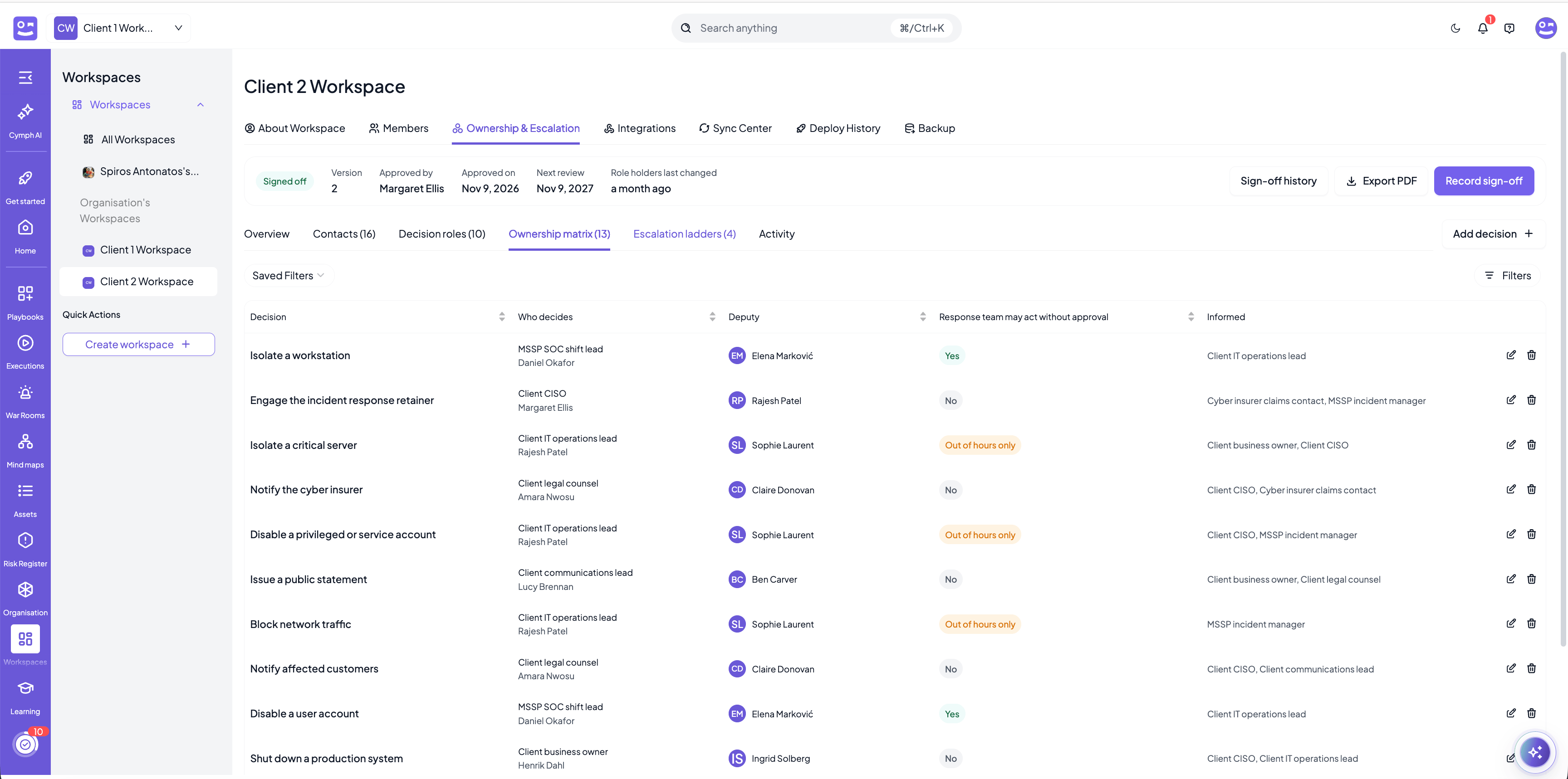
- It is approved. Export the matrix as a PDF, have it approved by the person accountable for the workspace’s incident response (in an MSSP workspace, usually the customer’s CISO), and record the sign-off with the approver, the date, the next review date and the signed copy as evidence. Executions and war rooms follow the rules of the latest sign-off. Replacing the holder of a role or correcting a phone number never needs a new one. See Sign-off.
- It is checked continuously. Risk signals flag a decision nobody owns, a role without a deputy, a contact nobody can call, an external contact whose details have not been verified for 90 days, a ladder that stops after one step and rules that changed after they were approved. They appear on the tab’s Overview and in the Readiness Overview on the home page. See Risk signals.
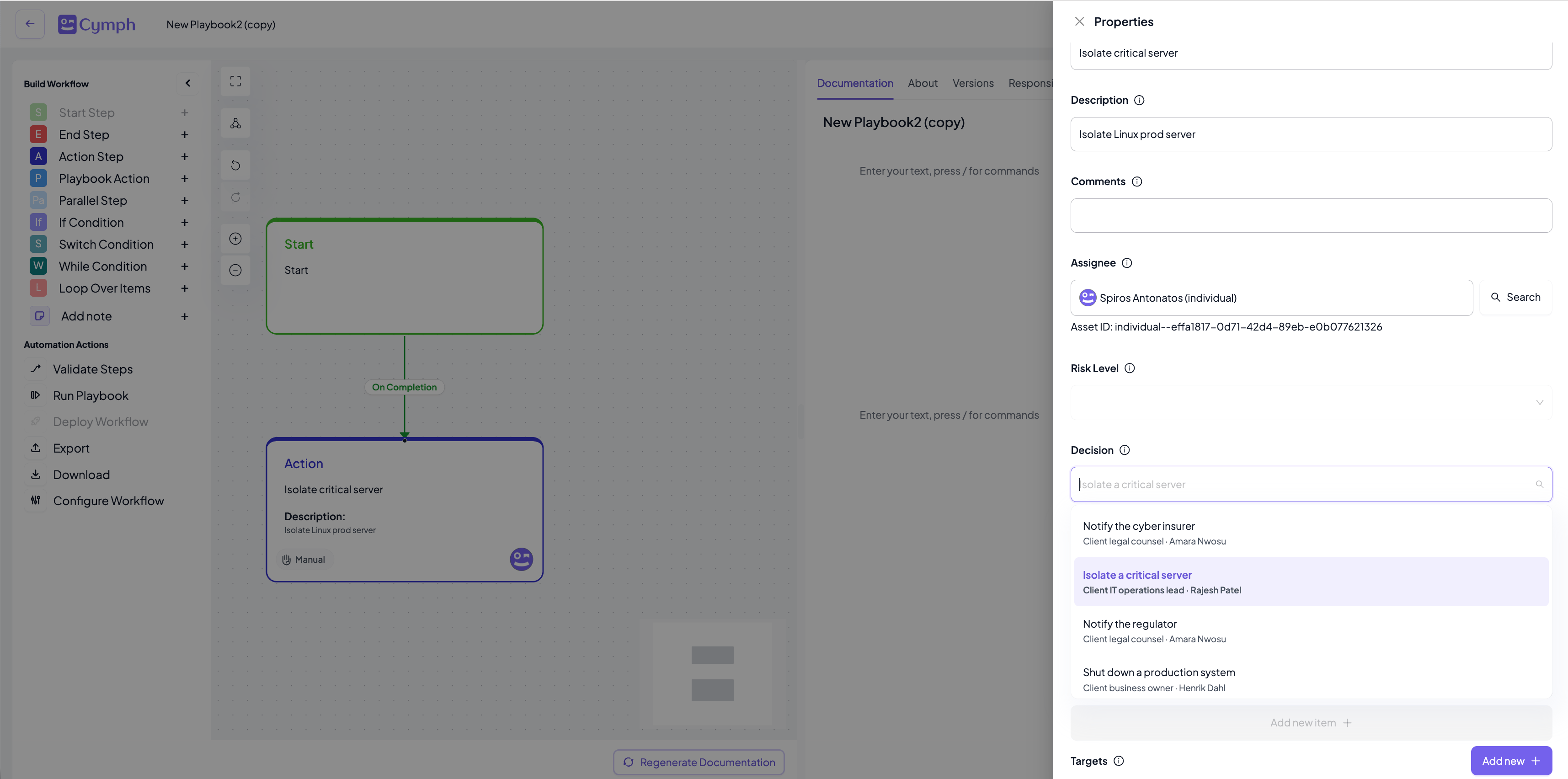
- It is on the playbooks. In the playbook editor, set the Decision field on the steps that call for one, for example Isolate a critical server on the step that takes a server off the network. This is what brings the agreed rule in front of the responder in step 4. See Decisions on playbook steps.
2. Open a war room and establish command
When the incident is declared, press Start War Room. Choose Operational as the purpose: it is set once, and every execution started from the room inherits it. Then give the room what it needs to be useful from the first minute:- Severity, incident type, affected assets from the workspace inventory and affected services.
- Participants: members of the workspace and teams from your organisation.
- One Incident Commander. Every room has exactly one, and it cannot be started without one. Only the commander starts the room, moves it through its phases, sends broadcasts, archives it and gives roles to the others. Scribe, Comms Lead and Technical Responder say who does what. Command changes hands only by naming a successor, so a room is never without it.
- A time target for the incident as a whole, measured from the moment the room is started until it is resolved.
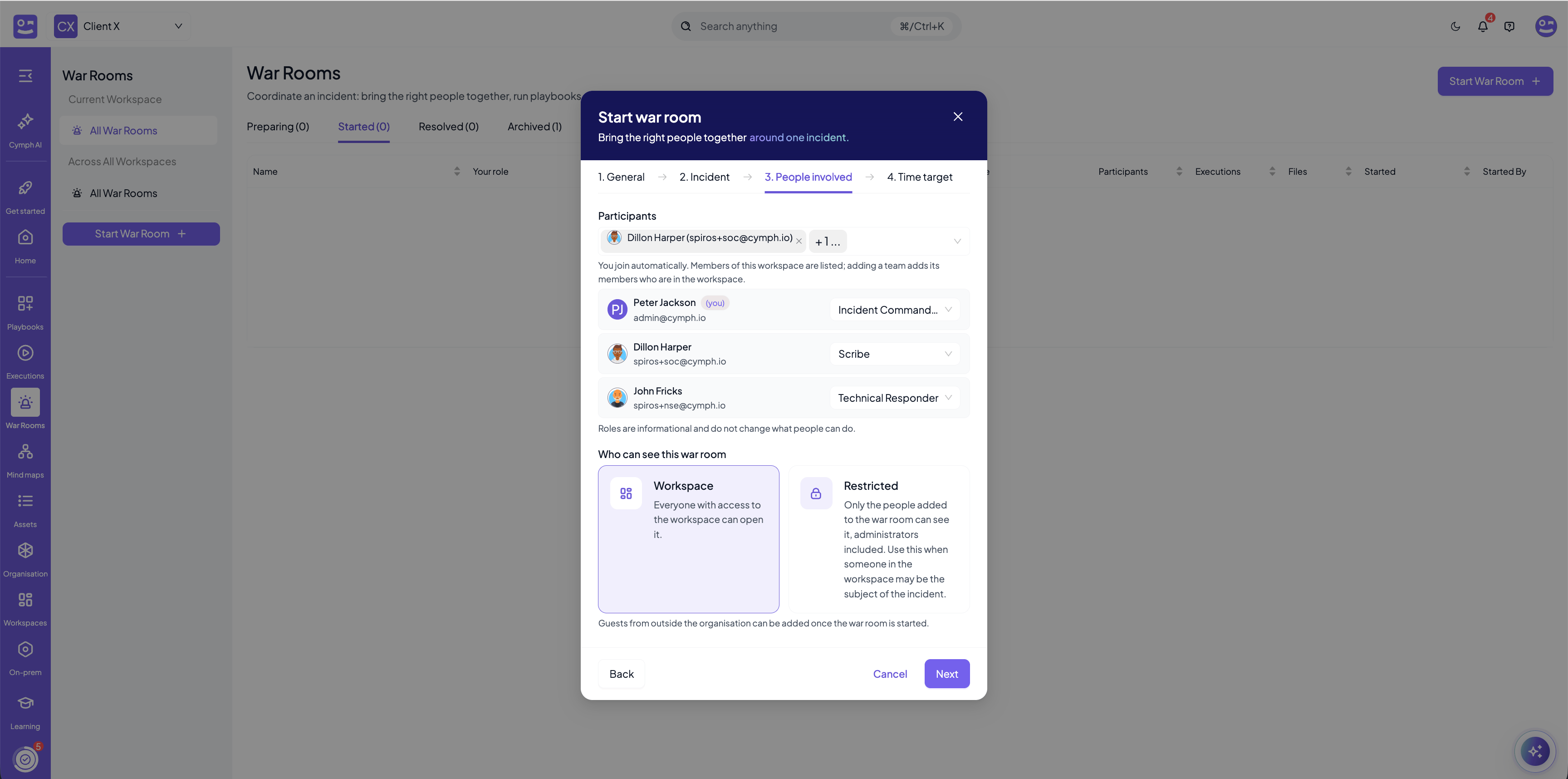
- Visibility. A Workspace room can be opened by everyone with access to the workspace. A Restricted room is visible only to the people added to it, administrators included. Use it when someone in the workspace may be the subject of the incident. The executions started from the room follow its visibility.
- Guests. People from outside the workspace, such as the incident response retainer, outside counsel, the cyber insurer or a customer’s representative, are added as guests of this room only, until a date you set. They read the room, upload files and log activity, and never see files labelled TLP:AMBER+STRICT or TLP:RED. See Guests.
3. Run the response from the room
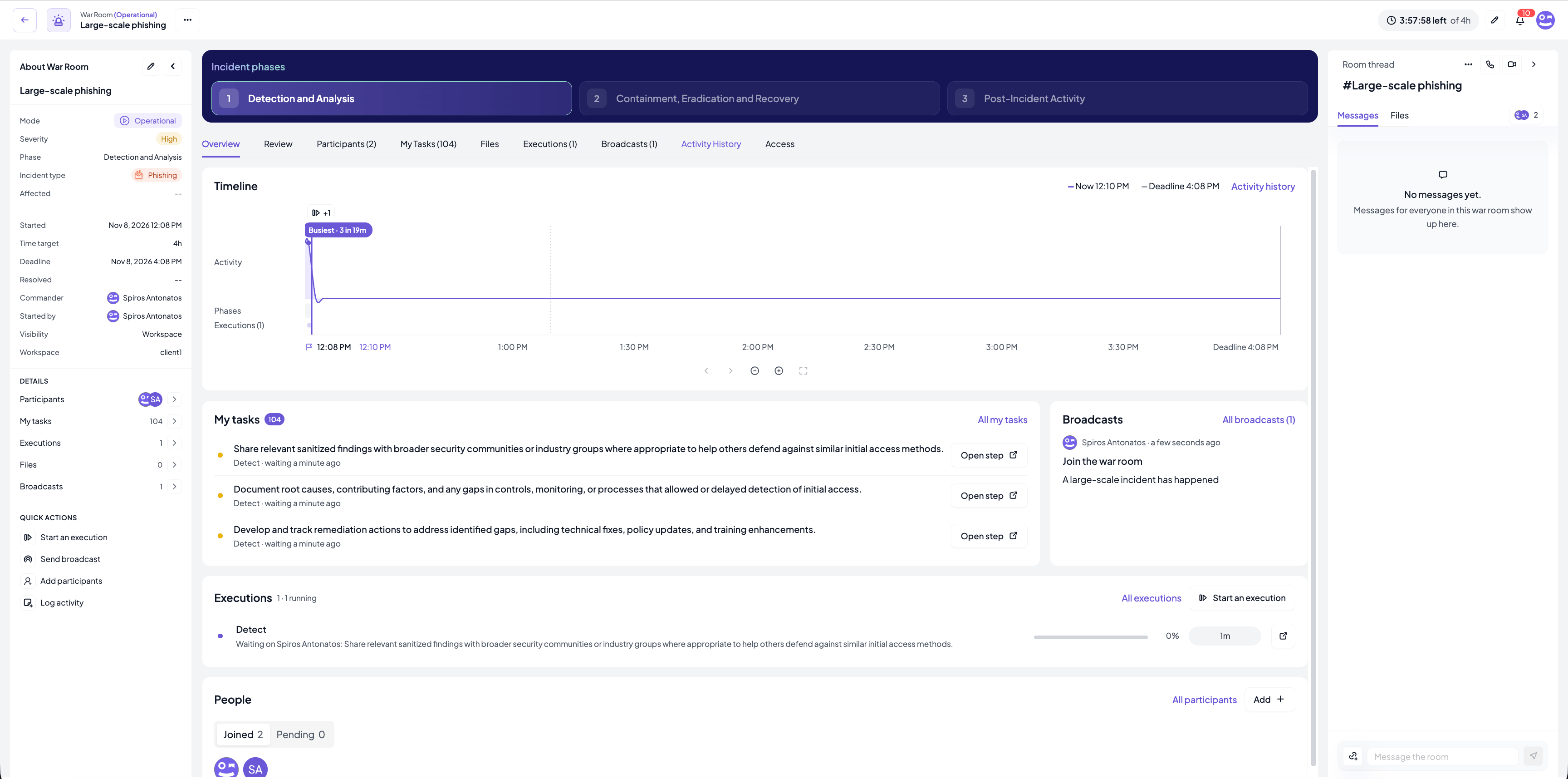
Press Start an execution and pick the playbook that covers the incident. The execution is linked to the room: it runs as Operational, follows the room’s visibility, appears on the room’s timeline, and its outcome lands in the Activity History. With Add assignees to the war room on, everyone who gets a step joins the room automatically, so the people doing the work and the people coordinating it are in the same place.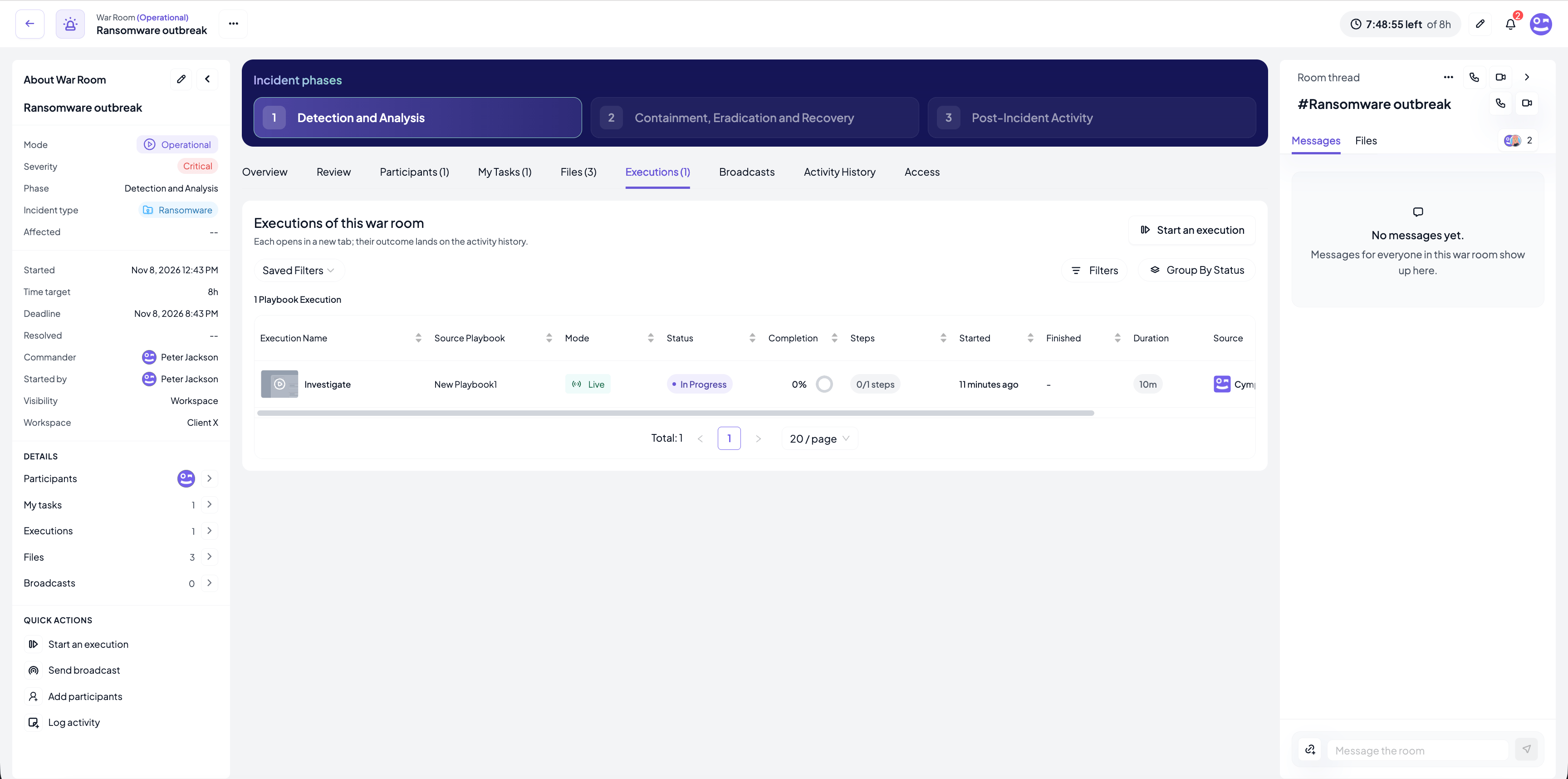
- What is everyone working on? The Executions card on the Overview shows each run with its status, who it is waiting on and for which step, its completion and its elapsed time against its own target.
- What is mine? Each participant’s My Tasks tab lists the steps assigned to them across every execution of the room.
- Are we on time? The header shows the time left against the incident target, and the timeline shows the phases, the executions and their deadlines on one axis.
- What happened outside Cymph? Log activity records a host isolated by hand, a decision taken on a call or a finding from forensics, with a category and the time it actually happened.
4. Take decisions on agreed authority
This is where the preparation of step 1 pays off. When a responder reaches a step that calls for a decision, Cymph applies the rule of the signed-off matrix:- If the decision is pre-authorised (Yes), the step goes ahead and the execution records that it was pre-authorised. Nobody has to be found.
- Otherwise the Approval required dialog opens. It names the decision, the role that decides, and the holder and deputy with their phone numbers, so the responder can call them straight away.
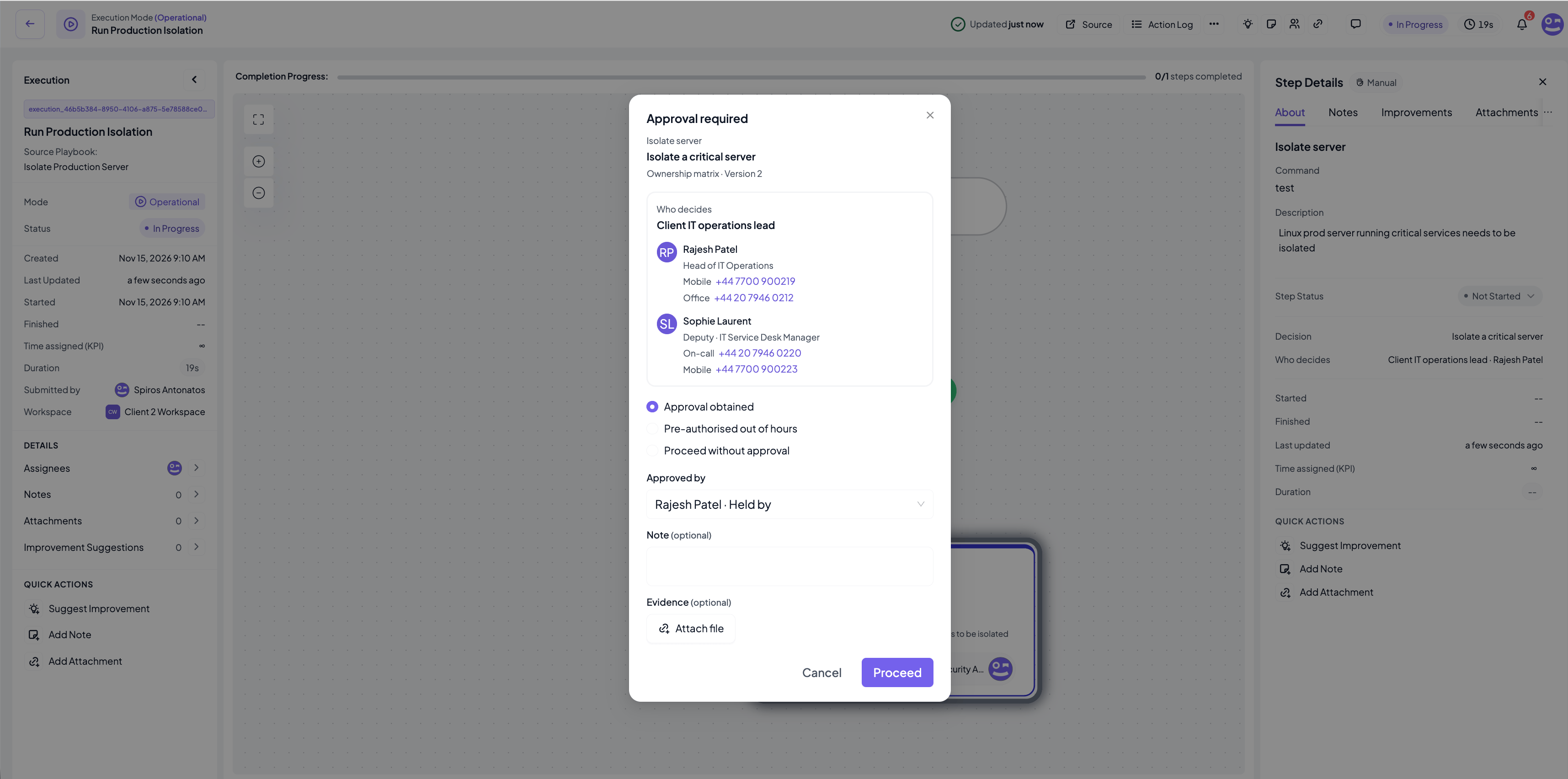
The gate is a soft gate. It never blocks the response: whoever may start the step may pass it. What it guarantees is that the authority each step went ahead on is on record, in the execution log, on the war room timeline and in the reports. See The approval gate in executions.
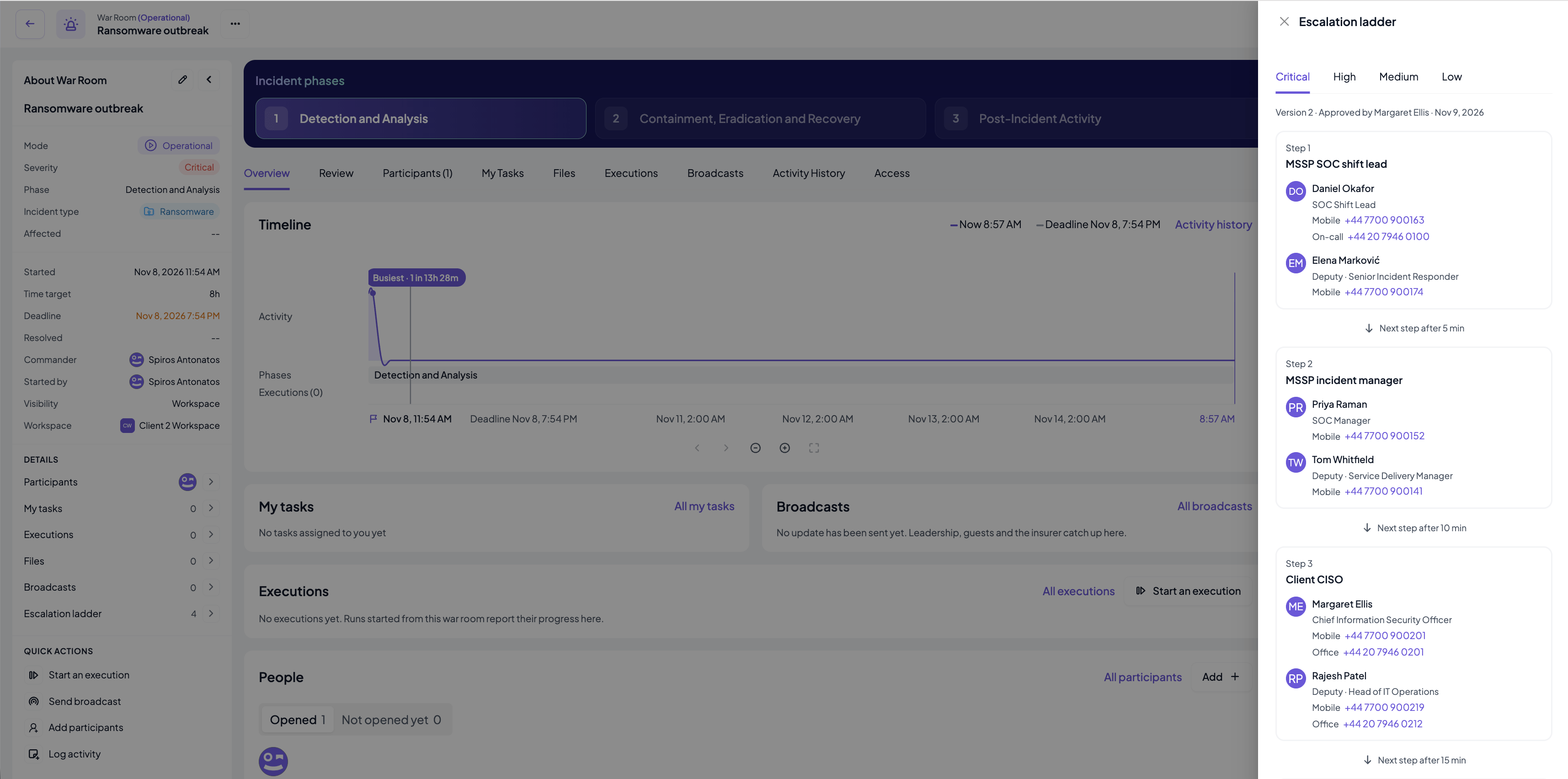
Escalation ladders are a reference for the people handling the incident. Cymph does not page anyone or start a timer. Guests of a war room do not see the ladder.
5. Keep stakeholders informed
People outside the room need to know what is going on without joining it. The Incident Commander sends a broadcast from the room: a subject and a message, through in-app notifications and, when your organisation has set them up, email and SMS. Recipients can be the participants, the guests, people and teams in your organisation who are not in the room, and external email addresses or phone numbers such as leadership, a customer’s management, the insurer or a regulator.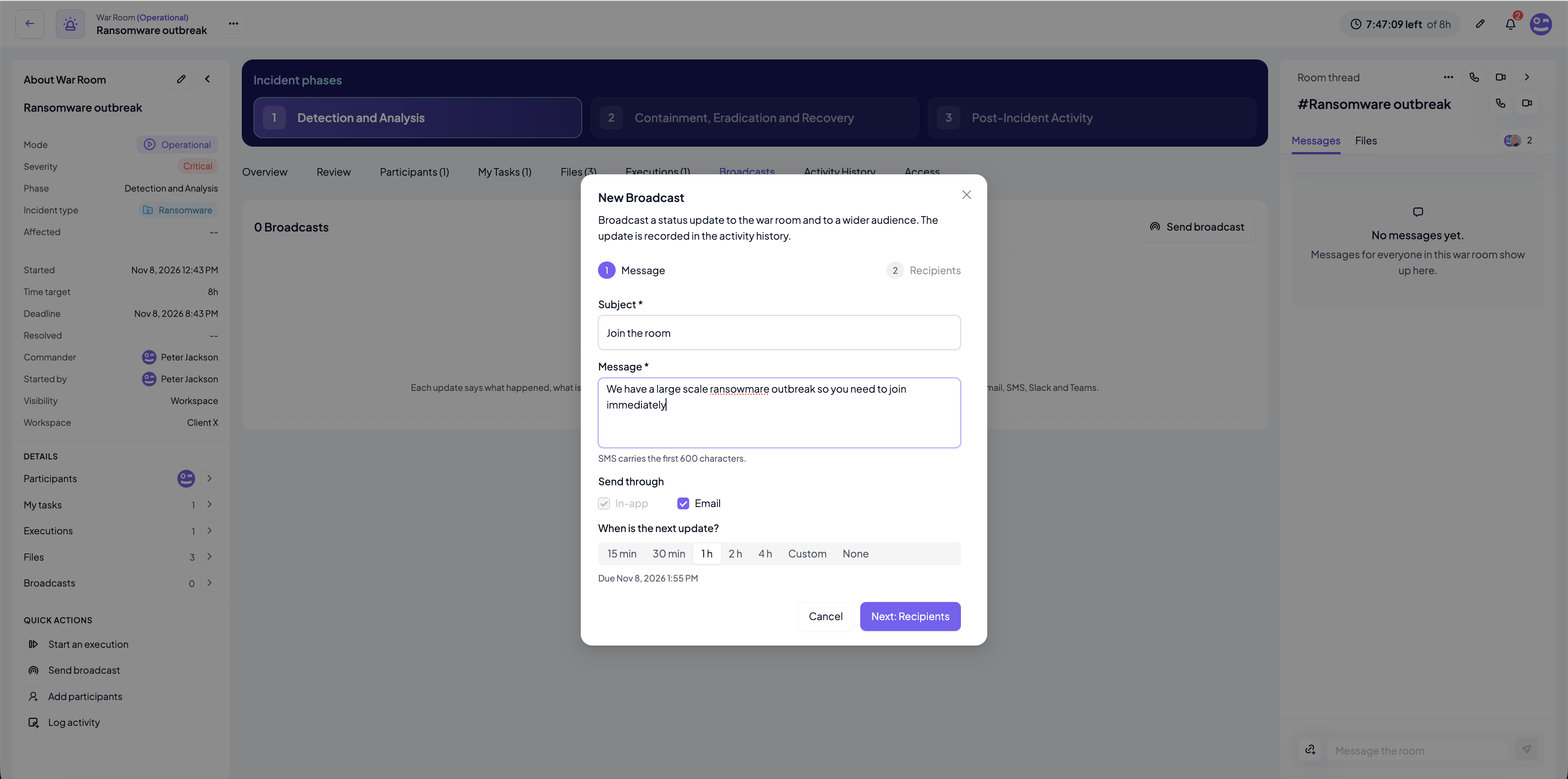
6. Keep the record
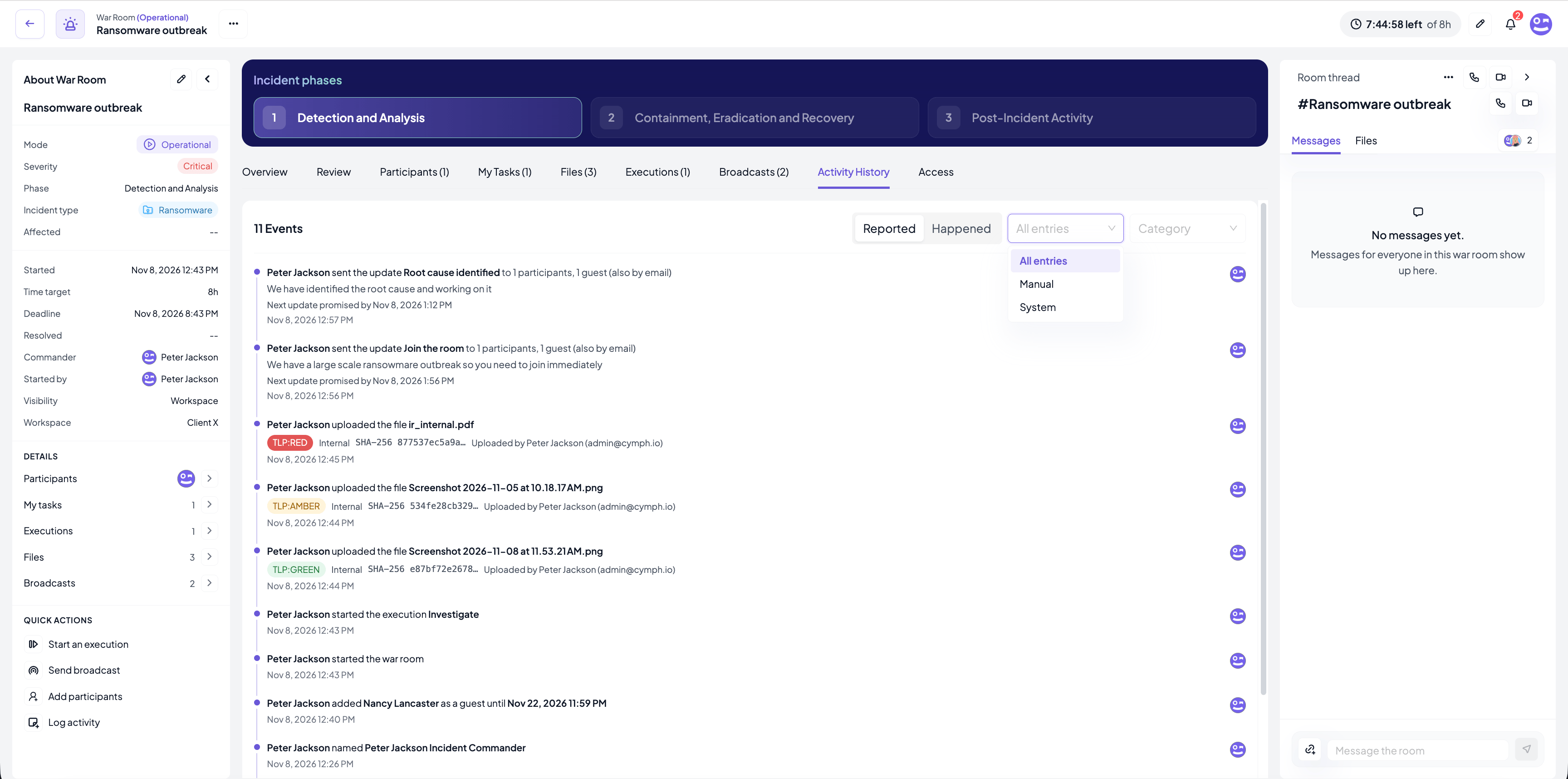
Nobody has to write the timeline afterwards, because the room writes it while the incident happens:- Activity History records who did what and when: the room being started and moved between phases, people added and named to roles, executions and their outcomes, step approvals, broadcasts and the entries people logged by hand. Entries are never edited or deleted; a correction is added as an amendment with a reason, and the original stays on the record.
- Files are the evidence locker. Every file gets a SHA-256 fingerprint at upload, a TLP level and a classification, and every upload, download and deletion is recorded as its chain of custody.
- The matrix in force is recorded when the room is started, so it is clear afterwards which version of the rules the team was working under.
7. Review and feed the lessons back
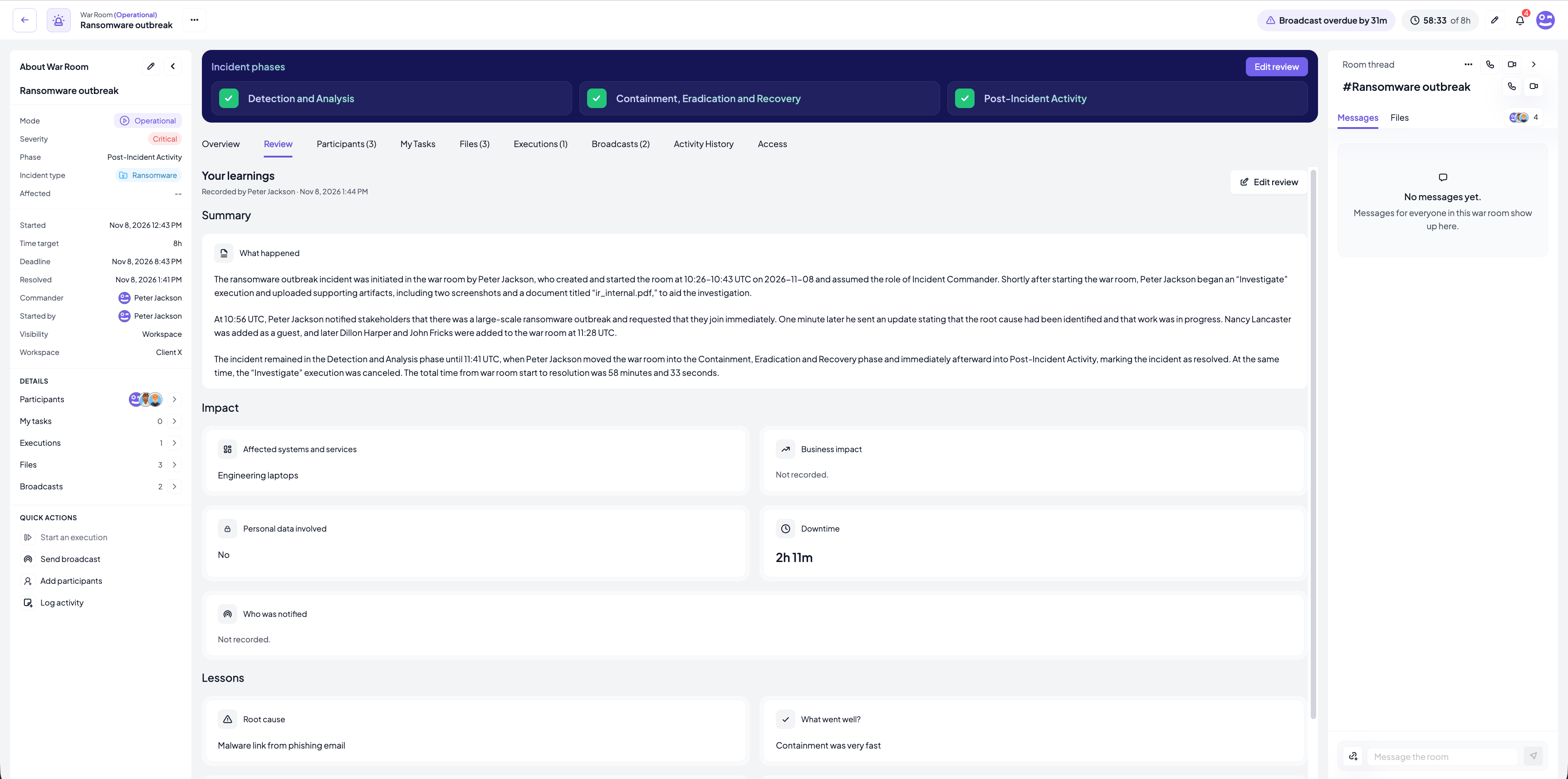
When the response is done and no execution is still running, the Incident Commander moves the room into Post-Incident Activity. This marks the incident as resolved, stops the incident clock and opens the post-incident review:- Summary: what happened, what was affected, what the team did and how it was resolved. Draft with Cymph AI writes a first version from the room’s activity history.
- Impact: affected systems and services, whether personal data was involved, business impact, downtime, and who was notified and when. This is the material for a regulatory final report.
- Lessons: root cause, what went well, what could be improved and lessons learned.
- Turn the review into playbook changes. Ask Cymph AI about the room, for example “What should we learn from the ransomware war room?”. The assistant reads the review together with the improvements recorded on the room’s executions and proposes updates to the playbooks that were run, or a new playbook when none covered the incident. Every proposal is reviewed before it is applied. See Turn operational context into better response.
- Fix the matrix. Every step that went ahead with Proceed without approval, and every escalation that reached the wrong person, is a finding about the rules. Adjust the pre-authorisation, the role holders or the ladder, and have the changes signed off.
- Archive the room. An archived room is read-only and keeps the version of the matrix that was in force. It can still be exported, and reopened if the incident comes back.
- Rehearse it. Start the next room with the purpose Exercising & Testing. It behaves exactly like an operational room, so the team trains on the real tool, and everything it sends out is marked as an exercise. See Test and train your response and Exercise rooms.