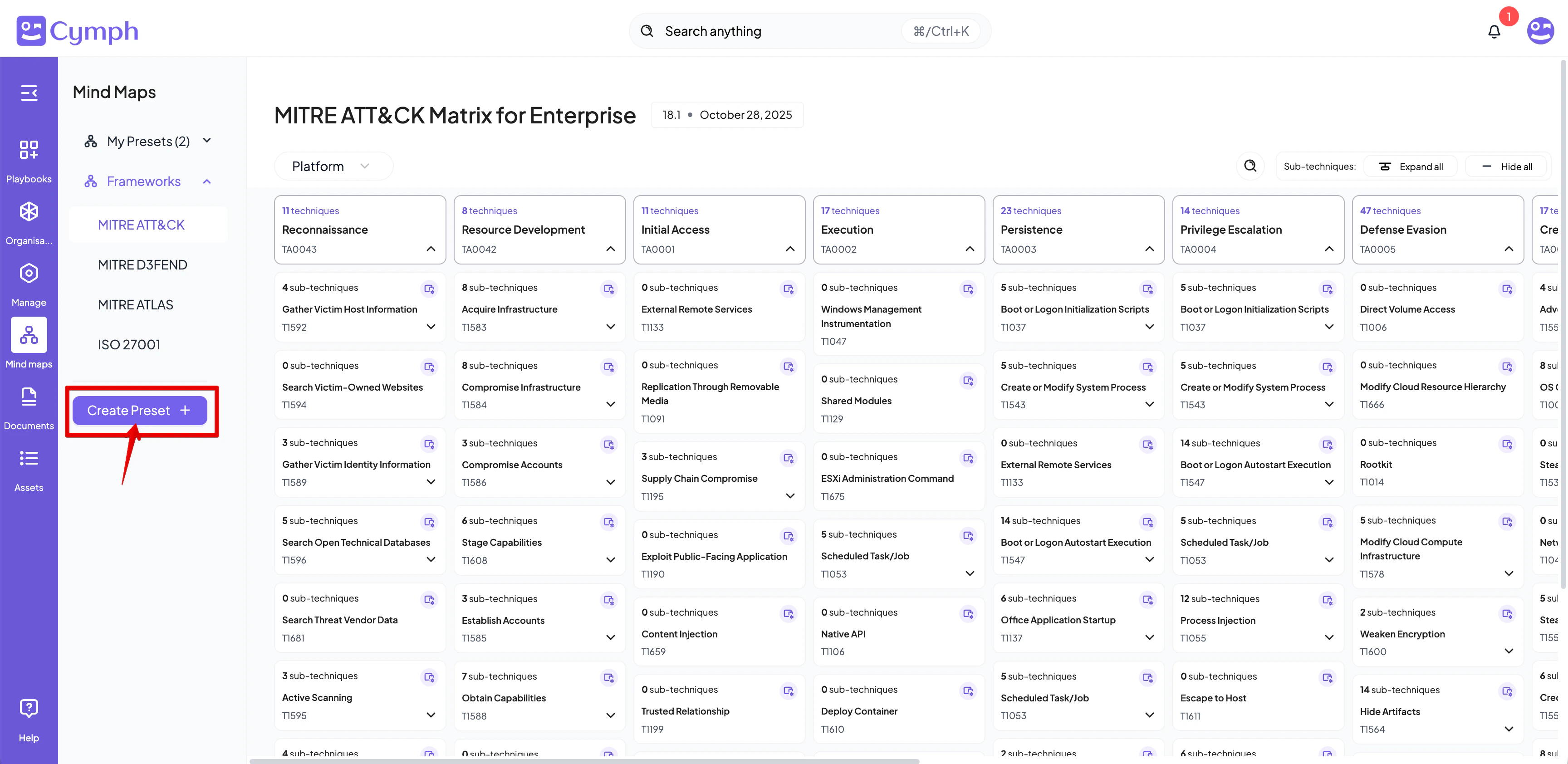
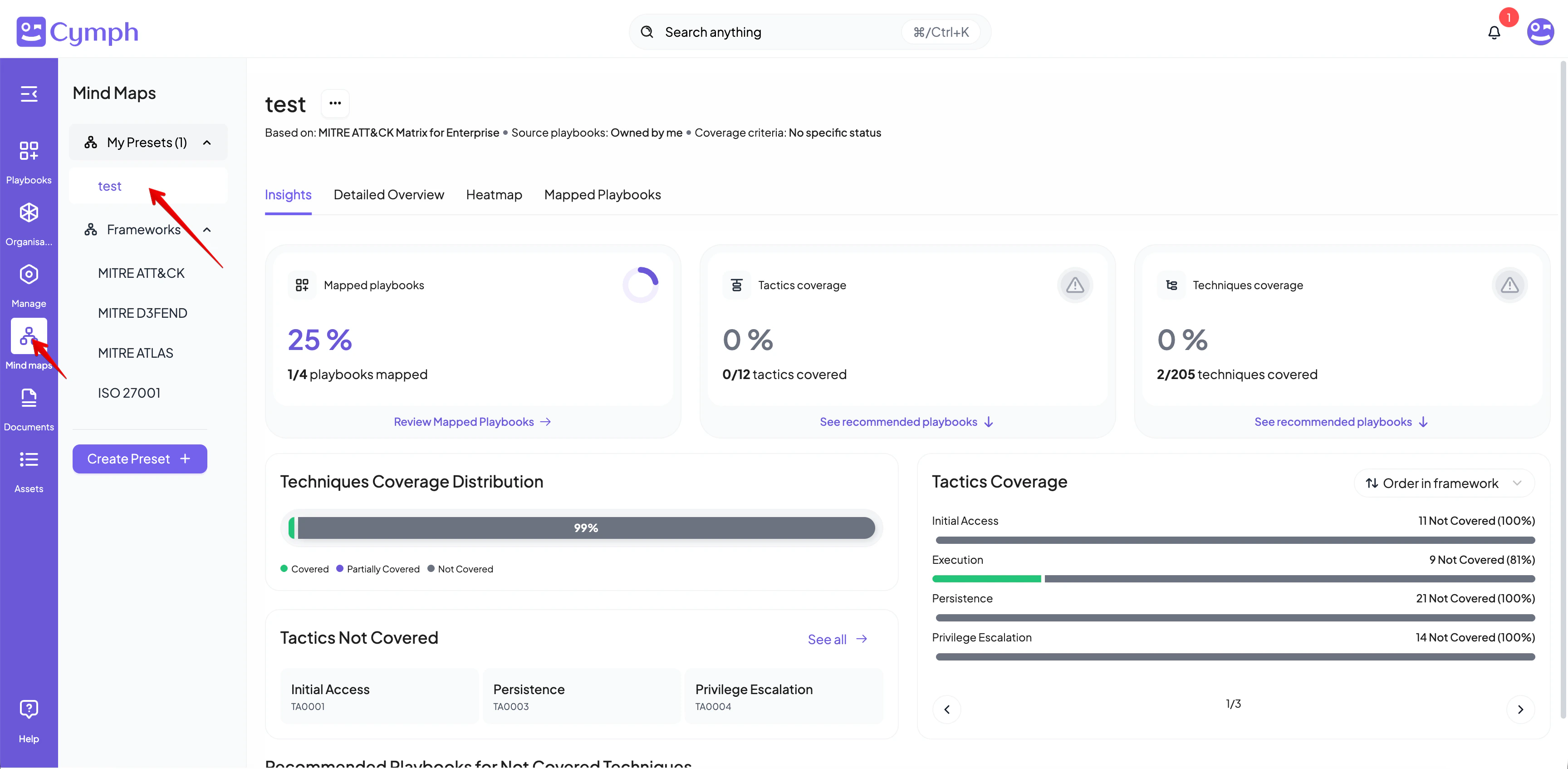
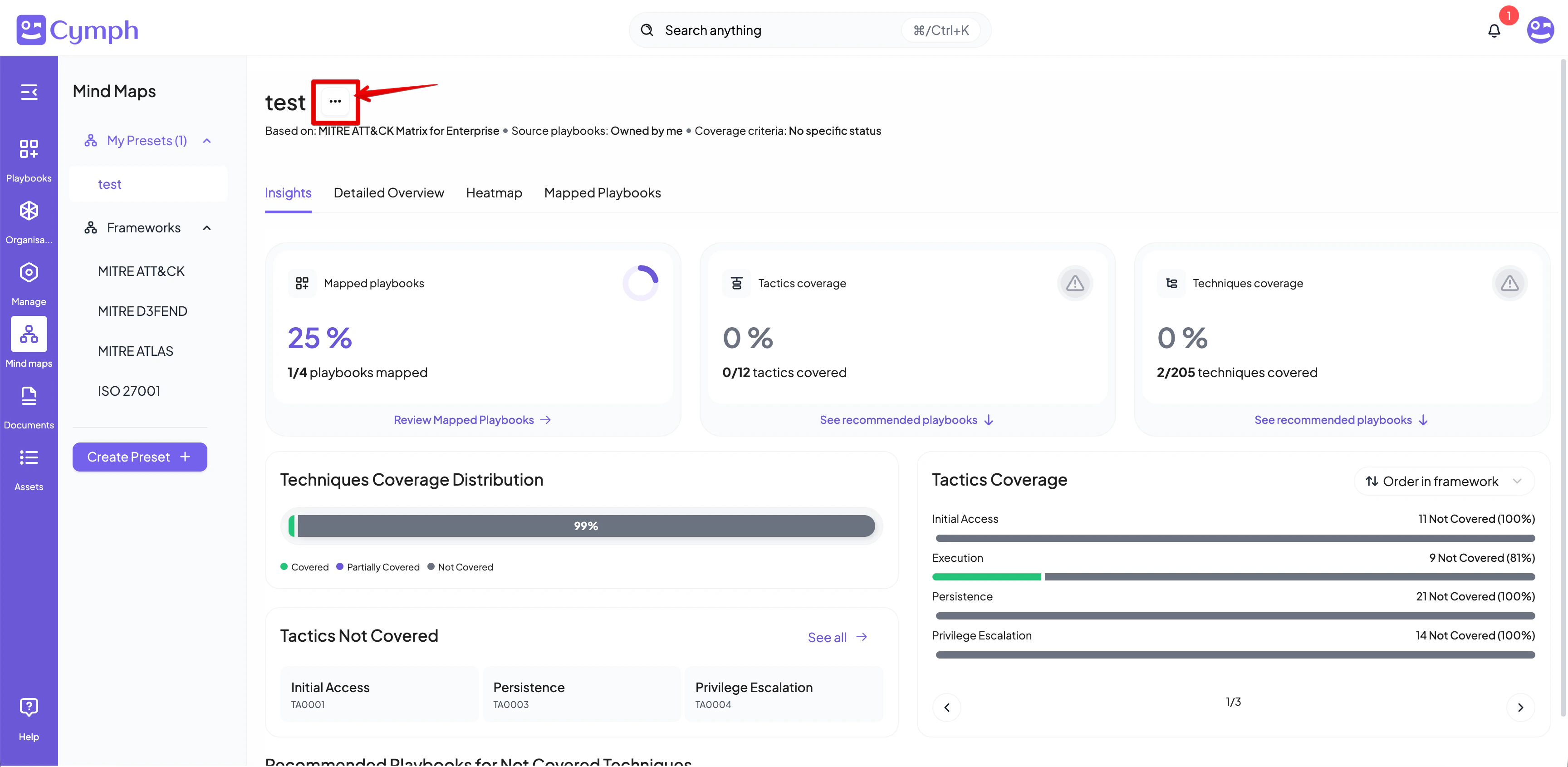
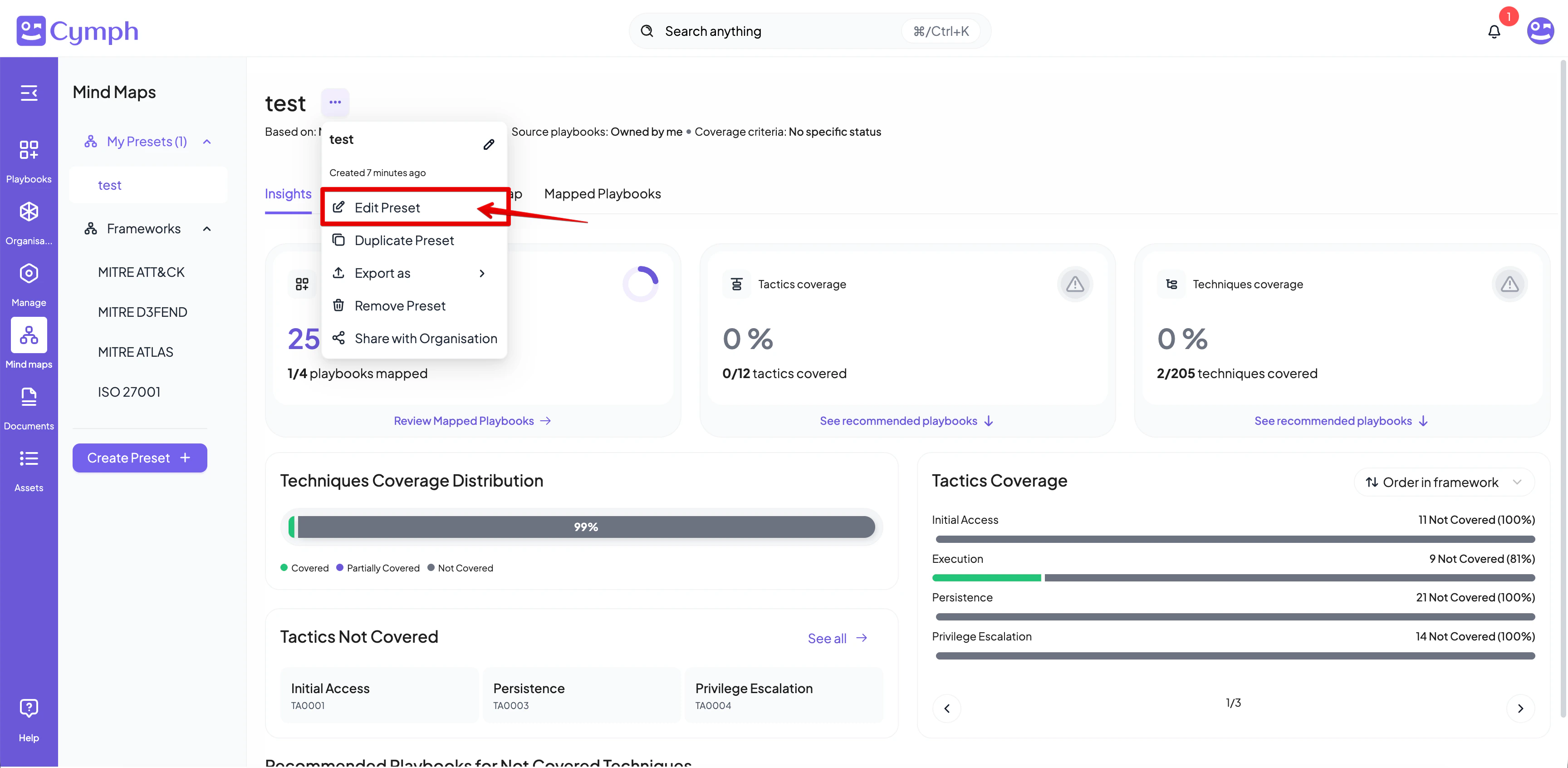
Presets allow you to customise frameworks to your organisational environment and requirements. In this guide, we are going to show you how to create and manage a preset based on the MITRE ATT&CK for Enterprise framework. A similar process is followed for other frameworks.
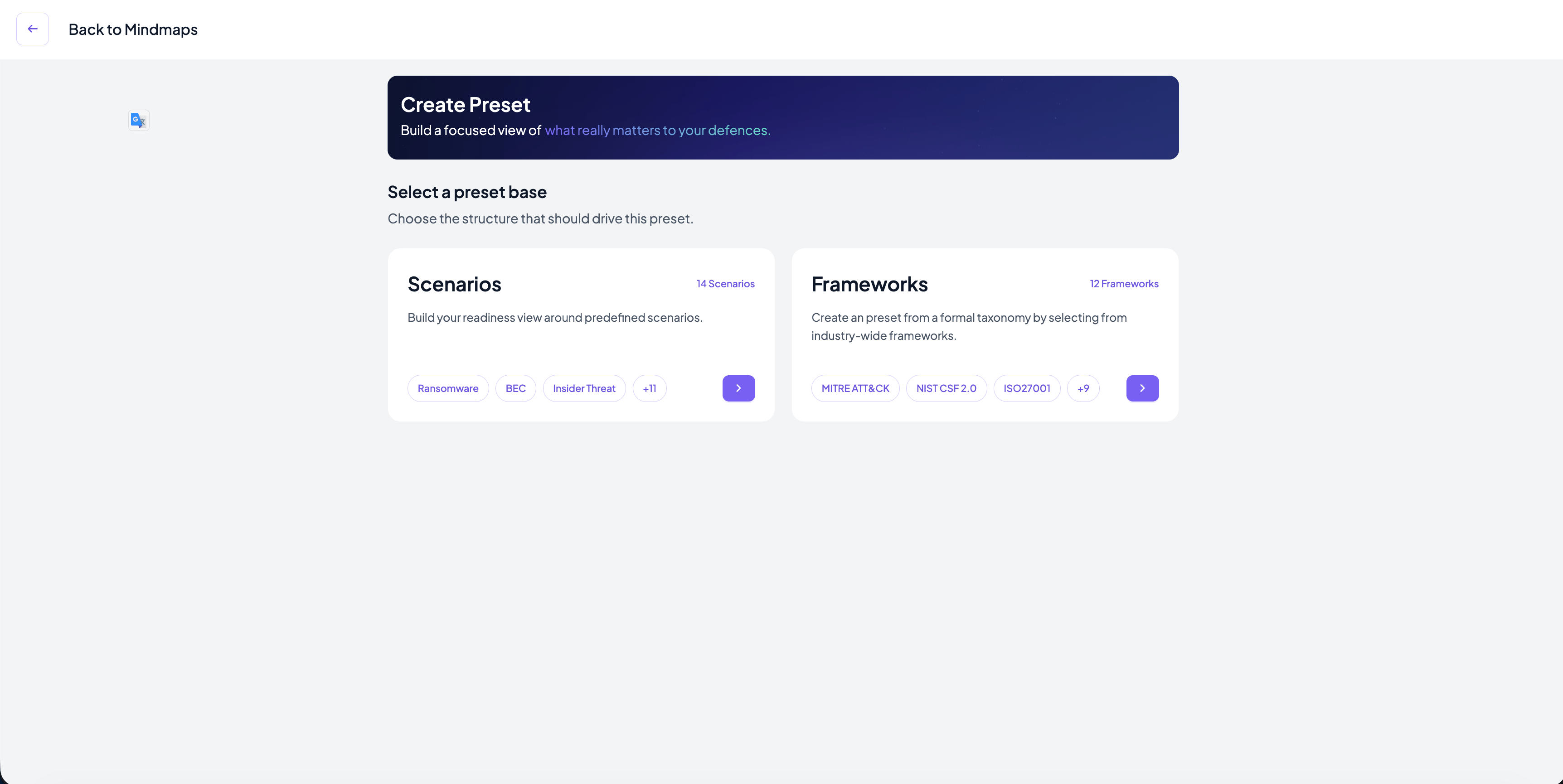
You can choose to start from either scenarios (for example Phishing, Ransomware etc). or from specific frameworks. If you select to start from scenarios, you will go immediately to step 2.
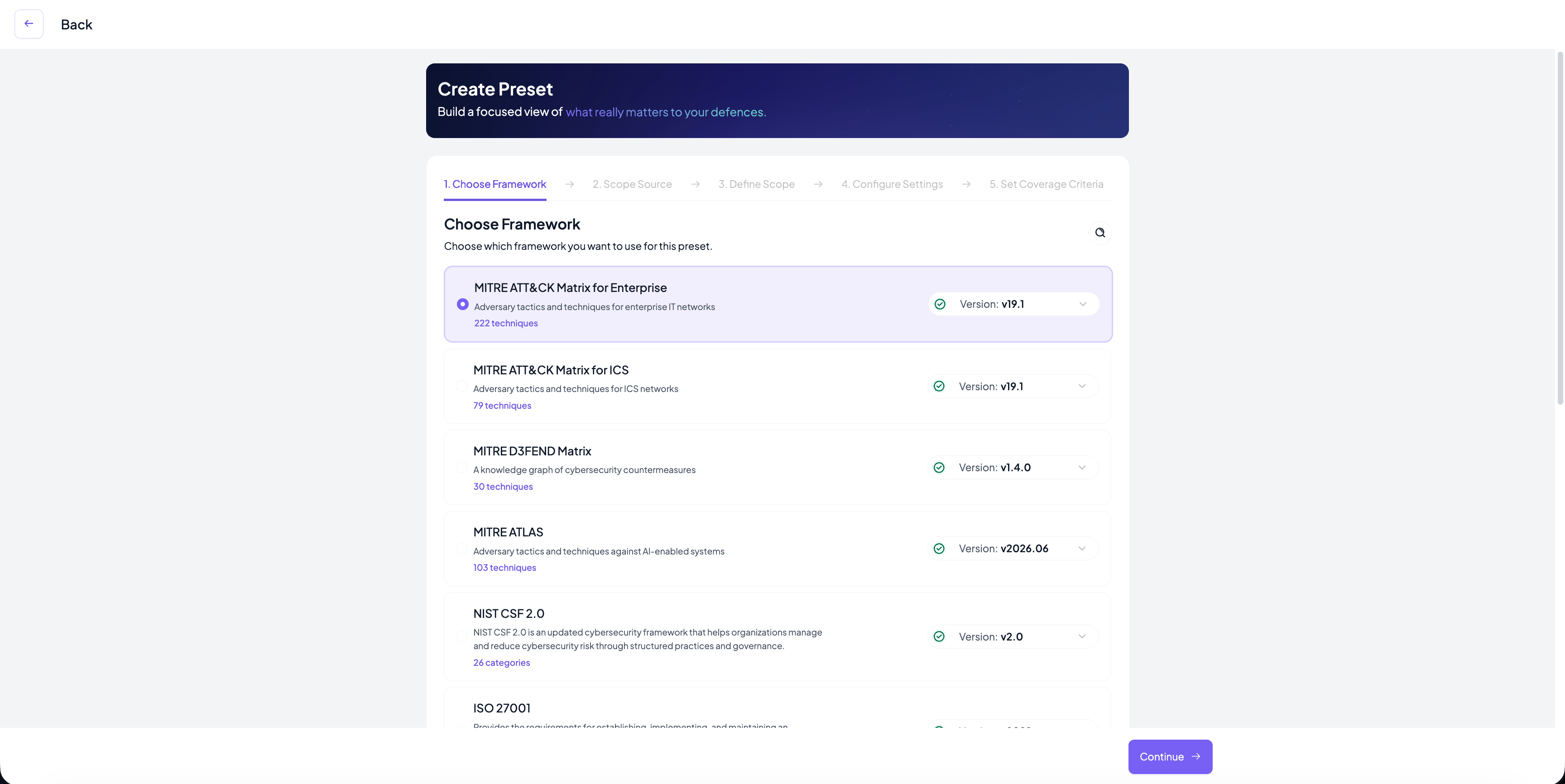
If your preset base is a specific framework, the next step is to select the framework of interest. Currently, we support MITRE ATT&CK for Enterprise, MITRE D3FEND, MITRE ATLAS, NIST CSF 2.0, ISO27001, ISO27002:2022, NIS2, GDPR and DORA. Frameworks are versioned so at this step you are also able to select the desired version.
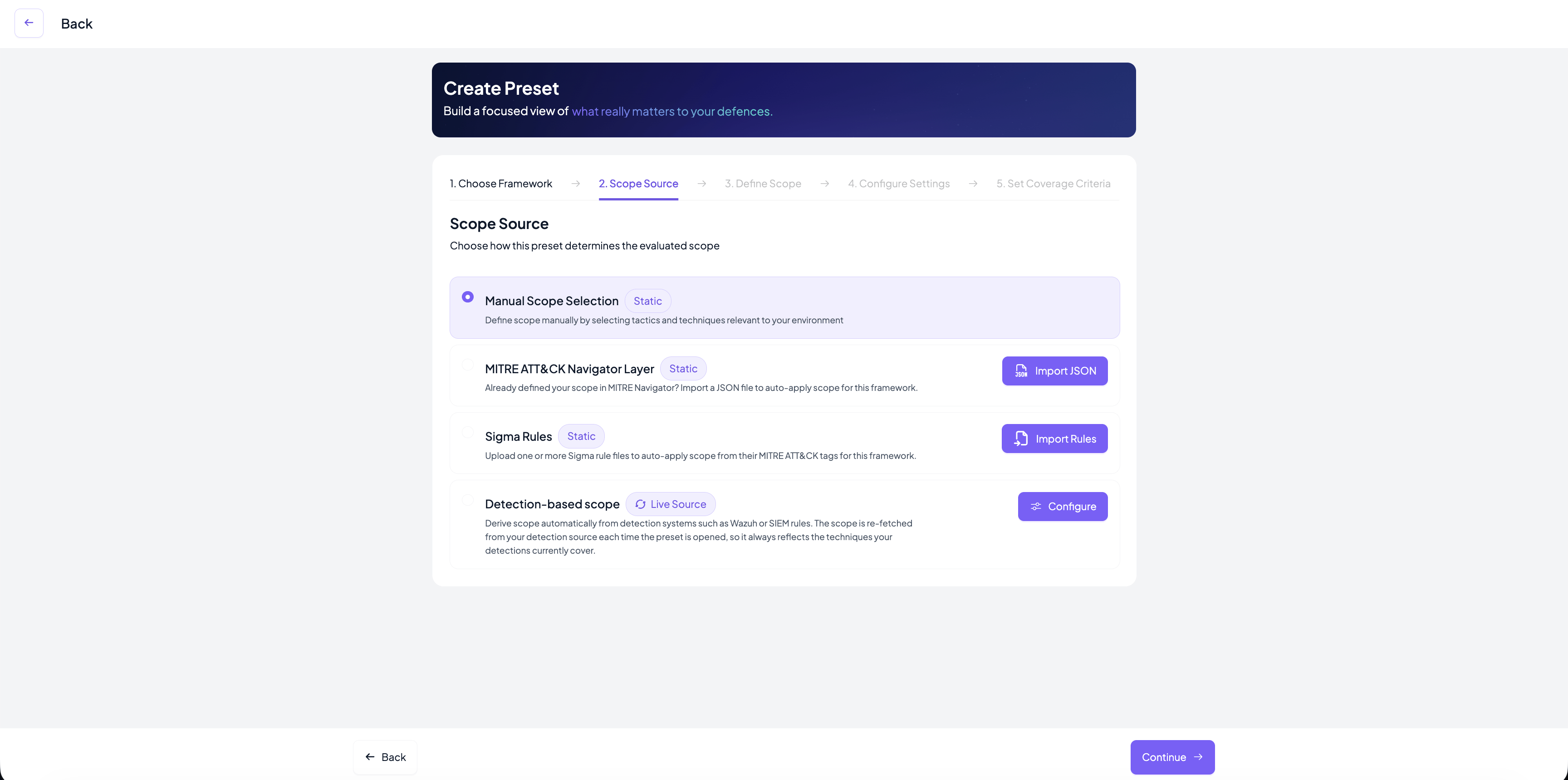
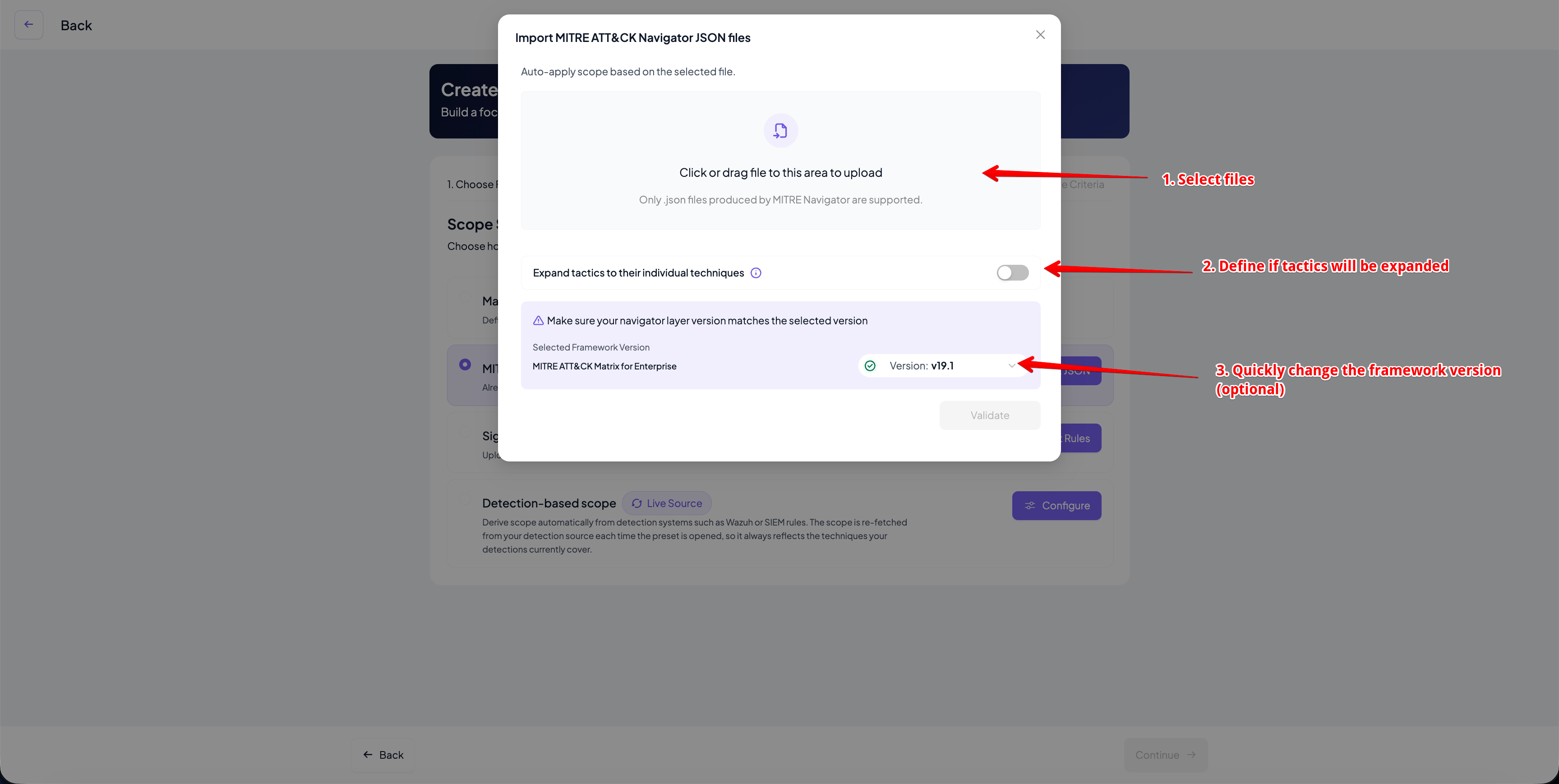
Import from a MITRE ATT&CK Navigator layer (only when MITRE ATT&CK for Enterprise or MITRE ATT&CK for ICS framework is selected at step 1)
Import from SIGMA rules (only when MITRE ATT&CK framework for Enterprise is selected at step 1)
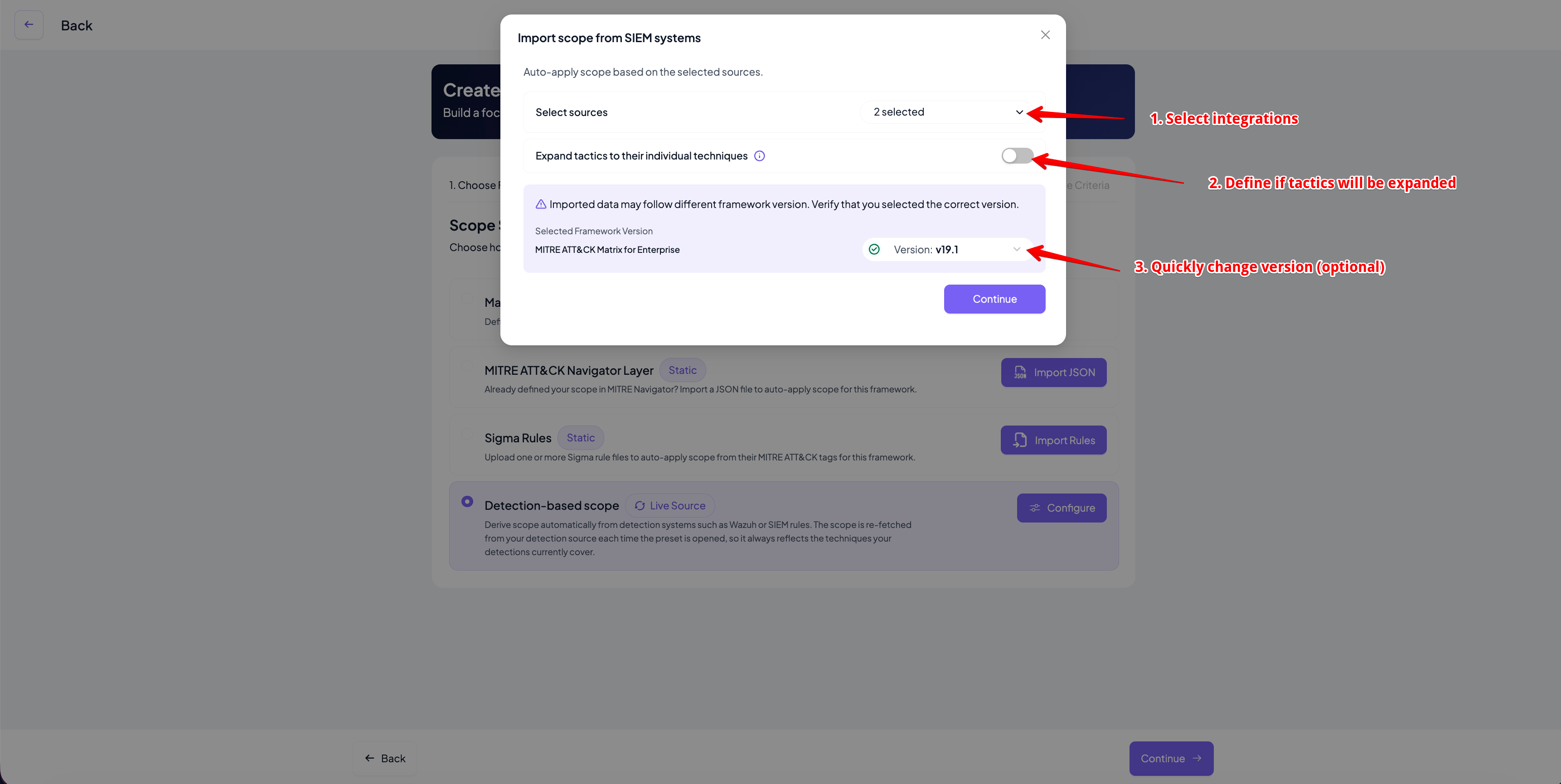
Import tags from an existing detection system (only when MITRE ATT&CK framework for Enterprise is selected at step 1). If you select that step, you will also need to select an integration. Currently, Wazuh, Microsoft Sentinel, Splunk Enterprise Security and Cortex XSIAM are supported.
In the first step, you will need to select the files that need to be imported. At this step, you can also control the behavior of tactics expansion. By default, if a tactic ID is seen in the data, it will not be expanded to all its techniques. At this step you can also quickly change the framework version, if you suspect or verify a version mismatch.
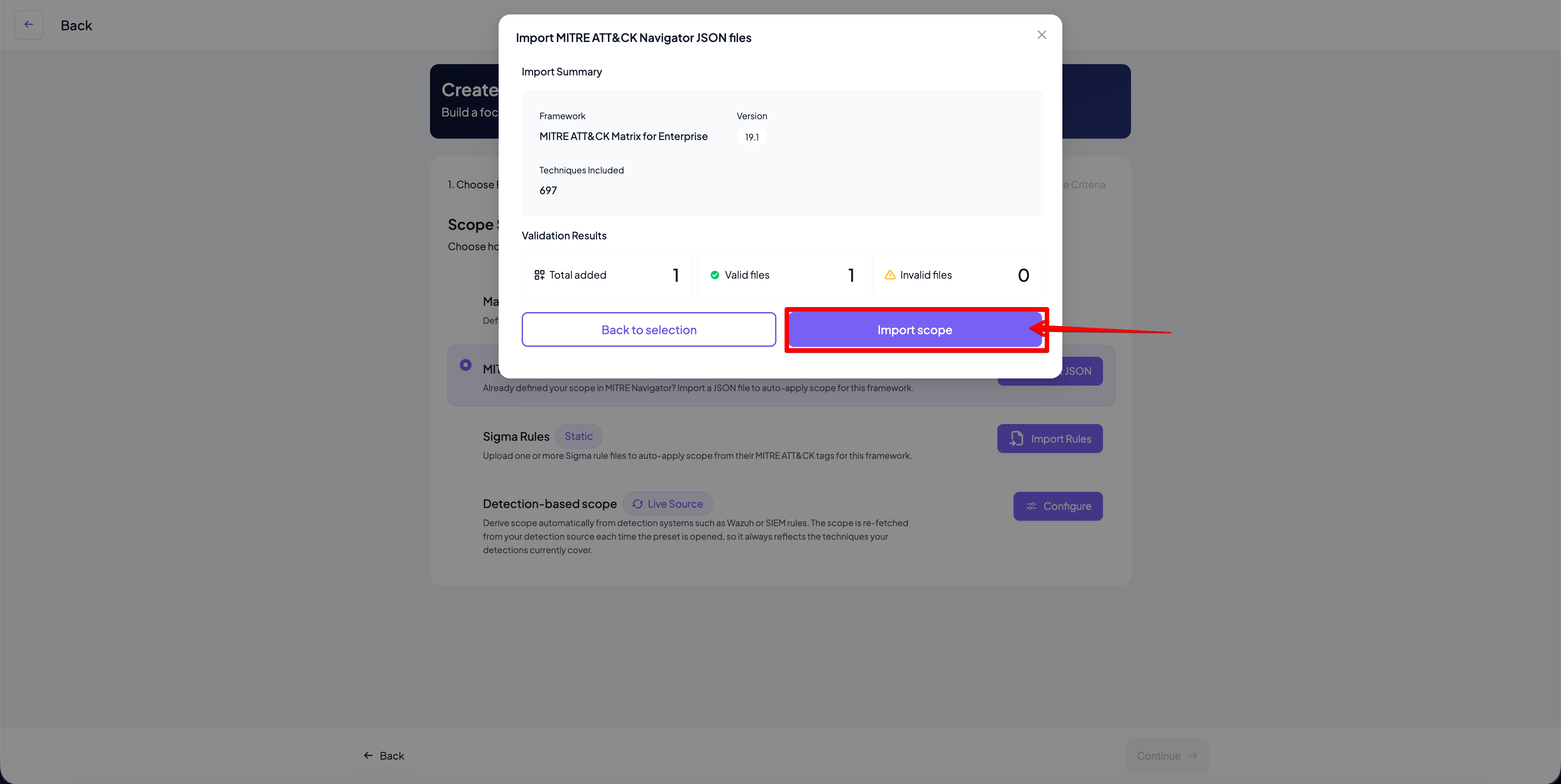
Once you click Validate, you will be redirected to the validation result page. You will be able to see potential errors with the data such as:
Wrong layer format
No tags in the data
Tags found in the data are not part of the framework
The layer belongs to a different domain (e.g. you imported a Navigator layer for ICS but the selected framework was Enterprise)
The process is the same as importing Navigator layers. For Sigma rules, the tags are extracted from the tags attribute and the format is expected to be attack.<technique ID>. Tactic tags are ignored during processing. For example:
In the first step, you will need to select the integrations to be used. The following integrations are supported:
Microsoft Sentinel
Wazuh
Splunk Enterprise Security
Cortex XSIAM
At this step, you can also control the behavior of tactics expansion. By default, if a tactic ID is seen in the data, it will not be expanded to all its techniques. At this step you can also quickly change the framework version, if you suspect or verify a version mismatch.
Once you select one or more integrations, click Continue. You will then be redirected to a summary of the results. When multiple integrations are selected, Cymph combines the valid MITRE ATT&CK identifiers returned by the selected sources. Duplicate identifiers are included only once in the resulting scope. Per-source errors will be reported. If there is at least 1 tag and no errors are found, you will be able to proceed to the next step.Tags that are not valid for the selected framework version are surfaced as validation errors and are not silently imported, remapped or discarded. If a version mismatch is detected, you can return to the previous step and select the appropriate framework version.Detection-based scopes use event-driven synchronization. Cymph refreshes the scope from the configured detection sources when the preset is accessed through the UI or API. Presets that use live detection sources do not rely on a scheduled background refresh.
Step 3: Select the relevant elements of the framework for your preset
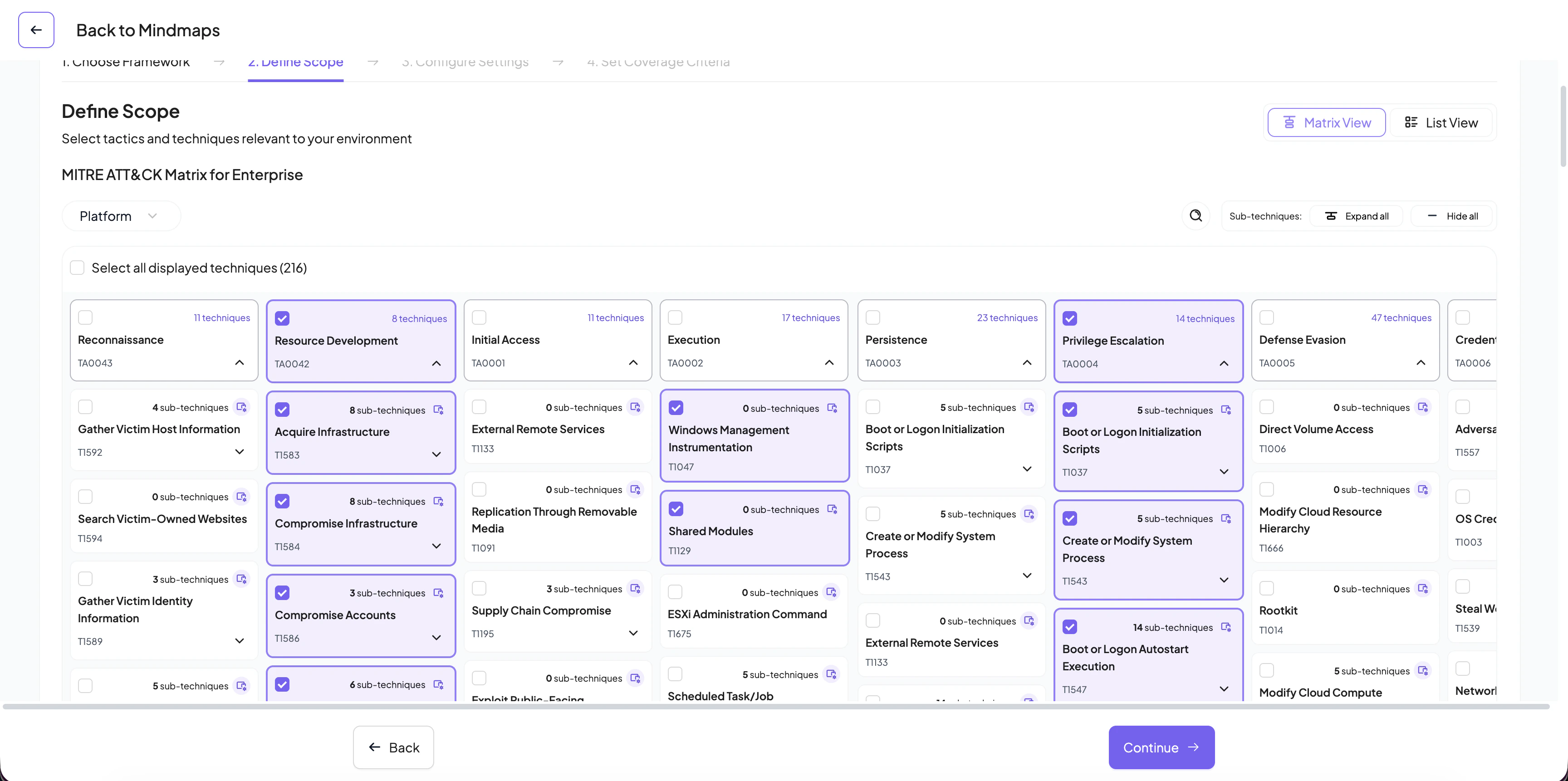
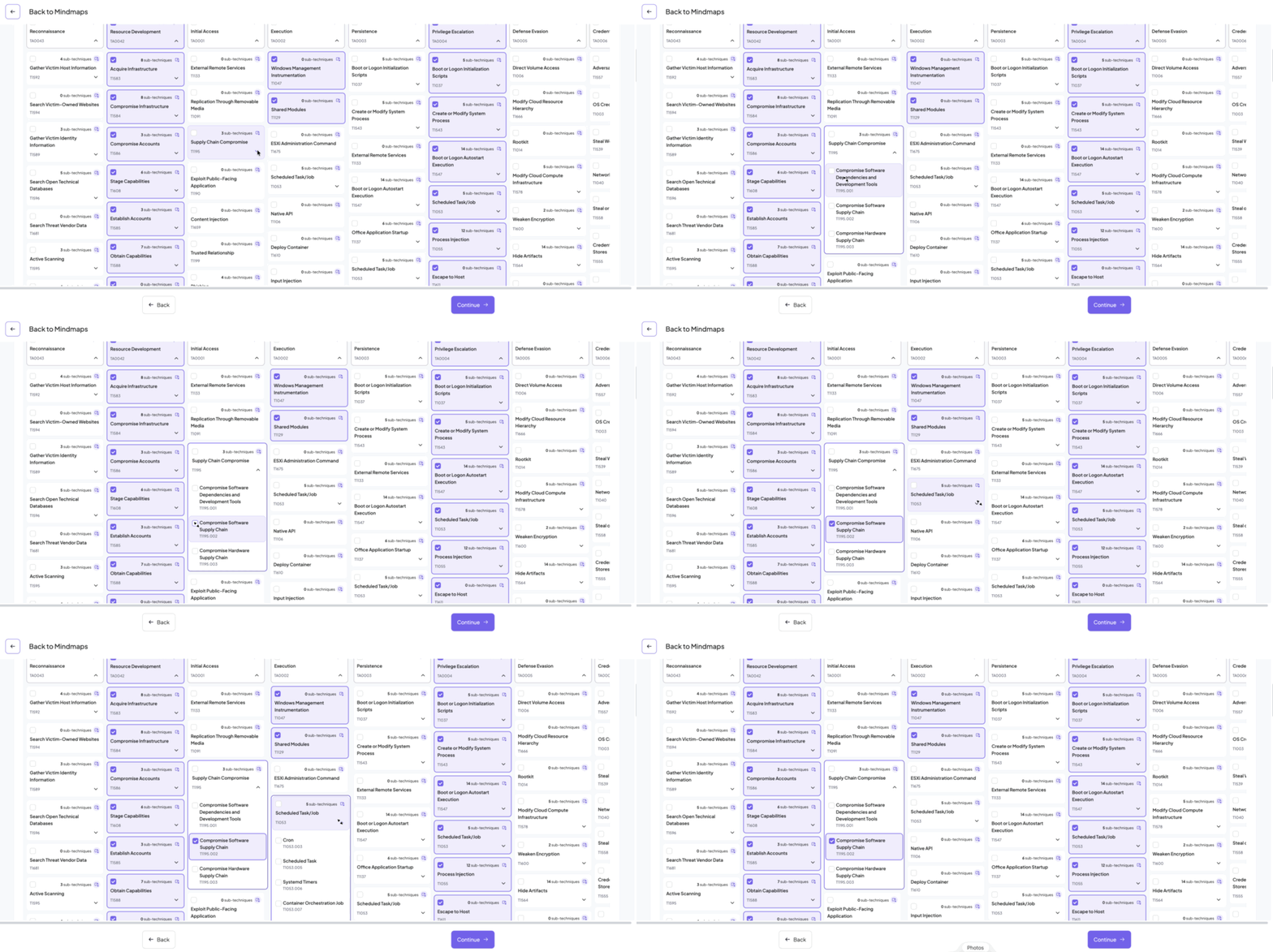
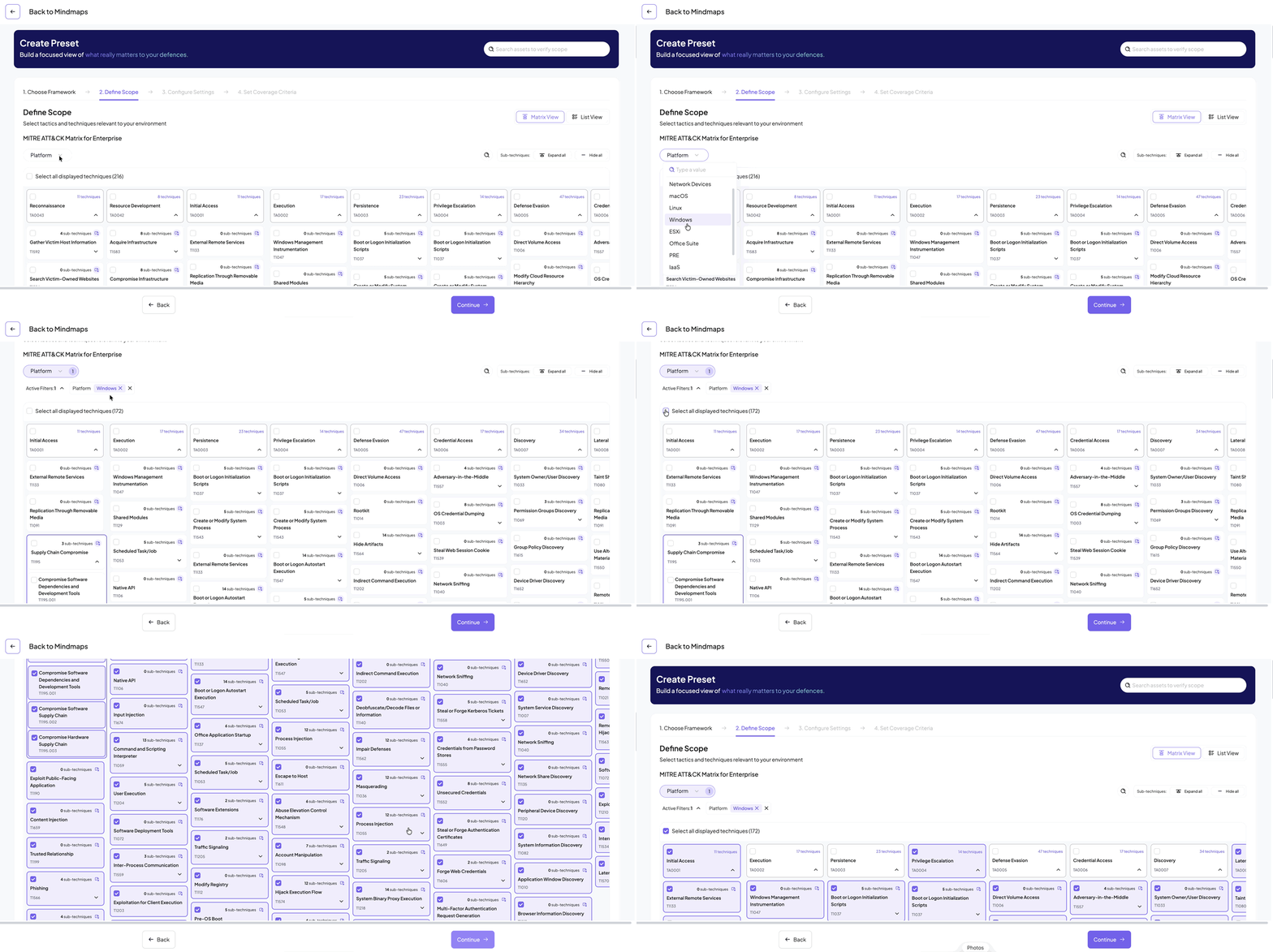
You can select individual techniques or entire tactics that are relevant to you. If on step 2, you selected a detection-based scope (live source)You can even select individual sub-techniques. You can expand and collapse a technique to show/hide the associated sub-techniques.Specifically for MITRE ATT&CK for Enterprise, you can filter the view by product. For example, by selecting Windows only the techniques associated with the Windows platform will be displayed so you can easily select all of them by clicking on the Select all displayed techniques.
You can expand and collapse all techniques by clicking Expand all/Hide all from the top right corner of the matrix
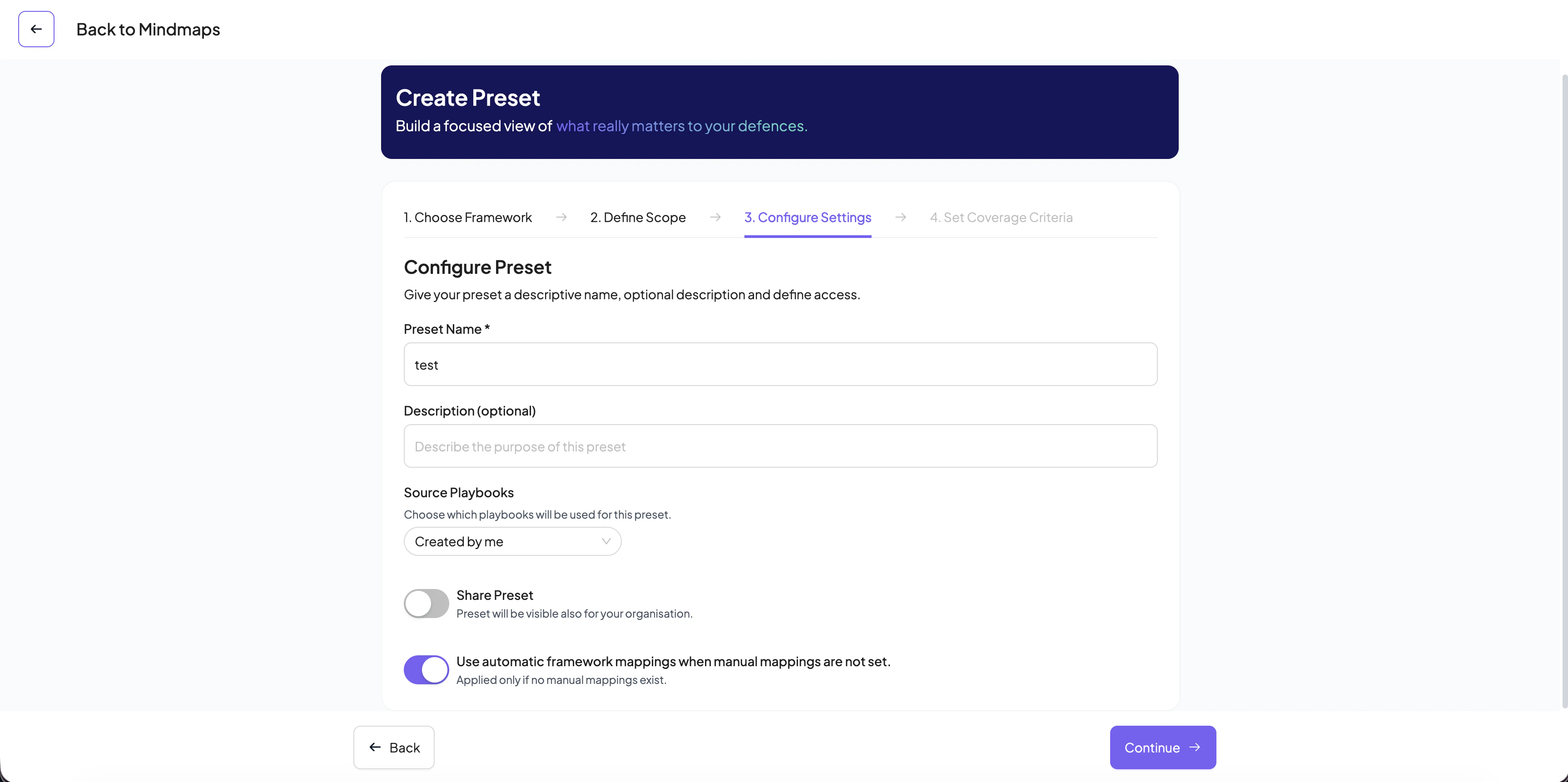
Once you have selected the relevant techniques/sub-techniques, you need to provide additional information about the preset:
Preset name (required): a name to identify this preset.
Description (optional)
The playbooks that will be used to calculate the coverage of the preset. The available options are:
Created by me: only the playbooks created by you will be used
Shared with me: only the playbooks that are shared with you will be used
Public playbooks: only publicly shared playbooks will be used
A filter that was saved from the playbook management system. See Filter playbooks for more details
Share preset: enable it if you want to share this preset with your organisation
Use automatic framework mappings when manual mappings are not set: enable this if you want to use the AI-suggested mappings of the playbooks in case you have not manually mapped your playbooks
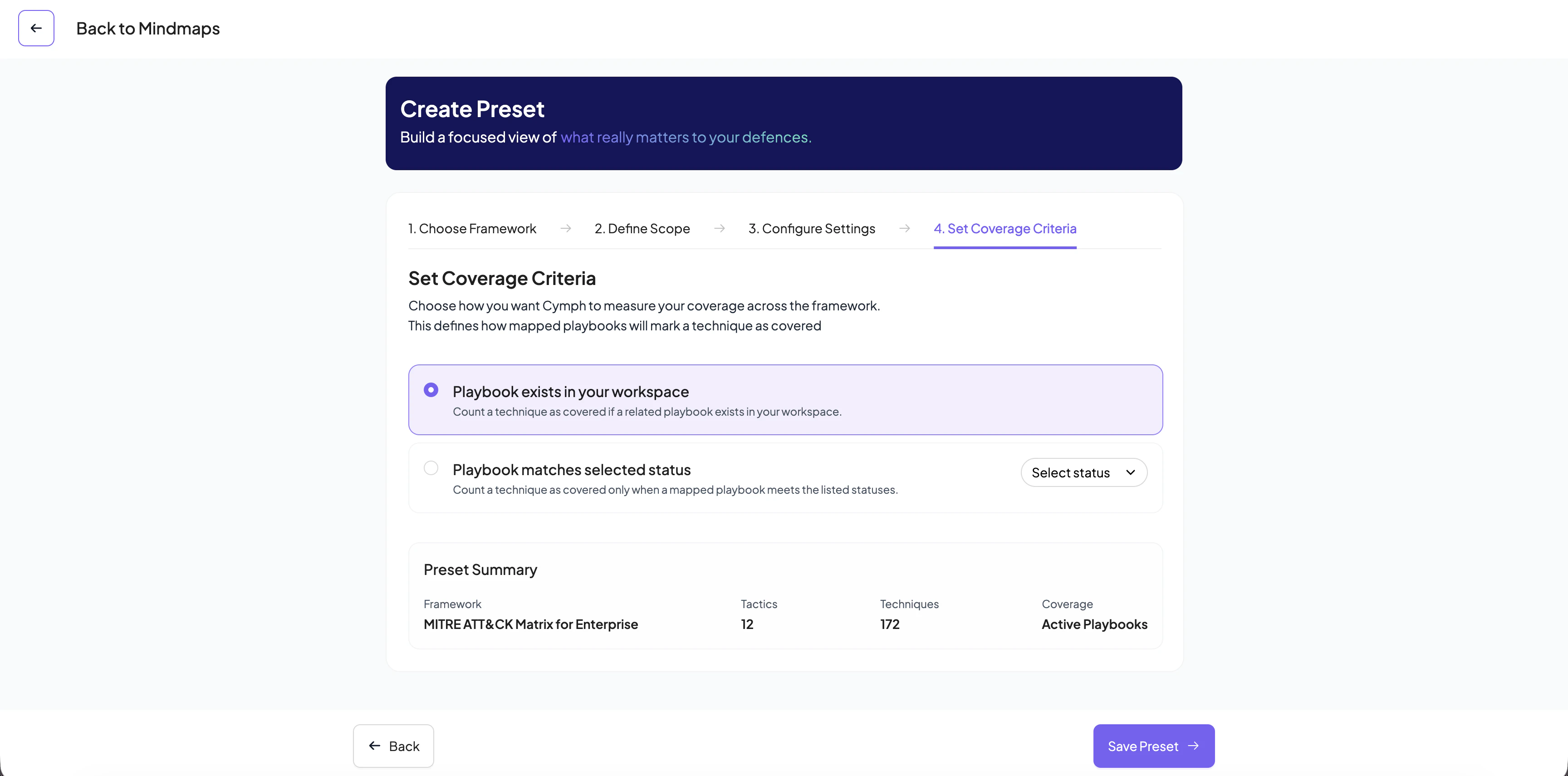
In order for a playbook that is mapped to a technique/sub-technique to be considered that it covers that technique/sub-technique, we should define the criteria when evaluating it. Currently, we support two different criteria:
Playbooks exists in your workspace: no additional properties need to be met, the sole existence of the playbook is enough.
Playbook matches selected status: the playbook must have a certain status in order to be considered. The available statuses are Planned, In progress, In review and Completed.