

- Go to your Organisation page.
- From the navigation menu, go to the Organisation page and then click on the name of your organisation.
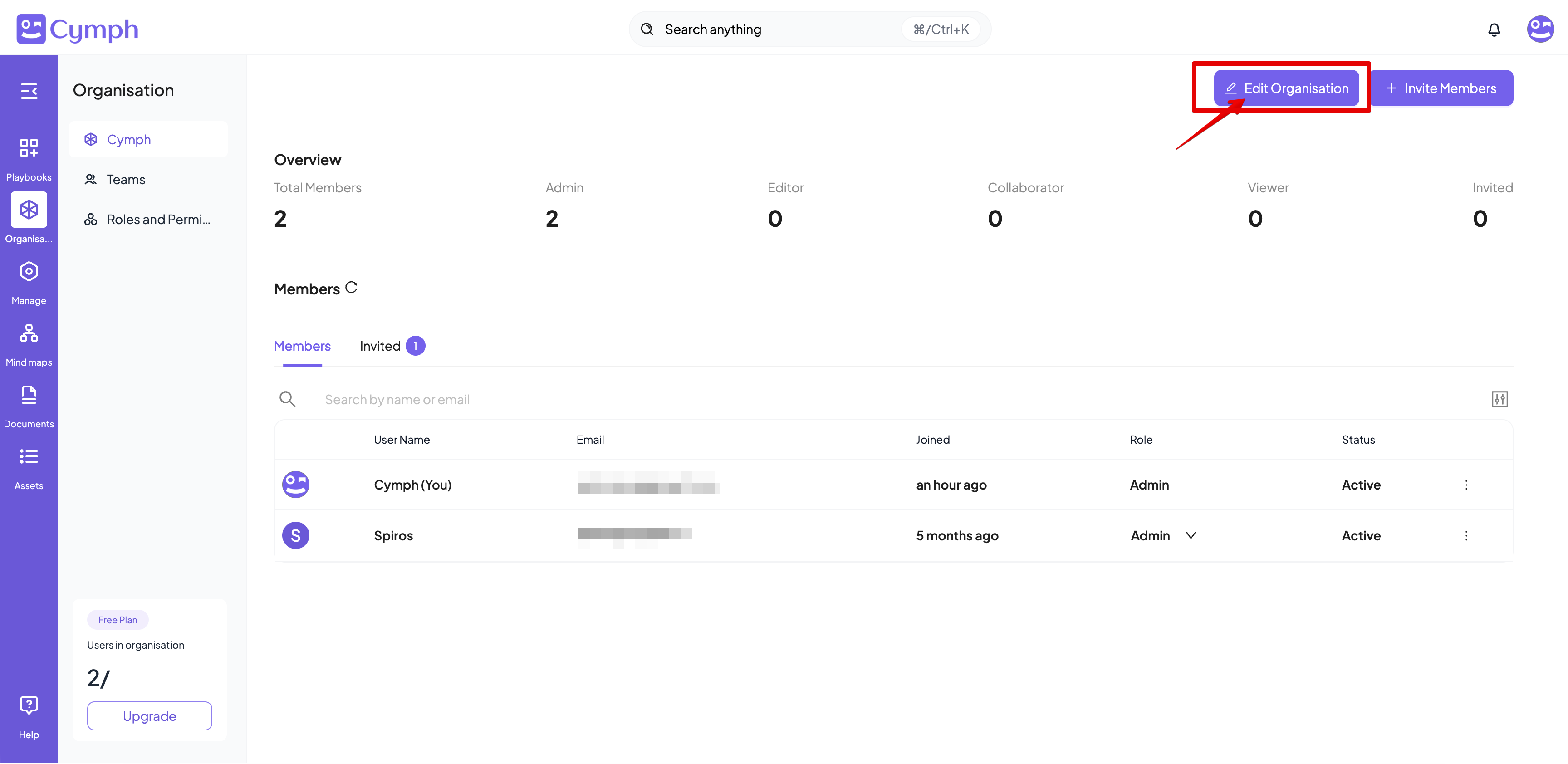
- Click Edit Organisation.
- In the top-right corner, click the Edit Organisation button.
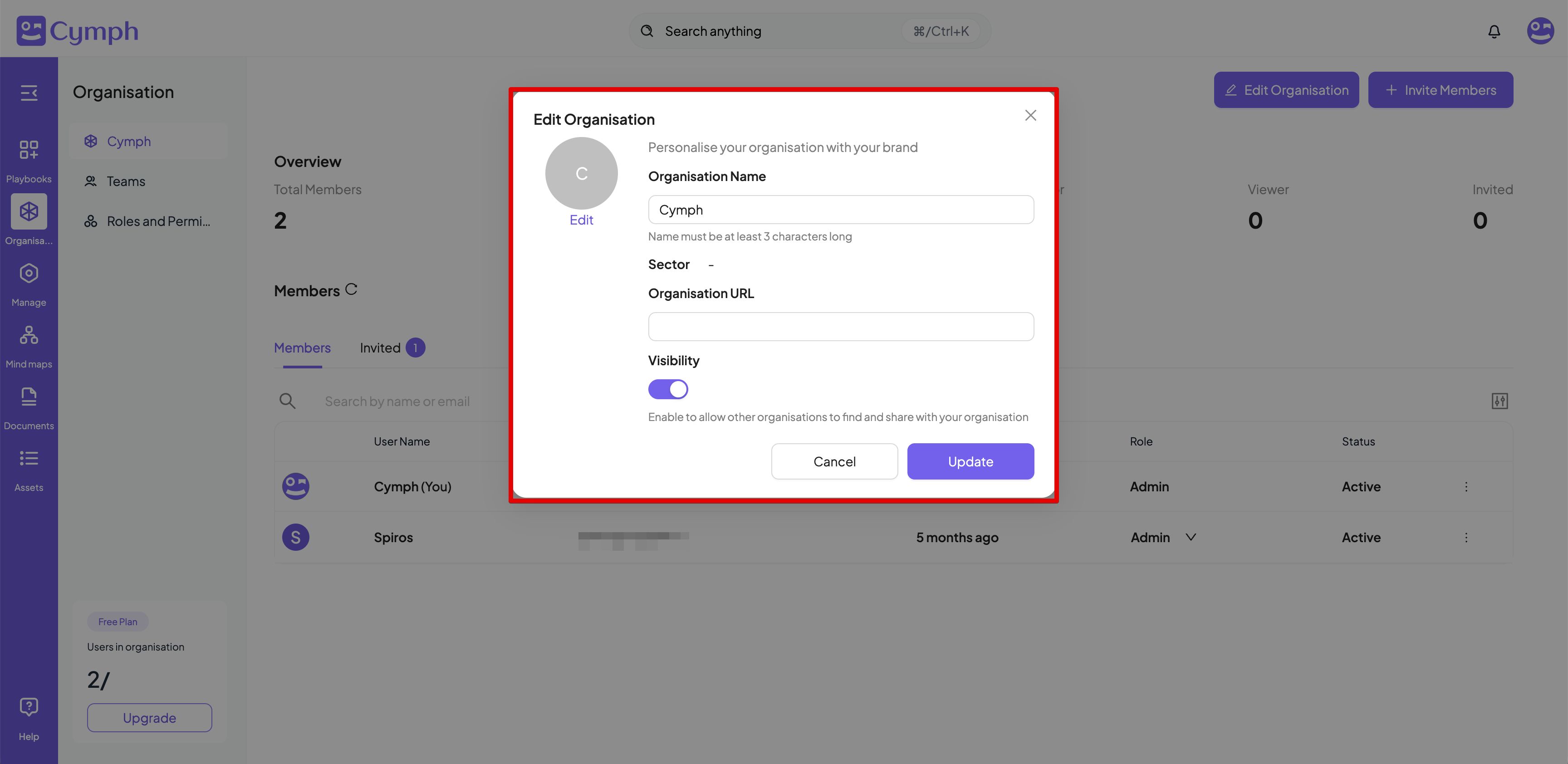
- Edit your organisation details.
- Rename your organisation (optional): Provide a name in the Organisation Name field. Organisation names are unique across the Cymph platform. If you try to provide a name that already belongs to an organisation, an error will be displayed.
- Change the visibility status (optional): Click on the Visibility toggle to change the visibility status of your organisation. By default an organisation is visible to users outside the organisation.
- Update your organisation URL (optional): Provide a URL for your organisation
- Update your organisation logo (optional): Click on the Edit link below your current organisation logo. The user can upload a new logo for their organisation. This needs to be an image file not exceeding 5MB and supported formats are PNG, GIF and JPEG.
- Confirm your changes.
- Click on the Update button for your changes to take effect.
Only users with the Admin role can change the details of their organisation. For all other roles, the option to edit their organisation details will not appear.