
Overview
The Organisation page provides a view of the Active and Invited members. The Members table that gives you an overview of all members (both active and invited) in your organisation: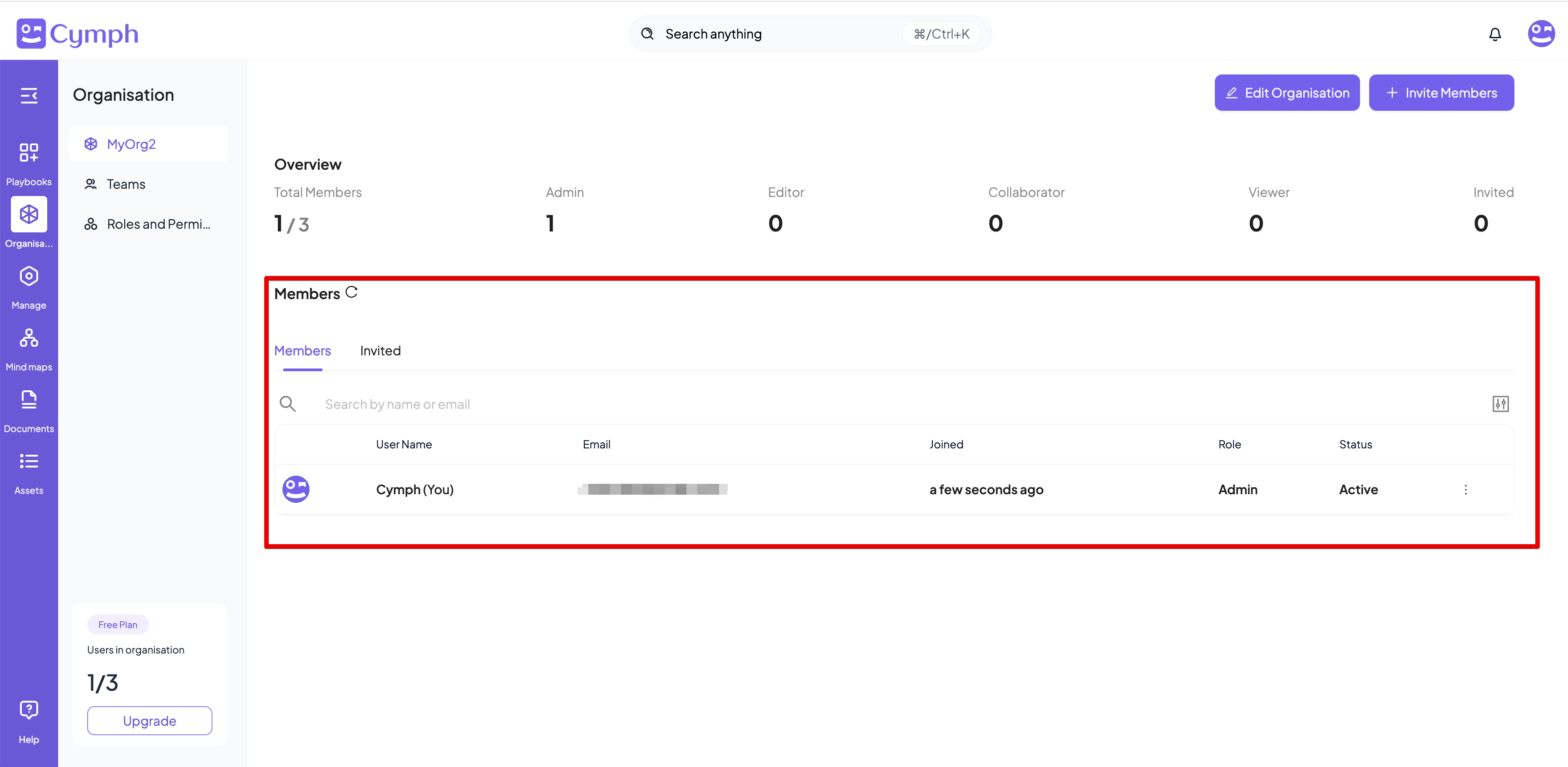
- Avatar: the member’s avatar, if uploaded, else their initials.
- User Name: the name and surname of the member, as declared during their registration process. This column is empty for invited members.
- Email: the email address of the member.
- Joined: the time elapsed since the member joined your organisation. This column is empty for invited members, since they have not yet joined.
- Role: their role in your organisation.
- Status: “Active” if they have joined your organisation, “Invited” if they have been invited and their response is pending.
- An action column: Actions appear by clicking the triple dot icon
⫶
Managing active members
How to change the role of a member
- Go to your Organisation page.
- From the main dashboard, navigate to the Organisation page.
- Click the arrow next to the user’s role.
- A dropdown menu will appear with all the available roles (Admin, Editor, Collaborator, Viewer).
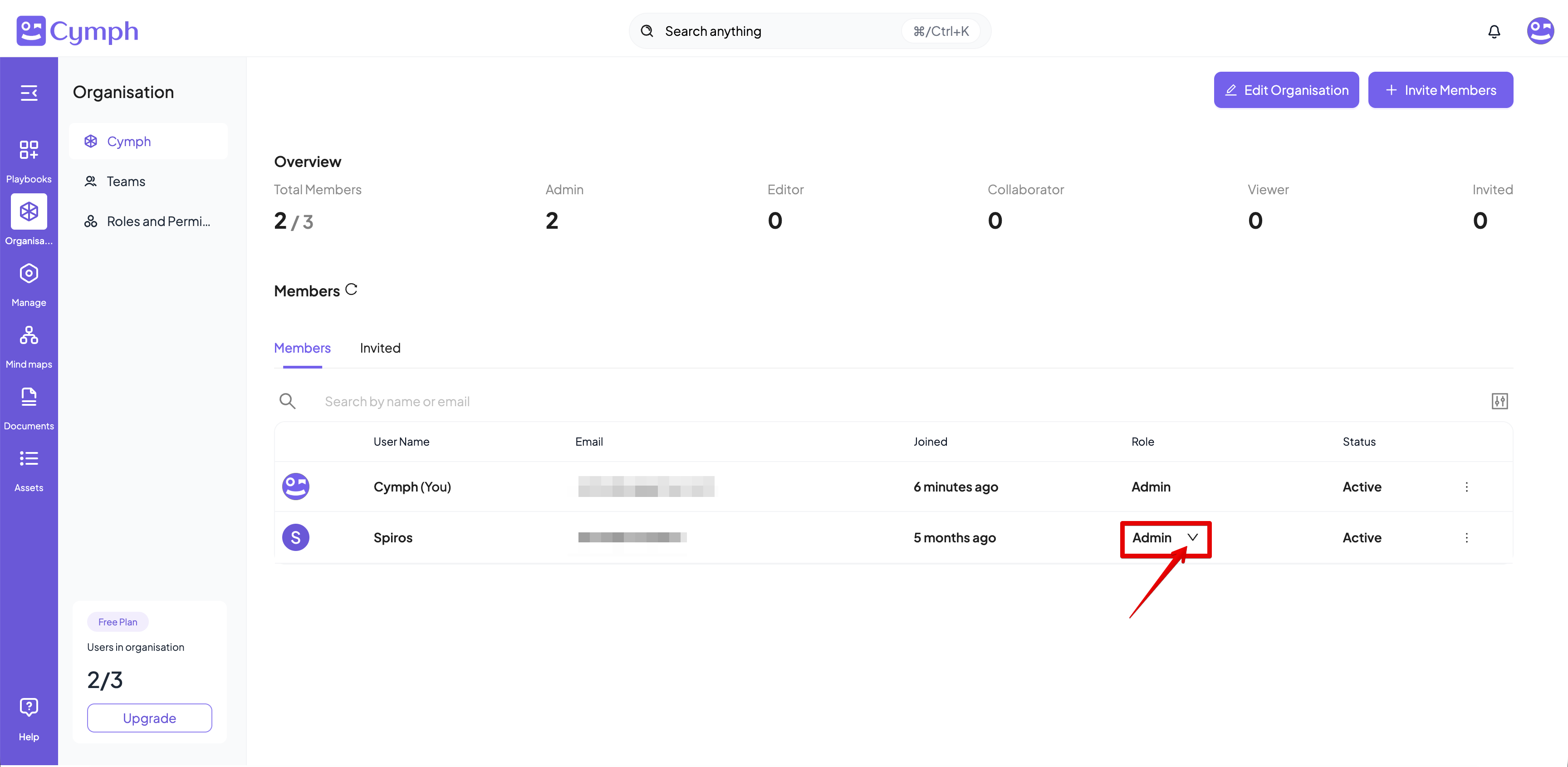
- Select the desired role for the member.
- The corresponding member’s role will change and the Members table will be refreshed to reflect the changes.
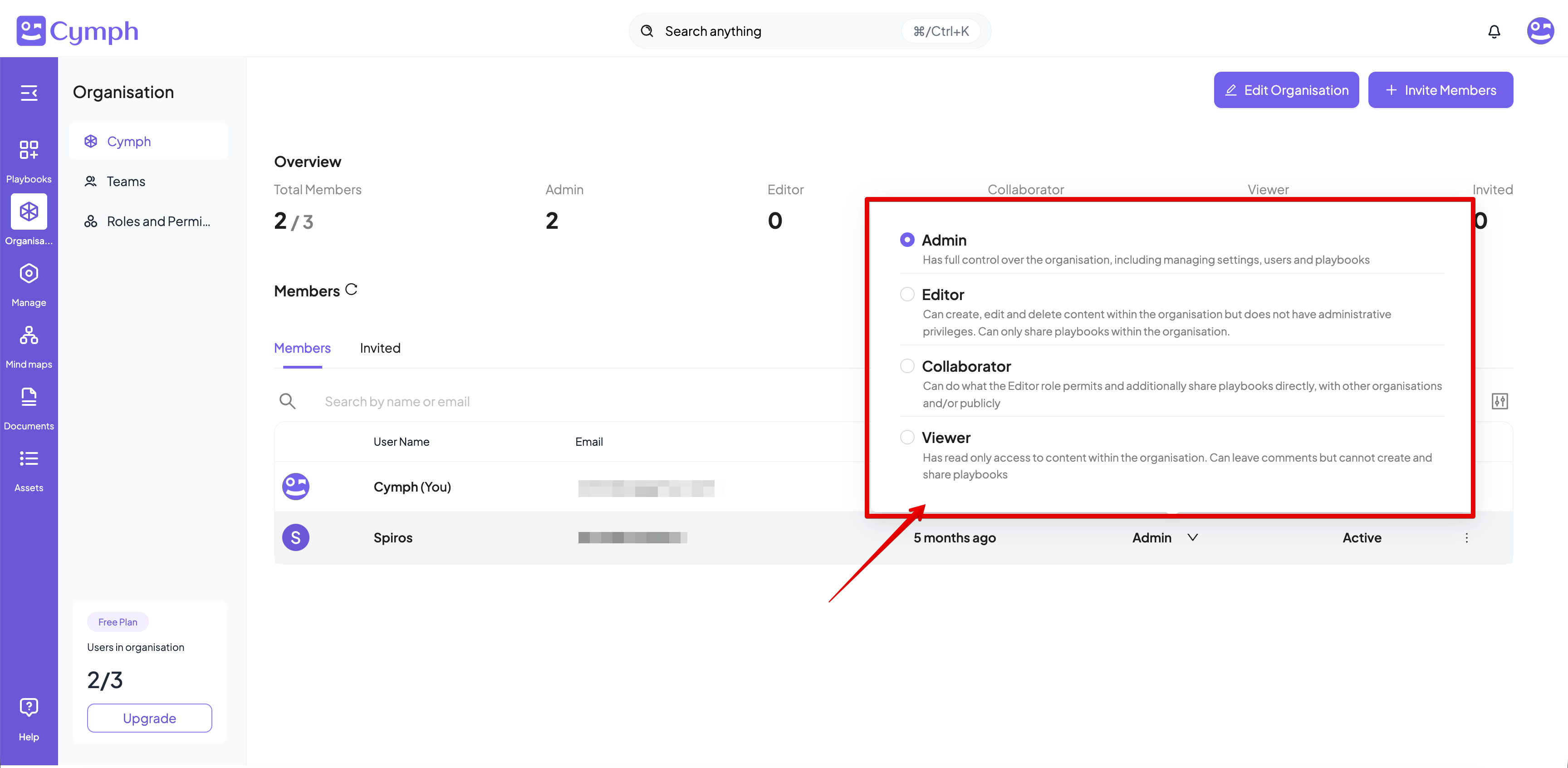
Note: Only members with the Admin role can change the role of other members. Admin users cannot change their own role.
How to edit a member
- Go to your Organisation page.
- From the navigation menu, go to the Organisation page.
- Click the triple dot icon
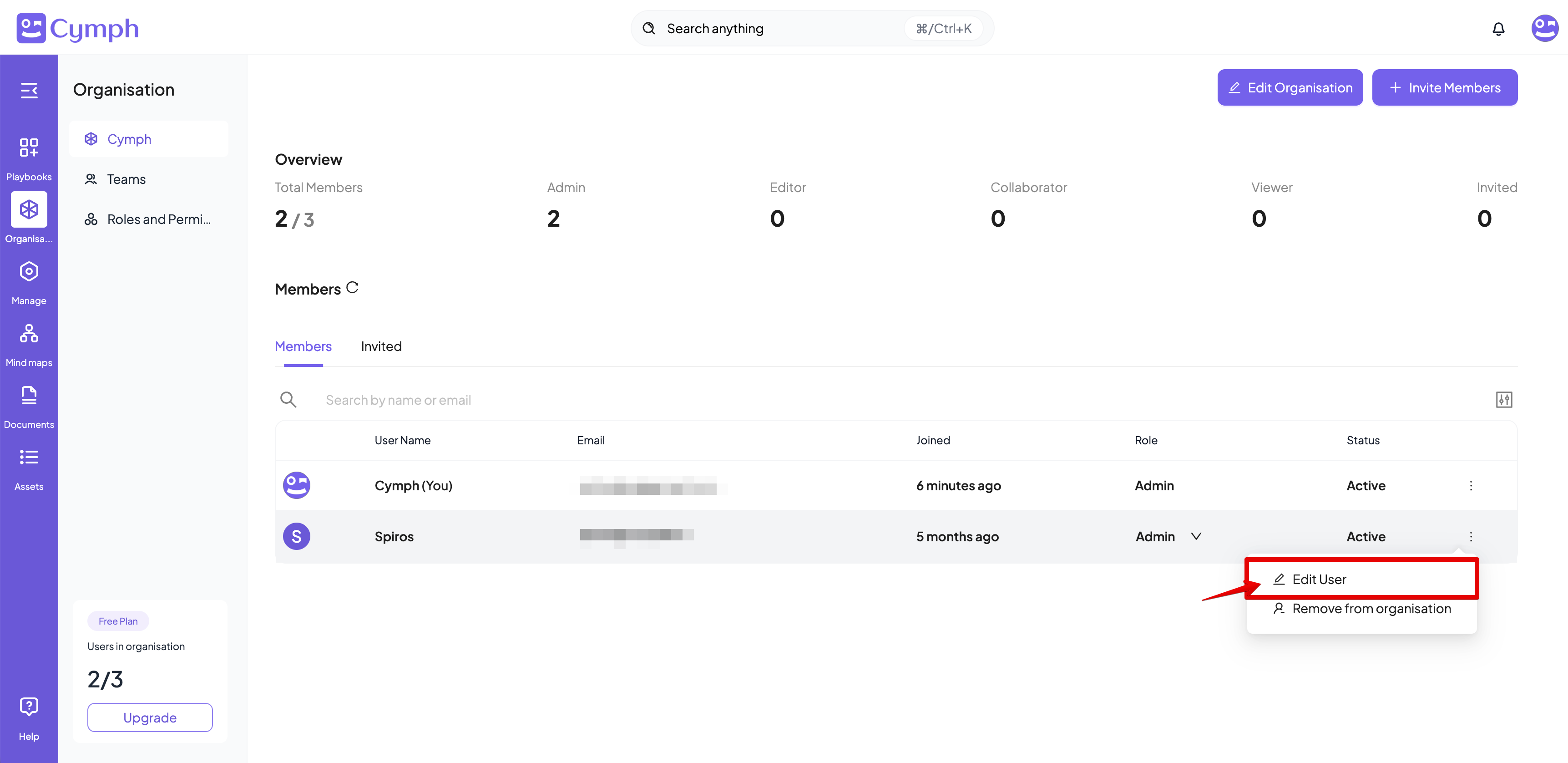
⫶in the action column of the member you want to edit- A dropdown menu will appear containing the actions that can be performed (Edit User, Remove from organisation).
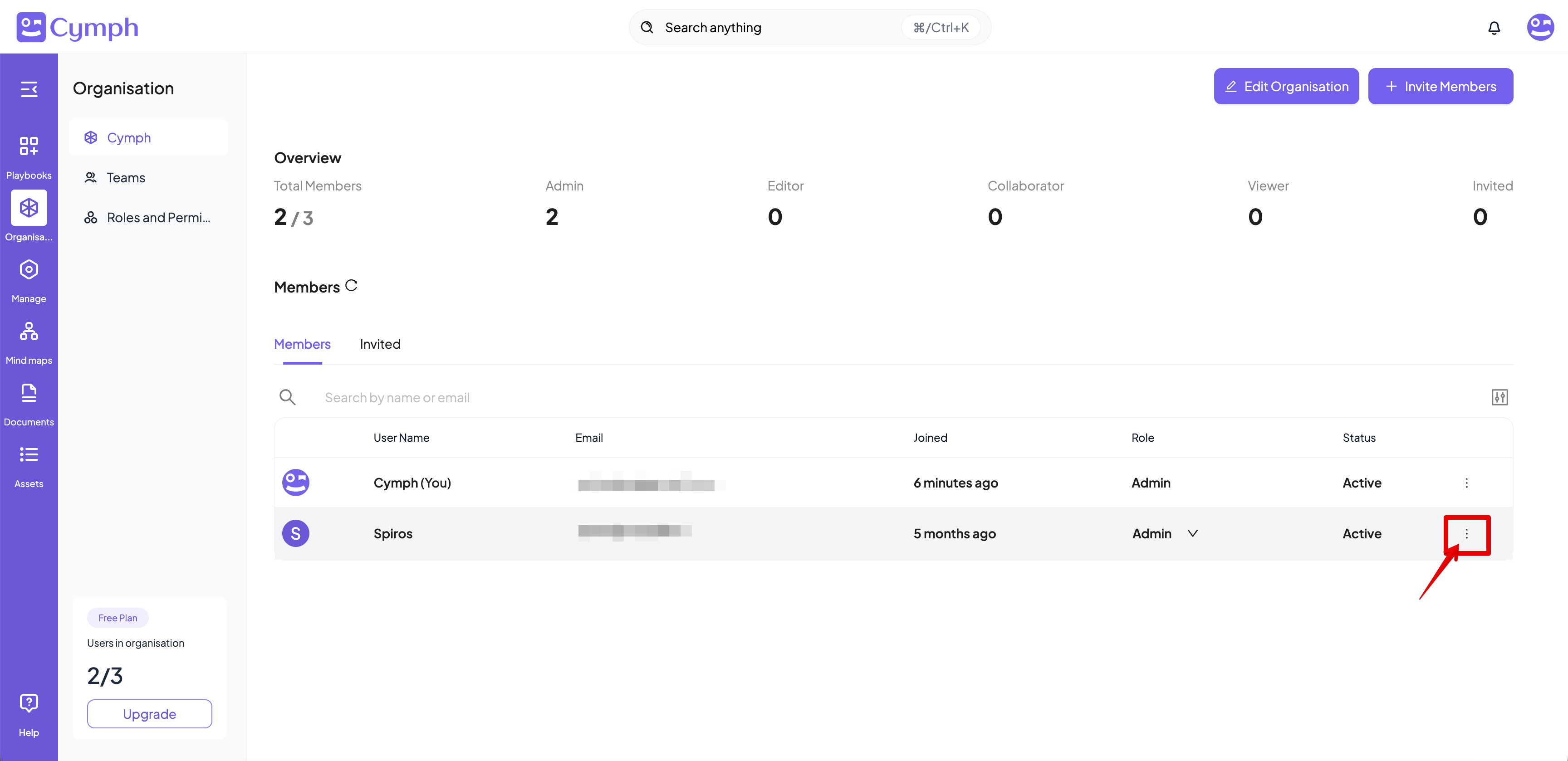
- Click the Edit User option.
- The Edit User panel will appear.
- Change the visibility status of the user (optional).
- Click the visibility toggle next to “Visible to others”.
- Grey toggle means the user is invisible, purple toggle means they are visible. Visible users are searchable by all Cymph users in the platform.
- Ask user to reset their password (optional).
- Click Ask user to reset their password.
- A notification will appear on the user notification centre to ask them to reset their password.
Note: Only members with the Admin role can edit the role of other members.
How to remove a member from the organisation
- Go to your Organisation page.
- From the main dashboard, navigate to the Organisation page.
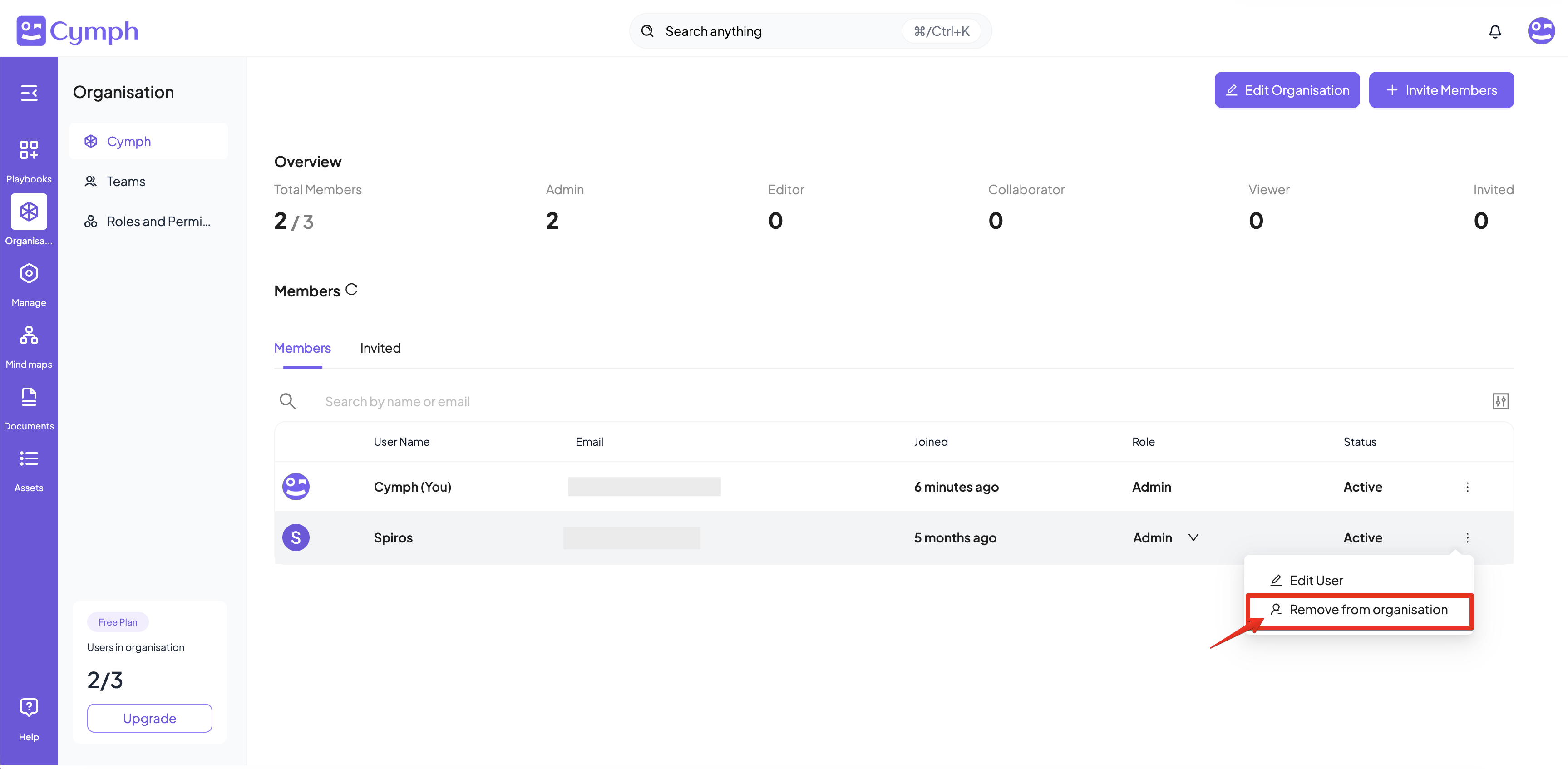
- Click the triple dot icon
⫶in the action column of the user you want to edit. - Click the Remove from organisation option .
- A confirmation dialog will appear.
- Confirm the removal of the user.
- Click Remove User to remove the user from the organisation.
- The user will be removed from the organisation and will no longer appear in the Members table.
- Only members with the Admin role can remove other members.
- All the playbooks created by the users while they were members of the organisation will be transferred to the administrator of the organisation.
- An administrator cannot remove themselves from the organisation.
Managing invited users
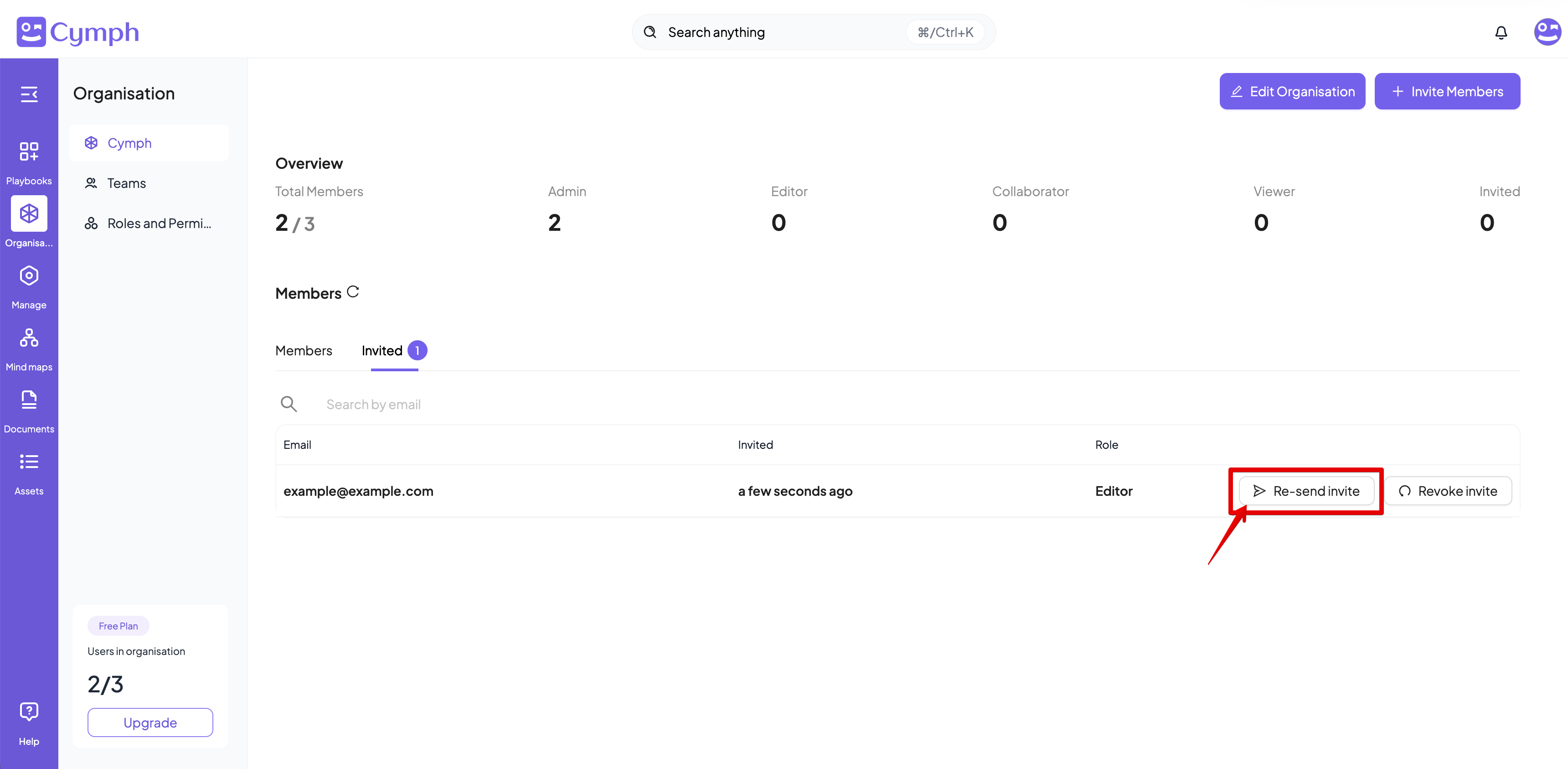
Users that have been invited to your organisation but have not yet responded to your invite will appear in Invited table.How to re-send an invite
- Go to your Organisation page.
- Click on the Invited table
-
Click the Re-send invite option.
- The invitation email will be re-sent to the provided e-mail address.
How to revoke an invite
- Go to your Organisation page.
- From the main dashboard, navigate to the Organisation page.
- Go the Invited tab
- Click Revoke invite option.
- A confirmation dialog will appear.
- Confirm the revocation.
- Click OK to revoke the invitation.
- The invitation will be revoked and the invited user will no longer appear in the members table.
Note: Only users with the Admin role can re-send or revoke invites