

Overview
Before you begin using the Cymph application, a license is required. The license defines how many users can be created globally and what features will be available. The license will be provided to you by the Cymph team through a dedicated channel (e.g. email). Your license file contents should look like the example below.How to upload a license
Only users with the On-prem Administrator role can upload licenses.- Go to your profile menu.
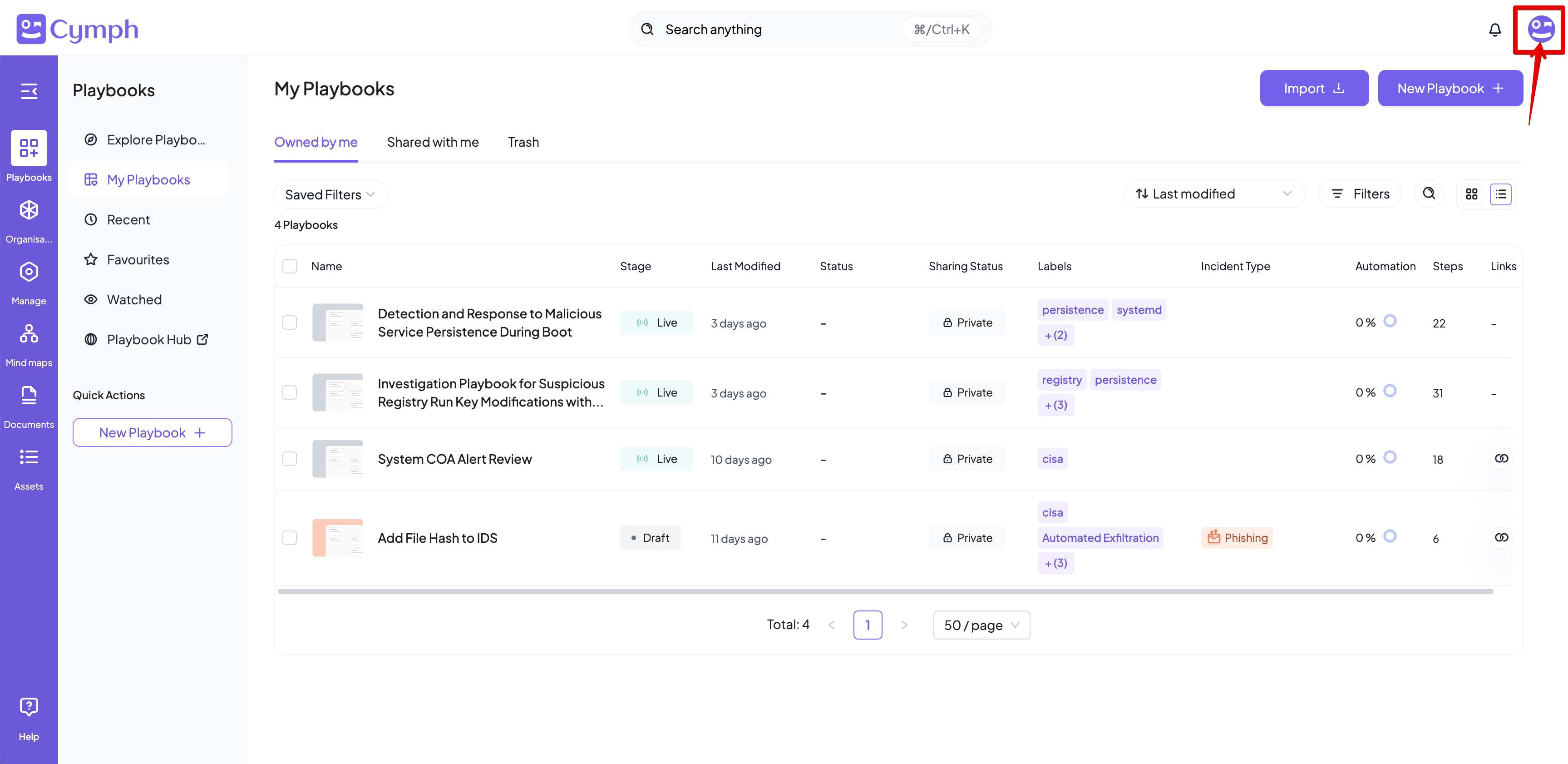
- Click your profile picture on the top right corner of the dashboard.
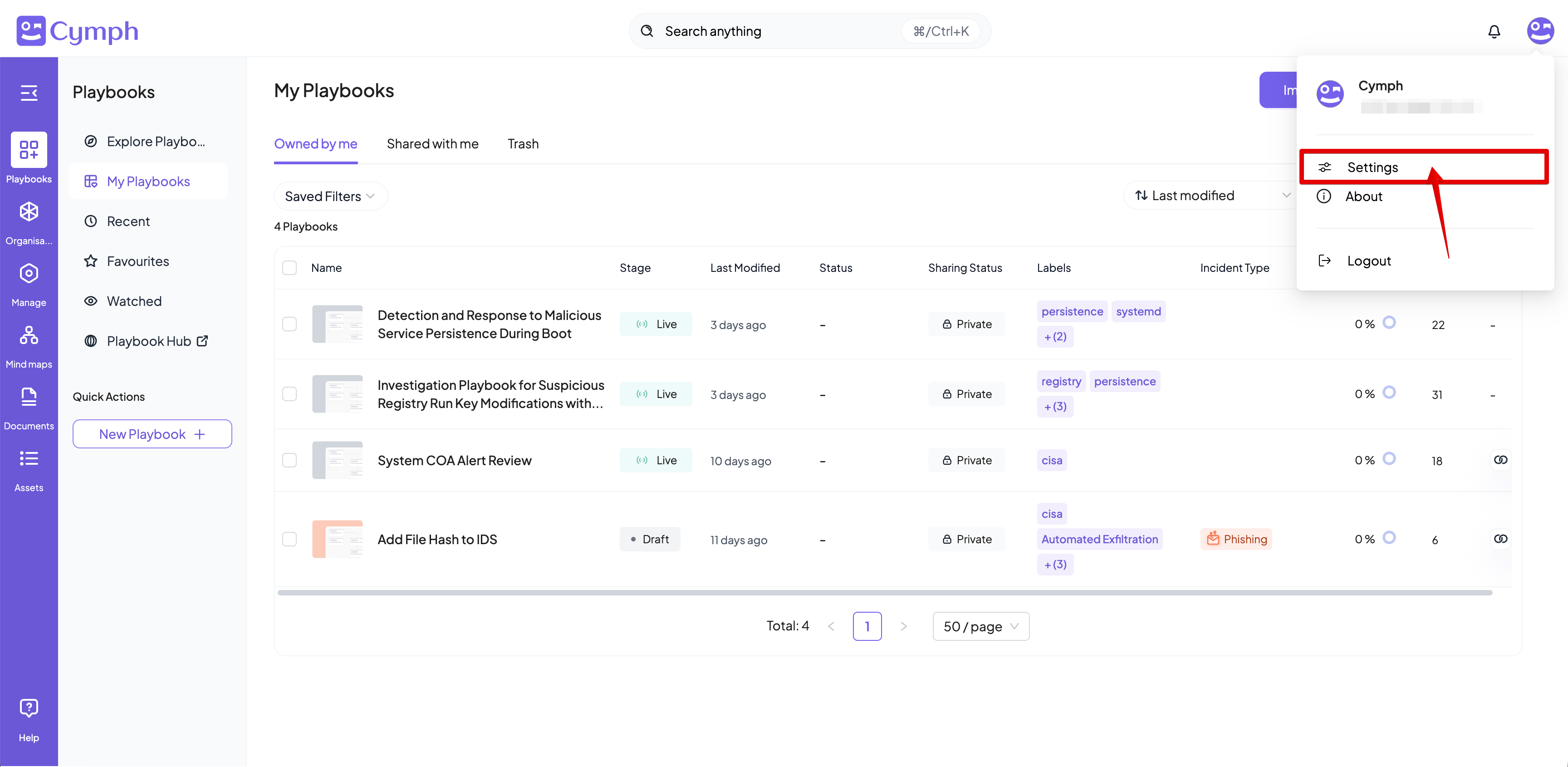
- Go to your settings.
- Click Settings
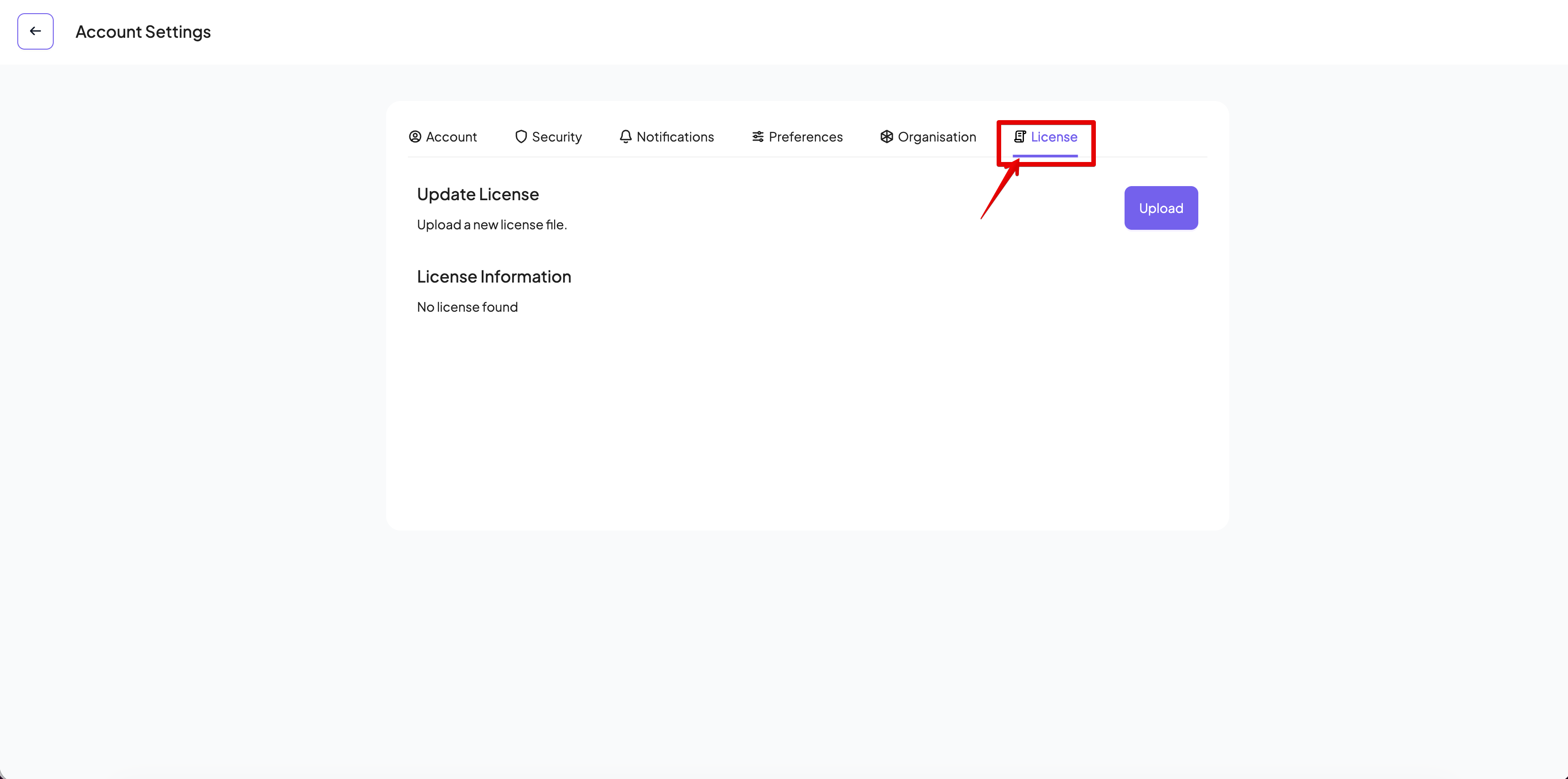
- Go to License Management tab
- Click License
- Upload your license
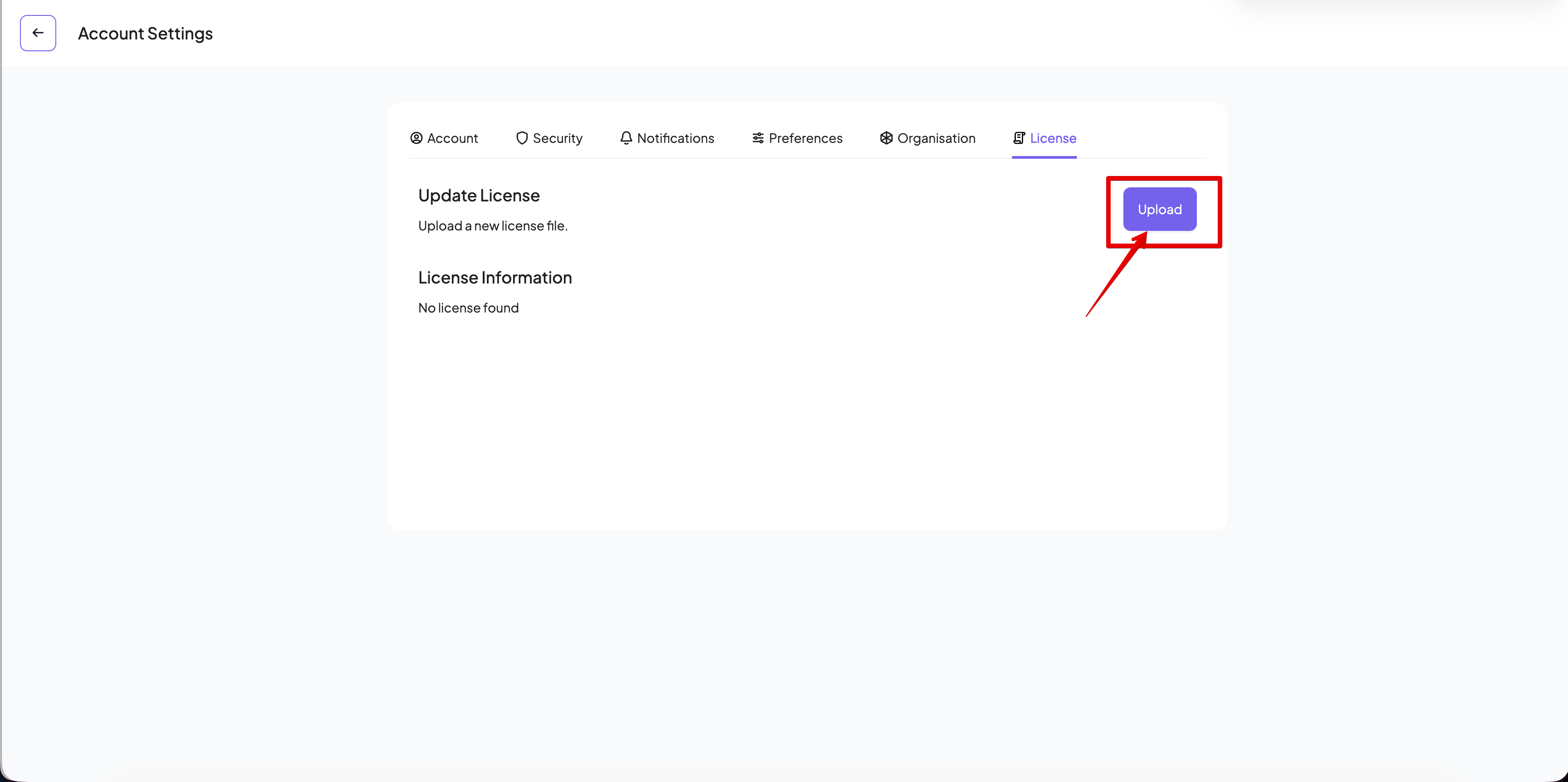
- Once you select the license file from the file explorer, the license will be automatically uploaded
- Refresh the Cymph application web page to see the new license information