

How to update your password
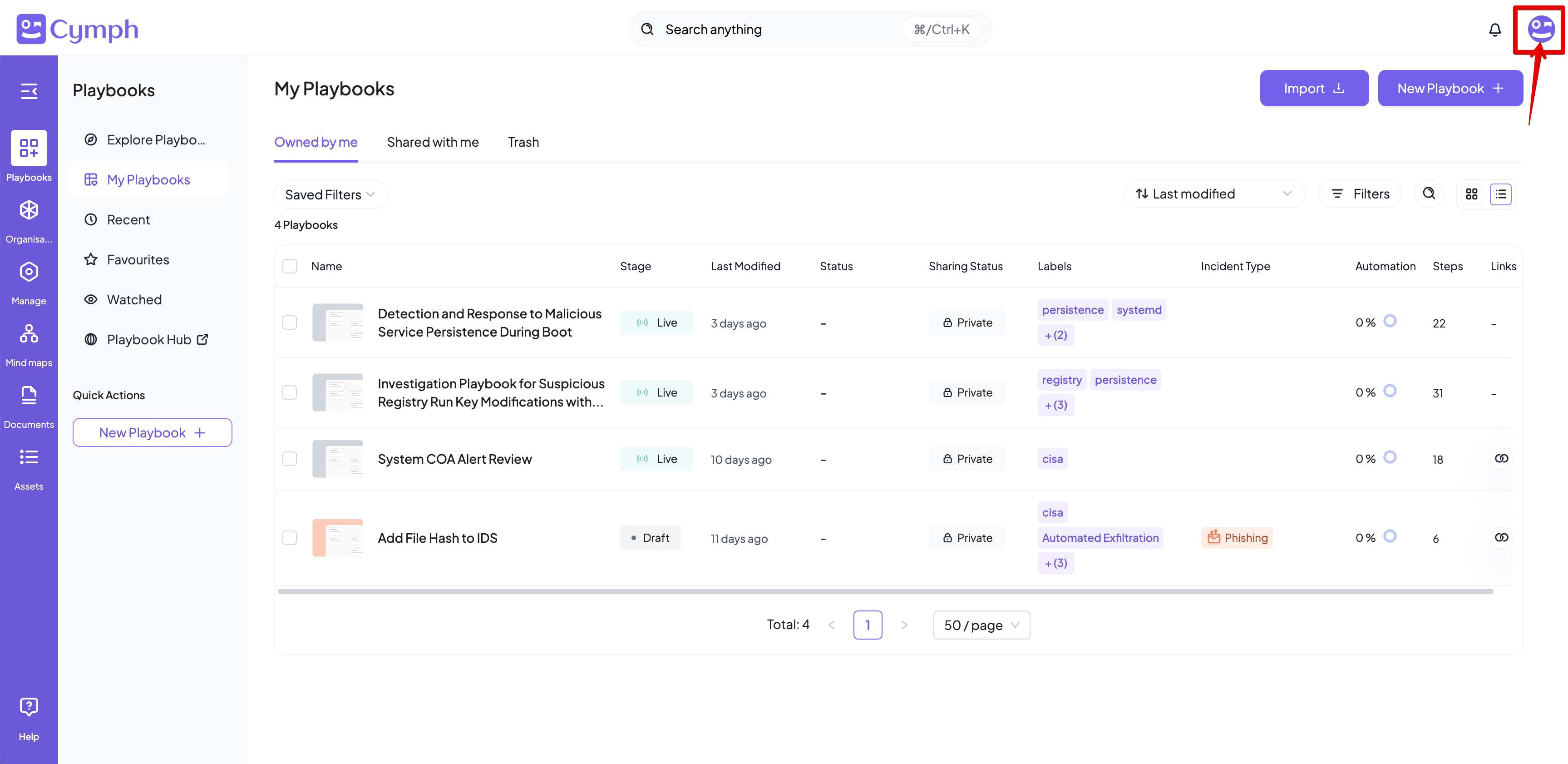
- Go to your profile menu.
- Click your profile picture on the top right corner of the dashboard.
-
Go to your settings.
- Click on Settings.
-
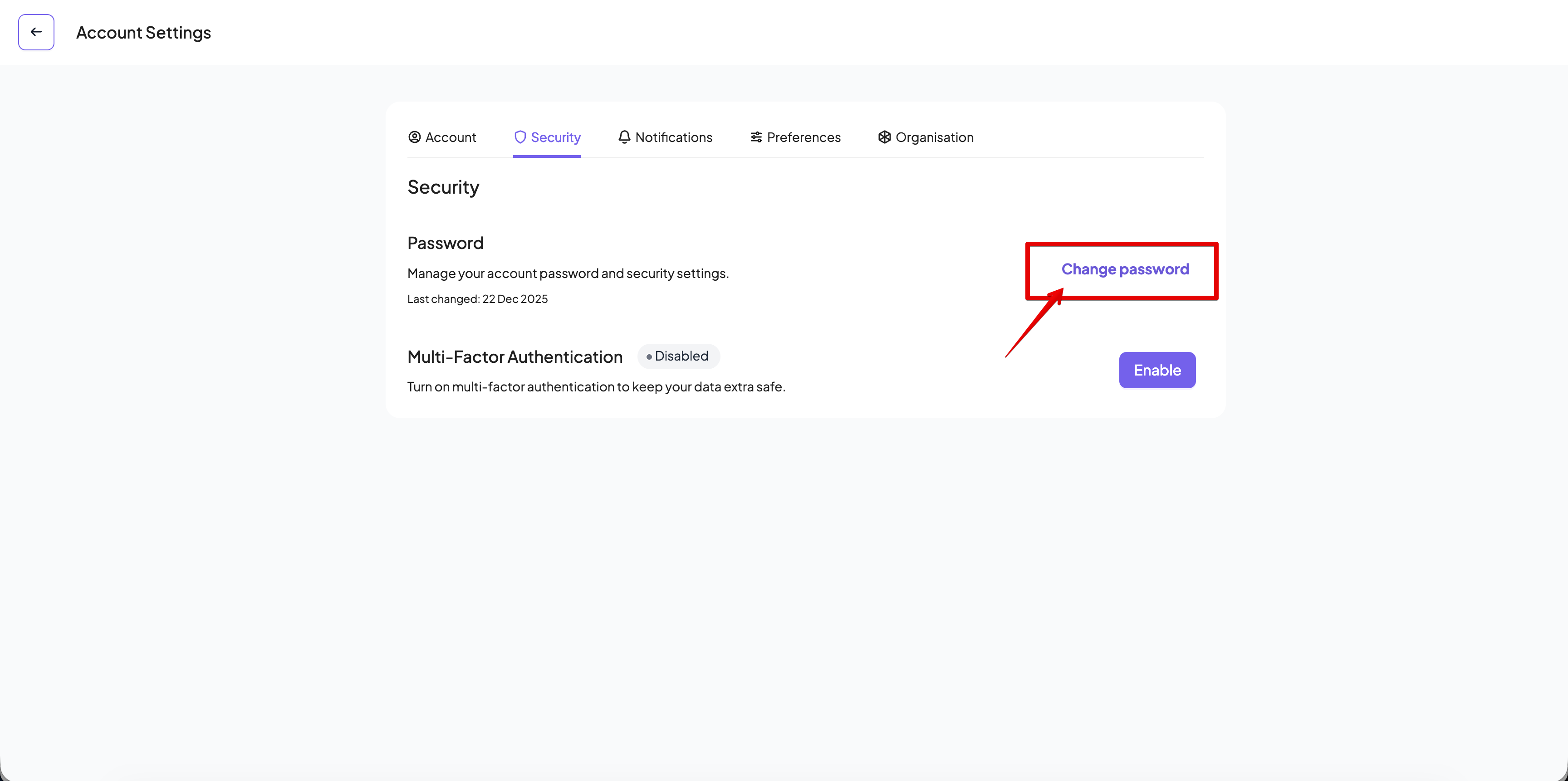
Go to the security settings.
- Click on the Security tab of the settings panel
-
Click on Change Password
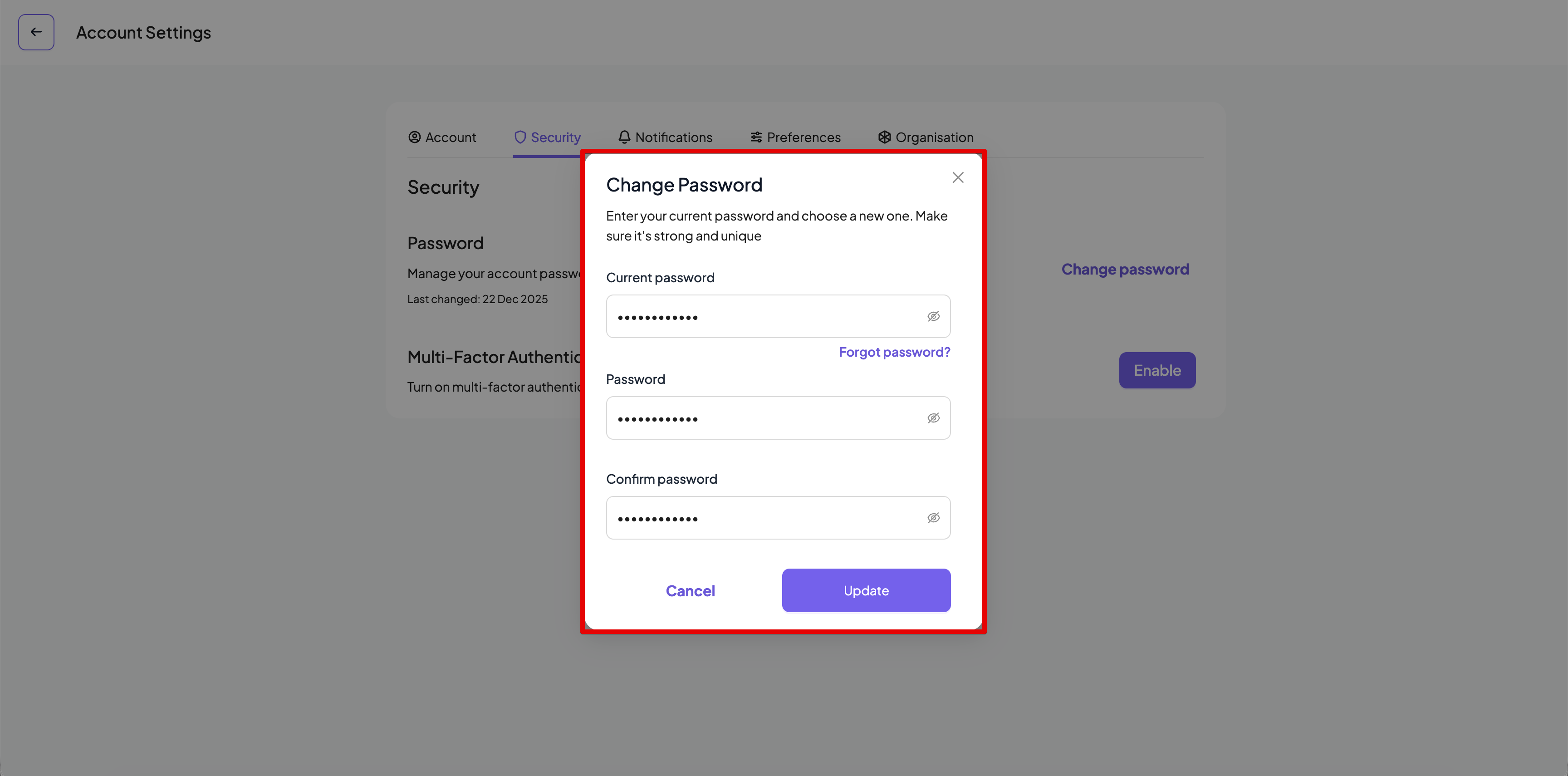
- The change password dialog will appear
- Update your password.
- Provide your current password in the first input.
- Provide your new password in the second input.
- Confirm your new password by typing it again in the third input.
- Click on the Update button once the password security criteria described below are met and the Password and Confirm Password fields match. If the password change is successful, a popup message will be displayed.
Password Security Criteria
User password must meet the following criteria in order to be accepted by the Cymph platform:- They must be at least 12 characters long.
- They must include at least one special character (:;,.?\-=+|!@#$%^&()[]/).
- They must include at least one digit (0-9).
- They must include at least one capital letter (A-Z).
- They must include at least one lowercase letter (a-z).
- They must not be the same as the last 24 passwords used.