

This page covers the deployment administrator flow, available in both deployment models. Users can also create an organisation themselves — see Create an organisation.
How to add an organisation
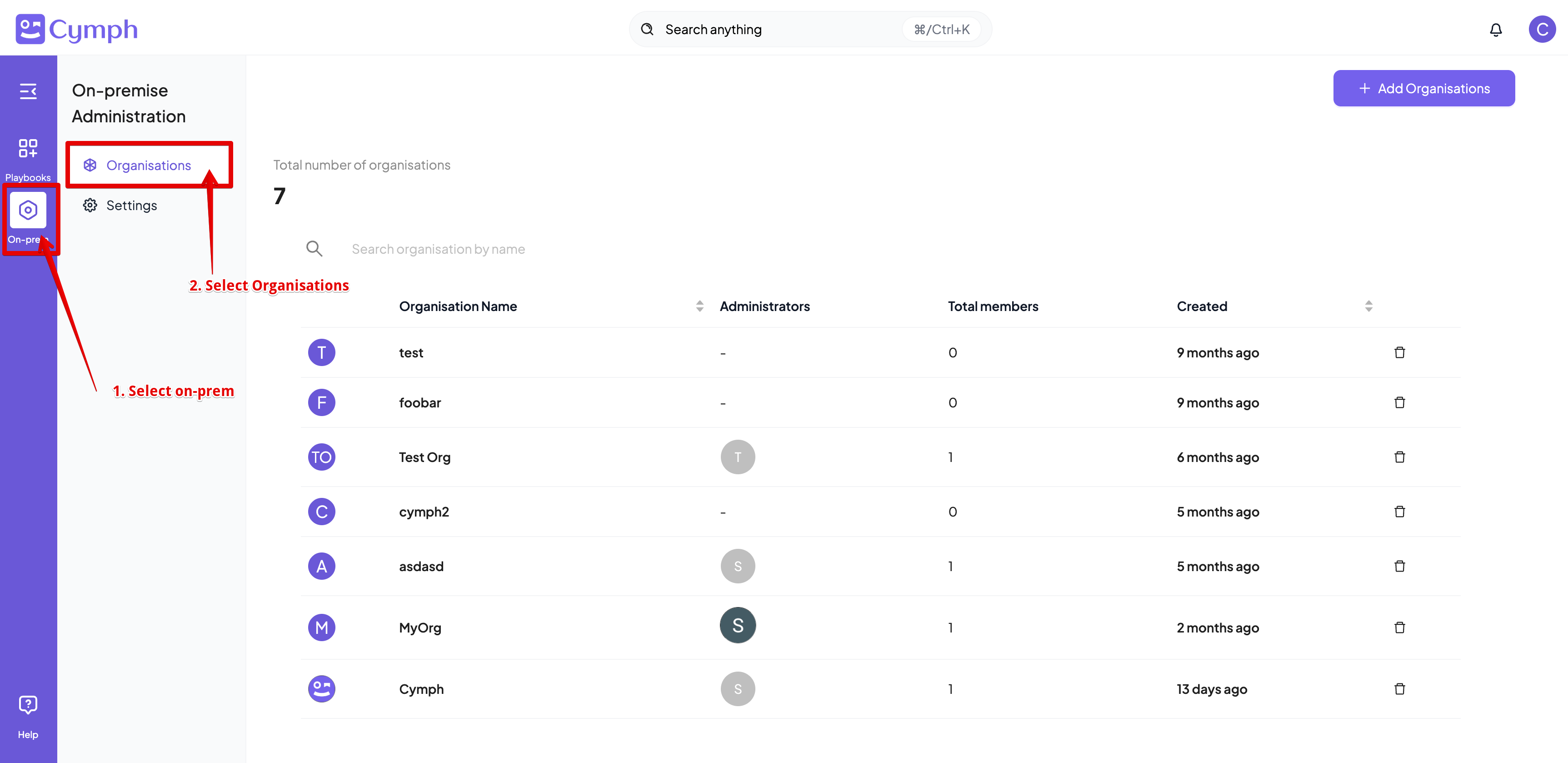
Users with the On-prem Administrator role can manually add organisations.- Go to the Organisations Management page
- From the navigation menu, select On-prem and then Organisations
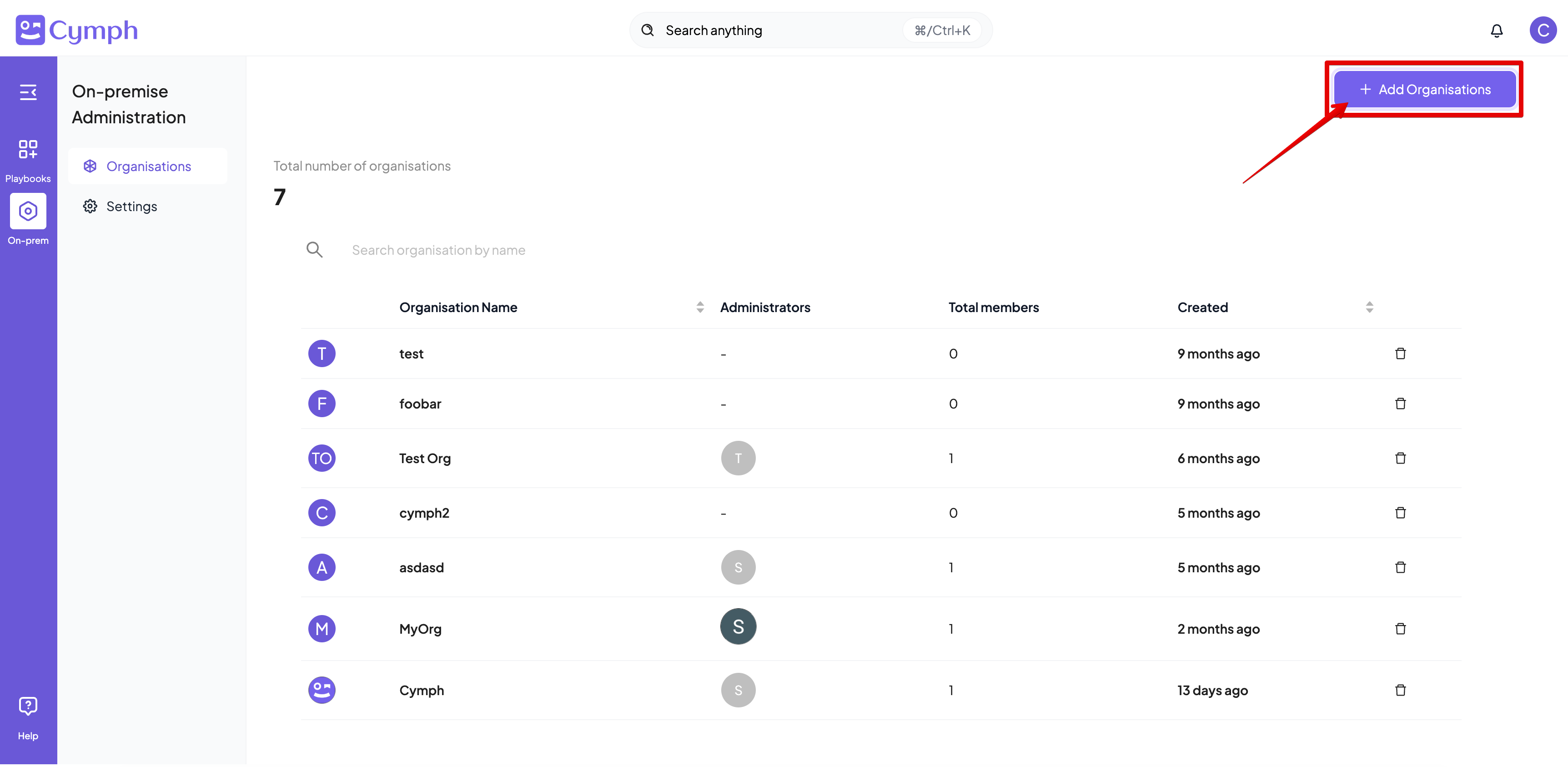
- Click on Add Organisations button
- Enter the organisation details
- Enter the organisation name (required)
- Enter the e-mail address for the administrator of the organisation
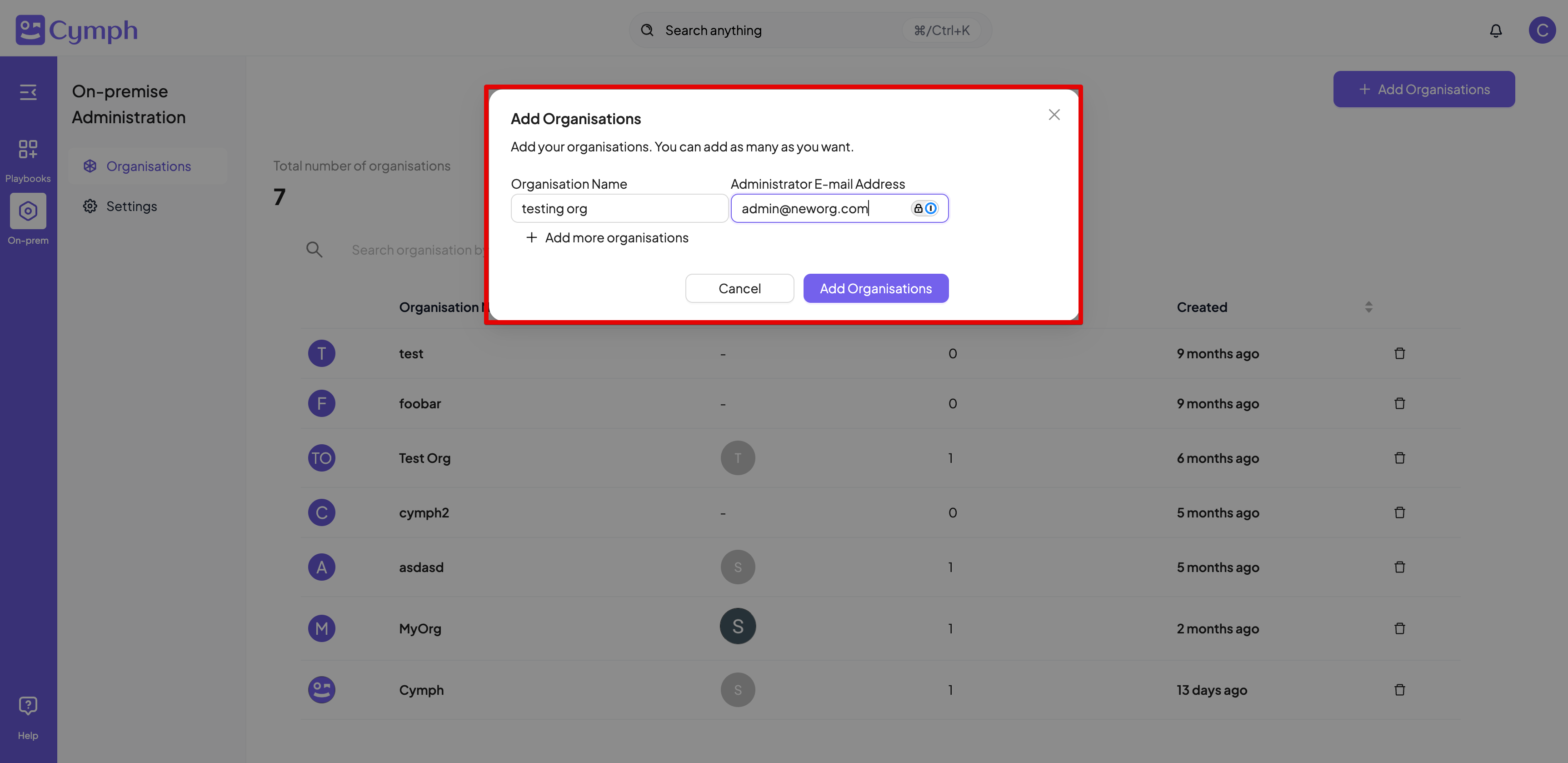
- You can add more organisations by clicking on Add more organisations option (optional)
- Enter the details for the additional organisations
- Click on Add Organisations to confirm
- The Organisations Management page will be automatically refreshed to show the new organisations
- If any of the e-mail addresses provided during that step is not already registered in the application, a new account will be created for that address. The initial password for these accounts will be
passwordand members will be forced to change it upon first login. - If any of the e-mail addresses provided already belong to an organisation, the process will fail.
- If any of the e-mail addresses provided belong to an on-premises administrator, the process will fail
How to view an organisation’s overview
- Go to the Organisations Management page
- Click the Overview icon of the organisation
- Members: each member’s organisation role, status and last login. Pending invites are listed below.
- Workspaces: each workspace with its members, playbooks, executions, assets and presets. Expand a workspace to see its members, their workspace role, and whether they are an Org. Member or External.
How to change a member’s organisation role
- Open the organisation’s overview
- In the Members tab, pick the new role in the member’s Organisation Role field
How to delete an organisation
- Go to the Organisations Management page
- Click the Delete icon of the organisation you want to delete
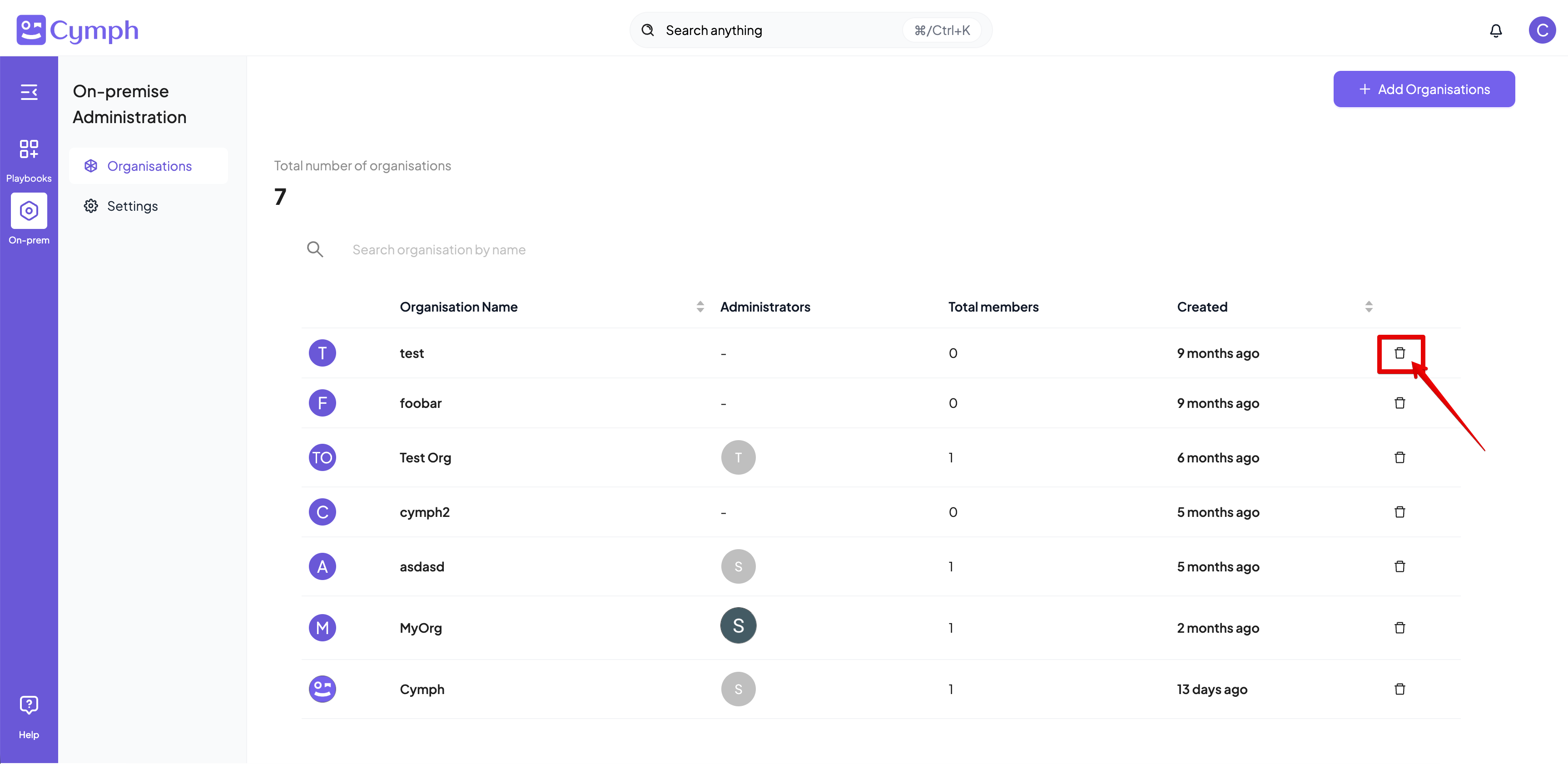
- Confirm the deletion by clicking on Delete Organisation button
- The organisation will be removed and the Organisation Management table will be refreshed to reflect the changes
When you delete an organisation, all of its members and their owned playbooks will be deleted as well. Please make sure that you have taken the appropriate backup.