

How to create a template
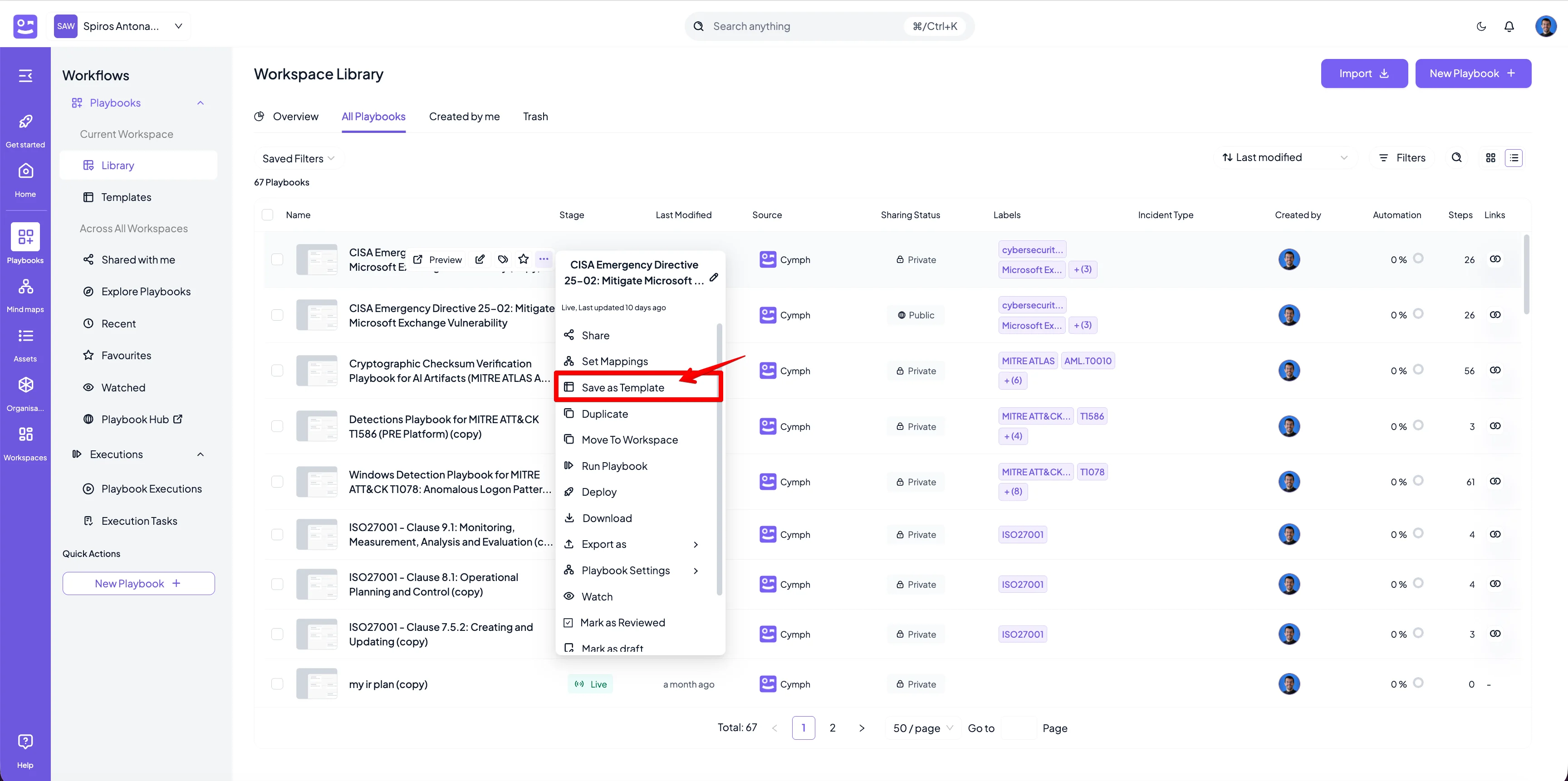
- For the playbook you want to create a template from, hover over and open the action menu
- Click on the triple dot icon on the hover panel that appears
- Select the Save as Template option from the menu that appears
- In the popup that appears, provide a name for the template and optionally a description
- Click on Save template to save your template
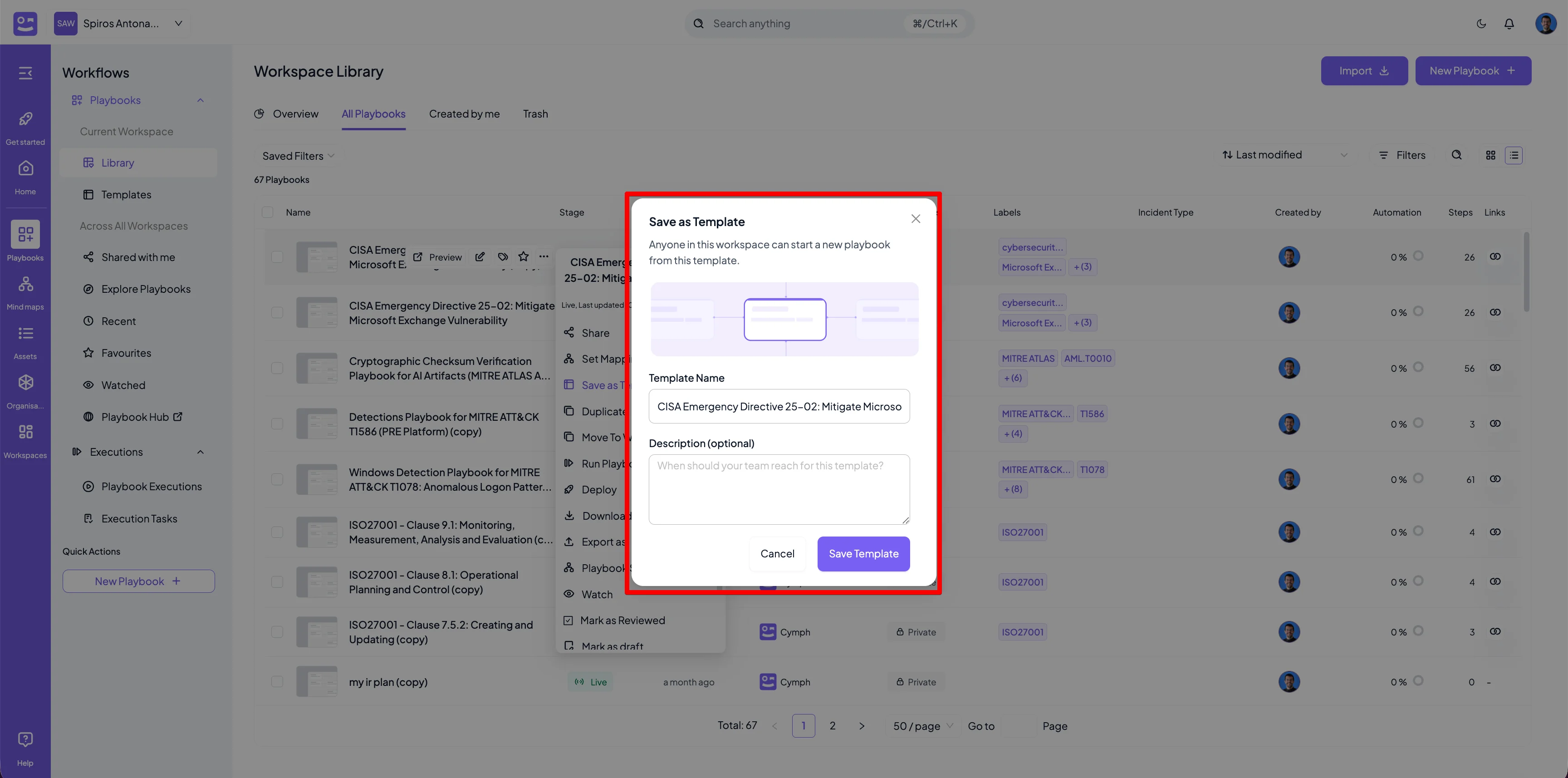
Both the workflow and documentation part of the playbook will be saved into the template. Labels and IR stage are also saved.
How to create a playbook from a template
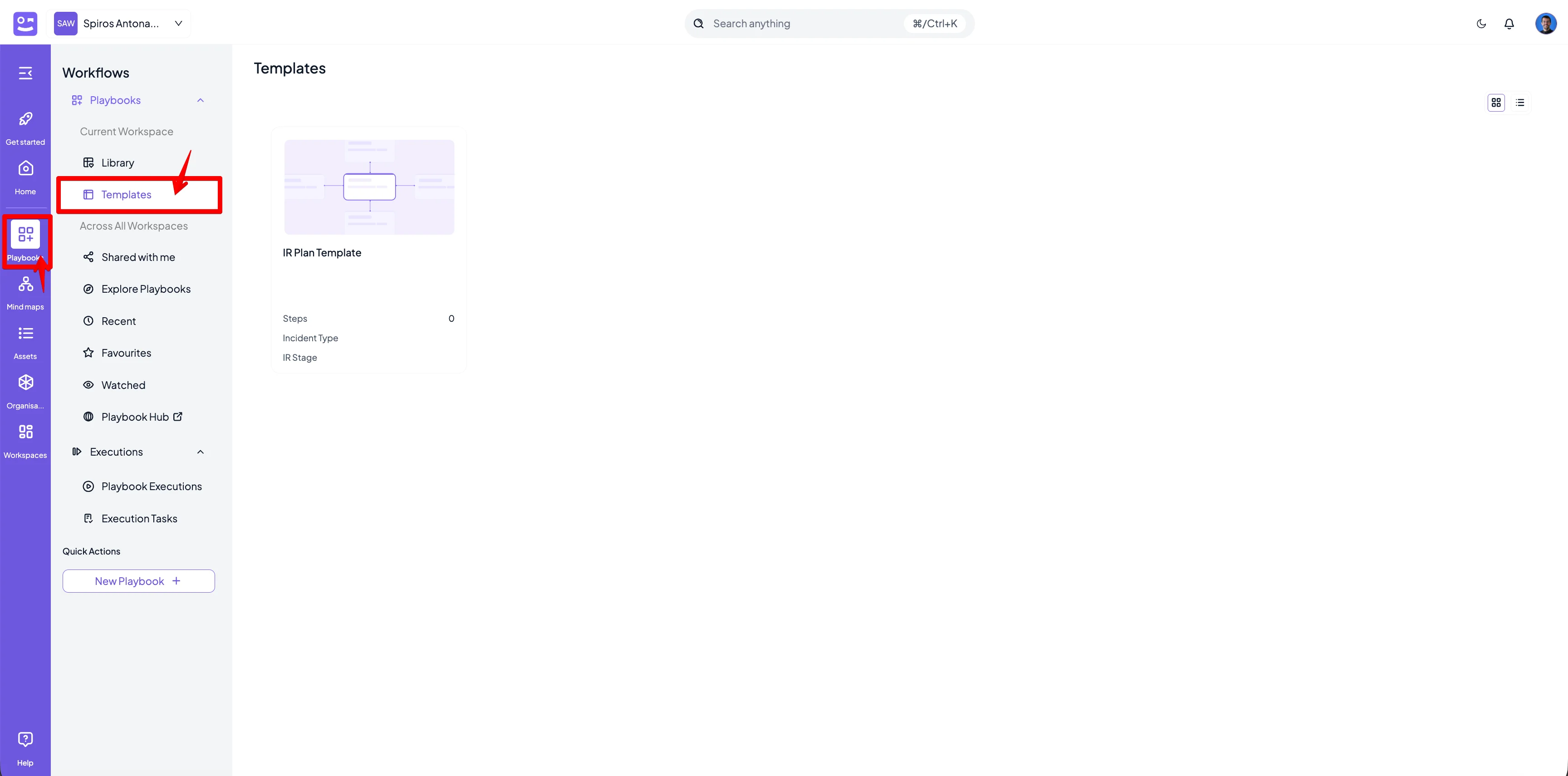
There are two ways to create a playbook from a template. The first one is via the Templates area of the Playbooks section. The second one is via the New Playbook buttonFrom Templates area
- Go to the Templates area
- Hover over the template you want to use. The actions menu will appear
- Select the Use template action
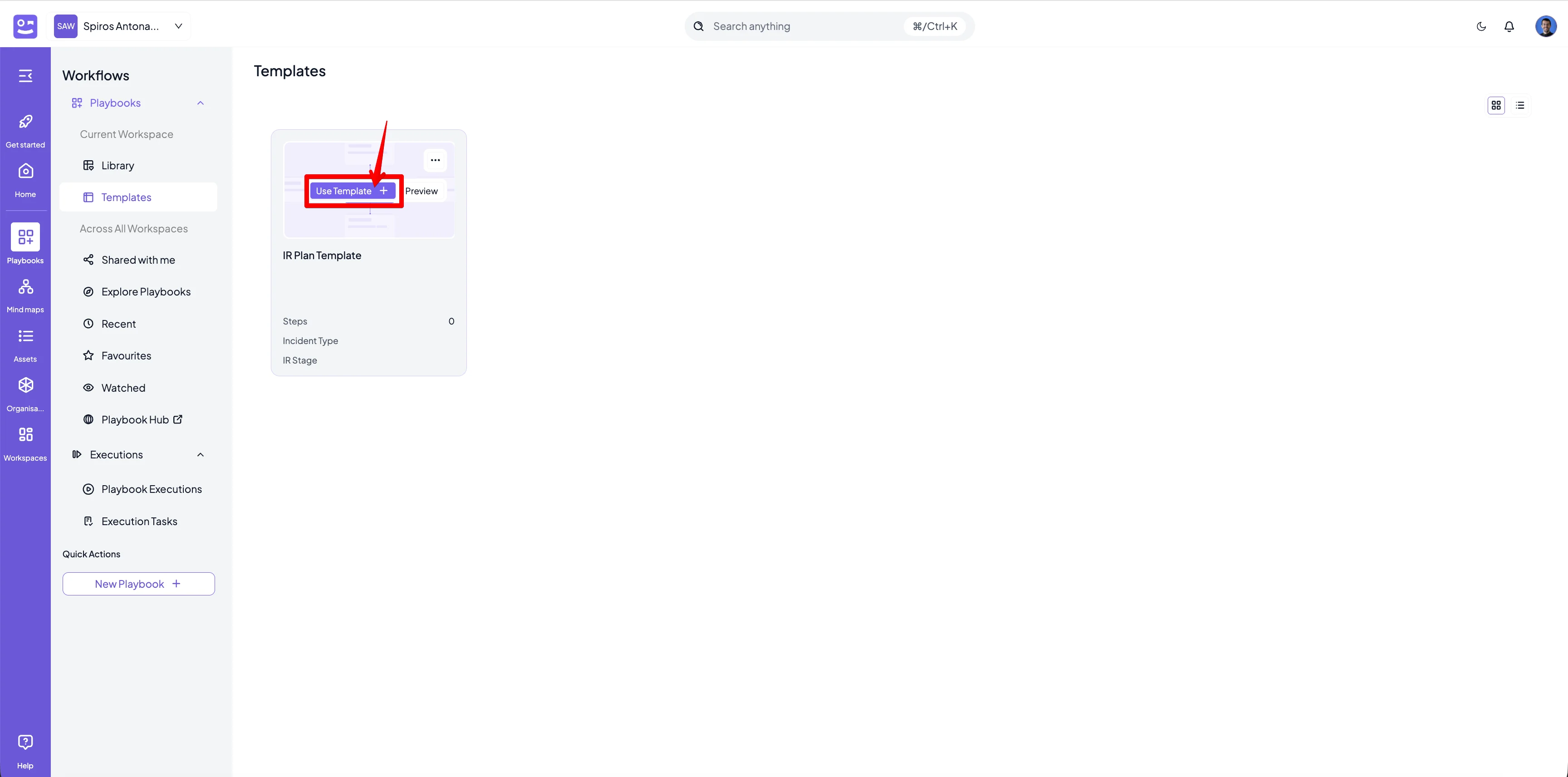
- You will be redirected to the editor with the contents of the template being loaded
From the New Playbook menu
- Go to the Playbook library
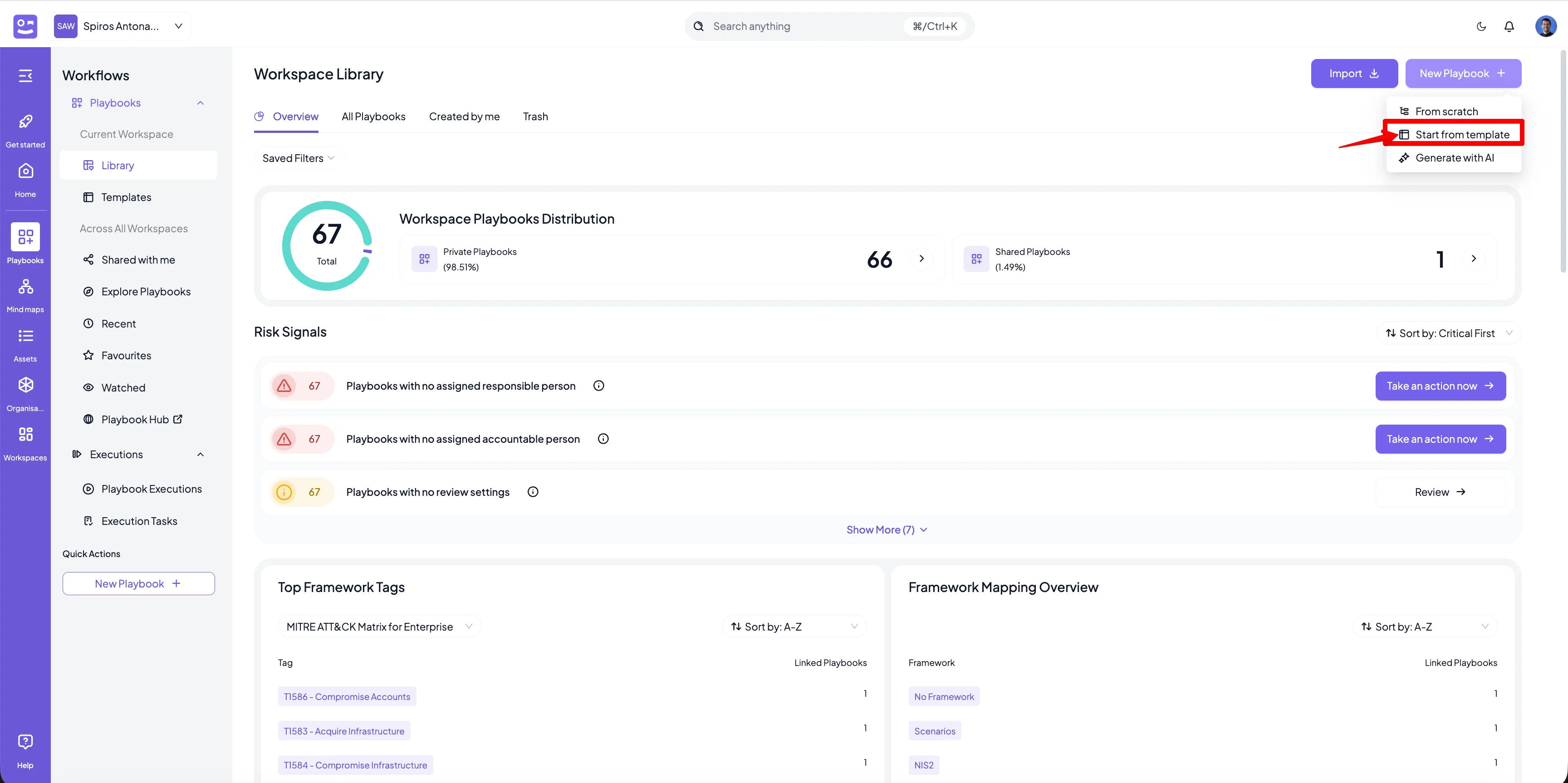
- Click on the New Playbook button from the top right corner and select Start from template
- From the modal that appears, hover over the template you want to use and click on the Select template action
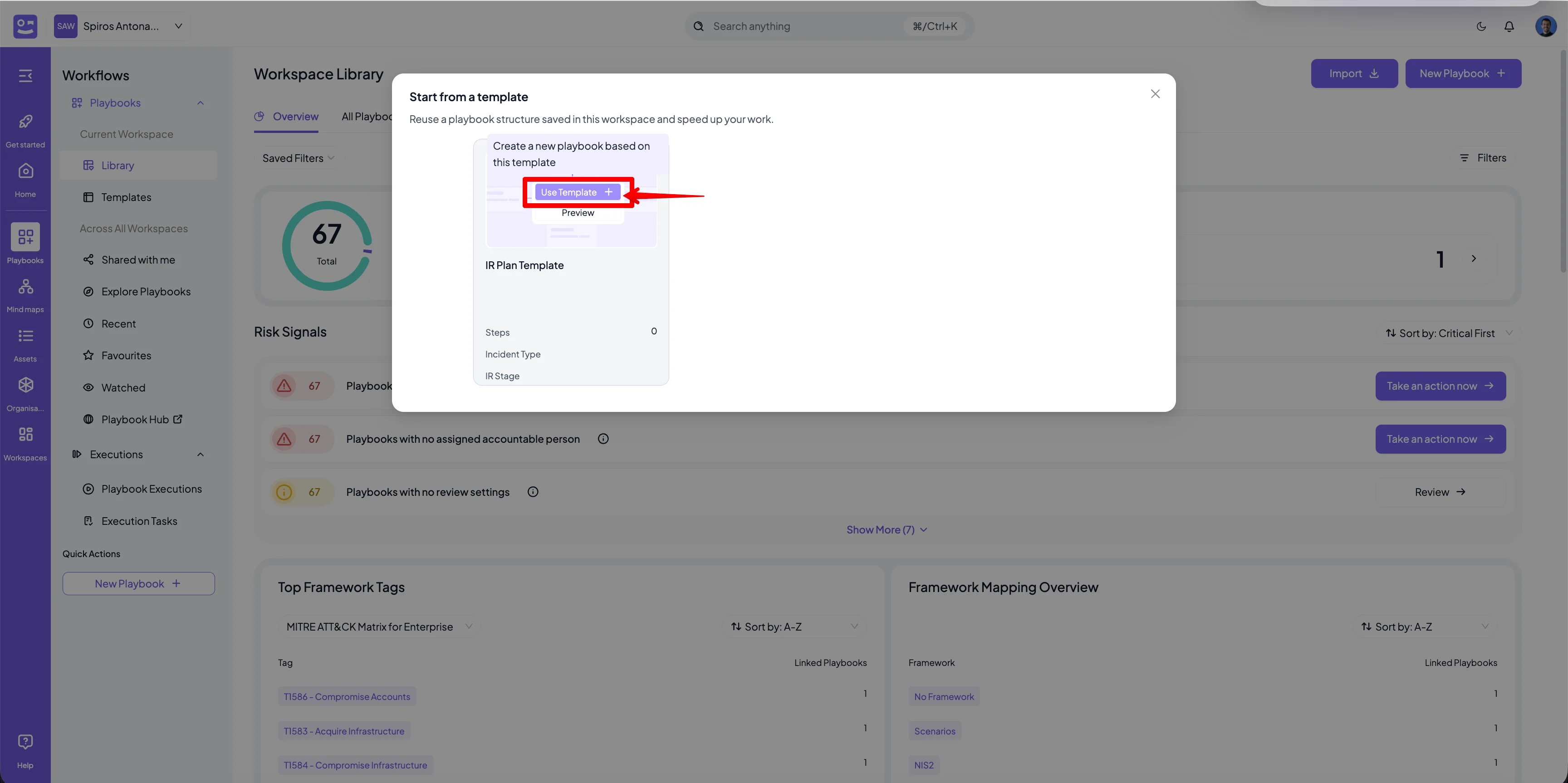
- You will be redirected to the playbook editor with the contents of the selected template loaded