
Enable multi-factor authentication
It is recommended that you enable multi-factor authentication for your account.- Go to your profile menu.
- Click your profile picture on the top right corner of the dashboard.
- Go to your settings.
- Click Settings.
- Go to security settings
- Click on Security tab
- Start the multi-factor authentication enablement process
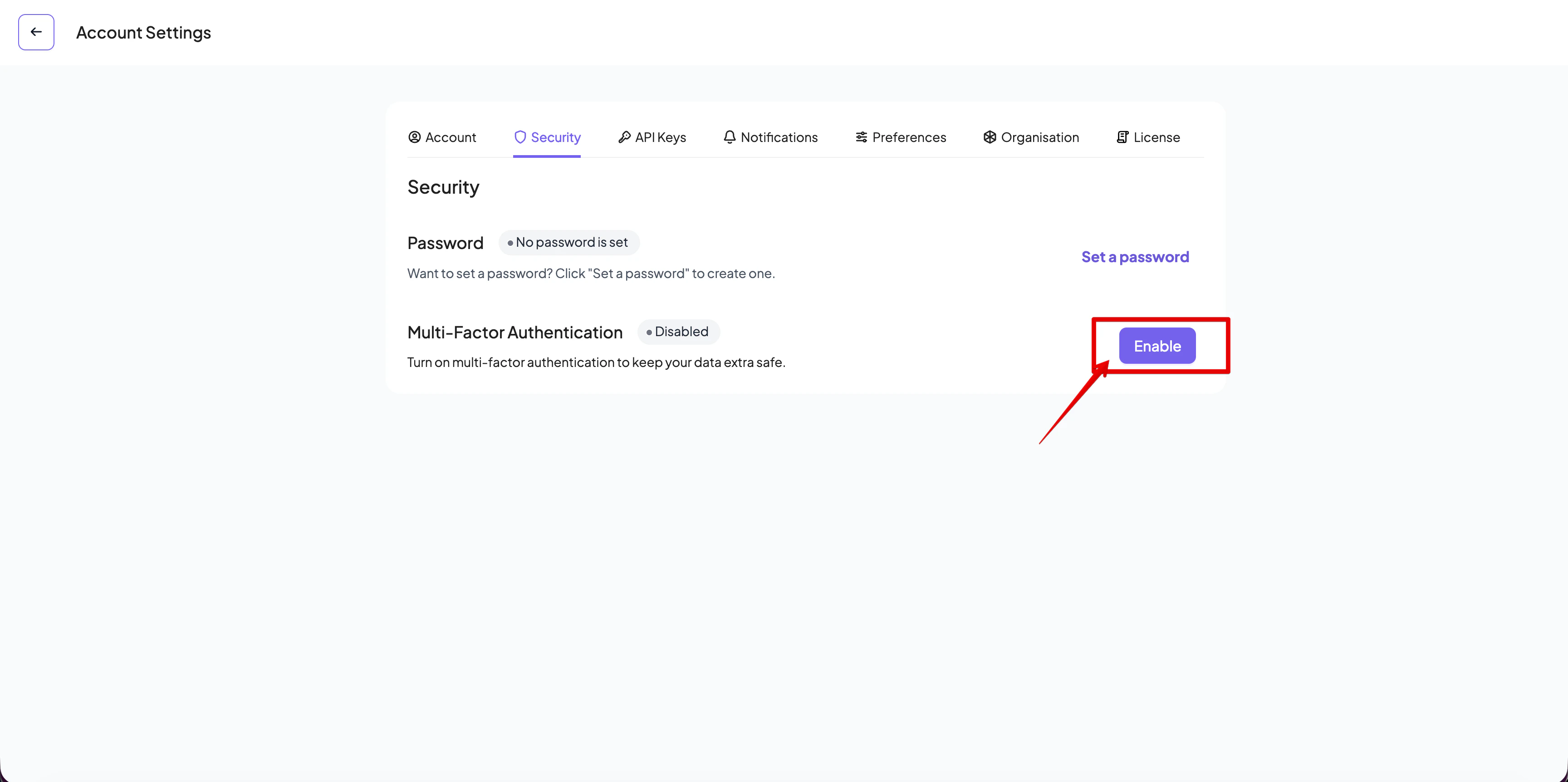
- Click on the Enable button
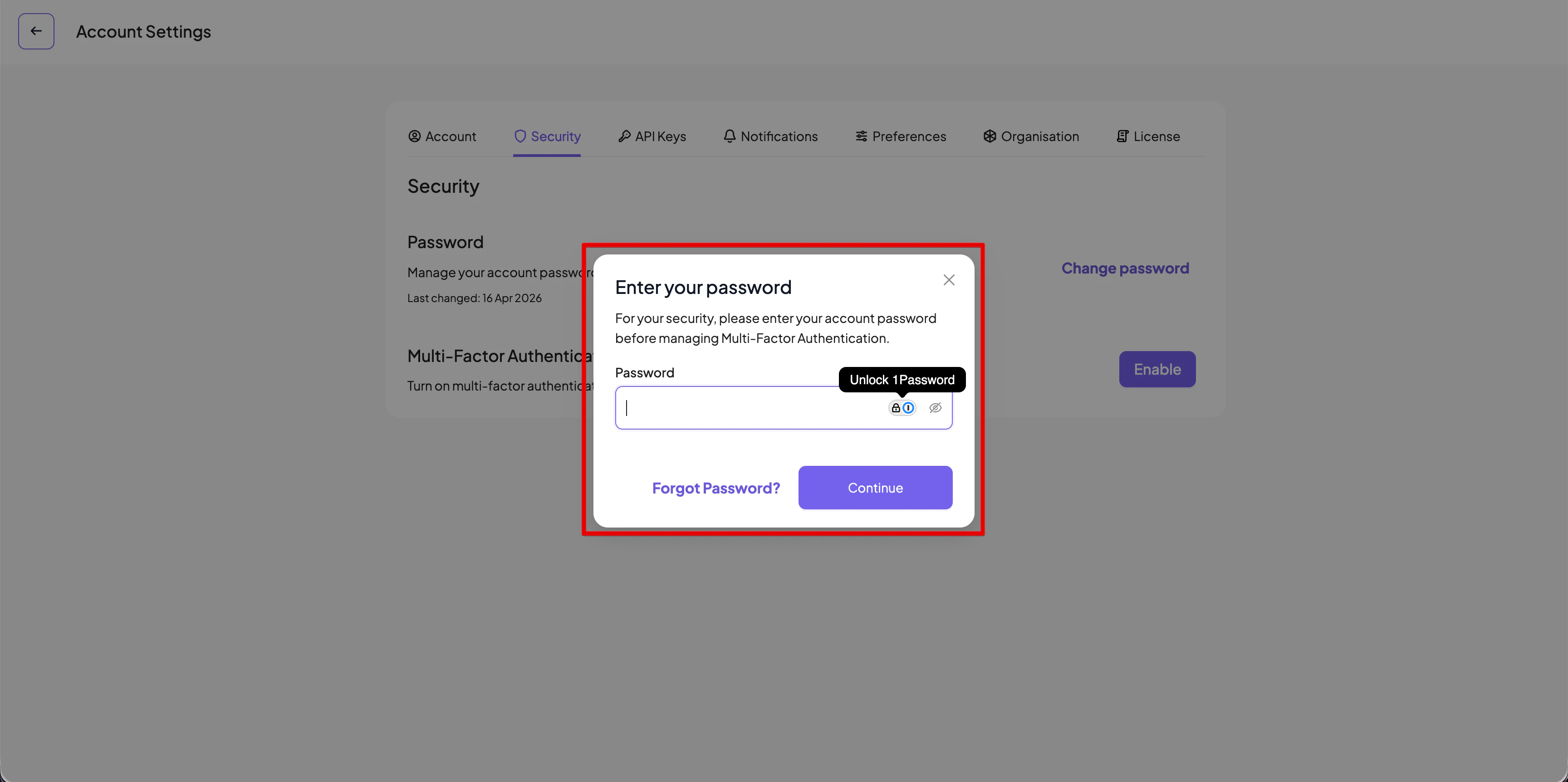
- Enter your current password
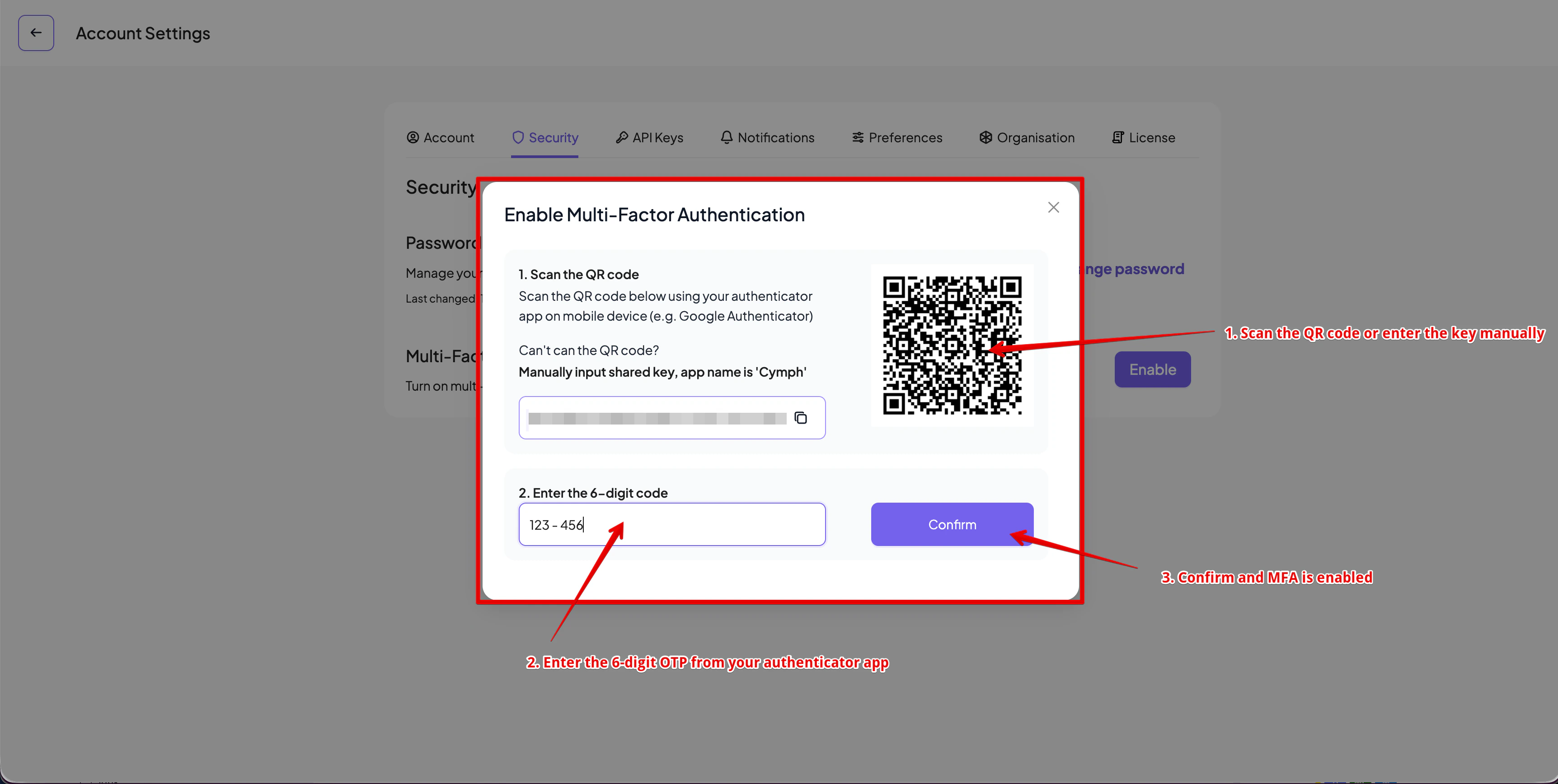
- Scan the QR code from the authenticator application of your choice (e.g. Google, Microsoft authenticators)
- If you cannot scan the QR code, you can also enter the key manually
- Once the Cymph app is setup on your authenticator app, enter a 6-digit OTP
- Click Confirm and if the code is valid, the setup will finish
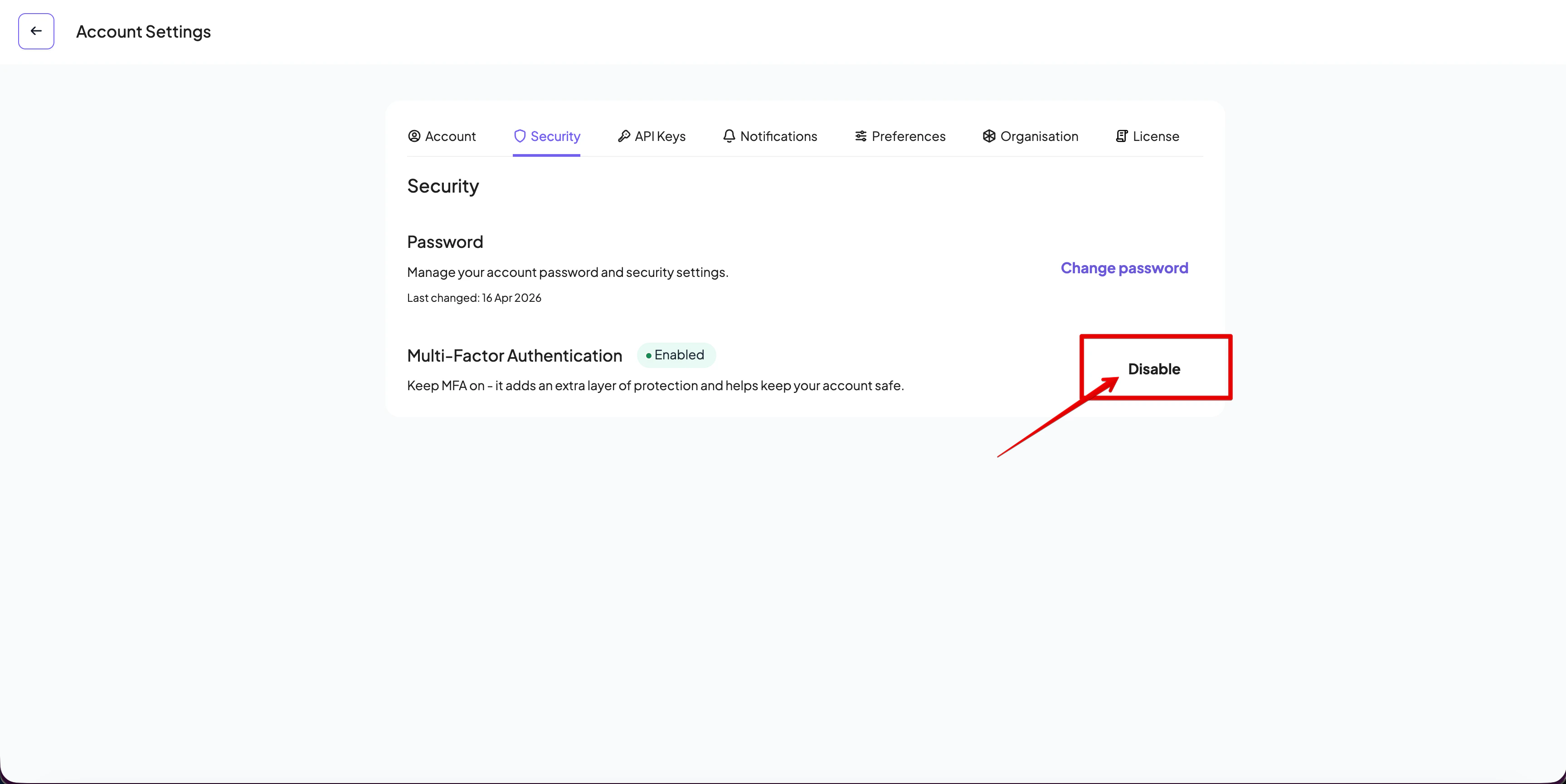
Disable multi-factor authentication
In case that multi-factor authentication is no longer desired, you can disable it by clicking on the Disable button: