

How to add and remove labels
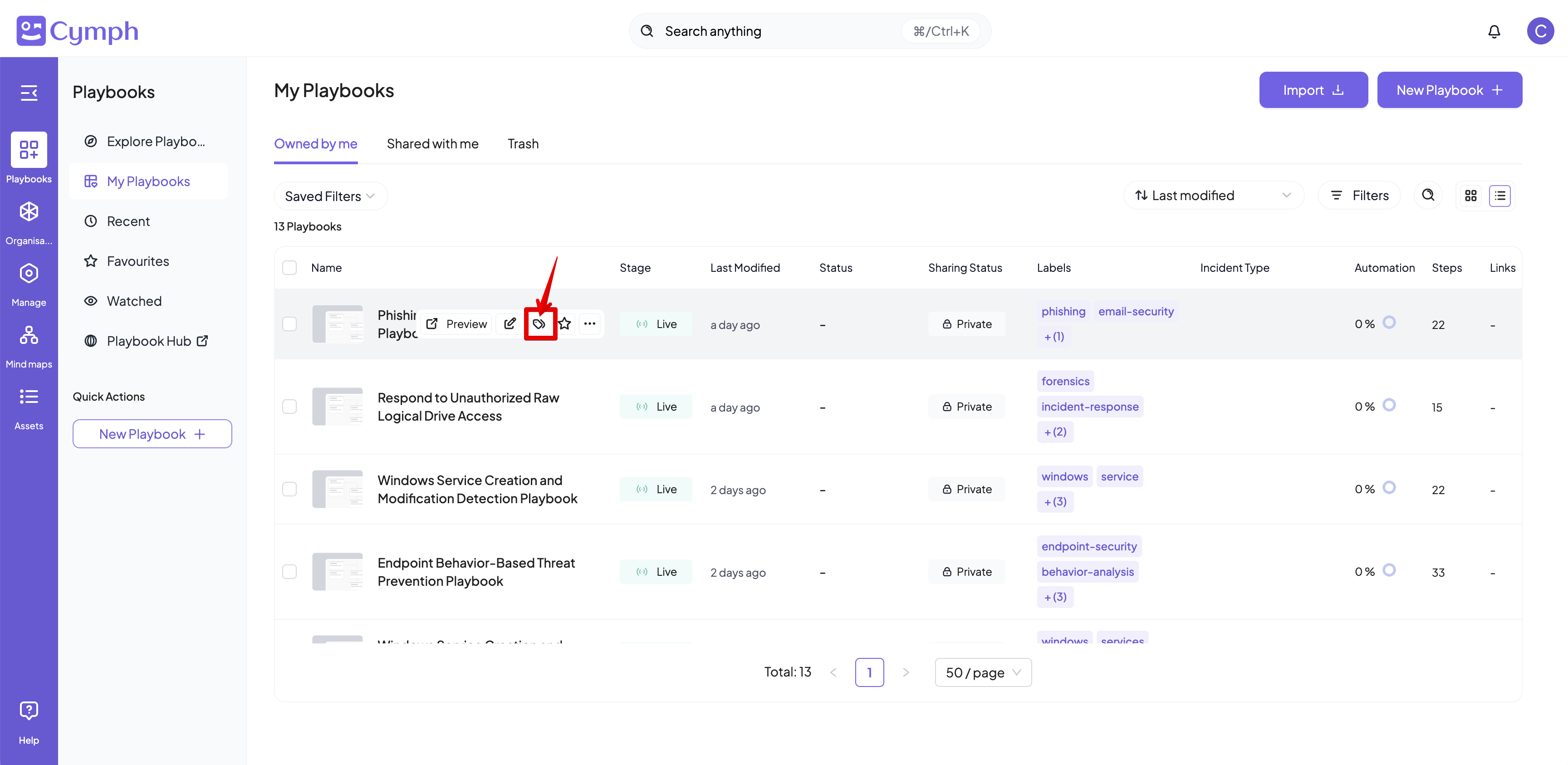
- Go to the Playbook Management System
- Hover over the playbook for which you want to manage labels
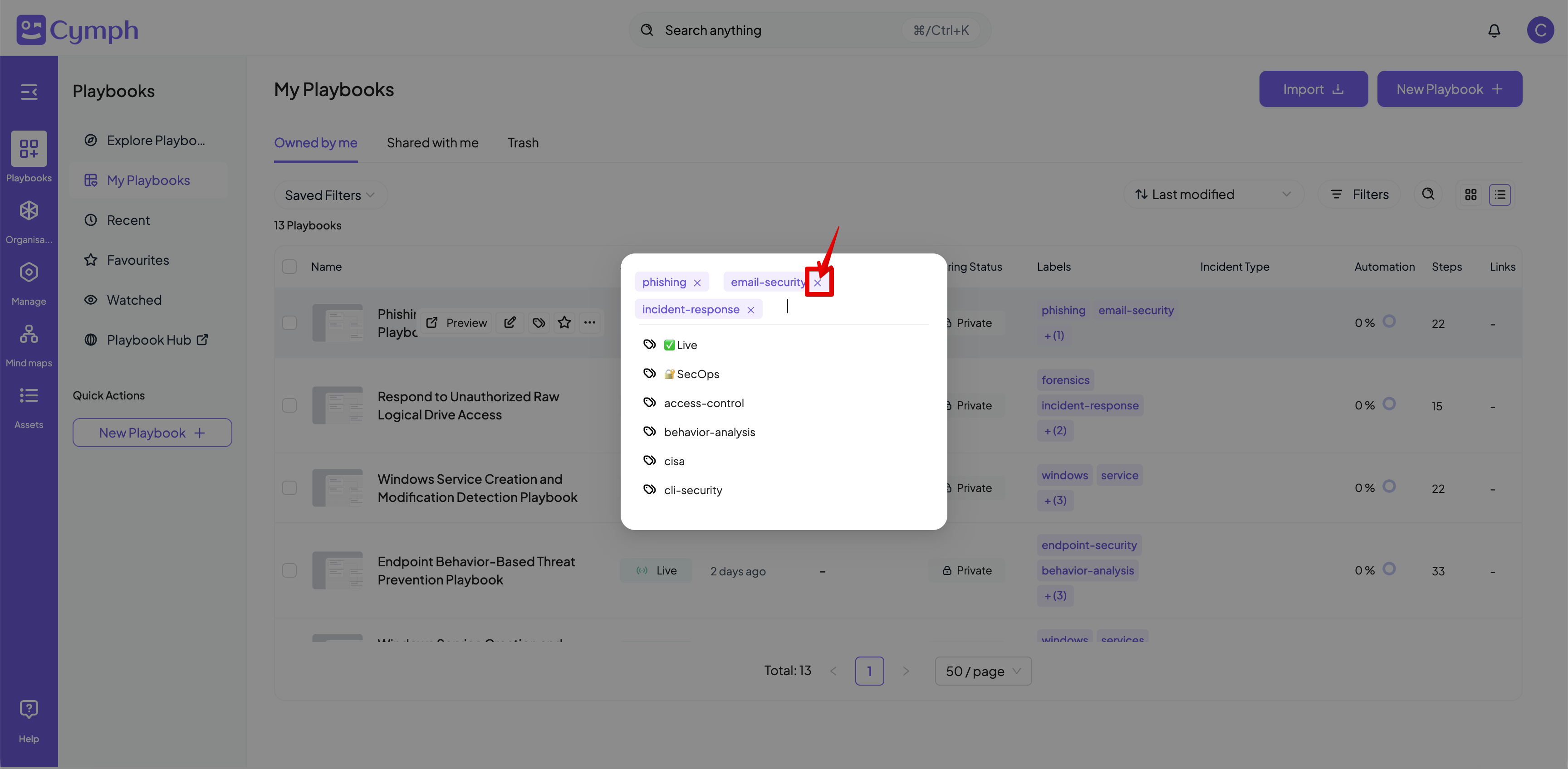
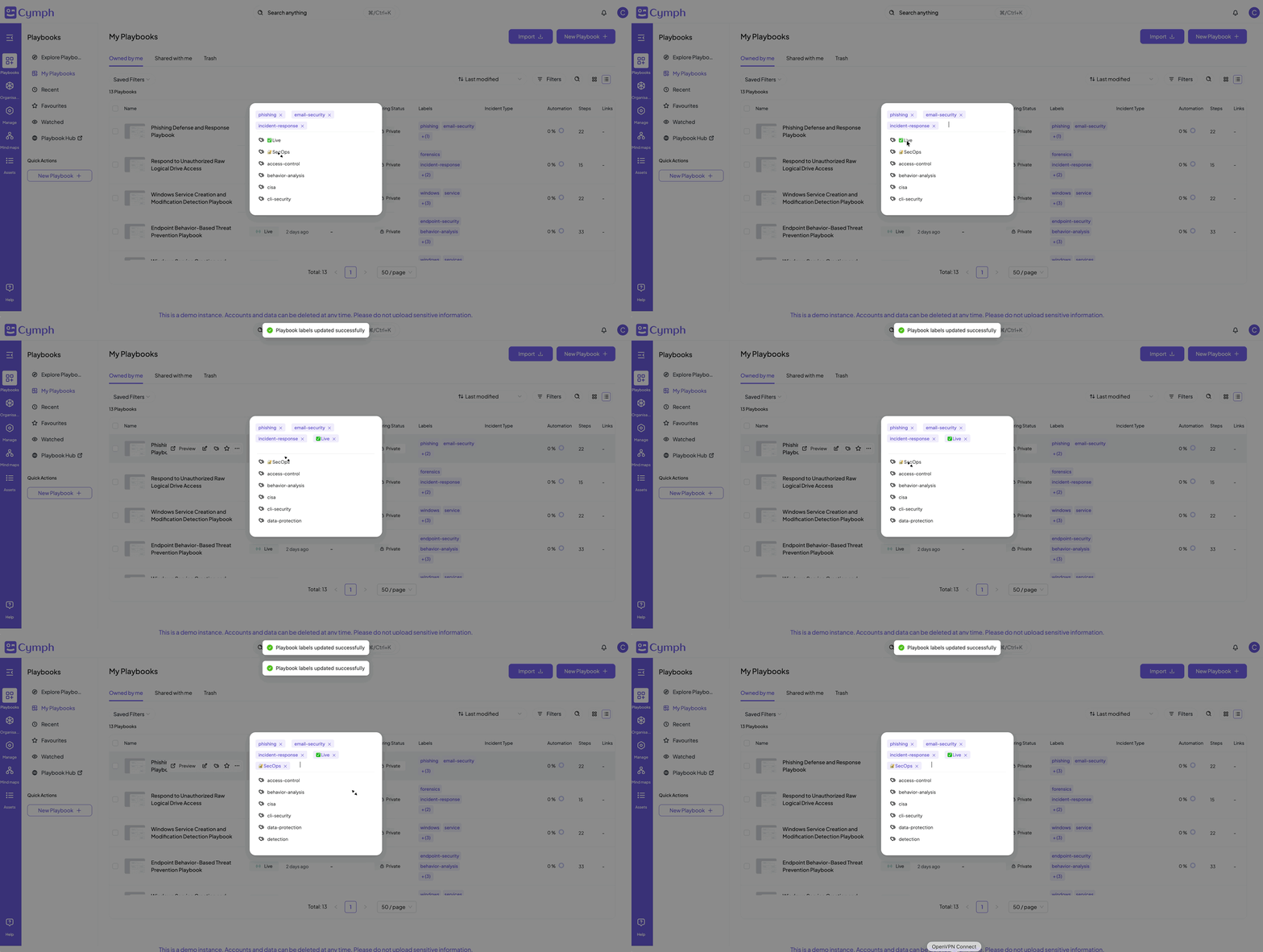
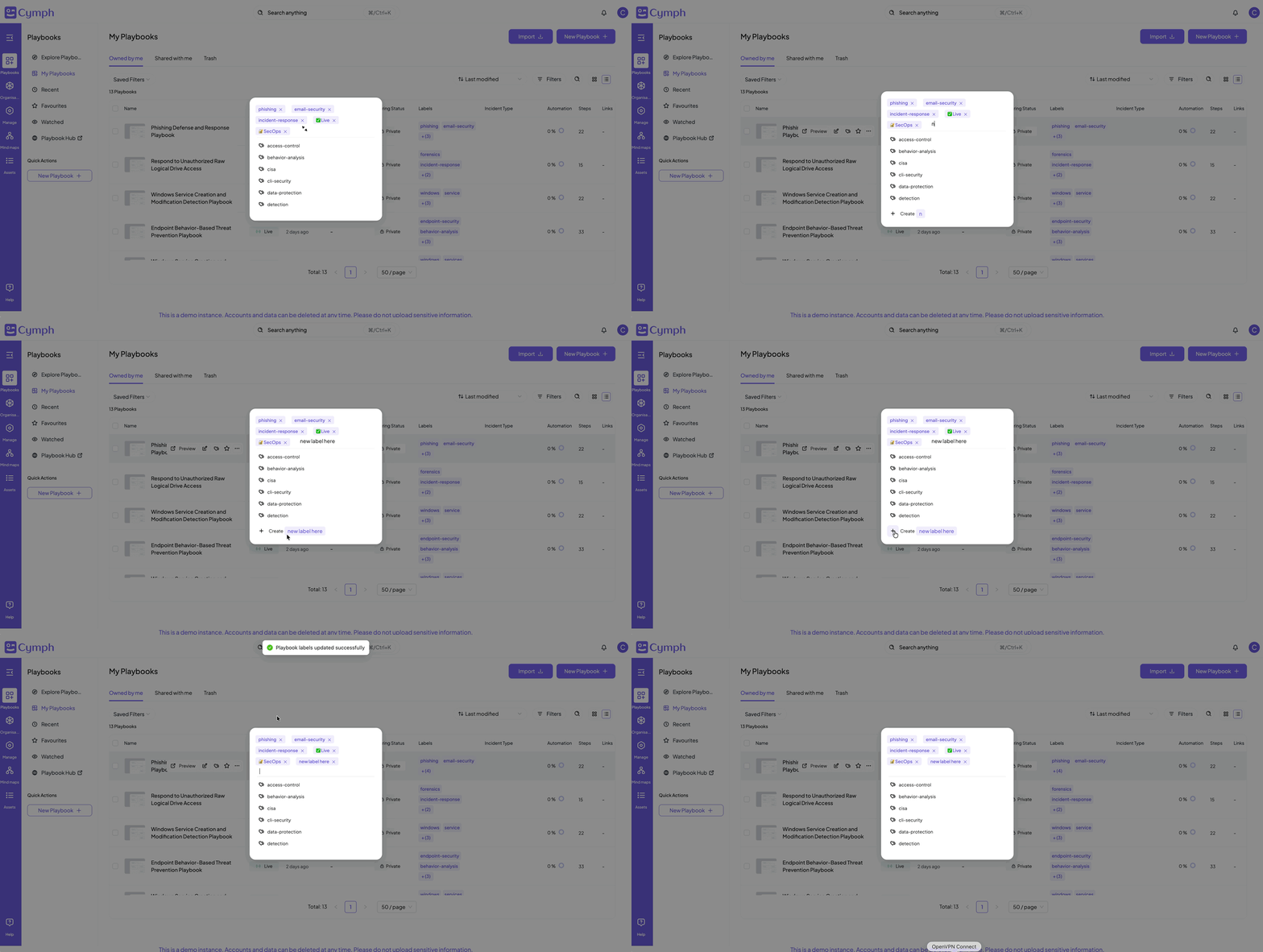
- Click on the Labels action
How to set mappings
- Go to the Playbook Management System
- Select the Set Mappings action
- Hover over the playbook you want to deploy
- Click on the triple dot icon to open the action menu
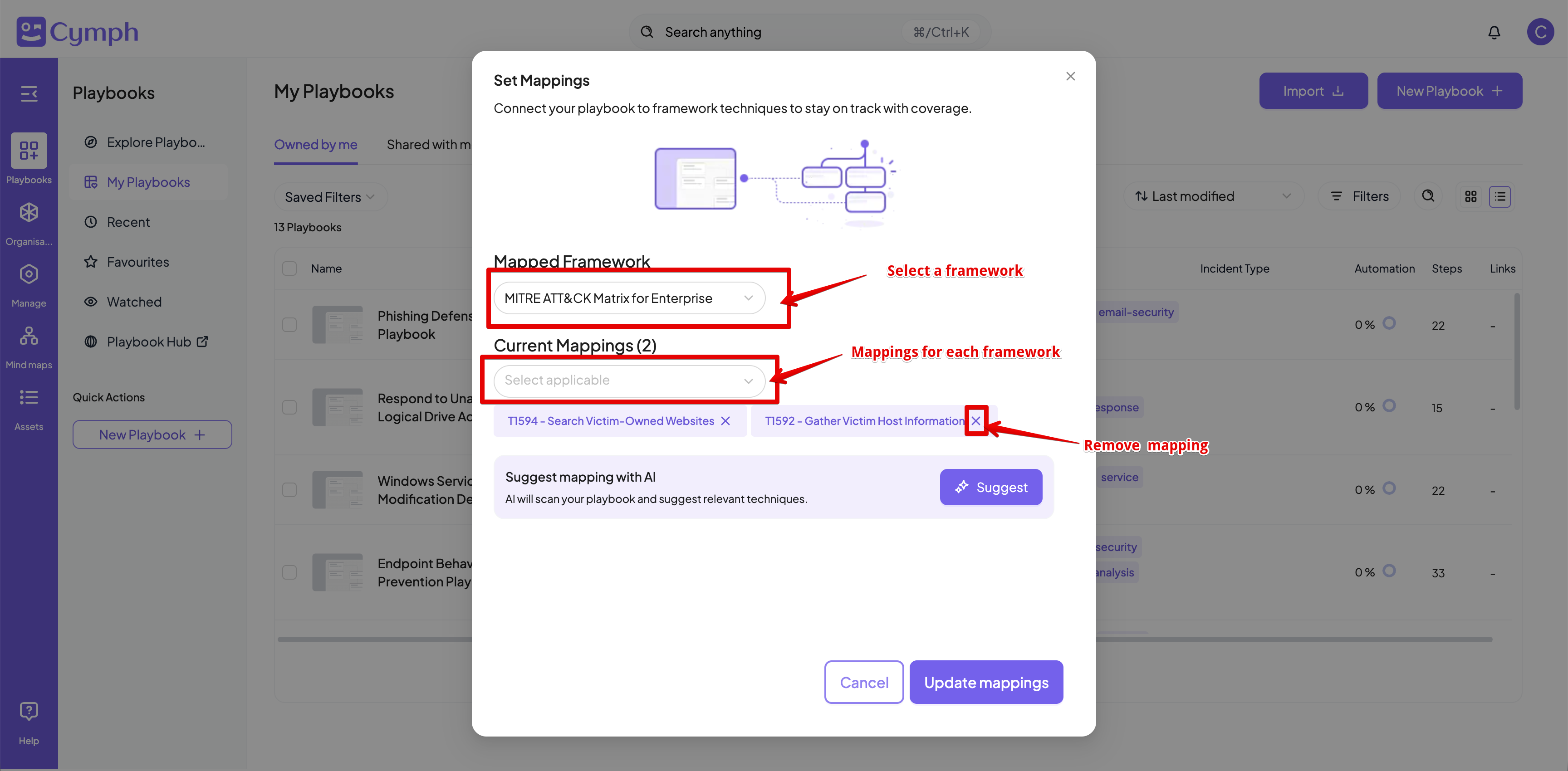
- Select the framework for which you want to add a mapping
- Select the mappings for the chosen framework you want to add
- If you want to remove a mapping, click on the close icon next to each mapping
- Click on Update mappings to save the mappings to the playbook
AI suggestions
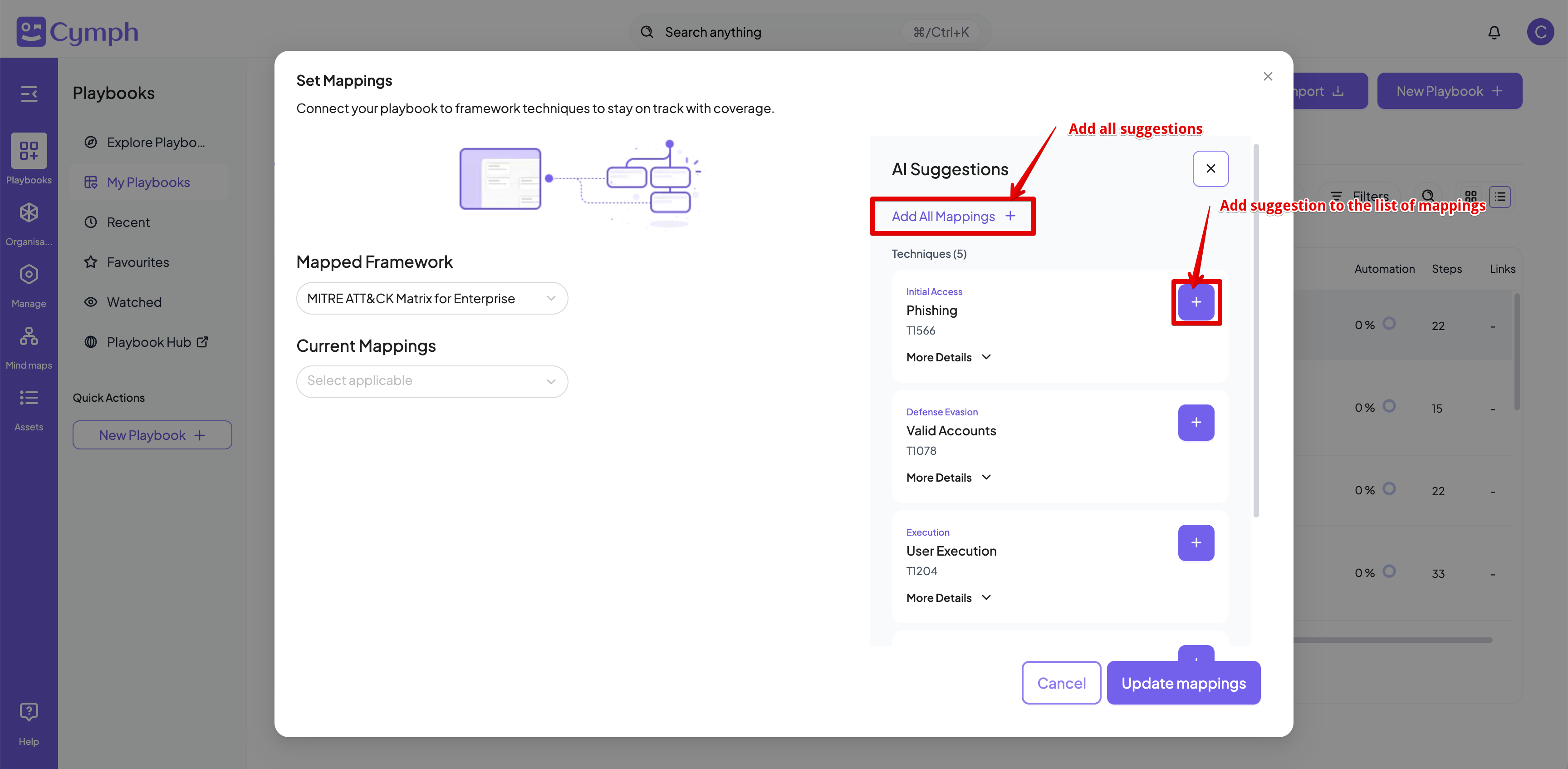
If you are not sure about which mappings are appropriate, you can ask for suggestions from our AI.- Click the Suggest button
- The suggestions will appear after a while
- You can select to add individual suggestions or click on Add All Mappings to add them all at once.
How to change playbook settings
- Go to the Playbook Management System
- Hover over the playbook for which you want to manage settings
- Select the type of settings you want to change from the action menu
- Incident types: select the relevant incident type that the playbook adresses, e.g. ransomware, phishing etc
- Incident response stage: Mark the playbook as detection, mitigation, prevention or remediation (among others)
- Assets: the linked assets.
- Asset types: the linked asset types.
- RACI Matrix: the responsible, accountable, consulted and informed users or teams for this playbook.
- Impact and Severity: the impact and severity values of the playbook. The values can be Not Specified, Low, Medium, High and Critical.
- Last tested: when the playbook was last tested and the mode of testing.
- Review Settings: the assigned review and review frequency of the playbook
How to mark a playbook as reviewd
- Go to the Playbook Management System
- Select the Mark as Reviewed action
- Hover over the playbook you want to deploy
- Click on the triple dot icon to open the action menu
- In the modal that appears, you can optionally add notes
- Click on Mark as Reviewed button to complete the process
How to add a playbook to your watch list
- Go to the Playbook Management System
- Select the Watch action
- Hover over the playbook you want to deploy
- Click on the triple dot icon to open the action menu
- The playbook will be added to your watch list
If your playbook is already in the watch list, you will see the Unwatch action instead. By clicking it, the playbook will be removed from the watch list
How to remove a playbook from your watch list
- Go to the Playbook Management System
- Go to the Watched list
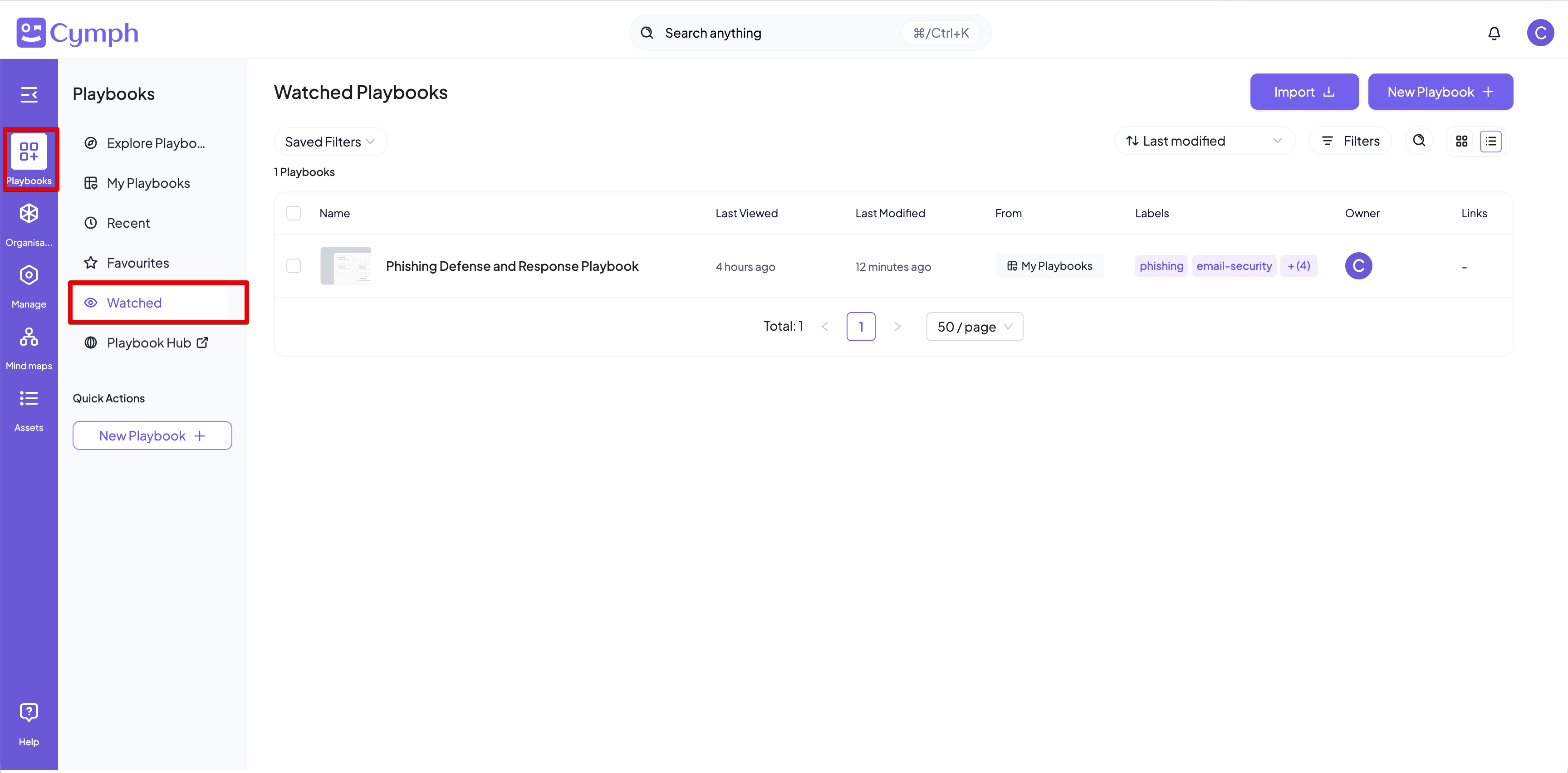
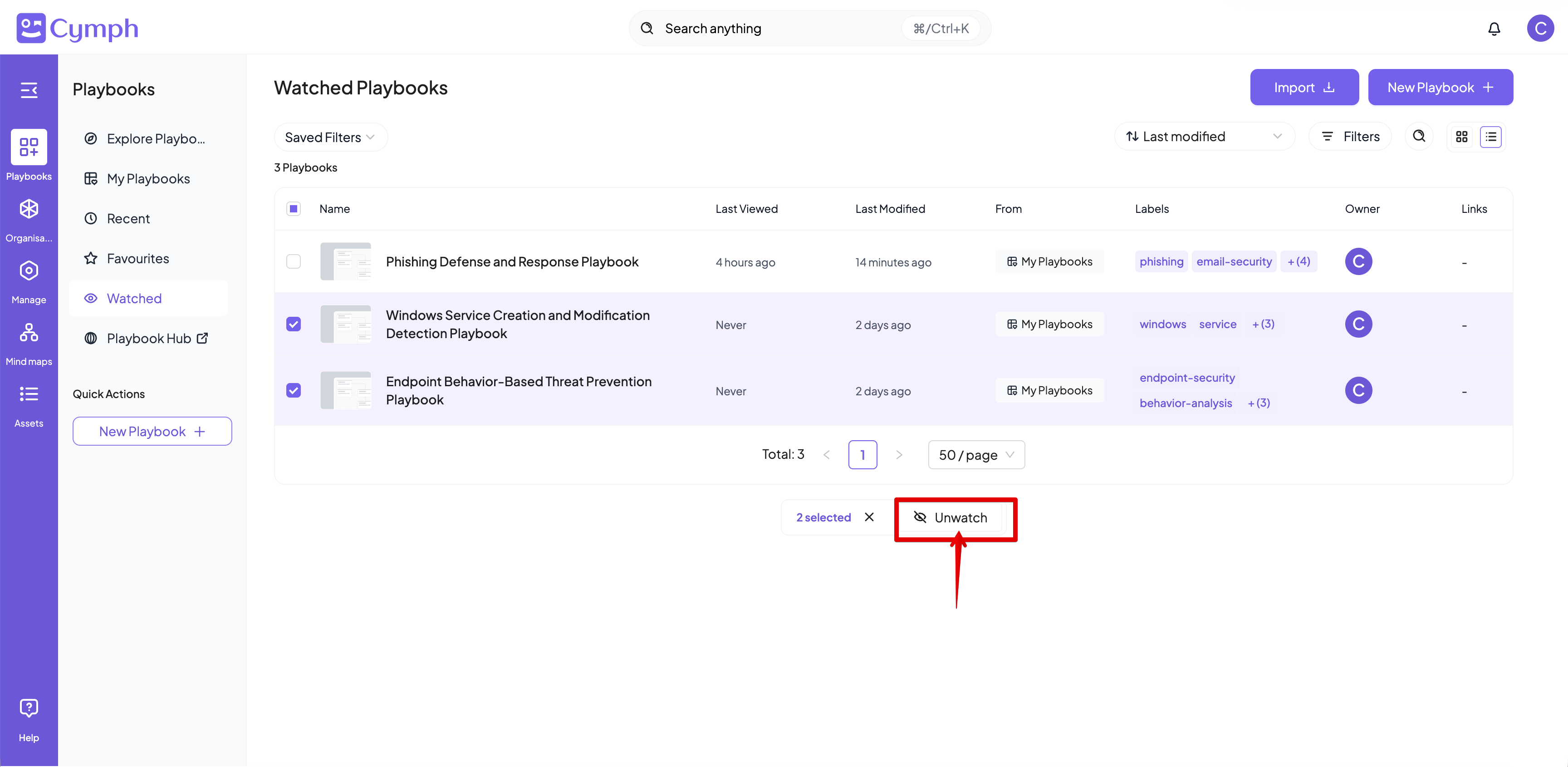
- Select the playbook(s) you want to remove from the watch list
- Select the Unwatch action from the bulk action bar
How to add a playbook to your favorites
- Go to the Playbook Management System
- Hover over the playbook that you want to add to favorites
- Click on the Favorites action
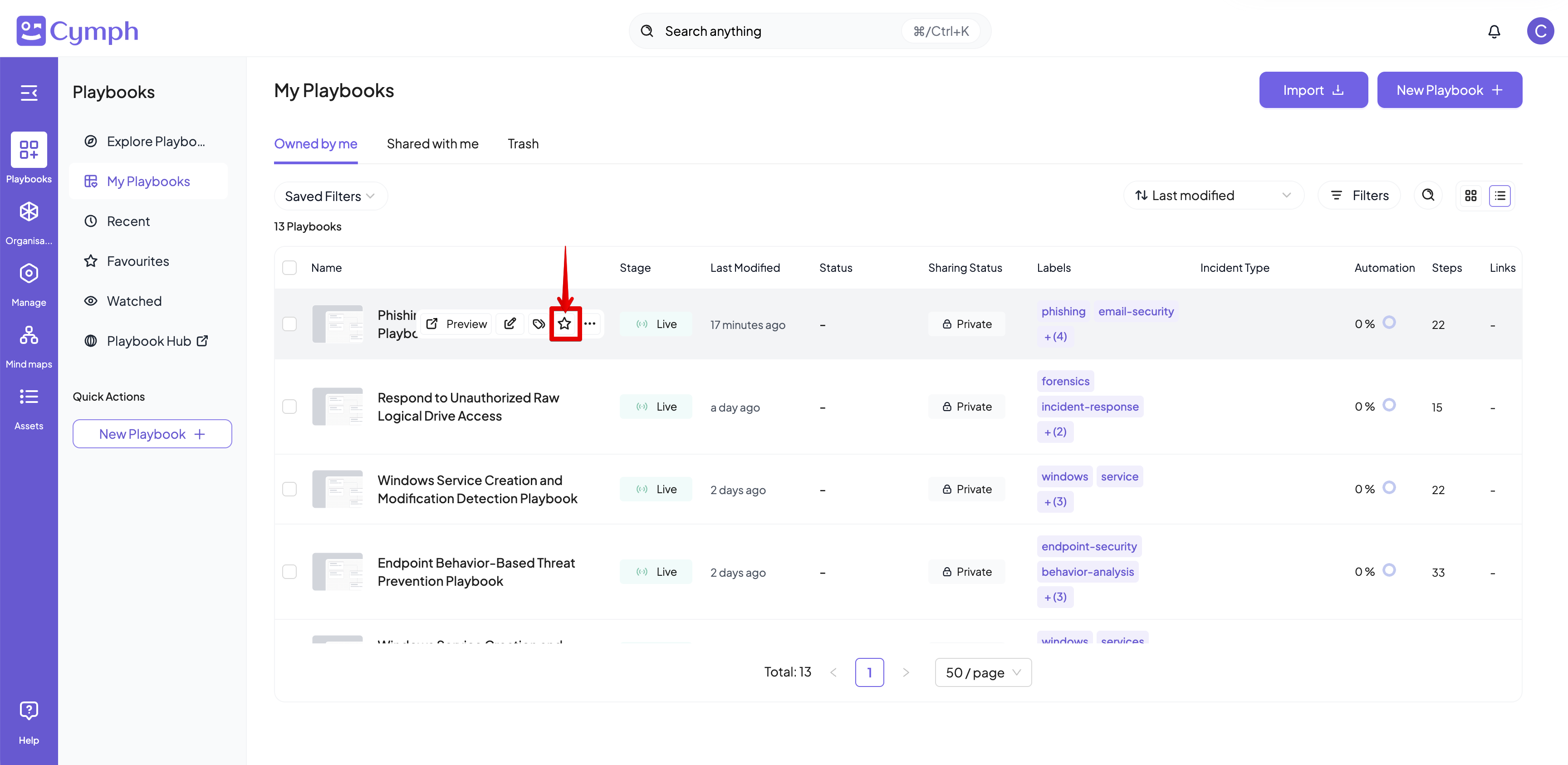
- The playbook will be added to your favorites
If the playbook is already in your favorites list, you will see the Remove From Favorites icon instead. Clicking on it will remove the playbook from your favorites
How to remove a playbook from your favorites
- Go to the Playbook Management System
- Go to the Favorites list
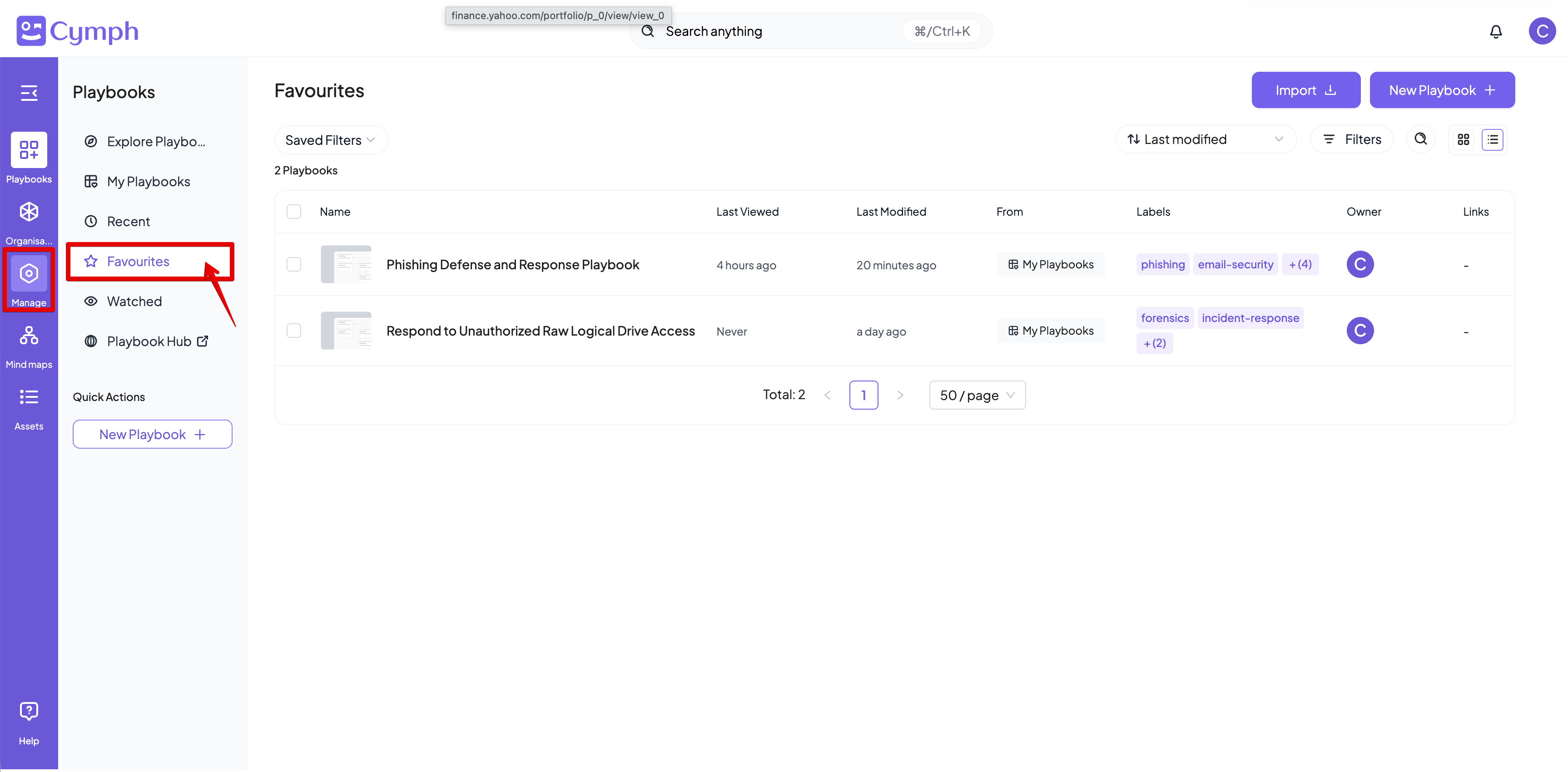
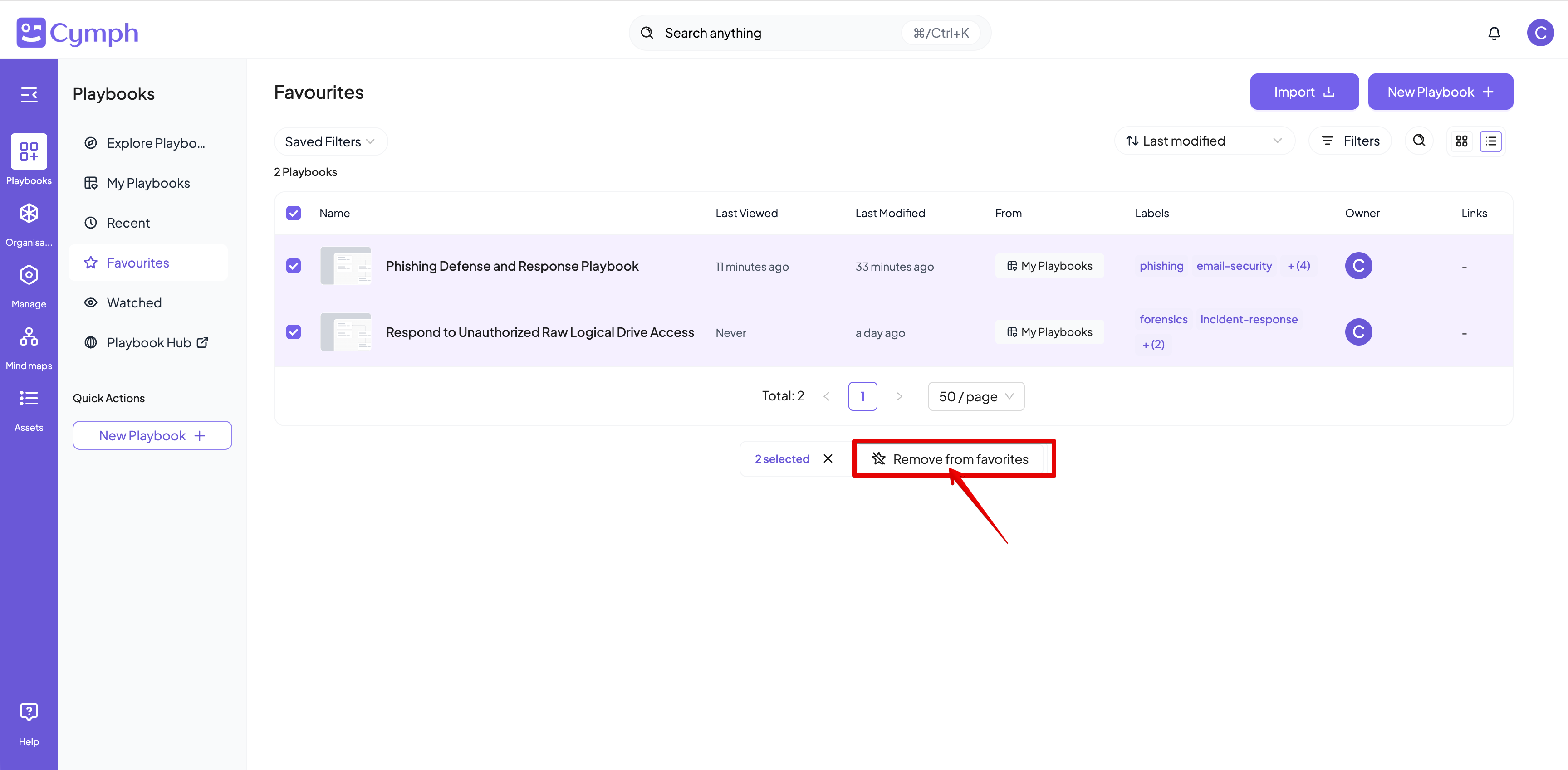
- Select the playbook(s) you want to remove from favorites
- Select the Remove From Favorites action from the bulk action bar
How to duplicate a playbook
- Go to the Playbook Management System
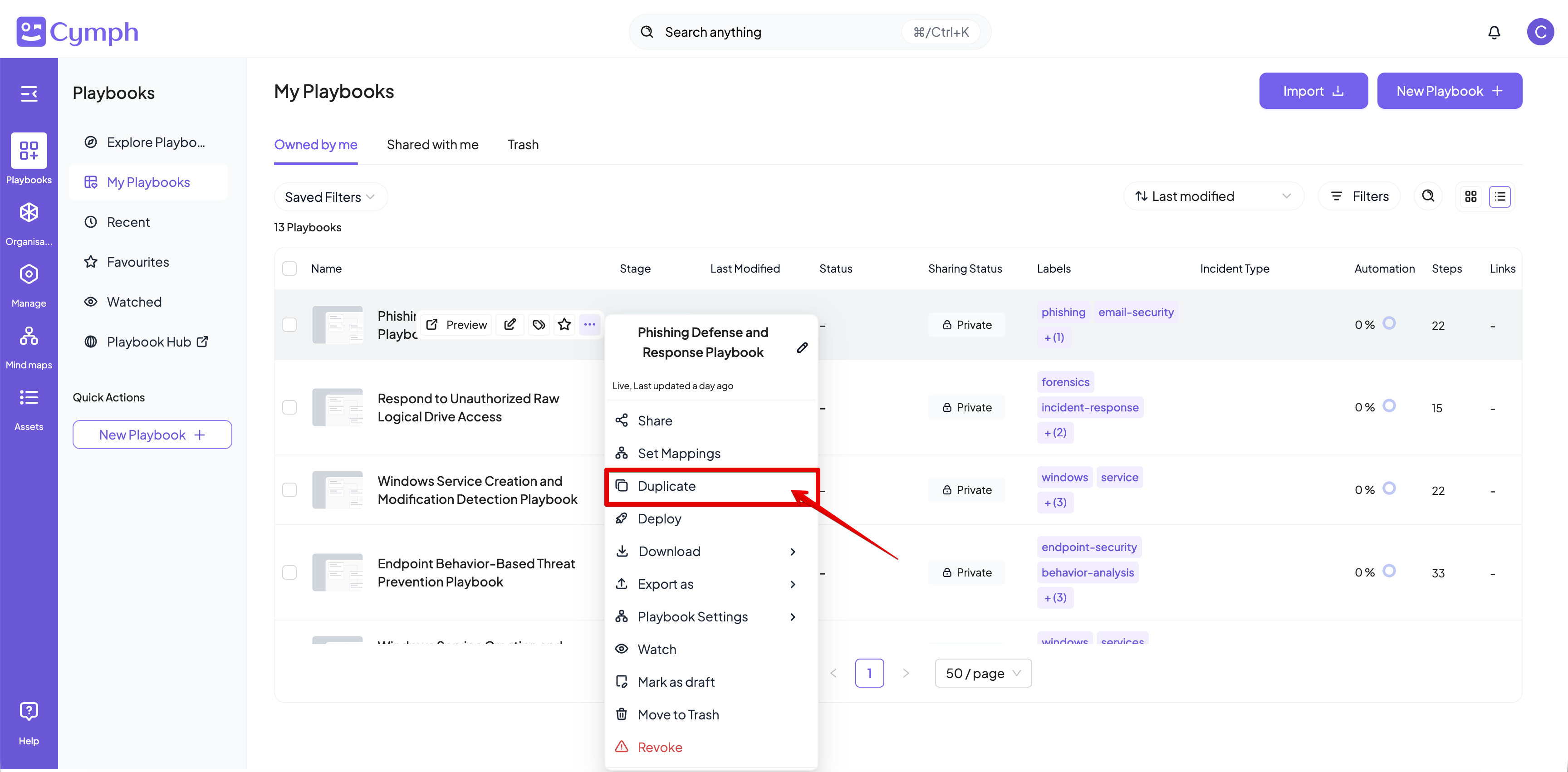
- Select the Duplicate action
- Hover over the playbook you want to deploy
- Click on the triple dot icon to open the action menu
- Enter a name for the duplicate playbook
- Duplicate the playbook
- Click the Duplicate button

How to move a playbook to trash bin
- Go to the Playbook Management System
- Select the Move to Trash action
- Hover over the playbook you want to deploy
- Click on the triple dot icon to open the action menu
- Verify that you want to move the playbook to trash in the dialog that appears
- Your playbook will move to trash bin
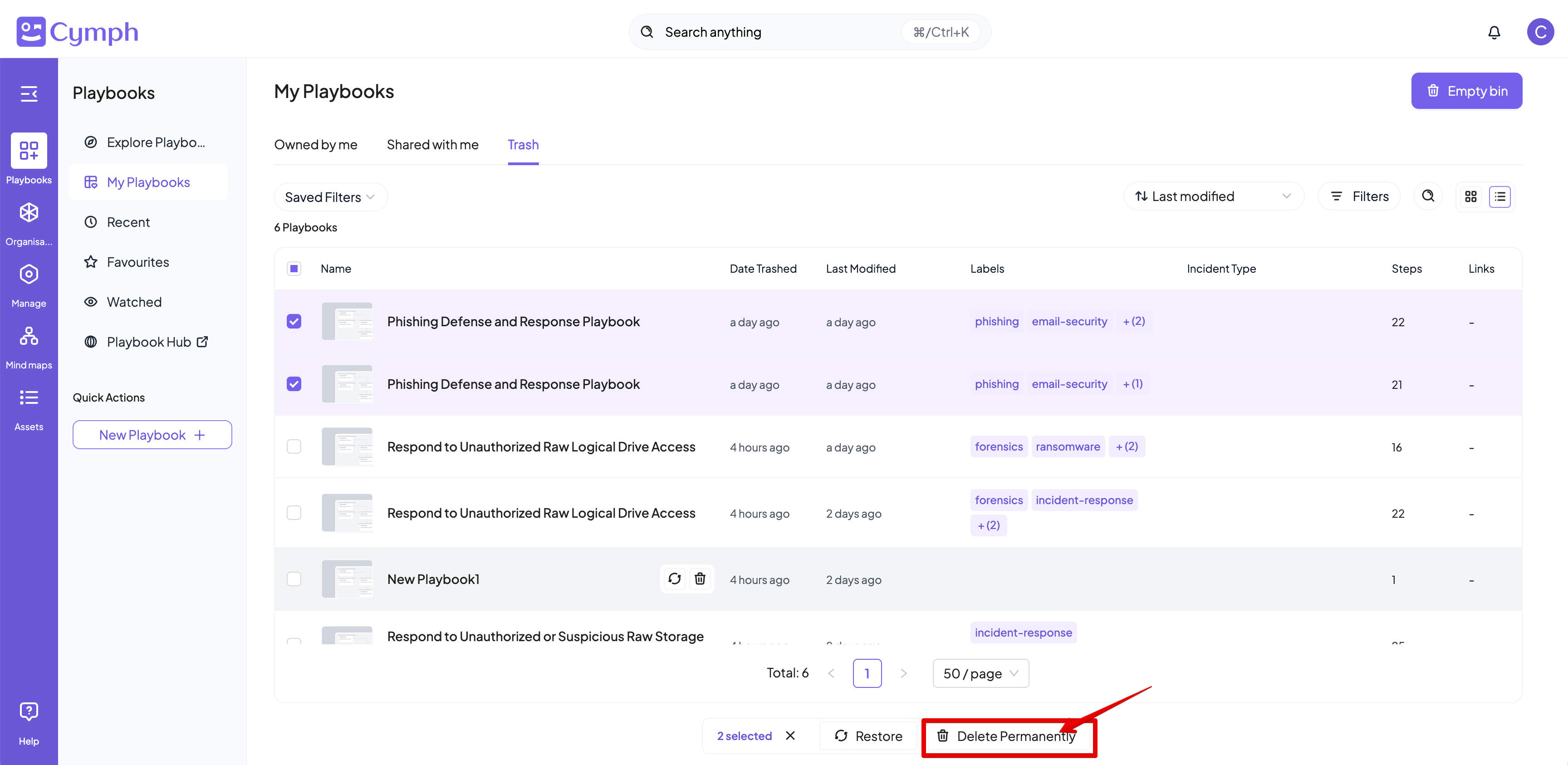
How to permanently delete a playbook
- Go to the Playbook Management System
- Go to My Playbooks area
- Select the Trash tab
- Select the playbooks you want to delete
- Select the Delete Permanently action from the action bar at the bottom
How to export a playbook
- Go to the Playbook Management System
- Select the Export as action
- Hover over the playbook you want to deploy
- Click on the triple dot icon to open the action menu
- Choose the format you want to export from the sub-menu that appears
How to download a playbook
- Go to the Playbook Management System
- Select the Download action
- Hover over the playbook you want to deploy
- Click on the triple dot icon to open the action menu
- Choose the format you want to export from the sub-menu that appears
How to mark and unmark a playbook as draft
- Go to the Playbook Management System
- Select the Mark as Draft action
- Hover over the playbook you want to deploy
- Click on the triple dot icon to open the action menu
How to revoke and unrevoke a playbook
- Go to the Playbook Management System
- Select the Revoke action
- Hover over the playbook you want to deploy
- Click on the triple dot icon to open the action menu
- Confirm that you want to revoke a playbook from the dialog box that appears
If the playbook is revoked, all its shares are removed.