

Inviting members by e-mail
- Go to your Organisation page.
- From the navigation menu, to the Organisation page.
- Click Invite Members.
- In the top-right corner, click the Invite Members button.
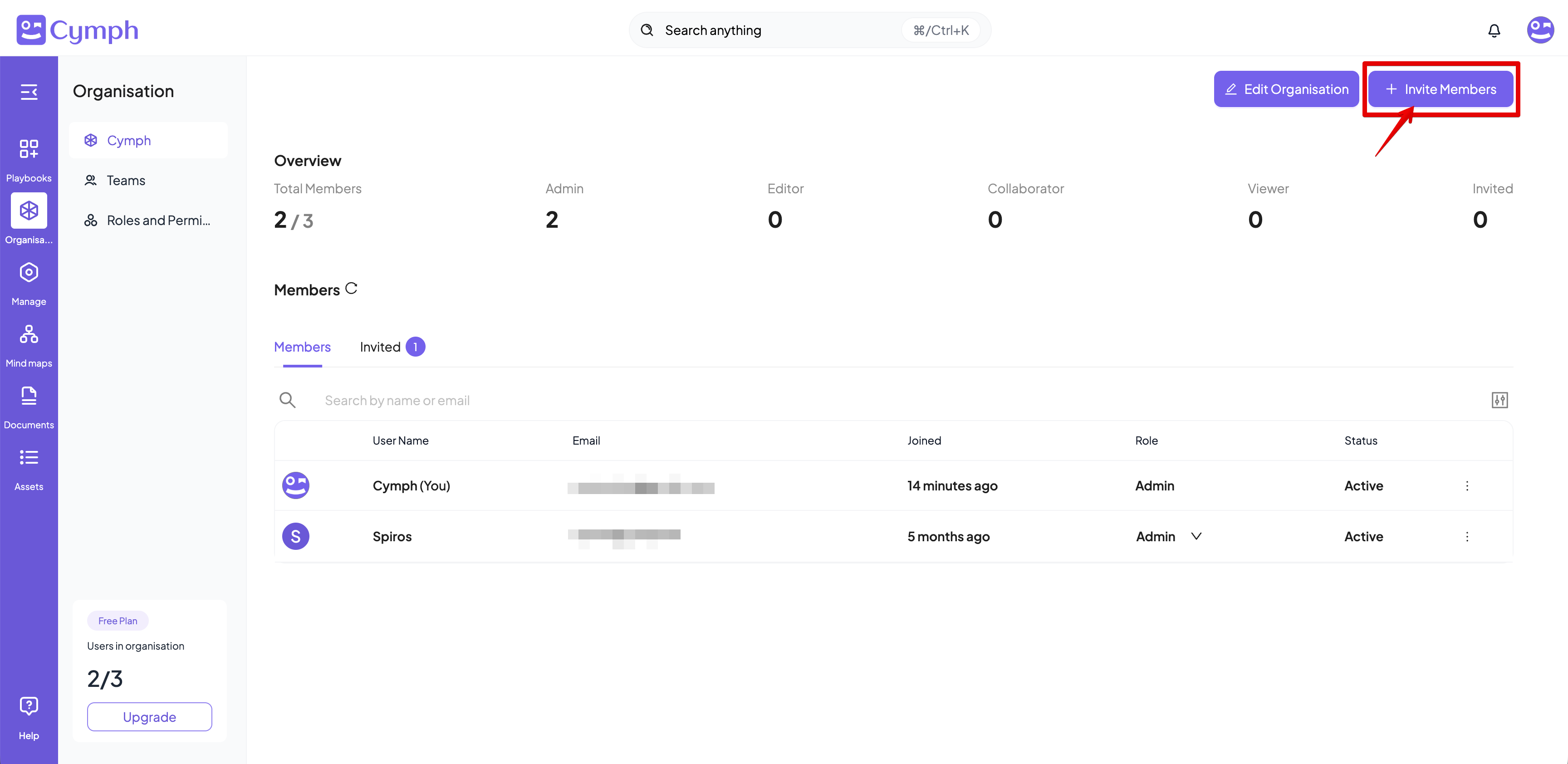
- Add Member.
- In the invitation field, enter the email address of the person you want to invite.
- Next to the email, select the appropriate role for the user from the dropdown (Admin, Editor, Collaborator, Viewer).
- Click on plus icon to add the member to the invite list
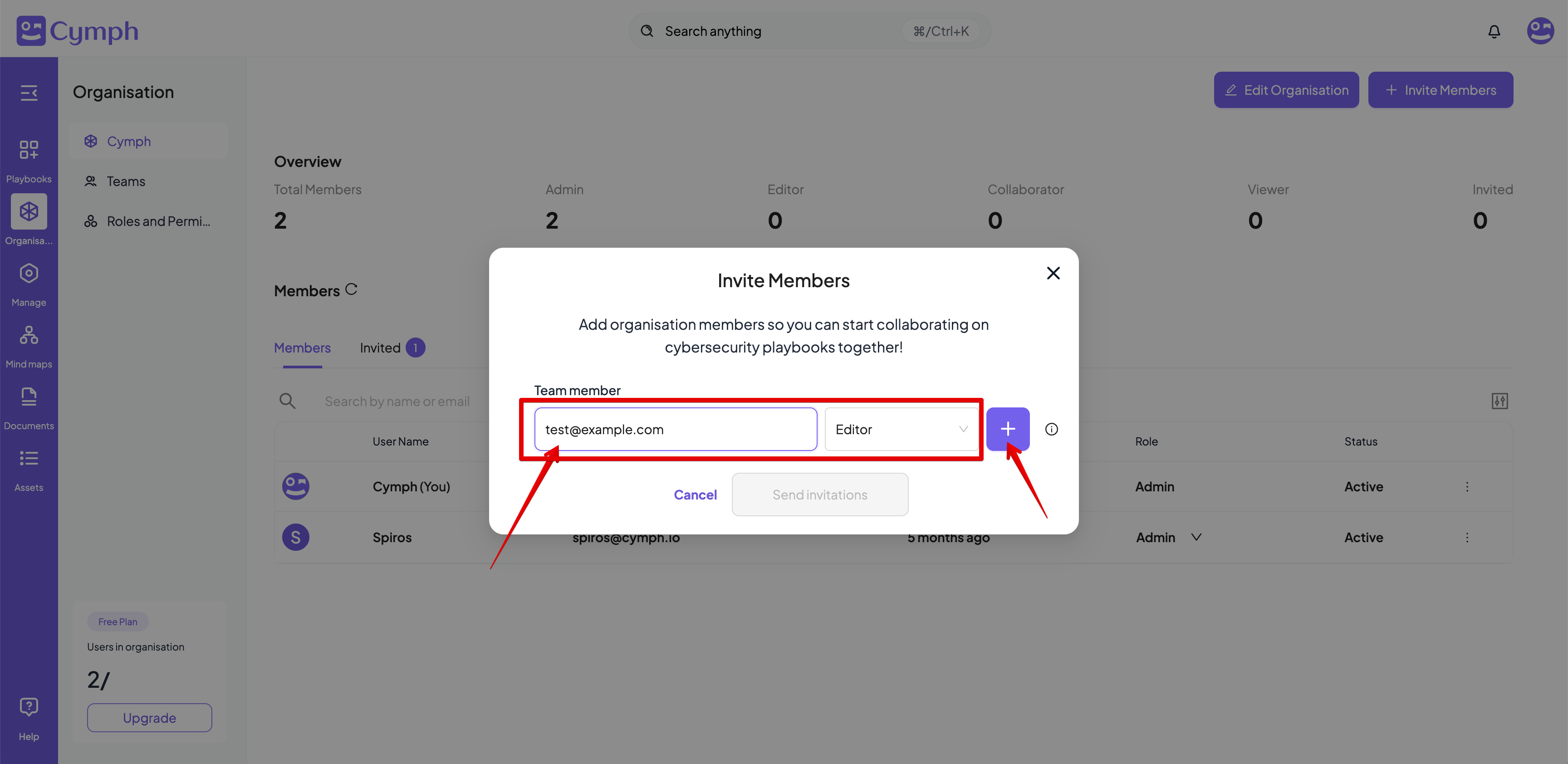
- Add more Members (optional).
- To invite multiple members, enter the details of each additional member and click the plus (+) icon.
- The new member will be added to the invitation list.
- Remove a Member from the list.
- If you need to delete an entry, click the remove (x) icon from the invitation list
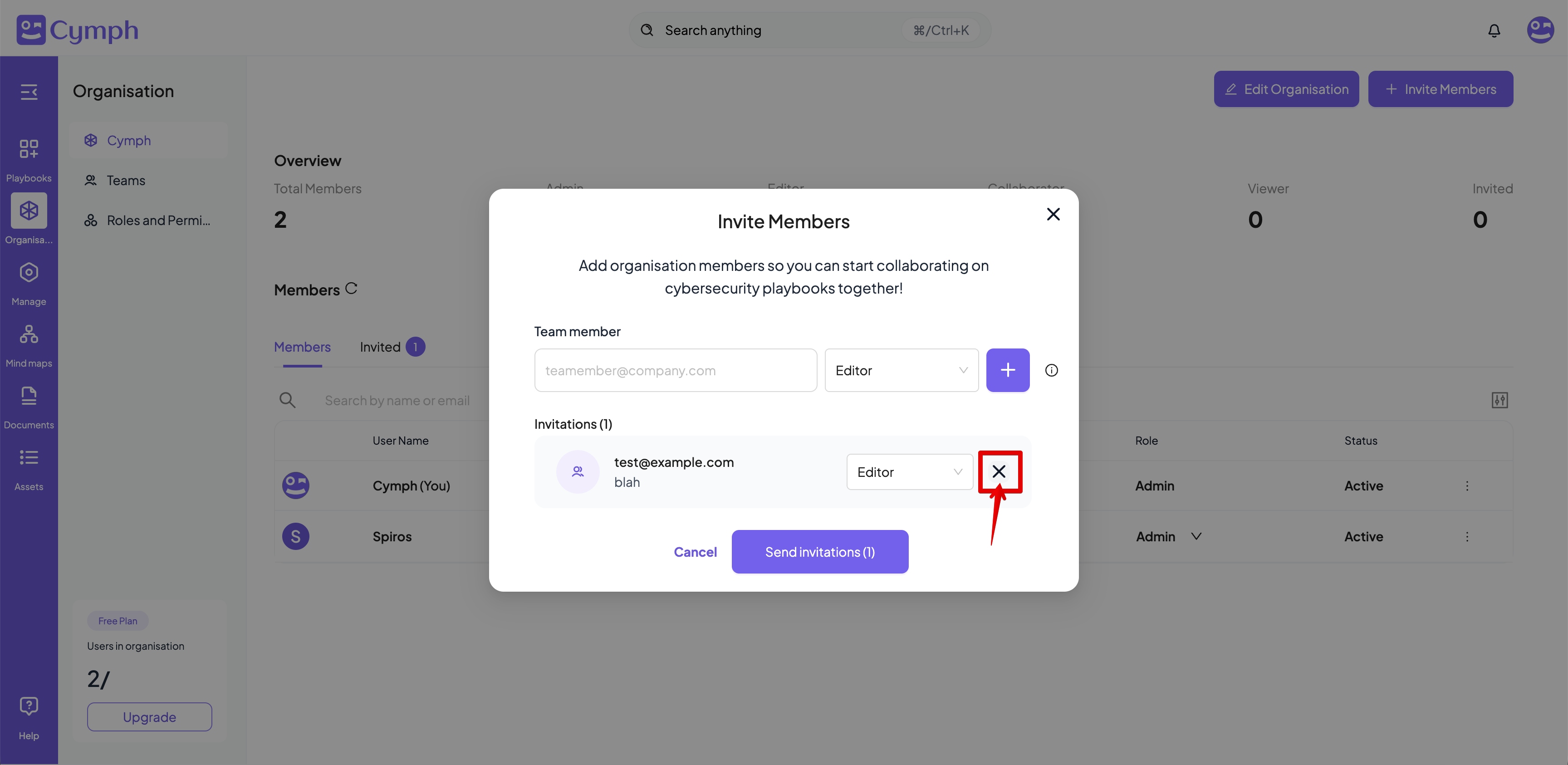
- Send your invites.
- Press Send invitations to send your invitations.
- They will receive an email invitation to join your organisation right away.
Types of members you can invite
- Non-registered users:
- If the invitee is new to the platform, they will receive an invitation to sign up.
- Once they complete the onboarding, they will be prompted to join your organisation.
- Registered users without an organisation:
- If the user already has an account but isn’t part of any organisation, they will receive an e-mail invitation to join your organisation.
- A notification will also appear to remind them about the invite.
Note: Users who have already registered to the platform and are members of another organisation cannot be invited. They will need to leave their current organisation before they can accept an invite to join yours.
Adding members without an invitation
Available in both deployment models — a managed cloud tenant and a self-hosted deployment.
- Go to your Organisation page
- Click on Add Members
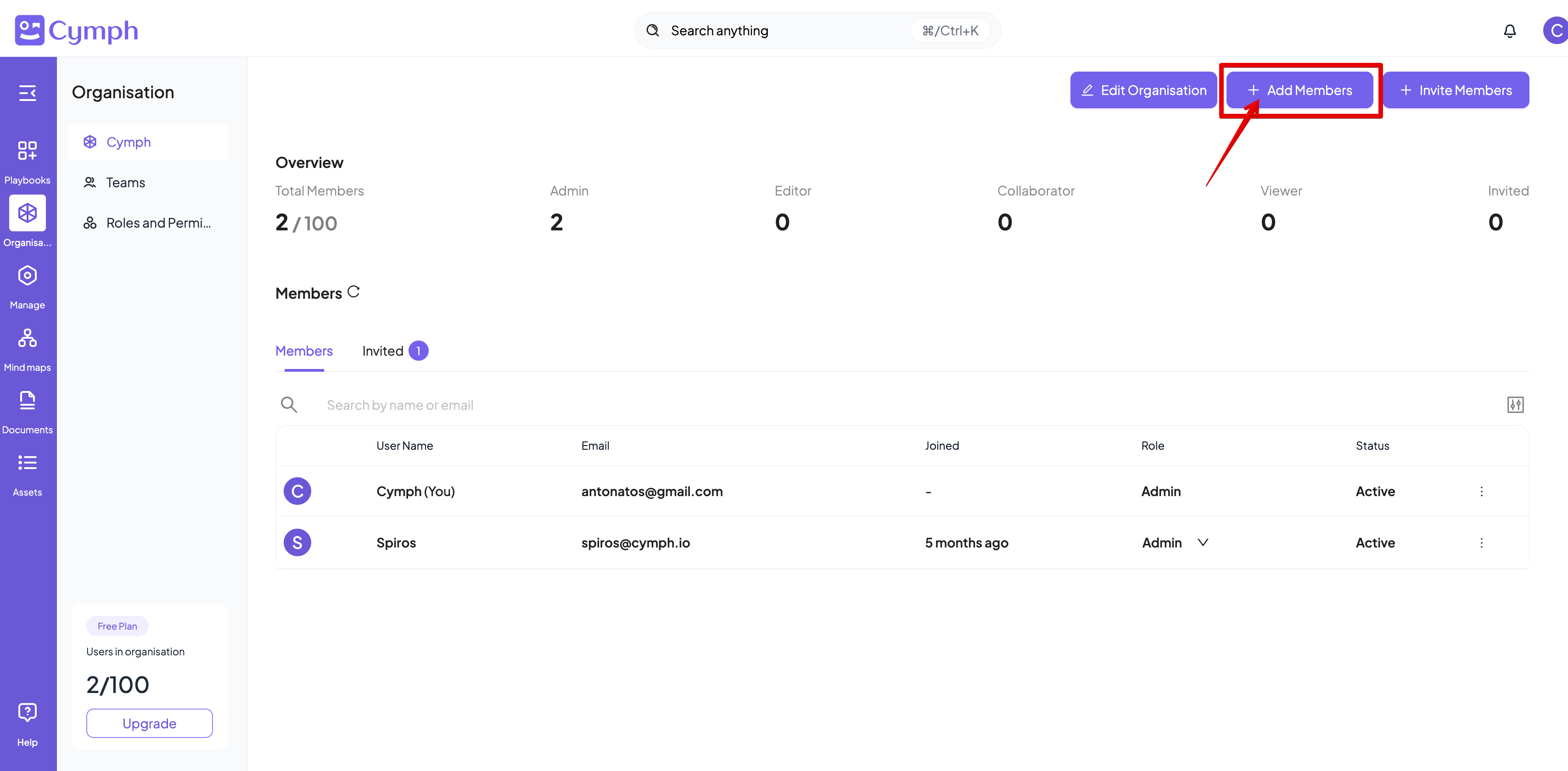
- Enter the details of the member(s) you want to add
- By clicking on Add more users button additional entries will appear
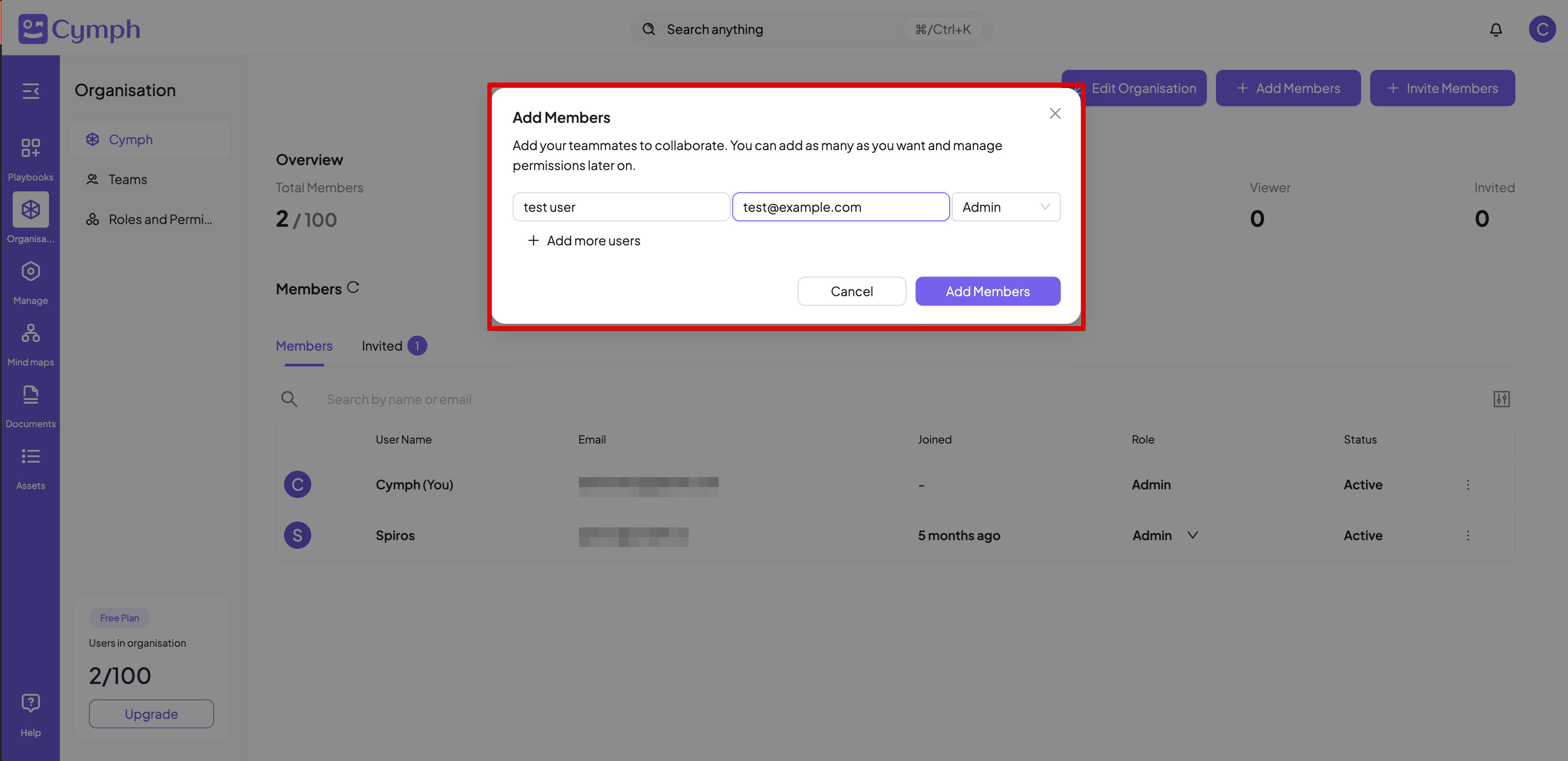
- Click on Add Members once all information is keyed in
- The Organisation table will be automatically refresh to reflect the changes
- If the e-mail address provided for a user is not found in the list of registered users, a new account will be created with that address. The password for this new user will be
password. Users will be forced to change the password upon first login. - If the e-mail address provided for a user belongs to a member of another organisation, the process will fail
- If any of the e-mail addresses provided belong to an on-premises administrator, the process will fail