

Requirements
Hardware
- At least 2GB of memory
- Minimum 3GB of storage for container images and application data
Software
- Any operating system that can run Docker. We have tested on Ubuntu 22.04LTS
- Docker
- Install the latest versions of
Dockerengine anddocker-compose. Installation instructions are at https://docs.docker.com/desktop/setup/install/linux/ - Docker compose is also required. By default it comes with Docker desktop. If it is not installed check the documentation at https://docs.docker.com/compose/install.
- We have tested our deployment with versions 27.4.0 and onwards
- Install the latest versions of
- The tarball containing the Cymph installation script
- The installation will host the Cymph on a secure (HTTPS) website. Before installing the platform, make sure the TLS certificates are available in the host machine (e.g. self-signed certificates via openssl, certificates via certbot etc.)
Steps
The steps below refer to a command line based installation in an Ubuntu 22.04 machine. The same steps apply for MacOS.- Extract the tarball and go to the cymph folder
- Configure the .env file
- The e-mail of the on-prem administrator user (default is admin@domain.com)
- The IP address where the Web application will listen to (default localhost)
- The port where the Web application will listen to (default 8080)
- If SSL mode is required for Postgres (default is no)
- If e-mail service should be enabled. The default answer is no. In case the answer is yes, you will be prompted for additional configuration
- Run docker compose
sudo docker compose start
If you see a message like this:
The requested image’s platform (linux/amd64) does not match the detected host platform (linux/arm64/v8) and no specific platform was requestedfeel free to ignore it. Once docker compose is complete, you should see the following on your terminal:

- Creates an on-prem administration account with default credentials
- Populates the instance with playbook contents. The playbooks will belong to the on-prem administration account
- Open your browser and navigate to the Cymph application
- The URL should be http://<ip_address>:<port> as configured in step 2. If you have not specified your own addresses and ports, the default URL is http://localhost:8080
- Enter the default on-prem administration credentials and click on Log In button
- E-mail: the email you provided on step 2 (or admin@domain.com if no e-mail was provided)
- Password: admin
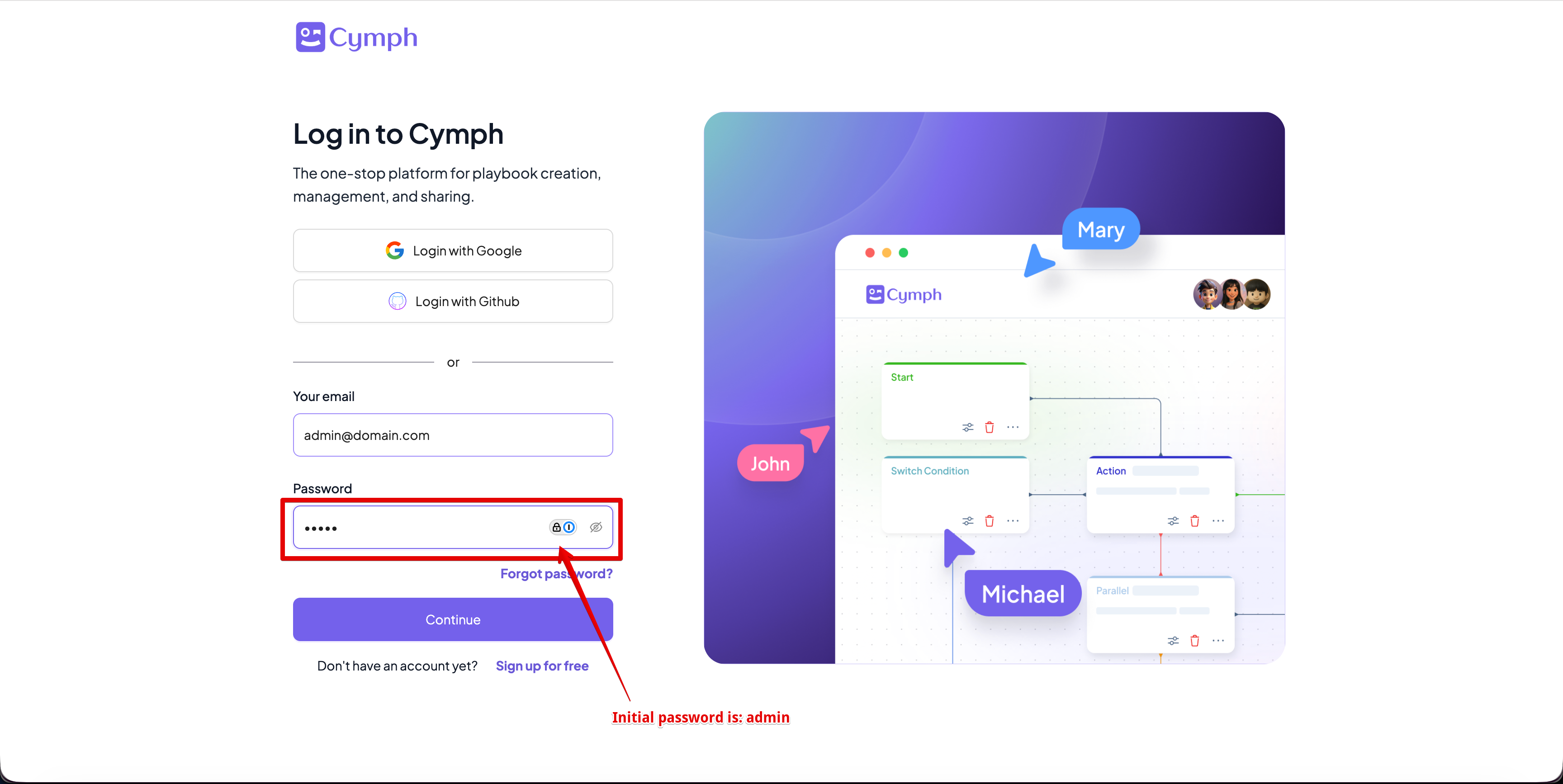
- You will be asked to change your password
- Enter the current password, which is
admin - Enter your new password that meets the password criteria.
- Click on Update to change the password
- After changing your password, you will be redirected to the login screen
- Enter the current password, which is
- Login with the updated credentials and you are ready!
- Upload the license. You can refer to License management for more details
- Create the first organisation. You can read more at Organisation management