> ## Documentation Index
> Fetch the complete documentation index at: https://docs.cymph.io/llms.txt
> Use this file to discover all available pages before exploring further.
# Playbook governance
> Bring playbooks from any source under one governance layer, add the context Cymph needs, and act on the risk signals it surfaces.
Response playbooks rarely live in one place. Some are built in Cymph, others sit in GitHub, Confluence or SharePoint, and others run inside a SOAR platform. Cymph brings all of them into a single governance layer without forcing you to migrate the underlying content: ownership of the workflow stays at the source, while Cymph tracks who is responsible, when it was last reviewed, which assets it protects and how it maps to your frameworks.
This use case walks through the full loop:
1. [Bring your playbooks together](#1-bring-your-playbooks-together) by importing or creating them.
2. [Understand what is missing](#2-new-content-has-no-governance-context) on freshly imported or created content.
3. [Add governance context](#3-add-governance-context) such as the RACI matrix, review settings, assets and framework mappings.
4. [Turn context into risk signals](#4-turn-governance-into-risk-signals) from the Library overview and take action from there.
# 1. Bring your playbooks together
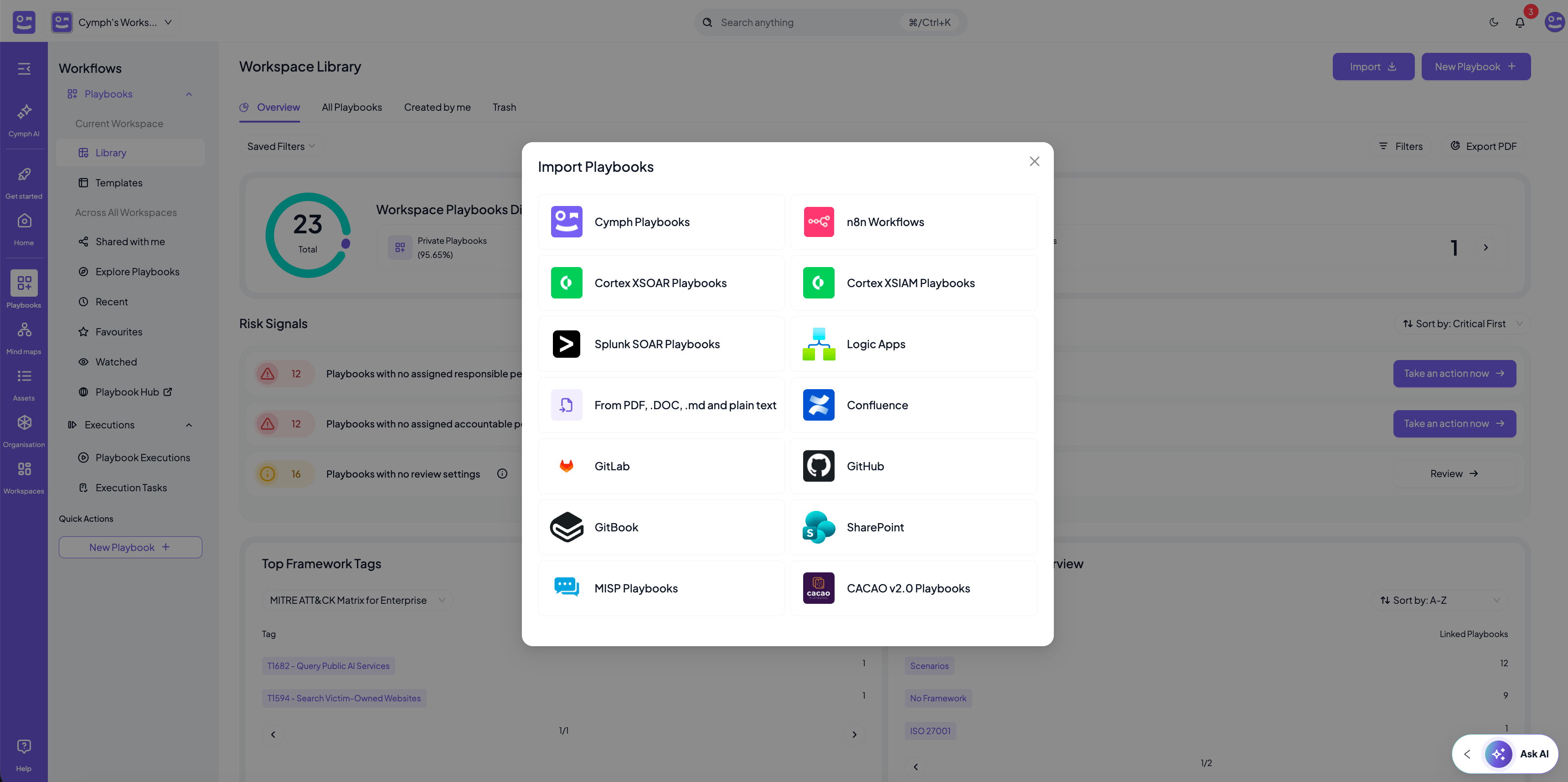
Start by getting every playbook that matters into your workspace. Go to **Playbooks → Library** and click **Import**. The import dialog lists all supported sources: Cymph playbook files, SOAR platforms such as Cortex XSOAR, Cortex XSIAM, Splunk SOAR, Logic Apps and n8n, documents in PDF, DOC, Markdown or plain text, and knowledge repositories such as GitHub, GitLab, GitBook, Confluence and SharePoint.
You can, of course, also build playbooks directly in Cymph using the editor or the AI assistant. Governance applies the same way regardless of where a playbook came from.
**Ownership stays at the source.** Playbooks imported from a SOAR keep a read-only workflow, and playbooks imported from a repository or knowledge management system remain linked to their origin. In both cases you still add and edit all Cymph metadata. See the [ownership model](/howto/import_playbook#ownership-model) for the details per source.
Useful references for this step:
* [Import playbooks](/howto/import_playbook) covers file-based and live-system imports and the validation step.
* The [content source integrations](/integrations/content/github) explain how to connect GitHub, GitLab, GitBook, SharePoint and Confluence.
* [Creating your first playbook](/getting-started/first_playbook) covers building a playbook from scratch or with AI.
# 2. New content has no governance context
An imported playbook arrives with its workflow and documentation, but nothing else. It has no responsible or accountable person, no reviewer or review frequency, no linked assets and, unless you enabled automatic framework mapping during import, no framework mappings. The same is true for a playbook created from scratch in the editor.
This is by design. The source system knows how to run the playbook, but it does not know who owns it in your organisation, how often it must be reviewed, or which parts of your environment it protects. That context is what Cymph needs in order to govern the playbook, and it is what the rest of this use case adds.
Playbooks generated with the AI assistant are the one exception. Before an AI draft is saved, Cymph asks for the Responsible and Accountable persons and a review frequency, so those playbooks start with a minimum of governance context already in place. See [Creating your first AI-assisted playbook](/getting-started/first_playbook#how-to-create-your-first-ai-assisted-playbook).
# 3. Add governance context
Take the imported playbook, for example a ransomware response playbook, and add the settings that describe how it is governed. All of them can be set from the **Playbook Management System** by hovering over the playbook, opening the action menu and choosing the setting under **Playbook Settings**. Most can also be set from the settings drawer inside the editor. See [Modify playbook settings](/howto/modify-playbook-properties) for the full list and where each one is editable.
For a typical ransomware playbook, the governance context looks like this:
| Setting | Example | What it gives you |
| ------------------------------------ | ---------------------------------------------------------------------------------------------------------- | ------------------------------------------------------------------------------------------------------ |
| **RACI matrix** | Responsible: SOC team. Accountable: Head of Incident Response. Consulted: IT, Legal. Informed: Management. | Clear ownership and a named person for every stakeholder role. |
| **Review settings** | Reviewer: SOC lead. Frequency: quarterly. | A review cadence Cymph can track and flag when it lapses. |
| **Assets and asset types** | Active Directory, Windows endpoints. | Knowledge of which parts of your environment this playbook covers. |
| **Incident type and response stage** | Ransomware, containment. | Classification used by filters, presets and the overview dashboards. |
| **Framework mappings** | MITRE ATT\&CK techniques such as T1486 Data Encrypted for Impact. | Coverage tracking against the frameworks you care about. |
| **Stage** | Live. | Signals that the playbook is production-ready. Draft and revoked playbooks are excluded from coverage. |
| **Last tested** | Date of the last tabletop exercise. | Evidence that the playbook has been exercised, not just written. |
How to set each of these:
* **RACI matrix, review settings, assets, incident type, response stage and last tested** are all under **Playbook Settings** in the action menu. See [How to change playbook settings](/howto/playbook_actions#how-to-change-playbook-settings).
* **Framework mappings** are set with the **Set Mappings** action. If you are unsure which techniques apply, ask for [AI suggestions](/howto/playbook_actions#ai-suggestions). See [How to set mappings](/howto/playbook_actions#how-to-set-mappings).
* **Stage** is changed with the mark as draft and revoke actions. See [How to mark and unmark a playbook as draft](/howto/playbook_actions#how-to-mark-and-unmark-a-playbook-as-draft).
* When a review takes place, record it with the **Mark as Reviewed** action so the review clock resets. See [How to mark a playbook as reviewed](/howto/playbook_actions#how-to-mark-a-playbook-as-reviewd).
Assets must exist in your workspace before you can link them to a playbook. You can add them manually, import them from a file, or discover them from Wazuh, Nessus, AWS or Azure. See [Asset management](/howto/asset_actions).
# 4. Turn governance into risk signals
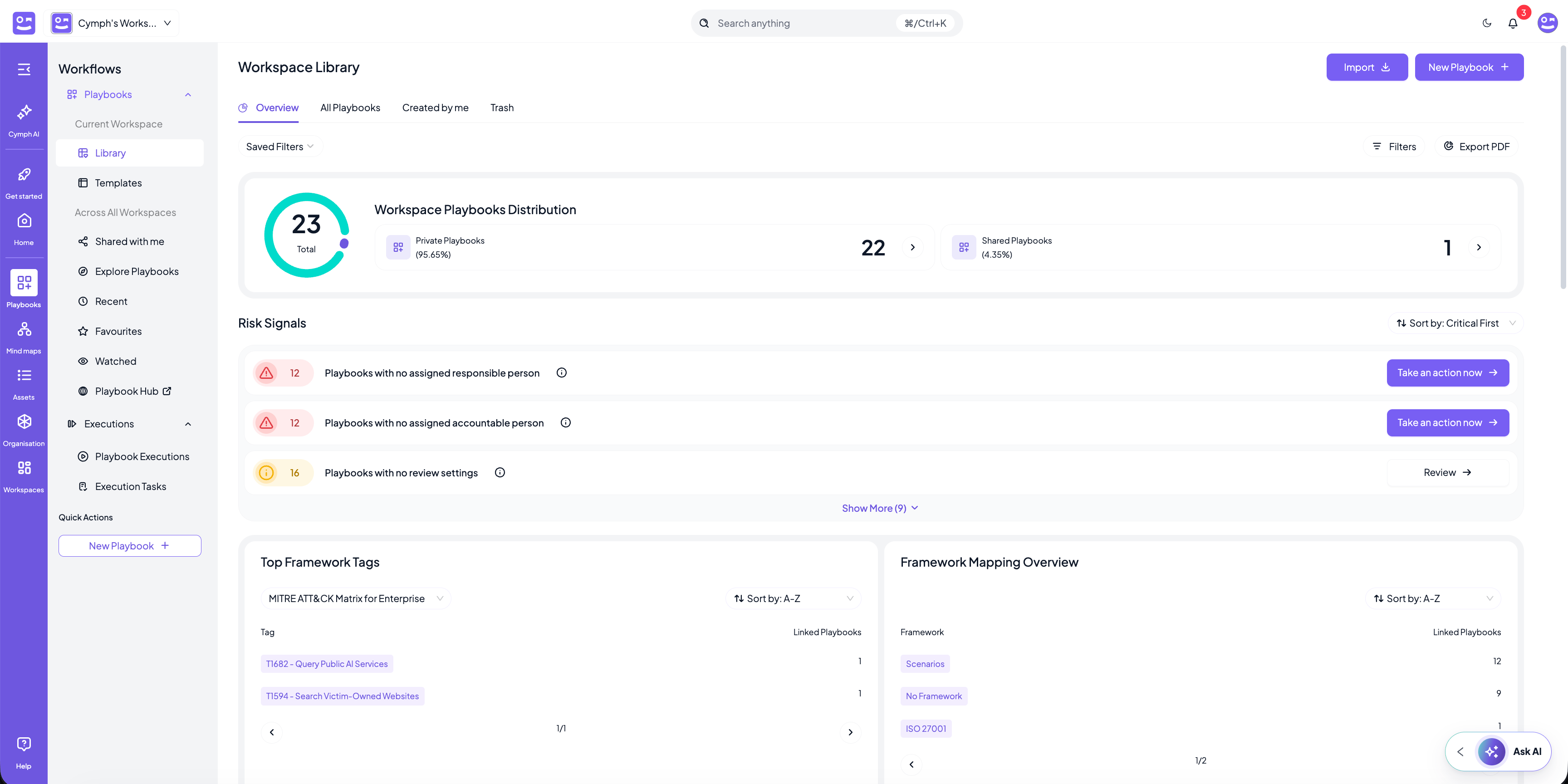
Once the context is in place, Cymph evaluates it continuously. Go to **Playbooks → Library** and open the **Overview** tab. The **Risk Signals** panel lists every governance and readiness gap across the playbooks in your workspace, with a count of affected playbooks and an action button next to each one.
The signals that matter most for governance are:
* **Playbooks with no assigned responsible person** and **Playbooks with no assigned accountable person**. Nobody owns the playbook.
* **Playbooks without review settings** and **Playbooks not reviewed**. Either no review cadence exists, or a review is overdue.
* **Playbooks not tested the last 6 months**. The playbook has never been exercised, or not recently.
* **Orphaned playbooks** and **Playbooks with stale consulted, informed, or reviewer assignees**. Someone in the RACI matrix no longer has access, for example because they left the workspace.
* **Playbooks that include removed or retired assets**. The playbook references parts of your environment that no longer exist.
* **Playbooks without mappings**. The playbook is invisible to your framework coverage analysis.
To act on a signal, click **Take an action now** or **Review** next to it. This opens the affected playbooks, so you can assign an owner, set a reviewer or add mappings for several playbooks at once. As soon as the gap is fixed, the count drops and the signal disappears from the list.
Use **Filters** and **Saved Filters** at the top of the Overview to scope the signals to a subset of playbooks, for example only ransomware playbooks or only playbooks imported from a specific source. The whole dashboard follows the filter. See [Filter playbooks](/how-tos/filter-playbooks).
The rest of the Overview tab complements the risk signals. **Framework Mapping Overview** and **Top Framework Tags** show where your coverage is thin, **Stage Distribution** shows how much of your library is actually live, and **Last Test Distribution** shows how recently playbooks were exercised. All of these are described in [Playbook Insights](/key-features/playbook-insights).
# Keeping governance current
Governance is not a one-off exercise. Your environment changes, people move, and playbooks age. A few habits keep the signals green:
* **Review the Overview regularly.** Make the Risk Signals panel part of your weekly or monthly routine, and export it to PDF with **Export PDF** when you need to report on readiness.
* **Keep assets in sync.** When new infrastructure appears, for example a new Azure production environment, import it as an asset and check which playbooks should cover it. See the [Azure](/integrations/cloud/azure) and [AWS](/integrations/cloud/aws) integrations.
* **Use presets for coverage.** Risk signals tell you what is wrong with the playbooks you have. [Mind Maps](/key-features-explained/mindmaps) presets tell you which techniques or controls have no playbook at all, and can generate template playbooks to close those gaps.
* **Ask Cymph AI for help.** When a playbook needs to be adapted to a new asset or scenario, [Cymph AI](/key-features/cymph-ai) can draft the changes using the context already in the platform.
Cymph does not replace where your response knowledge lives. It provides the governance layer that keeps it owned, measurable and relevant as your environment changes.
 You can, of course, also build playbooks directly in Cymph using the editor or the AI assistant. Governance applies the same way regardless of where a playbook came from.
 The signals that matter most for governance are:
* **Playbooks with no assigned responsible person** and **Playbooks with no assigned accountable person**. Nobody owns the playbook.
* **Playbooks without review settings** and **Playbooks not reviewed**. Either no review cadence exists, or a review is overdue.
* **Playbooks not tested the last 6 months**. The playbook has never been exercised, or not recently.
* **Orphaned playbooks** and **Playbooks with stale consulted, informed, or reviewer assignees**. Someone in the RACI matrix no longer has access, for example because they left the workspace.
* **Playbooks that include removed or retired assets**. The playbook references parts of your environment that no longer exist.
* **Playbooks without mappings**. The playbook is invisible to your framework coverage analysis.
To act on a signal, click **Take an action now** or **Review** next to it. This opens the affected playbooks, so you can assign an owner, set a reviewer or add mappings for several playbooks at once. As soon as the gap is fixed, the count drops and the signal disappears from the list.
The signals that matter most for governance are:
* **Playbooks with no assigned responsible person** and **Playbooks with no assigned accountable person**. Nobody owns the playbook.
* **Playbooks without review settings** and **Playbooks not reviewed**. Either no review cadence exists, or a review is overdue.
* **Playbooks not tested the last 6 months**. The playbook has never been exercised, or not recently.
* **Orphaned playbooks** and **Playbooks with stale consulted, informed, or reviewer assignees**. Someone in the RACI matrix no longer has access, for example because they left the workspace.
* **Playbooks that include removed or retired assets**. The playbook references parts of your environment that no longer exist.
* **Playbooks without mappings**. The playbook is invisible to your framework coverage analysis.
To act on a signal, click **Take an action now** or **Review** next to it. This opens the affected playbooks, so you can assign an owner, set a reviewer or add mappings for several playbooks at once. As soon as the gap is fixed, the count drops and the signal disappears from the list.