> ## Documentation Index
> Fetch the complete documentation index at: https://docs.cymph.io/llms.txt
> Use this file to discover all available pages before exploring further.
# Update your password
Users who have registered via e-mail during signup or have manually set up a password can change their password following the procedure described in this section.
## How to update your password
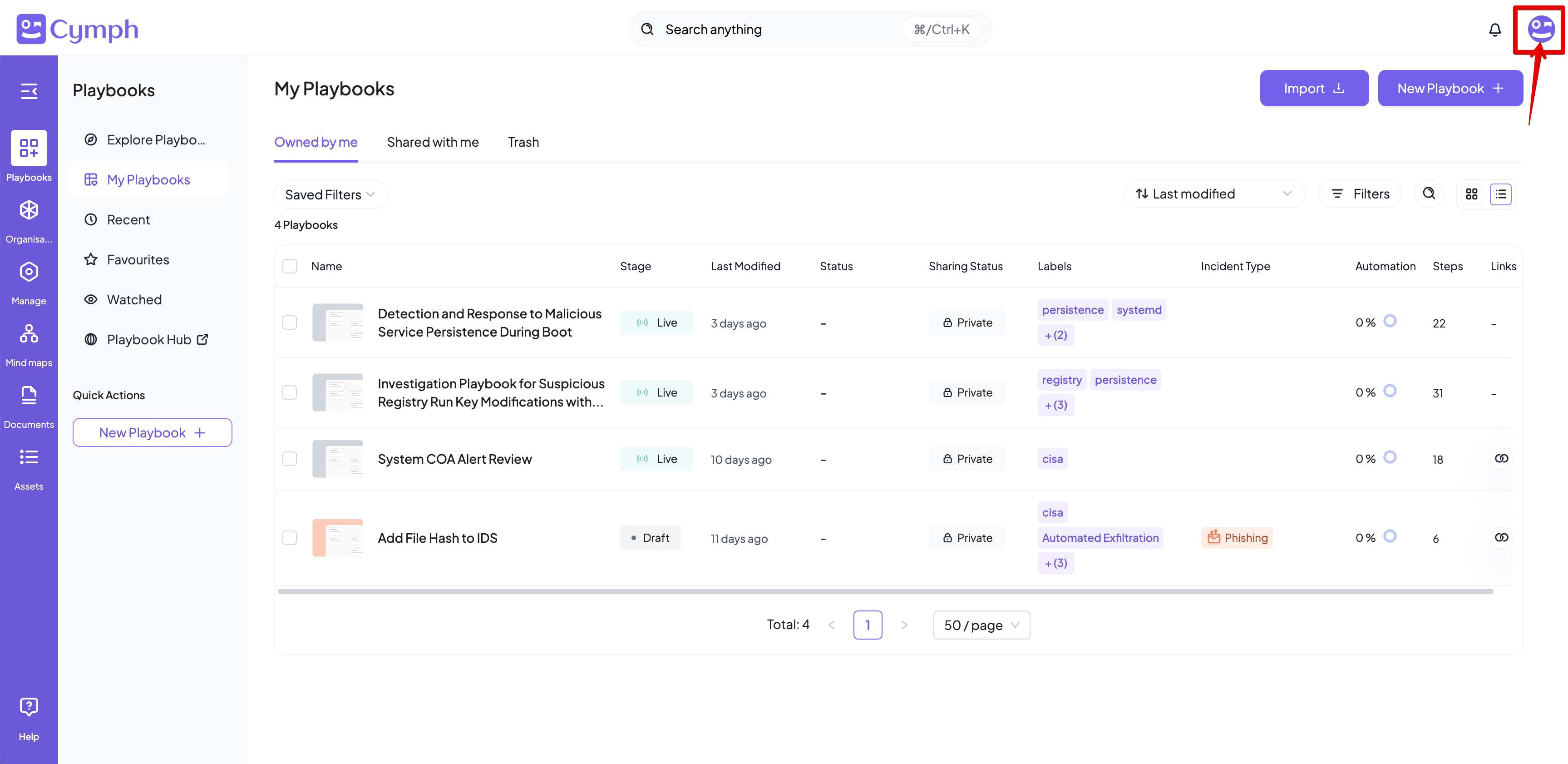
1. Go to your profile menu.
* **Click your profile picture** on the top right corner of the dashboard.
 2. Go to your settings.
* Click on **Settings.**
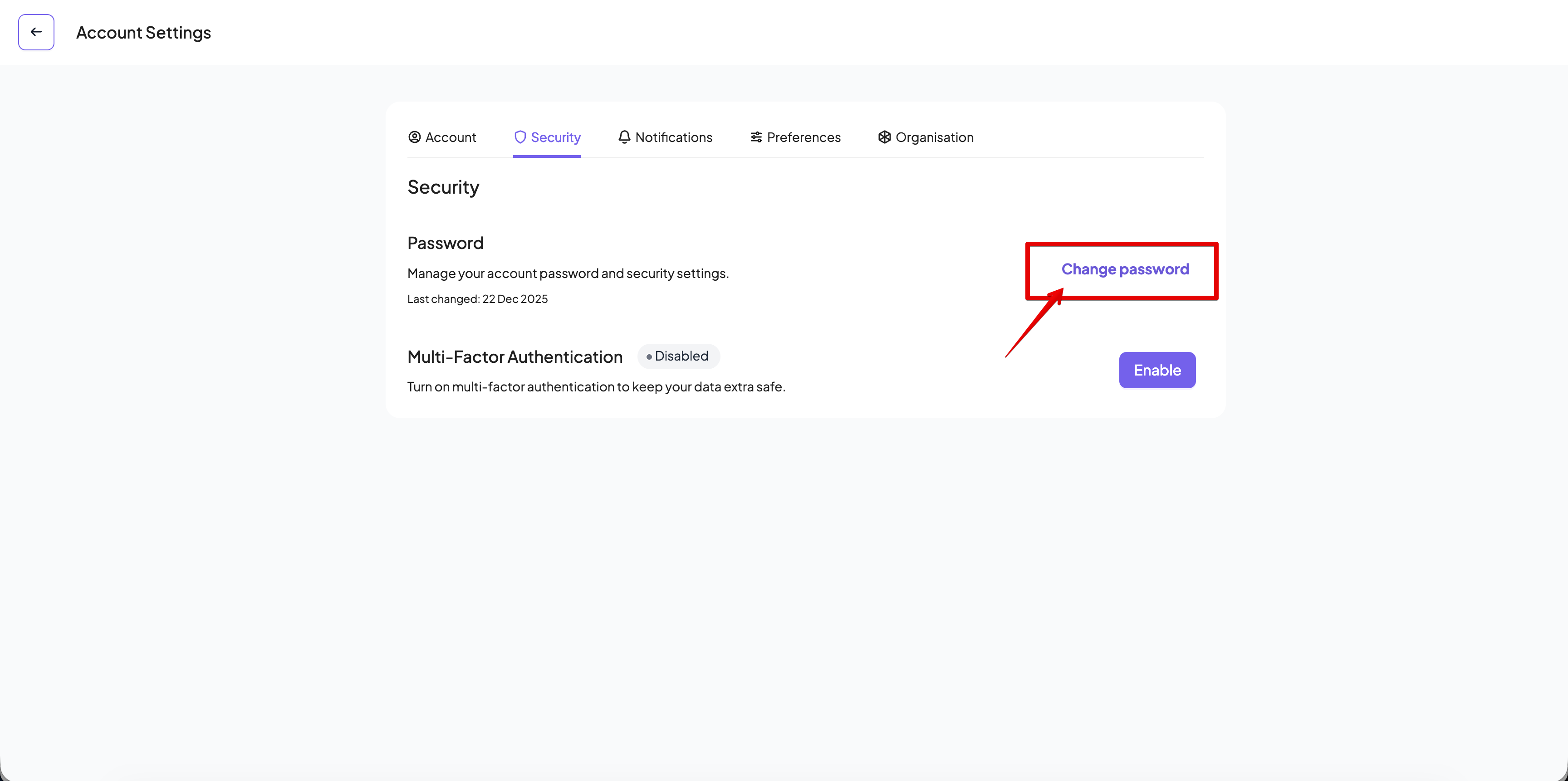
3. Go to the security settings.
* Click on the **Security** tab of the settings panel
4. Click on Change Password
* The change password dialog will appear
2. Go to your settings.
* Click on **Settings.**
3. Go to the security settings.
* Click on the **Security** tab of the settings panel
4. Click on Change Password
* The change password dialog will appear
 5. Update your password.
* **Provide your** **current password** in the first input.
* **Provide your new password** in the second input.
* **Confirm your new password** by typing it again in the third input.
* Click on the **Update** button once the password security criteria described below are met and the Password and Confirm Password fields match. If the password change is successful, a popup message will be displayed.
5. Update your password.
* **Provide your** **current password** in the first input.
* **Provide your new password** in the second input.
* **Confirm your new password** by typing it again in the third input.
* Click on the **Update** button once the password security criteria described below are met and the Password and Confirm Password fields match. If the password change is successful, a popup message will be displayed.
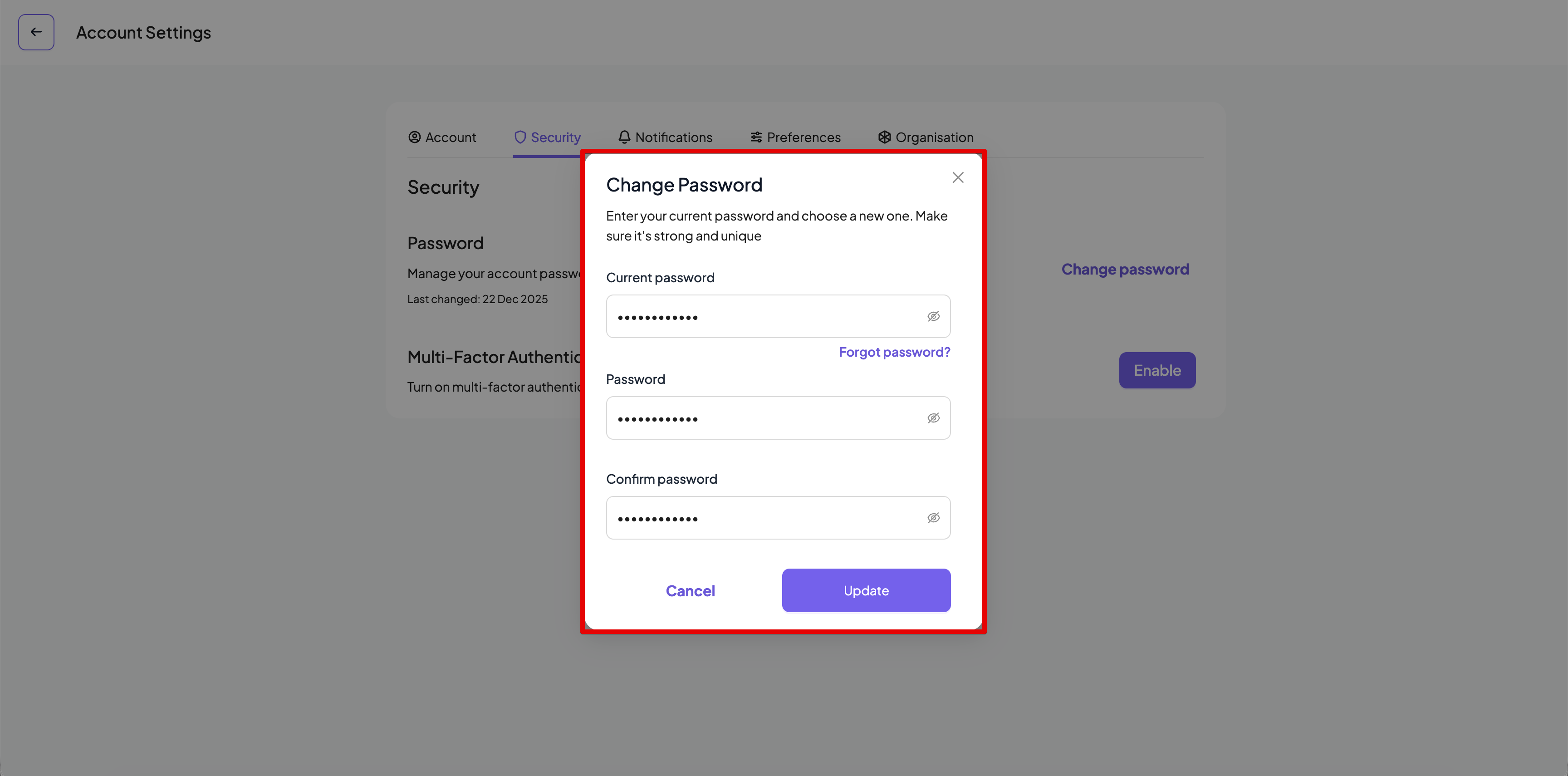 **Did you know?** You can see the password you type by clicking on the eye icon inside each password input field.
## Password Security Criteria
User password must meet the following criteria in order to be accepted by the Cymph platform:
* They must be **at least 12 characters long**.
* They must include at least **one special character** ({}:;,.?\\-=+|!@#\$%^&()\[]/).
* They must include at least **one digit** (0-9).
* They must include at least **one capital letter** (A-Z).
* They must include at least **one lowercase letter** (a-z).
* They **must not be the same as the last** **24 passwords** used.
**Did you know?** You can see the password you type by clicking on the eye icon inside each password input field.
## Password Security Criteria
User password must meet the following criteria in order to be accepted by the Cymph platform:
* They must be **at least 12 characters long**.
* They must include at least **one special character** ({}:;,.?\\-=+|!@#\$%^&()\[]/).
* They must include at least **one digit** (0-9).
* They must include at least **one capital letter** (A-Z).
* They must include at least **one lowercase letter** (a-z).
* They **must not be the same as the last** **24 passwords** used.