> ## Documentation Index
> Fetch the complete documentation index at: https://docs.cymph.io/llms.txt
> Use this file to discover all available pages before exploring further.
# Security settings
From the security settings you can setup multi-factor authentication
## Enable multi-factor authentication
It is recommended that you enable multi-factor authentication for your account.
1. Go to your profile menu.
* **Click your profile picture** on the top right corner of the dashboard.
2. Go to your settings.
* Click **Settings.**
3. Go to security settings
* Click on **Security** tab
4. Start the multi-factor authentication enablement process
* Click on the **Enable** button
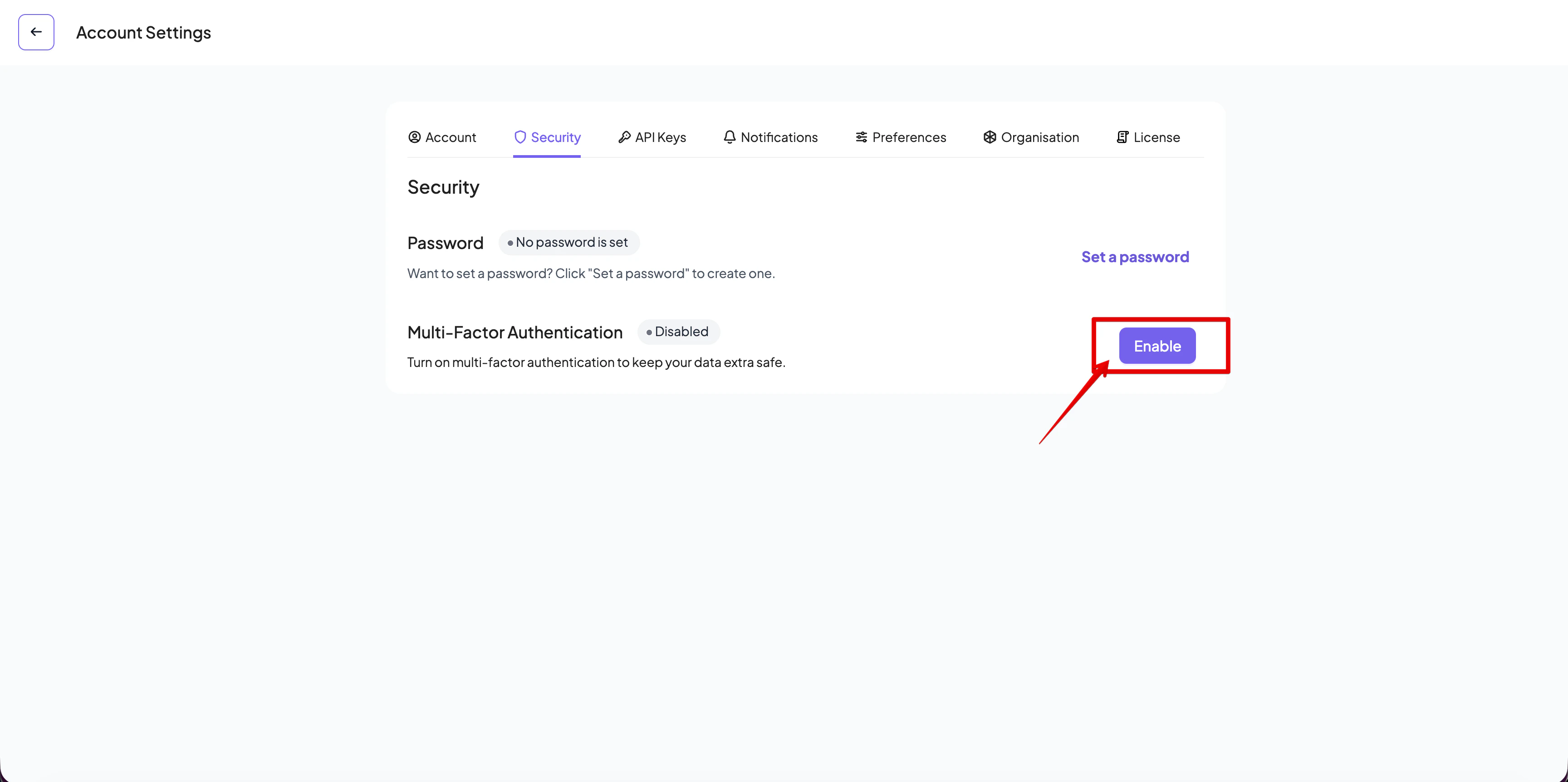 If a password is not set for your account, you will be asked at this stage to set one.
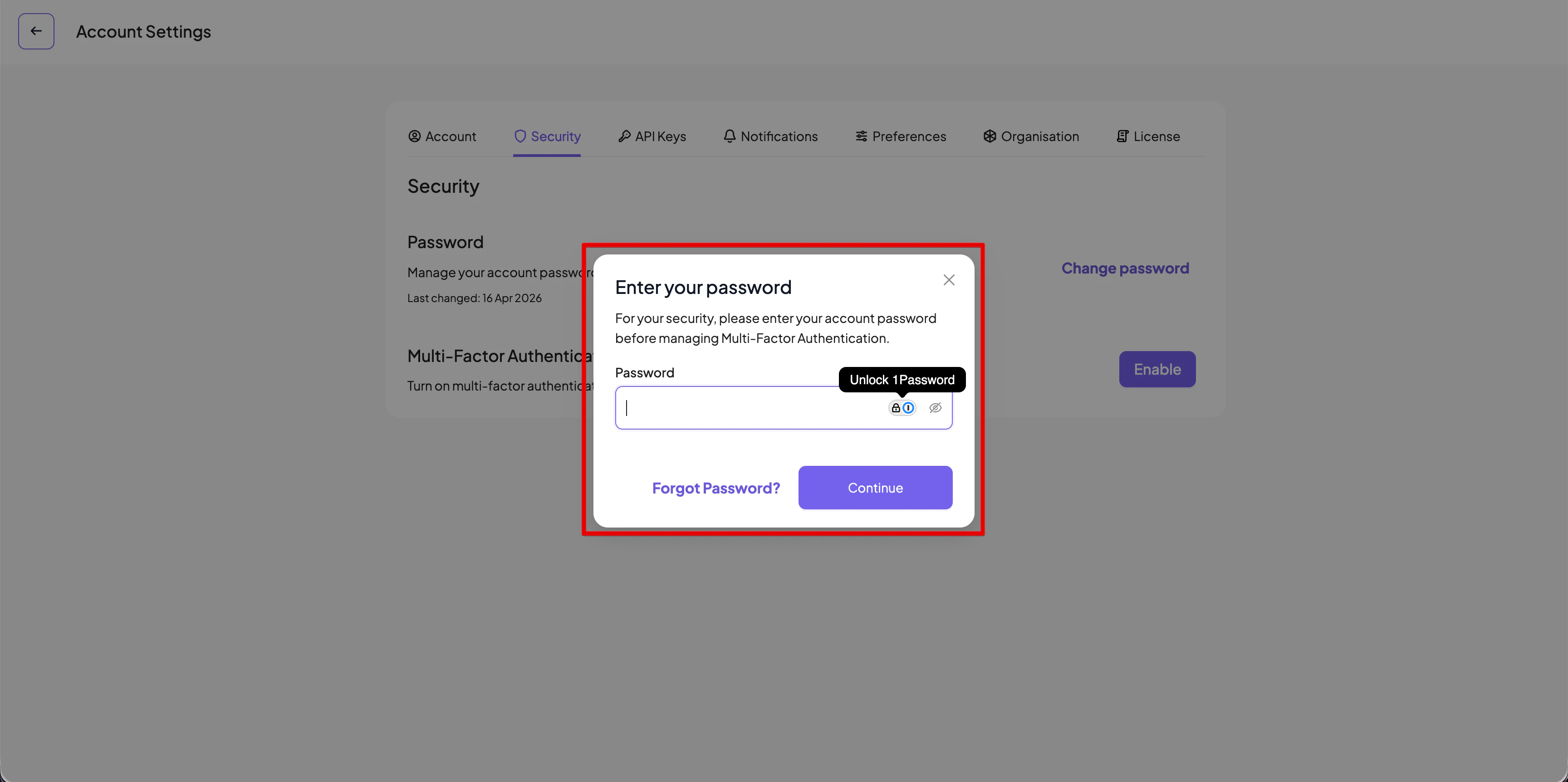
In the setup dialog that appears:
1. Enter your current password
If a password is not set for your account, you will be asked at this stage to set one.
In the setup dialog that appears:
1. Enter your current password
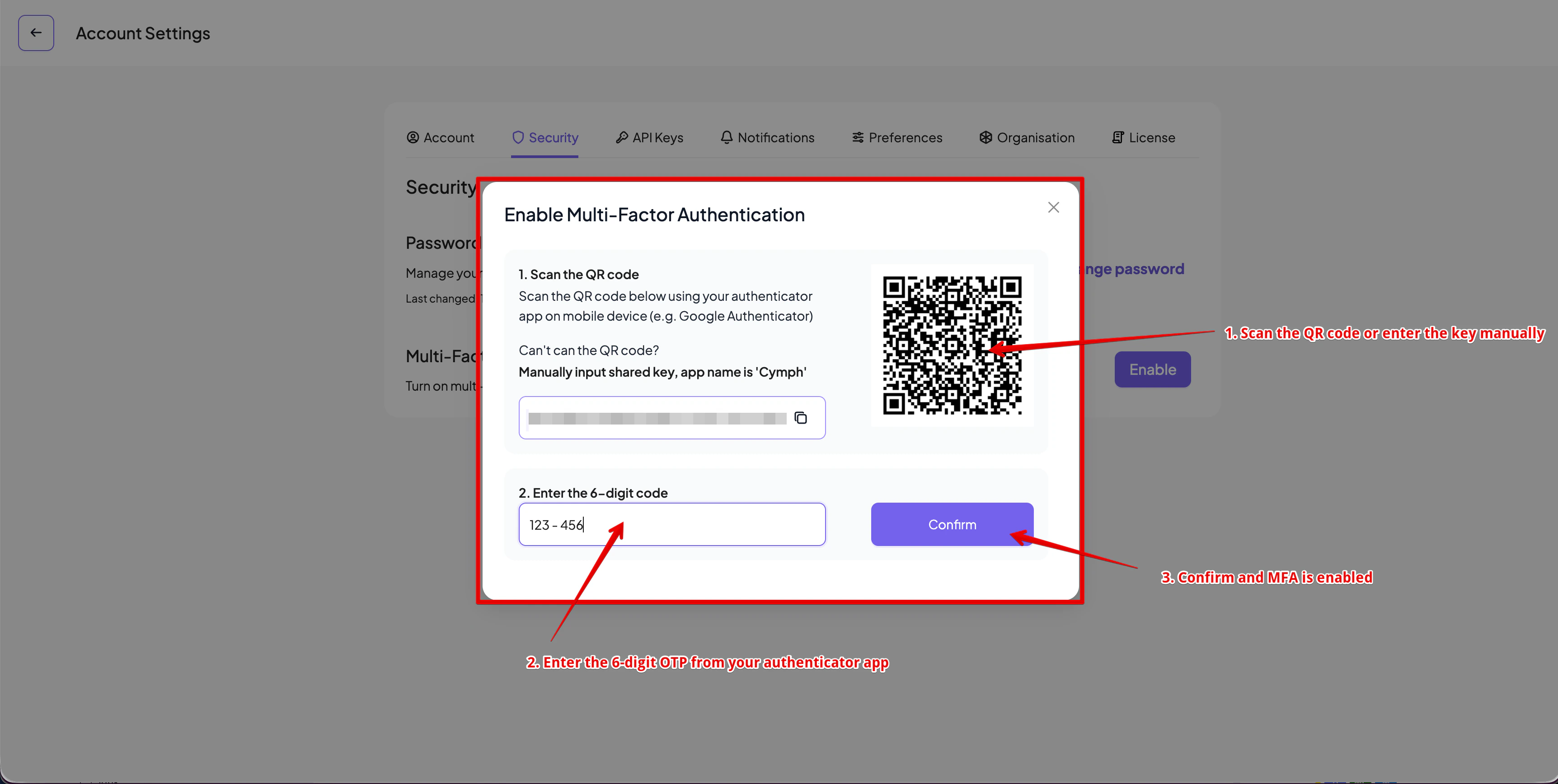
 2. Scan the QR code from the authenticator application of your choice (e.g. Google, Microsoft authenticators)
* If you cannot scan the QR code, you can also enter the key manually
3. Once the Cymph app is setup on your authenticator app, enter a 6-digit OTP
4. Click **Confirm** and if the code is valid, the setup will finish
2. Scan the QR code from the authenticator application of your choice (e.g. Google, Microsoft authenticators)
* If you cannot scan the QR code, you can also enter the key manually
3. Once the Cymph app is setup on your authenticator app, enter a 6-digit OTP
4. Click **Confirm** and if the code is valid, the setup will finish
 ## Disable multi-factor authentication
In case that multi-factor authentication is no longer desired, you can disable it by clicking on the Disable button:
## Disable multi-factor authentication
In case that multi-factor authentication is no longer desired, you can disable it by clicking on the Disable button:
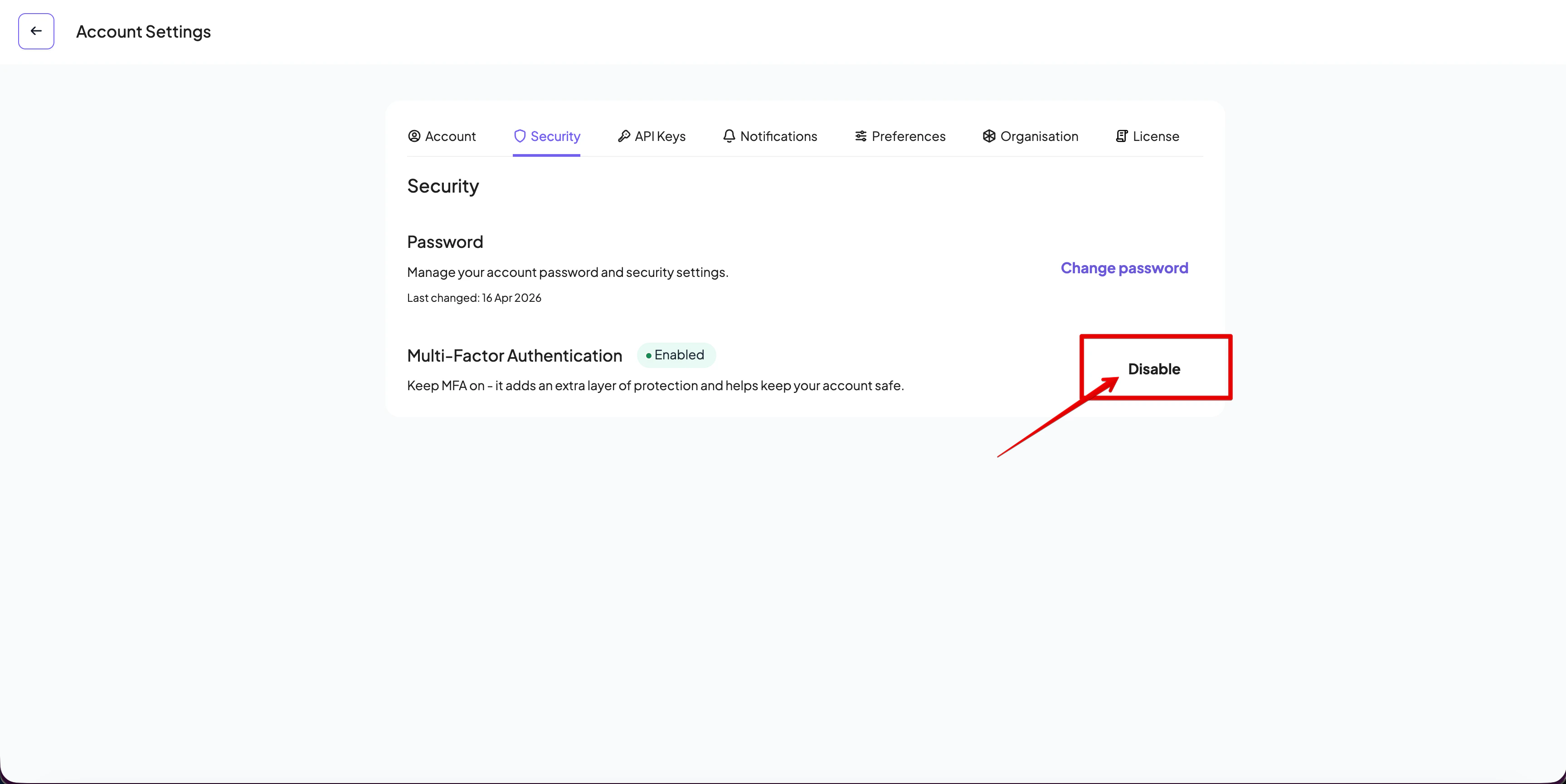 You will be asked for a 6-digit OTP from the authenticator app. If the code is valid, MFA will be disabled.
## Setting up a password
In case you have signed up via Google or GitHub, a password will not be set for your account. You can manually set a password for your account from the Security settings page. You will be asked for your e-mail address. You will receive an e-mail to reset your password. By clicking on the link on that e-mail you will be redirected to the password reset form and there you will be able to enter your password.
You will be asked for a 6-digit OTP from the authenticator app. If the code is valid, MFA will be disabled.
## Setting up a password
In case you have signed up via Google or GitHub, a password will not be set for your account. You can manually set a password for your account from the Security settings page. You will be asked for your e-mail address. You will receive an e-mail to reset your password. By clicking on the link on that e-mail you will be redirected to the password reset form and there you will be able to enter your password.