> ## Documentation Index
> Fetch the complete documentation index at: https://docs.cymph.io/llms.txt
> Use this file to discover all available pages before exploring further.
# Notification settings
## How to edit your notification settings
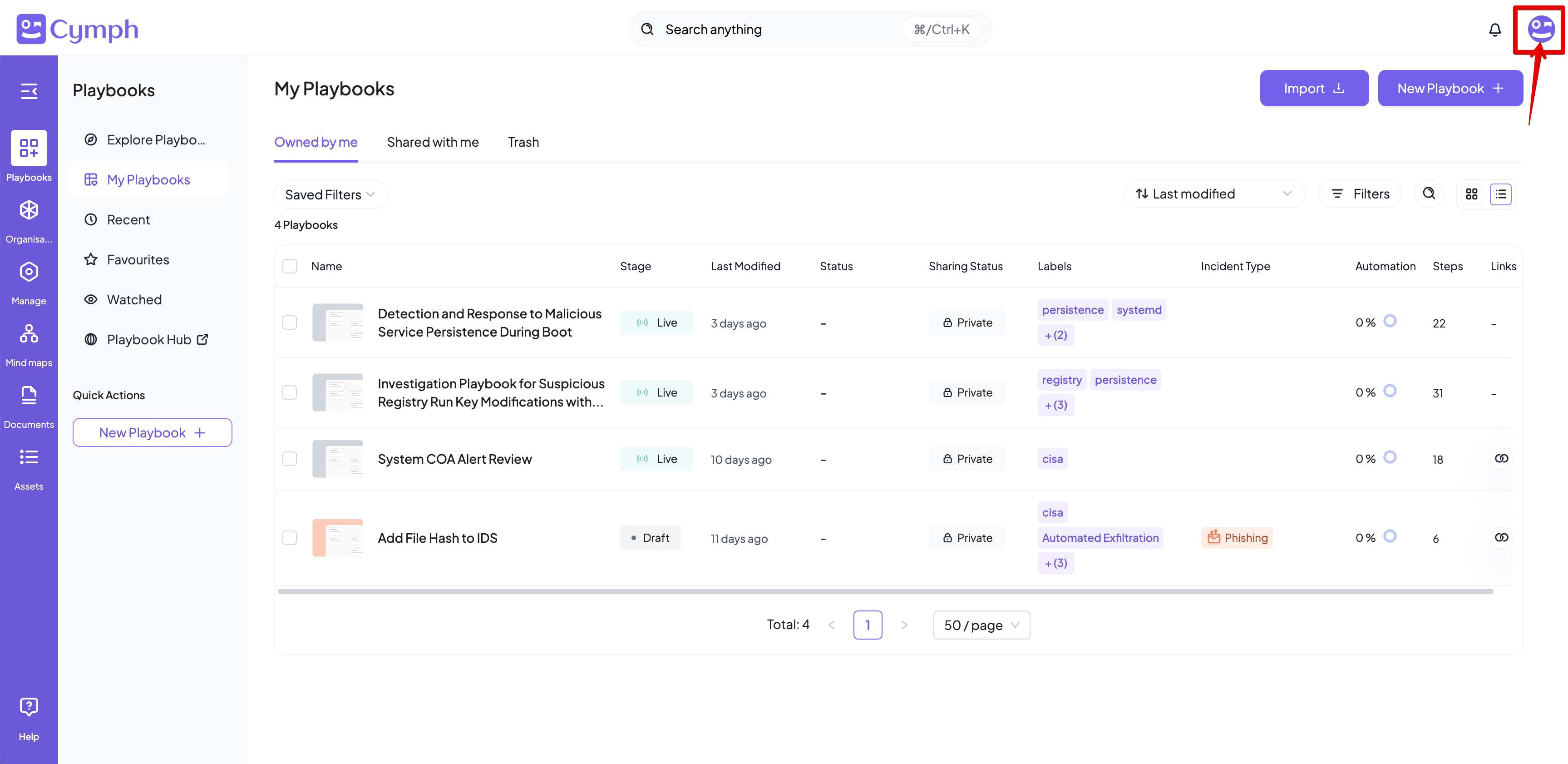
1. Go to your profile menu.
* **Click your profile picture** on the top right corner of the dashboard.
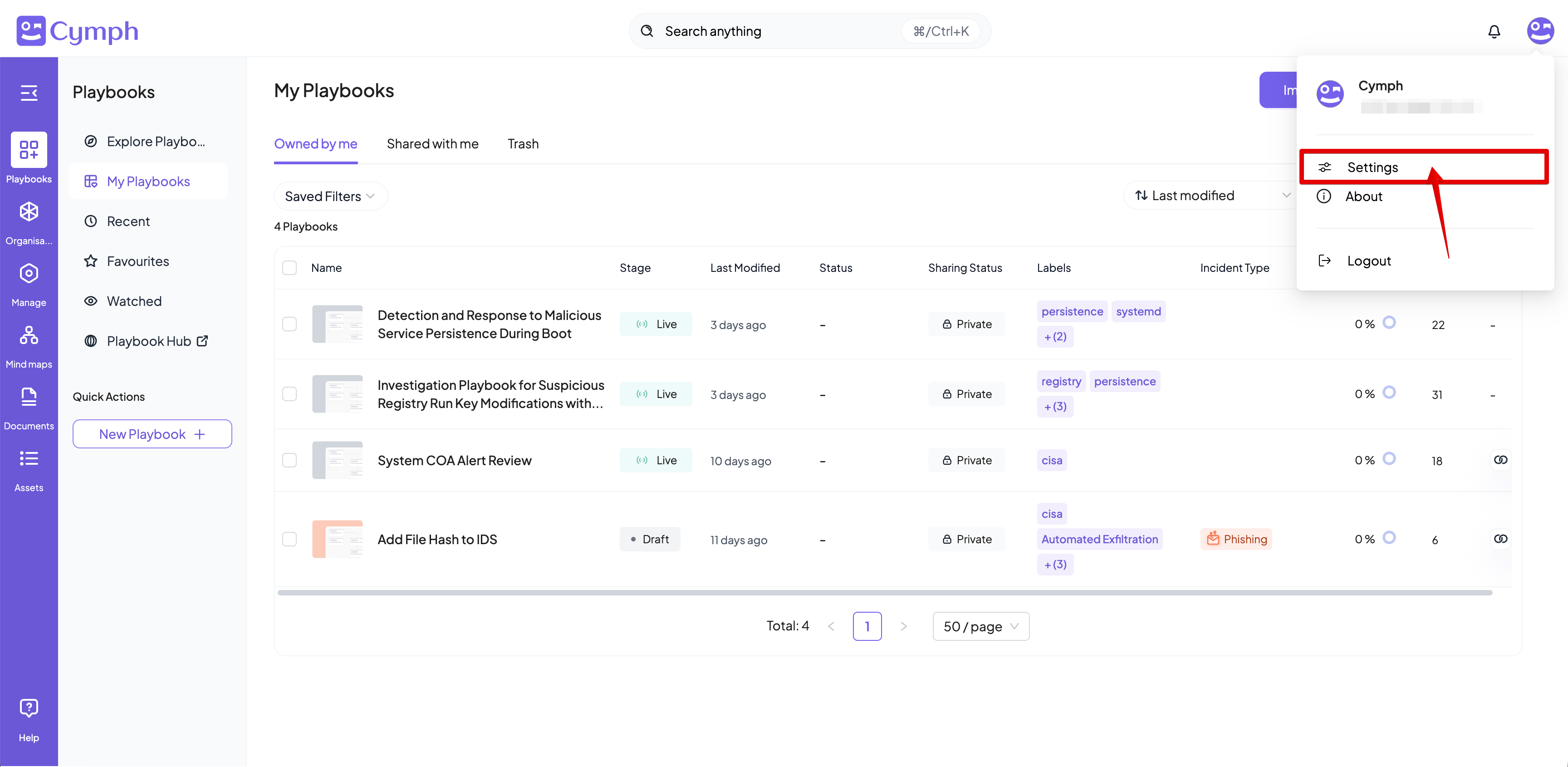
 2. Go to your settings.
* Click **Settings.**
2. Go to your settings.
* Click **Settings.**
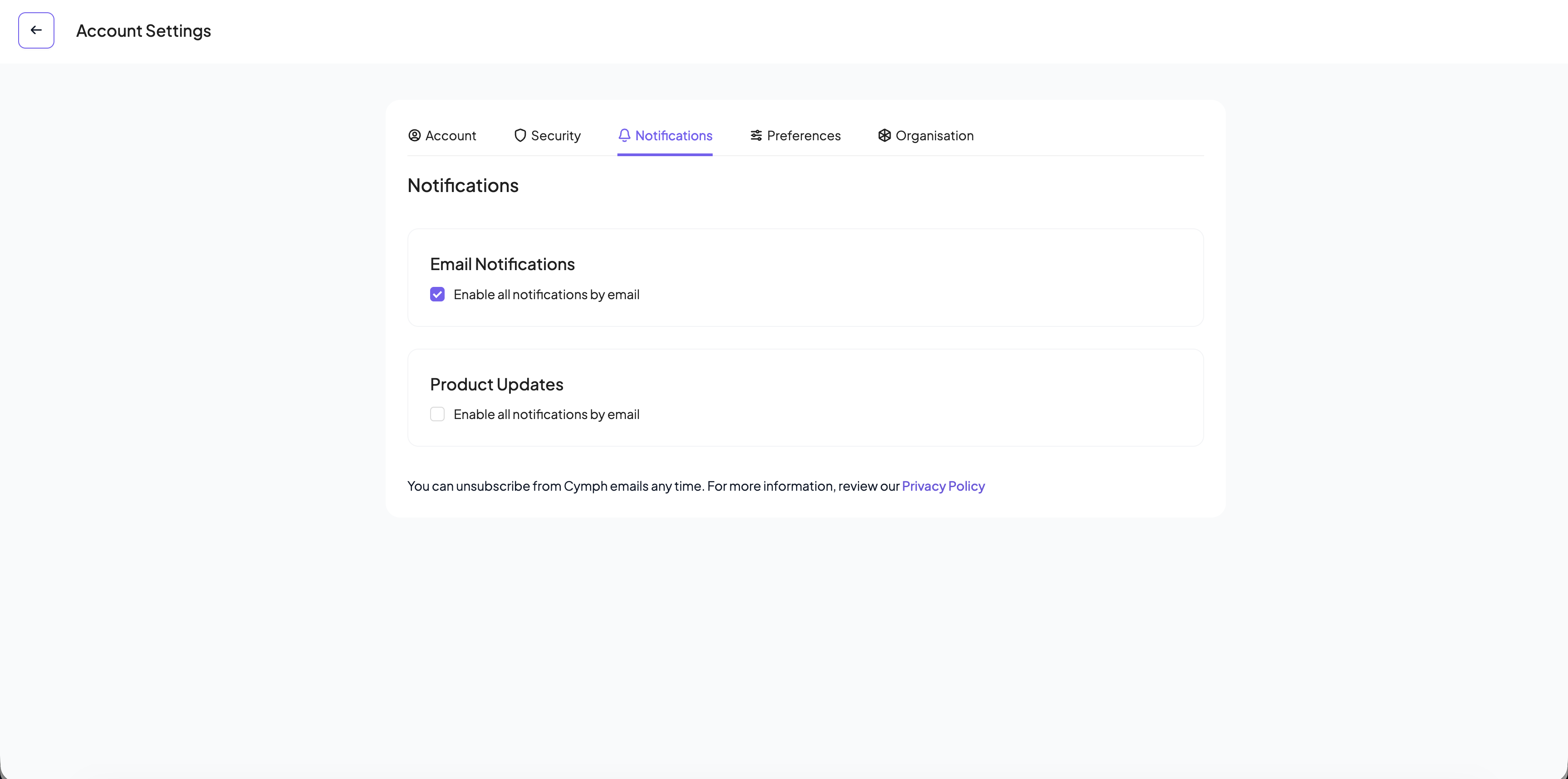
 3. Go to the notification settings.
* Click the **Notifications** tab of the settings panel, if not selected already.
4. Edit your notification settings.
* **Change your email notification settings.** Check or uncheck the box next to “**Enable all notifications by email**” to opt-in or opt-out from email notifications respectively.
* **Change your product notification settings**. Check or uncheck the box next to “**Send me occasional emails with updates and promotions from Cymph**” to opt-in or opt-out from email regarding product tips and news respectively.
3. Go to the notification settings.
* Click the **Notifications** tab of the settings panel, if not selected already.
4. Edit your notification settings.
* **Change your email notification settings.** Check or uncheck the box next to “**Enable all notifications by email**” to opt-in or opt-out from email notifications respectively.
* **Change your product notification settings**. Check or uncheck the box next to “**Send me occasional emails with updates and promotions from Cymph**” to opt-in or opt-out from email regarding product tips and news respectively.