> ## Documentation Index
> Fetch the complete documentation index at: https://docs.cymph.io/llms.txt
> Use this file to discover all available pages before exploring further.
# Create an organisation
If you are not part of an organisation, e.g., you did not create an organisation during sign-up or have left an organisation, you can create an organisation at any time.
# How to create an organisation
1. Go to your profile menu.
* **Click your profile picture** on the top right corner of the dashboard.
2. Go to your settings.
* Click **Settings.**
3. Go to the **Organisation** tab
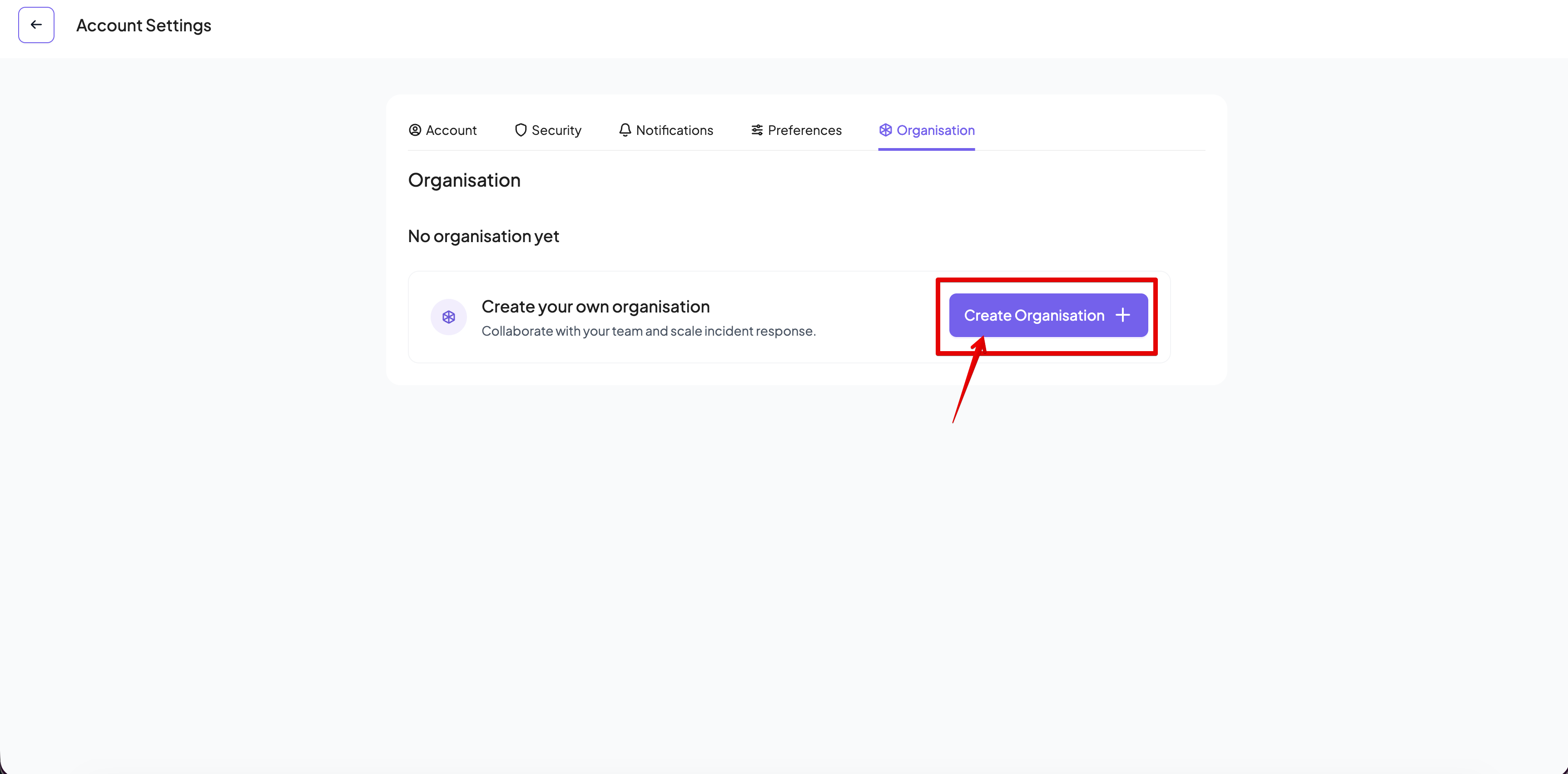
4. Click on **Create Organisation.**
1. The new organisation wizard will start.
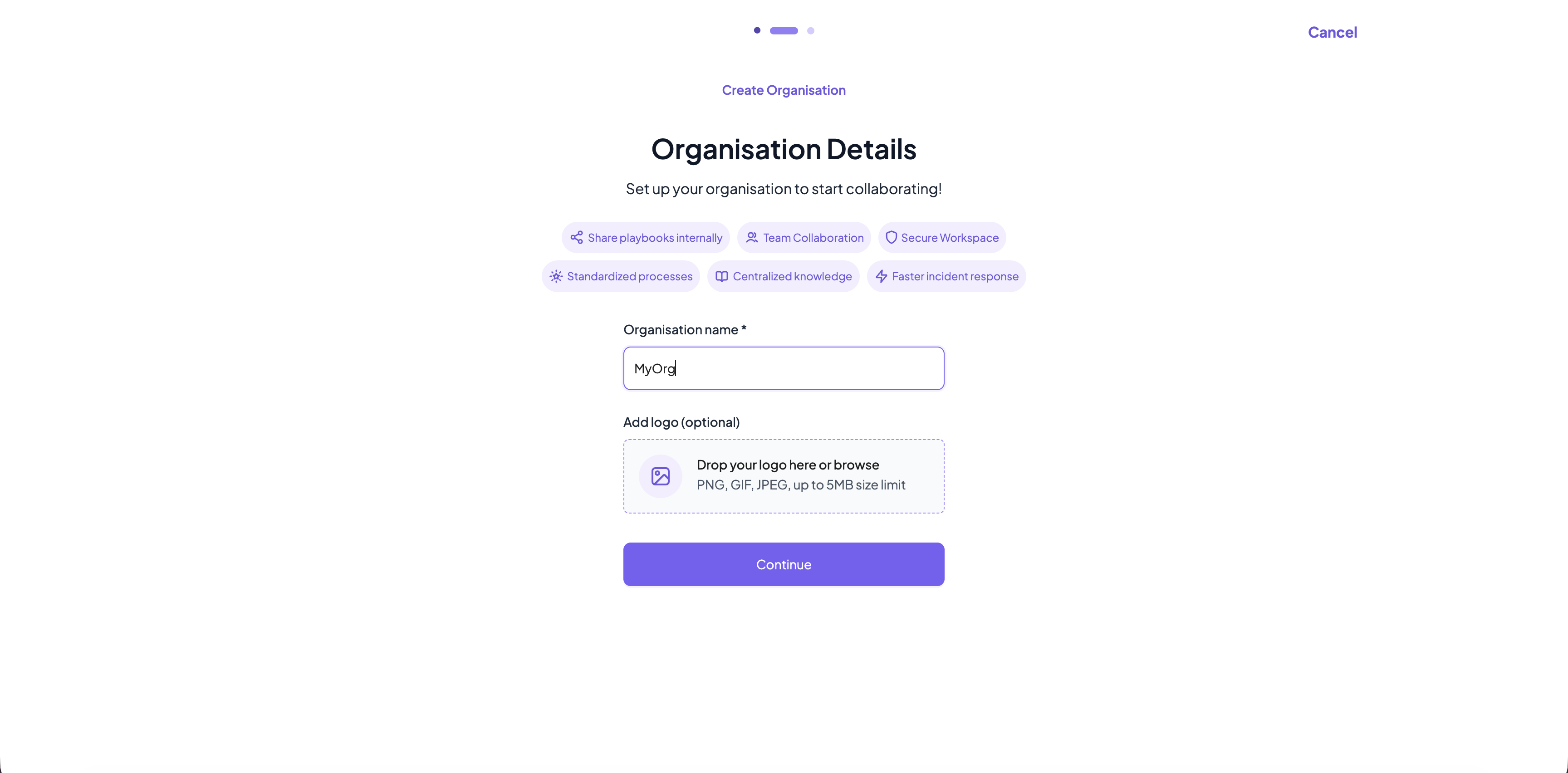
 5. Fill in the organisation details.
* **Organisation name** is mandatory. Organisation names in Cymph are case insensitive, they must be at least 3 characters long and are unique across the platform.
* You can upload a logo for your organisation. Supported formats are PNG, GIF and JPEG and the maximum file size is 5MB.
5. Fill in the organisation details.
* **Organisation name** is mandatory. Organisation names in Cymph are case insensitive, they must be at least 3 characters long and are unique across the platform.
* You can upload a logo for your organisation. Supported formats are PNG, GIF and JPEG and the maximum file size is 5MB.
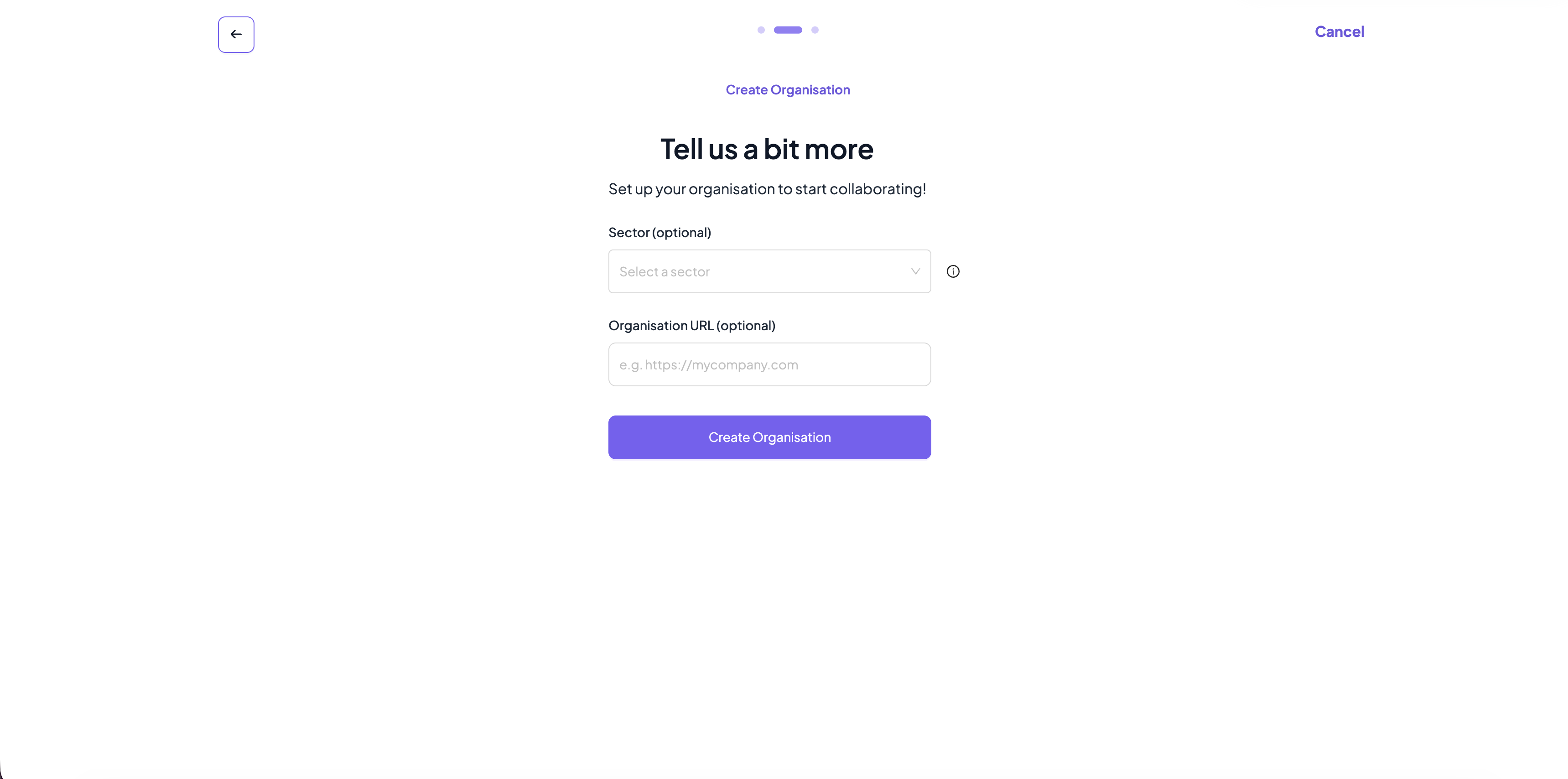
 6. Provide additional information for the organisation
* **Sector (optional).** The sector where the organisation belongs
* **URL (optional).** A URL for the organisation.
7. Click **Create Organisation.**
* The organisation will be created and you will be automatically assigned as Administrator for the organisation.
6. Provide additional information for the organisation
* **Sector (optional).** The sector where the organisation belongs
* **URL (optional).** A URL for the organisation.
7. Click **Create Organisation.**
* The organisation will be created and you will be automatically assigned as Administrator for the organisation.
 8. As a last step, you can optionally invite members to your newly created organisation
* You can skip that part by clicking \*\*Invite later \*\*option.
8. As a last step, you can optionally invite members to your newly created organisation
* You can skip that part by clicking \*\*Invite later \*\*option.
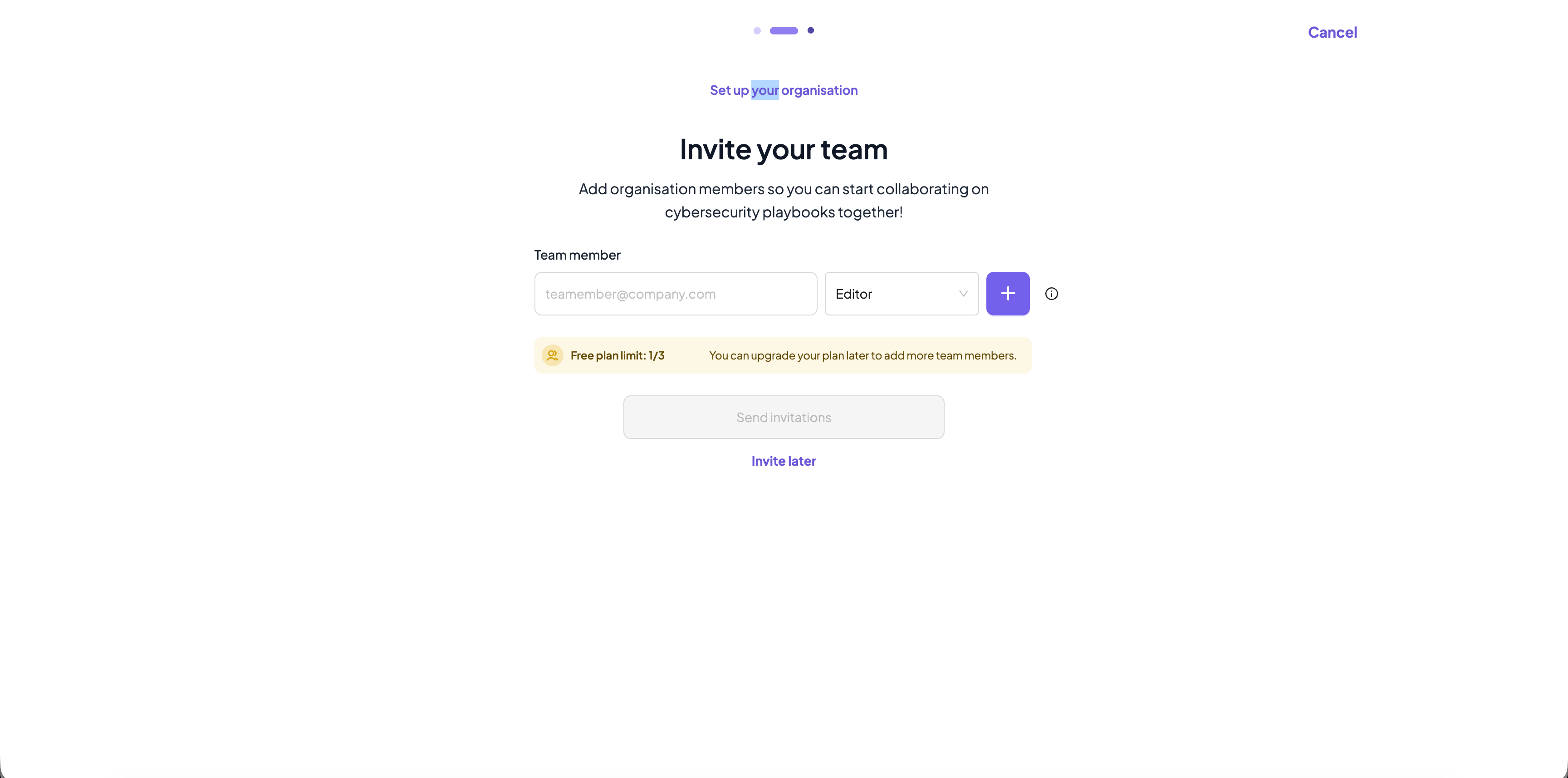 You can cancel the process at any point by clicking on **Cancel** on the top right corner