> ## Documentation Index
> Fetch the complete documentation index at: https://docs.cymph.io/llms.txt
> Use this file to discover all available pages before exploring further.
# Audit & logging
> Review administrative and product activity in the Audit Logs page.
The **Audit Logs** page (**On-premises Administration → Audit Logs**) lets administrators review administrative and product activity across the on-premise deployment. Common fields are shown in the table, while action-specific actor, target and metadata details are available per entry.
## Layout overview
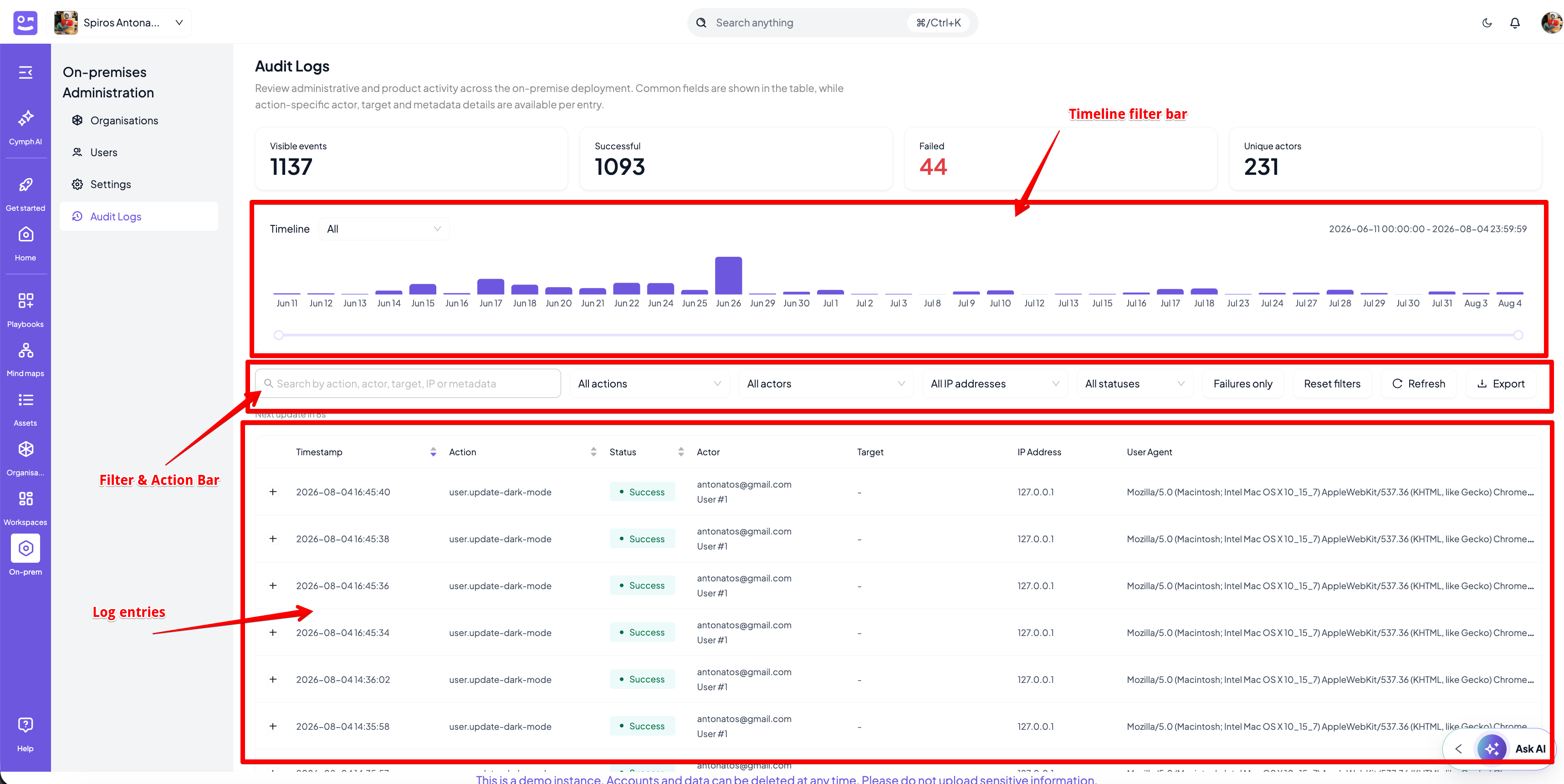
The page is organised, top to bottom, into four regions:
1. **Summary cards** — headline counts for the currently visible entries.
2. **Timeline filter bar** — a histogram of activity over time with a range selector.
3. **Filter & Action bar** — search, dropdown filters, and actions (refresh, reset, export).
4. **Log entries** — the paginated, sortable, expandable table of events.
All filters compose: the numbers in the summary cards and every row in the table always reflect the combined result of the timeline window **and** the filter bar.
 ## 1. Summary cards
Four cards summarise the **currently filtered** set of entries (not the full dataset):
| Card | Meaning |
| ------------------ | ------------------------------------------------------------------------------------------ |
| **Visible events** | Total number of entries matching the active filters. |
| **Successful** | Count of entries with status `success`. |
| **Failed** | Count of entries with status `fail`. Rendered in the danger colour when greater than zero. |
| **Unique actors** | Number of distinct actor emails among the visible entries. |
Because these are computed from the filtered result, narrowing the timeline or applying a filter updates the counts immediately.
***
## 2. Timeline filter bar
A daily activity histogram that doubles as a time-range control.
* **Bars** — one bar per day that has activity; bar height is the event count for that day. Hovering a bar shows a tooltip with the date and count. Bars inside the selected window are highlighted (purple); bars outside are muted (grey).
* **Timeline preset dropdown** — quick presets: **All**, **Today**, **Last month**, **Last 3 months**, **Last 6 months**, **Last year**, and **Custom**. Selecting a preset snaps the range slider to the matching window.
* **Range slider** — the dual-handle slider below the histogram lets you drag either end to set a custom start/end day. Dragging it automatically switches the preset to **Custom**.
* **Range label** — the timestamp on the right (e.g. `2026-06-11 00:00:00 - 2026-08-04 23:59:59`) shows the exact start and end of the selected window.
Only entries whose timestamp falls within the selected window are counted and listed.
***
## 3. Filter & Action bar
A row of controls that filter the table and drive page actions. Every filter is combined with **AND** logic and layered on top of the timeline window.
| Control | Behaviour |
| -------------------- | -------------------------------------------------------------------------------------------------------------------------------------------------------------------------------- |
| **Search box** | Free-text search across action, actor, target, IP and metadata. Matching is case-insensitive and runs over the full serialised entry, so it also matches nested metadata values. |
| **All actions** | Filter to a single action type. Options are derived from the actions present in the data. |
| **All actors** | Filter to a single actor by email. Searchable dropdown. |
| **All IP addresses** | Filter to a single source IP. Searchable dropdown. |
| **All statuses** | Filter by `Success` or `Failed`. |
| **Failures only** | Toggle button — a shortcut that pins the status filter to `fail` (turns red when active). Click again to clear. |
| **Reset filters** | Clears the search box, all dropdown filters, and resets the timeline back to **All**. |
| **Refresh** | Manually re-fetches the audit logs and restarts the auto-refresh countdown. |
| **Export** | Dropdown to download the **currently filtered** entries as **CSV** or **JSON**. Disabled when there is nothing to export. |
### Auto-refresh
The page automatically re-fetches every **30 seconds**. The `Next update in Ns` label next to the actions counts down to the next refresh; clicking **Refresh** resets the countdown.
***
## 4. Log entries
The main table lists individual events. Rows with a `fail` status are tinted with the danger background so failures stand out.
### Columns
| Column | Notes |
| -------------- | ---------------------------------------------------------------------------------------------------------------------------------------- |
| **Timestamp** | Formatted `YYYY-MM-DD HH:mm:ss`; hover shows the raw value. Default sort is newest-first; the column is sortable. |
| **Action** | The action identifier (e.g. `user.update-dark-mode`). Sortable. |
| **Status** | A pill: `Success`, `Failed`, or a capitalised fallback for other values. Sortable. |
| **Actor** | The actor's email plus `User #`, or **System** when there is no user id. |
| **Target** | The object the action affected. Resolved to a human-readable label (email, org name, `Playbook #…`, `User #…`, etc.) or `-` when absent. |
| **IP Address** | Source IP of the request. |
| **User Agent** | Client user-agent string, truncated with ellipsis. |
### Row expansion
Every row is expandable (the **`+`** control on the left). Expanding a row reveals the complete entry as pretty-printed JSON — including the full actor, target, and any action-specific metadata that isn't shown in the columns.
### Pagination
The table paginates at **10 rows per page**.
### Export format
Exports contain the same filtered rows as the table:
* **CSV** — columns: Timestamp, Action, Status, Actor Email, Actor User ID, Target, IP Address, User Agent, Metadata (metadata serialised as JSON). Filename: `audit-logs-.csv`.
* **JSON** — the raw entries (minus the internal row key). Filename: `audit-logs-.json`.
## 1. Summary cards
Four cards summarise the **currently filtered** set of entries (not the full dataset):
| Card | Meaning |
| ------------------ | ------------------------------------------------------------------------------------------ |
| **Visible events** | Total number of entries matching the active filters. |
| **Successful** | Count of entries with status `success`. |
| **Failed** | Count of entries with status `fail`. Rendered in the danger colour when greater than zero. |
| **Unique actors** | Number of distinct actor emails among the visible entries. |
Because these are computed from the filtered result, narrowing the timeline or applying a filter updates the counts immediately.
***
## 2. Timeline filter bar
A daily activity histogram that doubles as a time-range control.
* **Bars** — one bar per day that has activity; bar height is the event count for that day. Hovering a bar shows a tooltip with the date and count. Bars inside the selected window are highlighted (purple); bars outside are muted (grey).
* **Timeline preset dropdown** — quick presets: **All**, **Today**, **Last month**, **Last 3 months**, **Last 6 months**, **Last year**, and **Custom**. Selecting a preset snaps the range slider to the matching window.
* **Range slider** — the dual-handle slider below the histogram lets you drag either end to set a custom start/end day. Dragging it automatically switches the preset to **Custom**.
* **Range label** — the timestamp on the right (e.g. `2026-06-11 00:00:00 - 2026-08-04 23:59:59`) shows the exact start and end of the selected window.
Only entries whose timestamp falls within the selected window are counted and listed.
***
## 3. Filter & Action bar
A row of controls that filter the table and drive page actions. Every filter is combined with **AND** logic and layered on top of the timeline window.
| Control | Behaviour |
| -------------------- | -------------------------------------------------------------------------------------------------------------------------------------------------------------------------------- |
| **Search box** | Free-text search across action, actor, target, IP and metadata. Matching is case-insensitive and runs over the full serialised entry, so it also matches nested metadata values. |
| **All actions** | Filter to a single action type. Options are derived from the actions present in the data. |
| **All actors** | Filter to a single actor by email. Searchable dropdown. |
| **All IP addresses** | Filter to a single source IP. Searchable dropdown. |
| **All statuses** | Filter by `Success` or `Failed`. |
| **Failures only** | Toggle button — a shortcut that pins the status filter to `fail` (turns red when active). Click again to clear. |
| **Reset filters** | Clears the search box, all dropdown filters, and resets the timeline back to **All**. |
| **Refresh** | Manually re-fetches the audit logs and restarts the auto-refresh countdown. |
| **Export** | Dropdown to download the **currently filtered** entries as **CSV** or **JSON**. Disabled when there is nothing to export. |
### Auto-refresh
The page automatically re-fetches every **30 seconds**. The `Next update in Ns` label next to the actions counts down to the next refresh; clicking **Refresh** resets the countdown.
***
## 4. Log entries
The main table lists individual events. Rows with a `fail` status are tinted with the danger background so failures stand out.
### Columns
| Column | Notes |
| -------------- | ---------------------------------------------------------------------------------------------------------------------------------------- |
| **Timestamp** | Formatted `YYYY-MM-DD HH:mm:ss`; hover shows the raw value. Default sort is newest-first; the column is sortable. |
| **Action** | The action identifier (e.g. `user.update-dark-mode`). Sortable. |
| **Status** | A pill: `Success`, `Failed`, or a capitalised fallback for other values. Sortable. |
| **Actor** | The actor's email plus `User #`, or **System** when there is no user id. |
| **Target** | The object the action affected. Resolved to a human-readable label (email, org name, `Playbook #…`, `User #…`, etc.) or `-` when absent. |
| **IP Address** | Source IP of the request. |
| **User Agent** | Client user-agent string, truncated with ellipsis. |
### Row expansion
Every row is expandable (the **`+`** control on the left). Expanding a row reveals the complete entry as pretty-printed JSON — including the full actor, target, and any action-specific metadata that isn't shown in the columns.
### Pagination
The table paginates at **10 rows per page**.
### Export format
Exports contain the same filtered rows as the table:
* **CSV** — columns: Timestamp, Action, Status, Actor Email, Actor User ID, Target, IP Address, User Agent, Metadata (metadata serialised as JSON). Filename: `audit-logs-.csv`.
* **JSON** — the raw entries (minus the internal row key). Filename: `audit-logs-.json`.