> ## Documentation Index
> Fetch the complete documentation index at: https://docs.cymph.io/llms.txt
> Use this file to discover all available pages before exploring further.
# Organisation management
# How to add an organisation
Users with the On-prem Administrator role can manually add organisations.
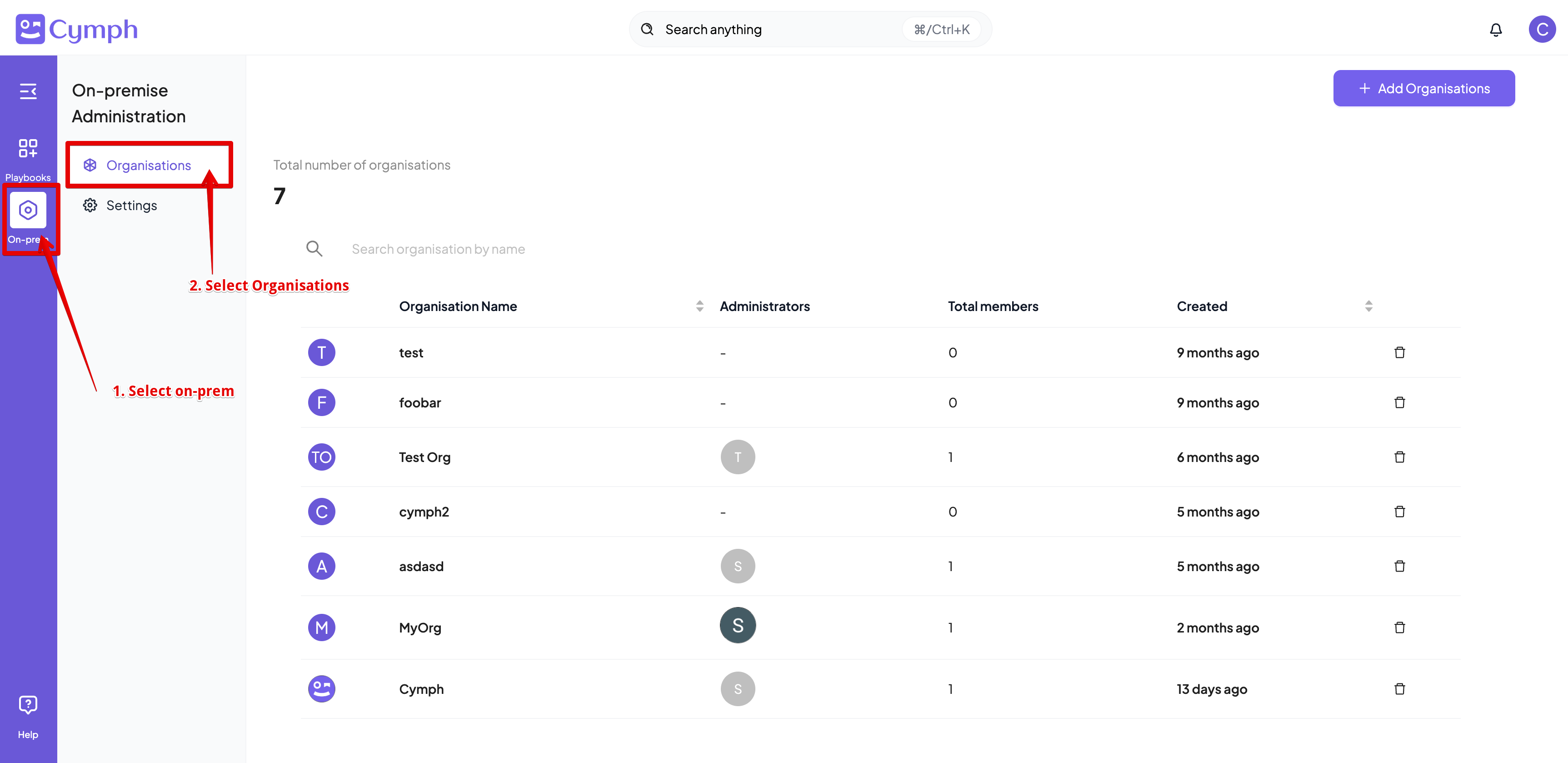
1. Go to the **Organisations Management** page
* From the navigation menu, select **On-prem** and then **Organisations**
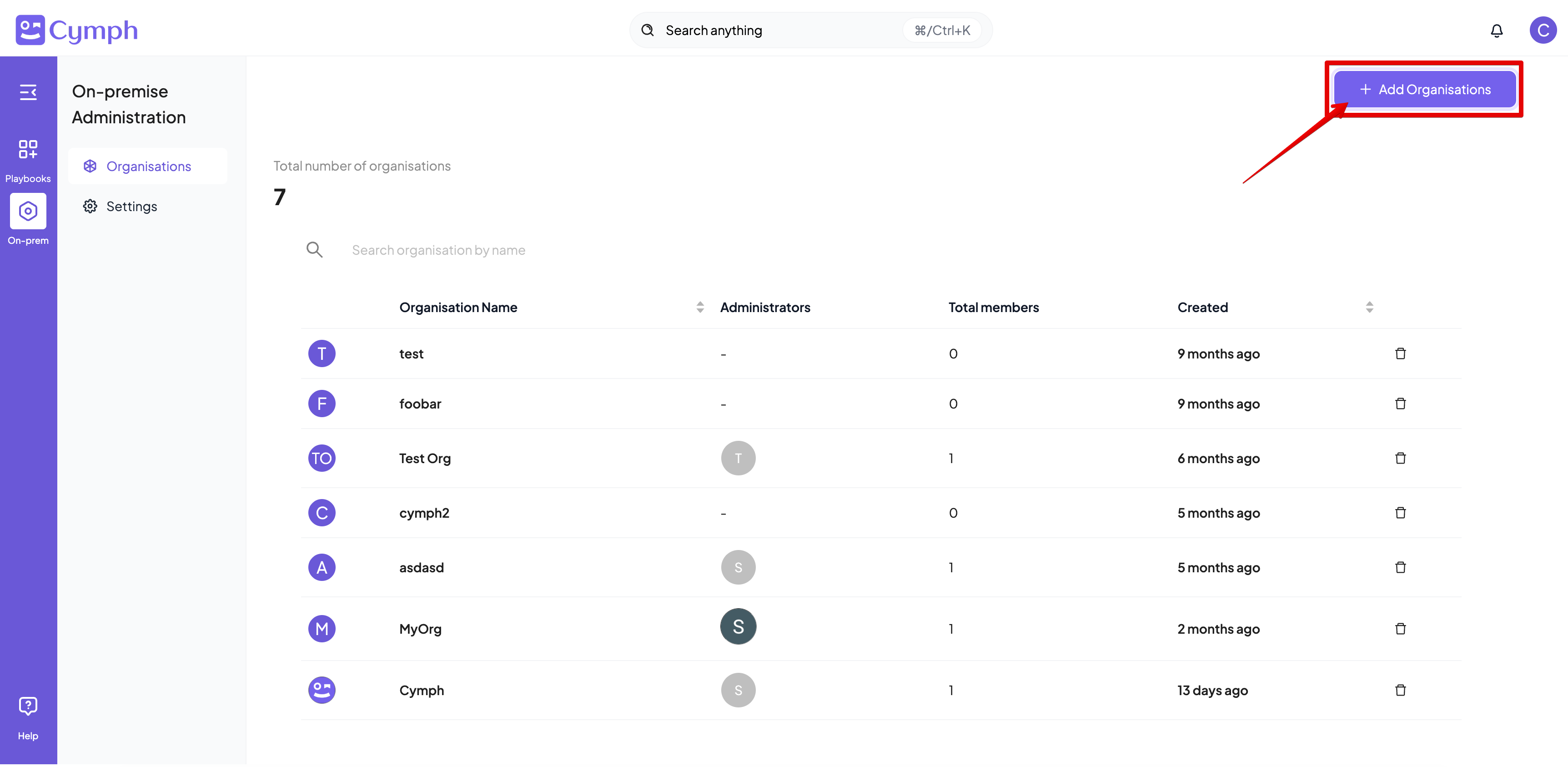
 2. Click on **Add Organisations** button
 3. Enter the organisation details
* Enter the organisation name (required)
* Enter the e-mail address for the administrator of the organisation
3. Enter the organisation details
* Enter the organisation name (required)
* Enter the e-mail address for the administrator of the organisation
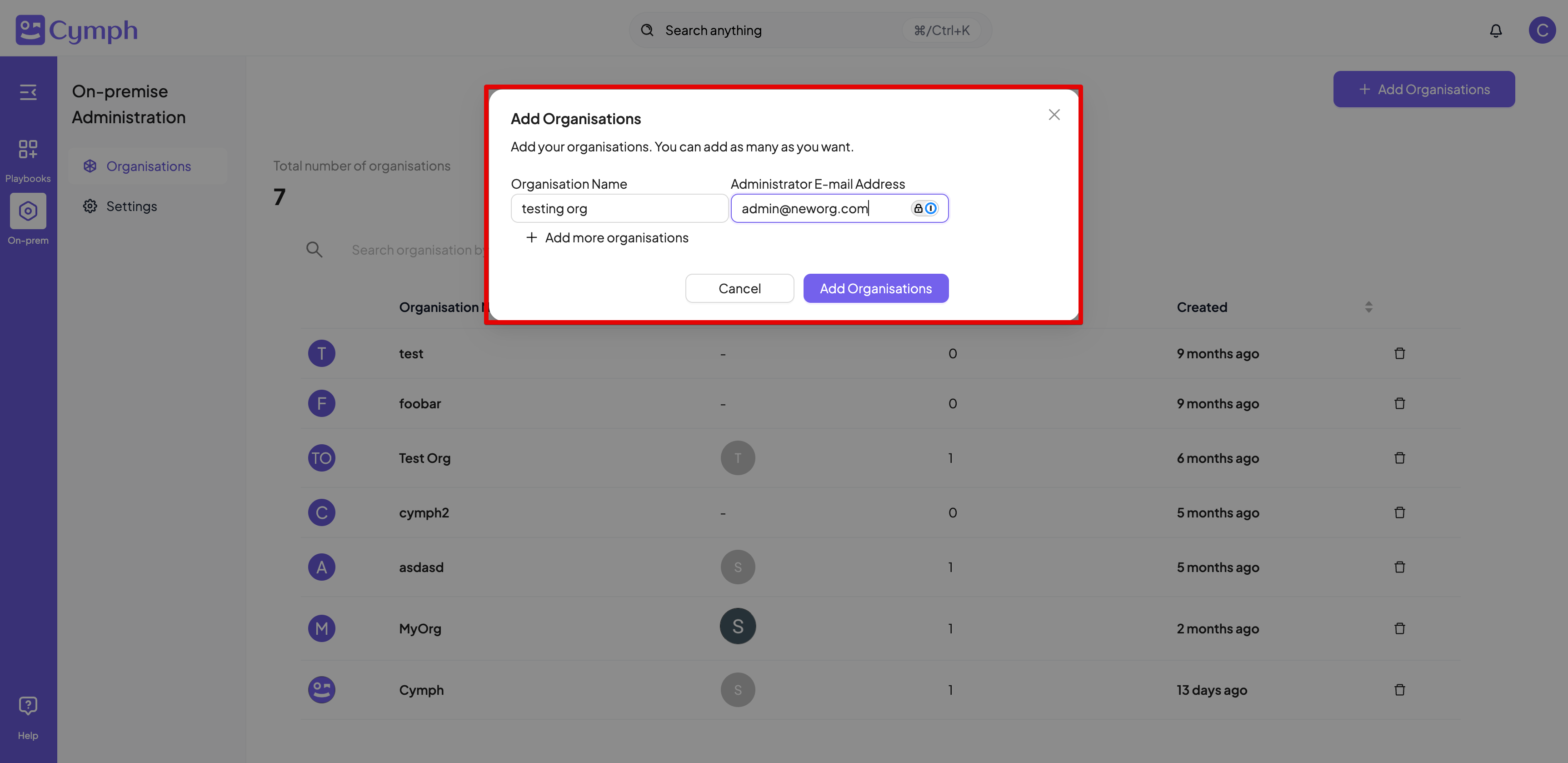 4. You can add more organisations by clicking on **Add more organisations** option (optional)
* Enter the details for the additional organisations
5. Click on **Add Organisations** to confirm
6. The **Organisations Management** page will be automatically refreshed to show the new organisations
* If any of the e-mail addresses provided during that step is not already registered in the application, a new account will be created for that address. The initial password for these accounts will be `password` and members will be forced to change it upon first login.
* If any of the e-mail addresses provided already belong to an organisation, the process will fail.
* If any of the e-mail addresses provided belong to an on-premises administrator, the process will fail
# **How to delete an organisation**
1. Go to the **Organisations Management** page
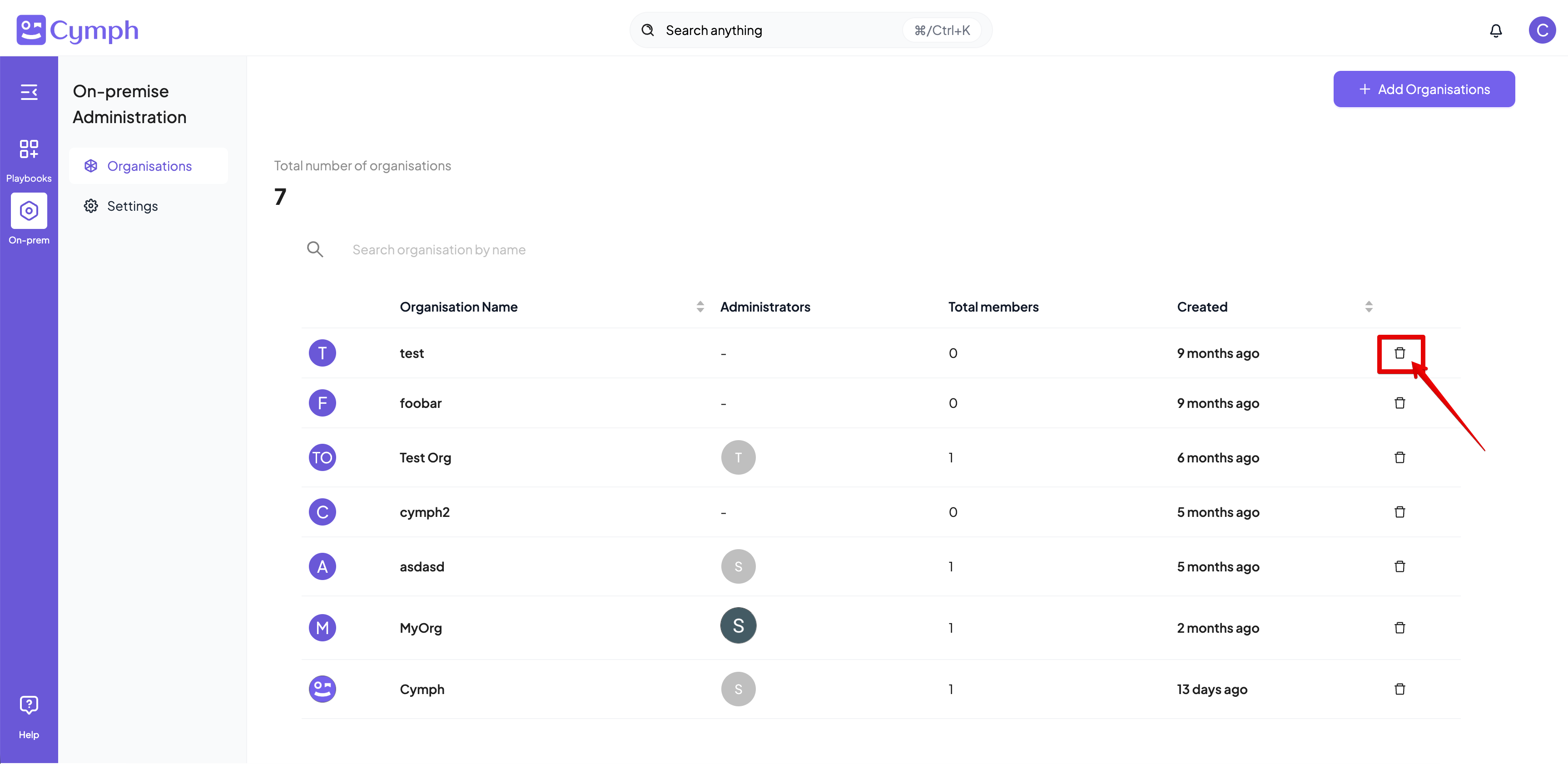
2. Click the **Delete icon** of the organisation you want to delete
4. You can add more organisations by clicking on **Add more organisations** option (optional)
* Enter the details for the additional organisations
5. Click on **Add Organisations** to confirm
6. The **Organisations Management** page will be automatically refreshed to show the new organisations
* If any of the e-mail addresses provided during that step is not already registered in the application, a new account will be created for that address. The initial password for these accounts will be `password` and members will be forced to change it upon first login.
* If any of the e-mail addresses provided already belong to an organisation, the process will fail.
* If any of the e-mail addresses provided belong to an on-premises administrator, the process will fail
# **How to delete an organisation**
1. Go to the **Organisations Management** page
2. Click the **Delete icon** of the organisation you want to delete
 3. Confirm the deletion by clicking on **Delete Organisation** button
4. The organisation will be removed and the \*\*Organisation Management \*\*table will be refreshed to reflect the changes
**When you delete an organisation, all of its members and their owned playbooks will be deleted as well. Please make sure that you have taken the appropriate backup.**
3. Confirm the deletion by clicking on **Delete Organisation** button
4. The organisation will be removed and the \*\*Organisation Management \*\*table will be refreshed to reflect the changes
**When you delete an organisation, all of its members and their owned playbooks will be deleted as well. Please make sure that you have taken the appropriate backup.**