> ## Documentation Index
> Fetch the complete documentation index at: https://docs.cymph.io/llms.txt
> Use this file to discover all available pages before exploring further.
# AI settings
# How to modify AI settings
Users with the On-prem Administrator role can modify the AI settings. By enabling AI, users will be able to use the AI capabilities of the platforms, such as playbook generation from prompts and mindmaps and autotagging.
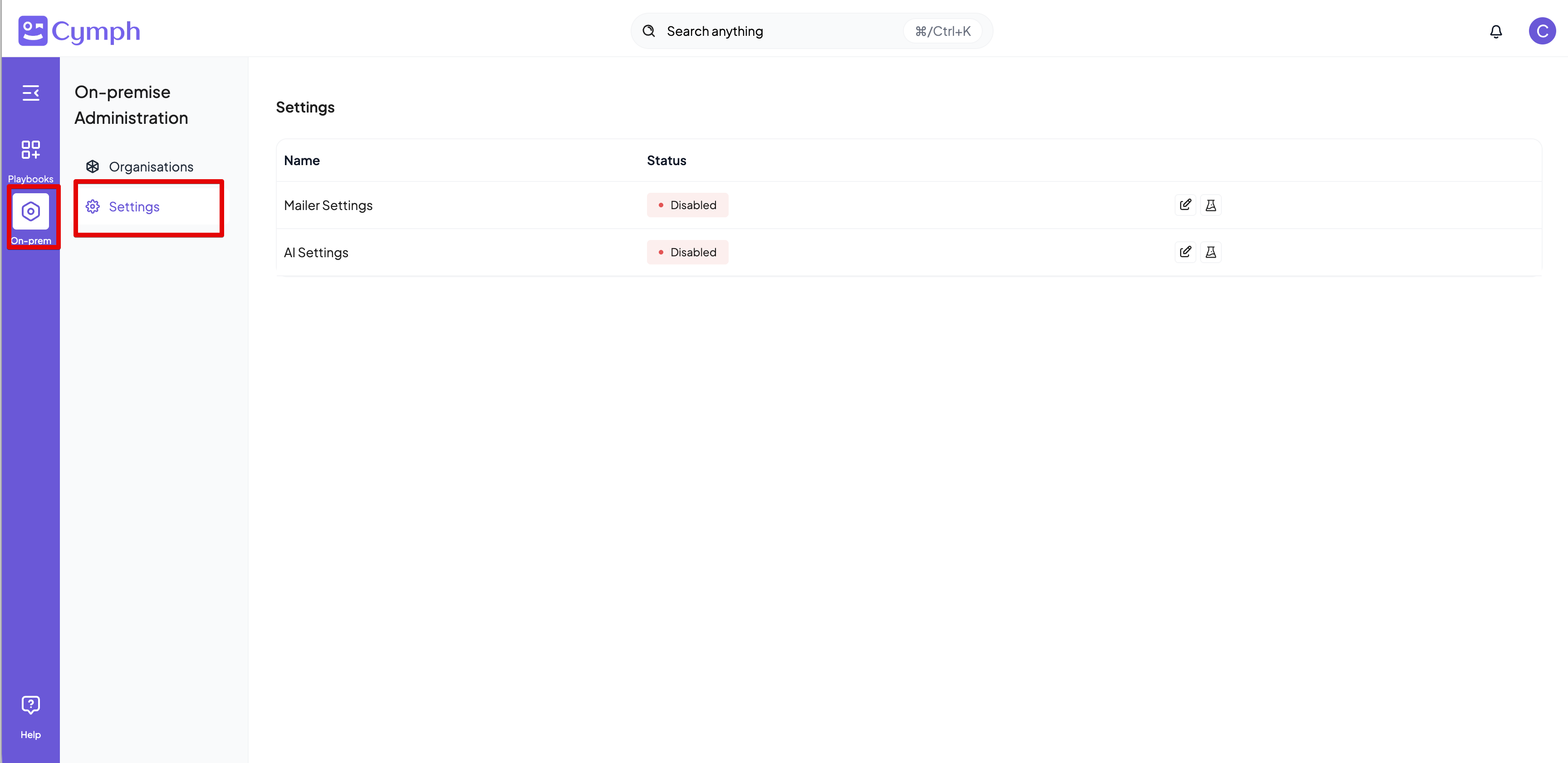
1. Go to **On-prem settings** page
* Click on **On-prem** from the navigation menu, then **Settings**
 2. Edit the **AI Settings**
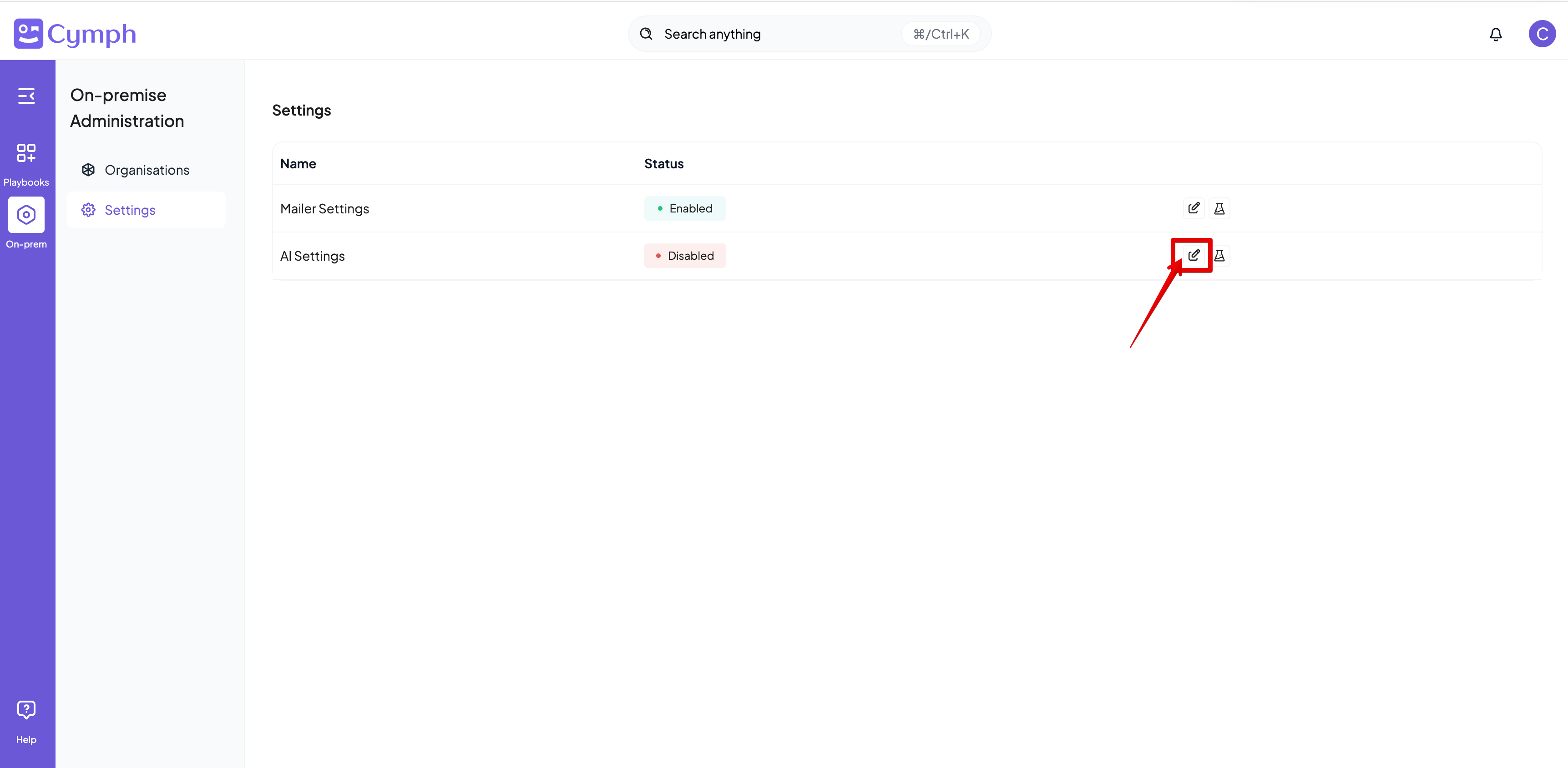
* Click on the **Edit icon** next on the AI settings row
2. Edit the **AI Settings**
* Click on the **Edit icon** next on the AI settings row
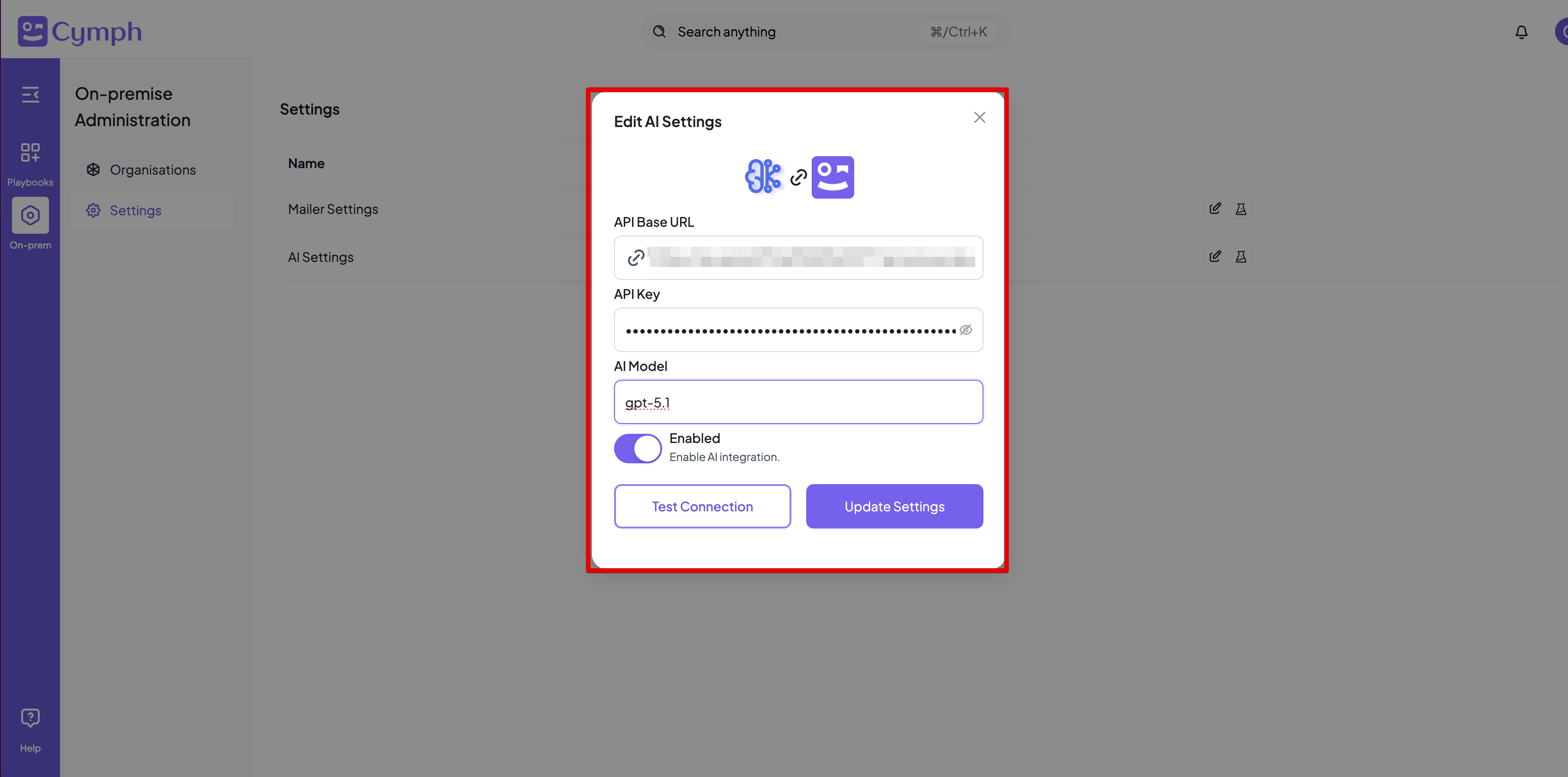
 3. Enter the settings for your AI provider