> ## Documentation Index
> Fetch the complete documentation index at: https://docs.cymph.io/llms.txt
> Use this file to discover all available pages before exploring further.
# Adding and removing members
# Overview
On-prem deployments allow the addition and removal of organisation members without invitation. Users with the **Administration** role can manually add or remove members to and from their organisation
# How to add members
1. Go to your **Organisation** page
2. Click on **Add Members**
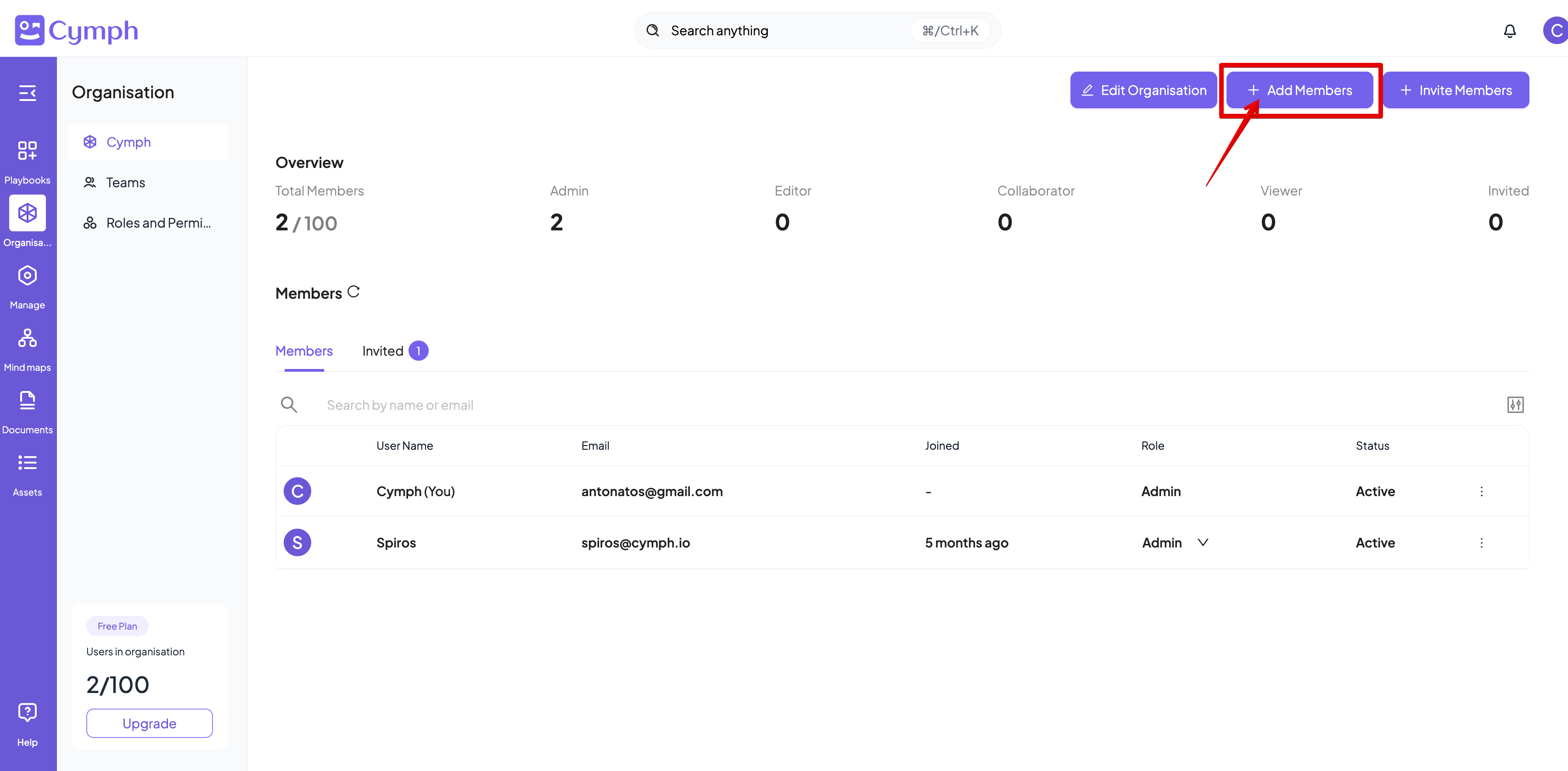 3. Enter the details of the member(s) you want to add
* By clicking on Add more users button additional entries will appear
3. Enter the details of the member(s) you want to add
* By clicking on Add more users button additional entries will appear
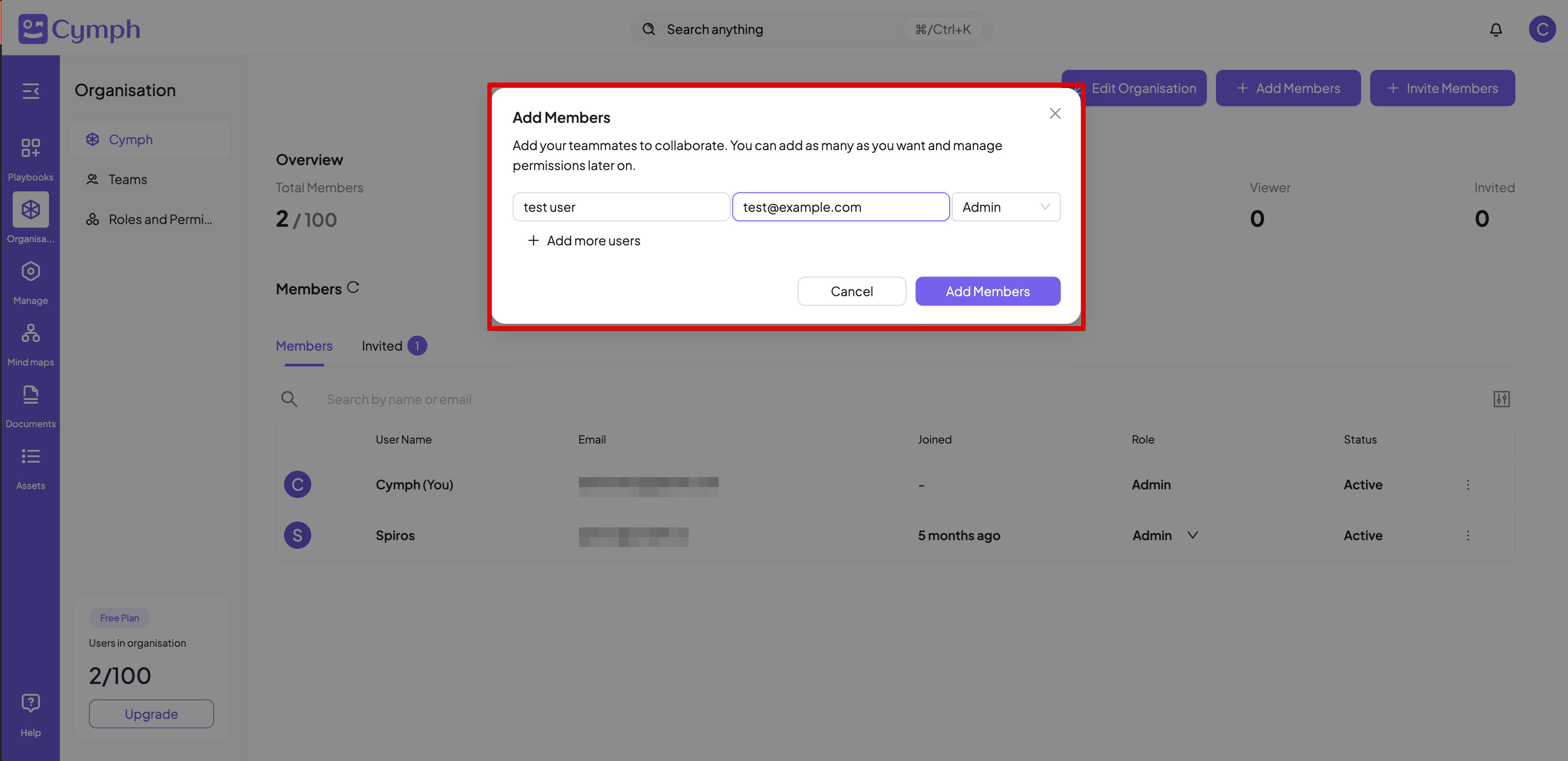 4. Click on **Add Members** once all information is keyed in
5. The Organisation table will be automatically refresh to reflect the changes
* If the e-mail address provided for a user is not found in the list of registered users, a new account will be created with that address. The password for this new user will be `password` . Users will be forced to change the password upon first login.
* If the e-mail address provided for a user belongs to a member of another organisation, the process will fail
* If any of the e-mail addresses provided belong to an on-premises administrator, the process will fail
# How to remove a member
1. Go to your **Organisation** page
2. Click on the \*\*Actions icon \*\*of the member you want to delete
4. Click on **Add Members** once all information is keyed in
5. The Organisation table will be automatically refresh to reflect the changes
* If the e-mail address provided for a user is not found in the list of registered users, a new account will be created with that address. The password for this new user will be `password` . Users will be forced to change the password upon first login.
* If the e-mail address provided for a user belongs to a member of another organisation, the process will fail
* If any of the e-mail addresses provided belong to an on-premises administrator, the process will fail
# How to remove a member
1. Go to your **Organisation** page
2. Click on the \*\*Actions icon \*\*of the member you want to delete
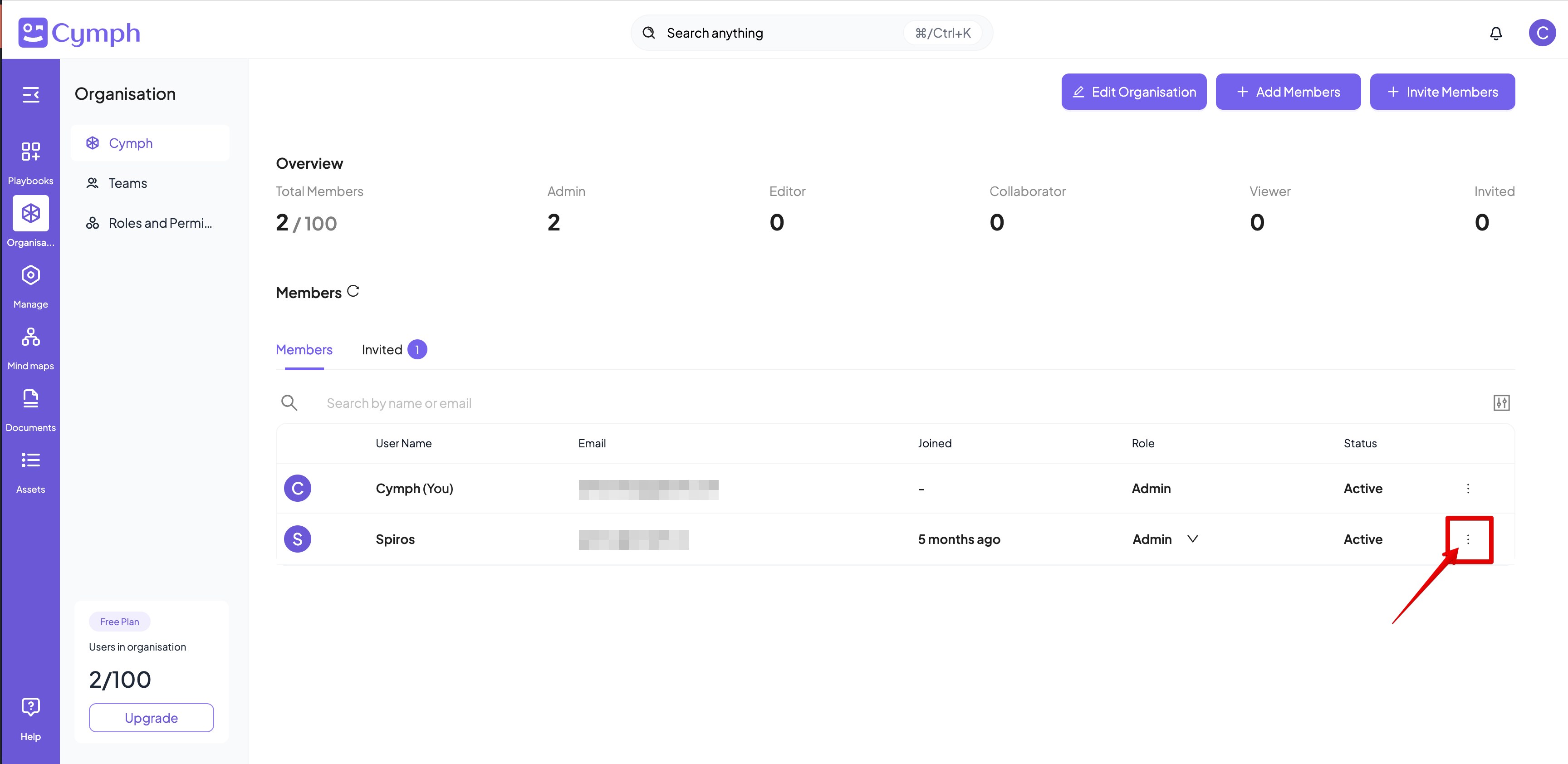 3. Click on **Remove from organisation**
4. Confirm the removal by clicking on **Remove User**
The playbooks created by the member while they were part of the organisation will be transferred to the administrator of the organisation
3. Click on **Remove from organisation**
4. Confirm the removal by clicking on **Remove User**
The playbooks created by the member while they were part of the organisation will be transferred to the administrator of the organisation