> ## Documentation Index
> Fetch the complete documentation index at: https://docs.cymph.io/llms.txt
> Use this file to discover all available pages before exploring further.
# Cymph AI
Cymph AI is a conversational assistant built into the platform. Beyond generating playbooks, it can answer questions about your workspace, summarise content, and search connected sources — all grounded in the data you have access to.
## Opening Cymph AI
There are two ways to open the assistant:
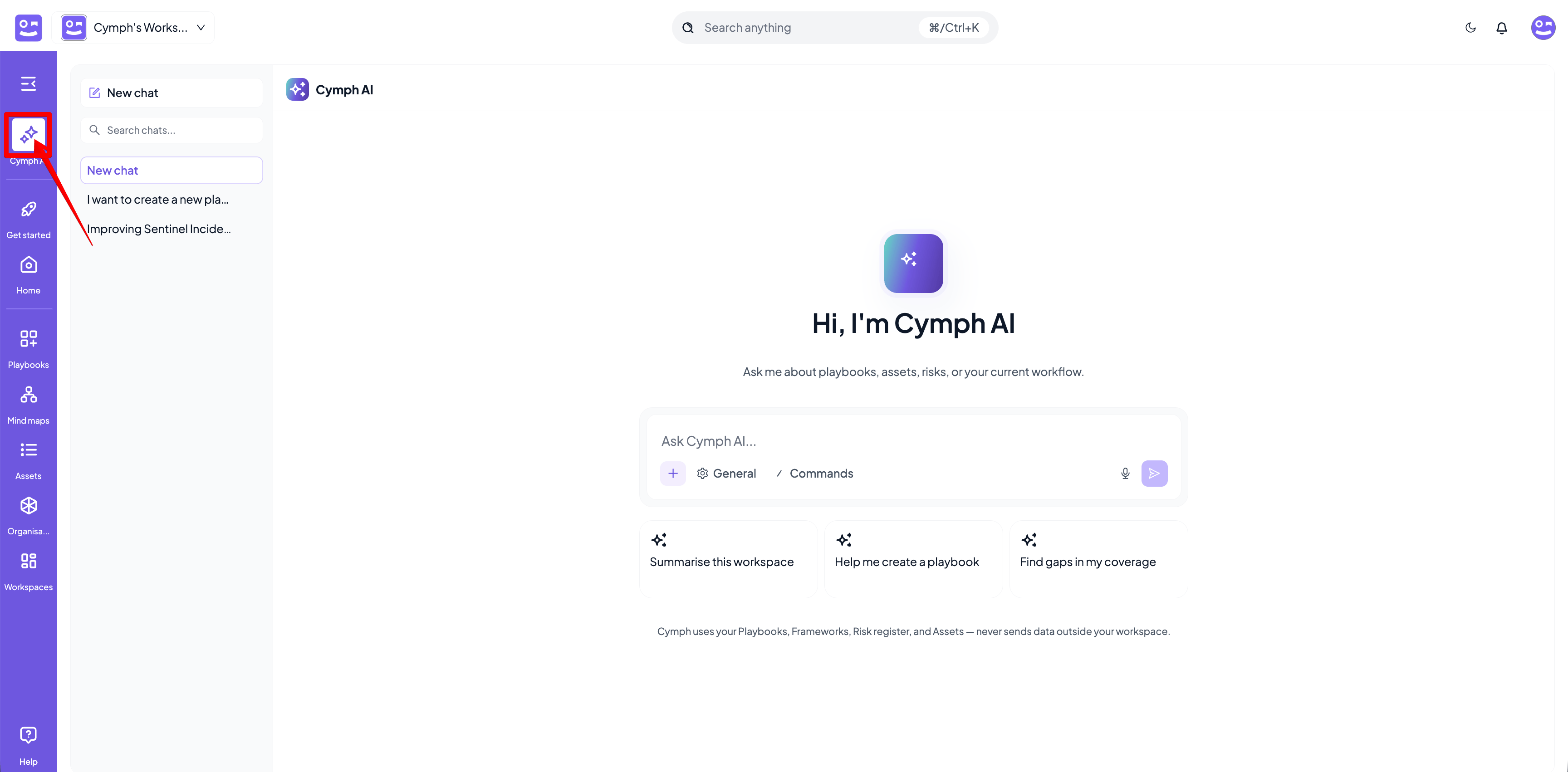
* Click **Cymph AI** from the left navigation menu.
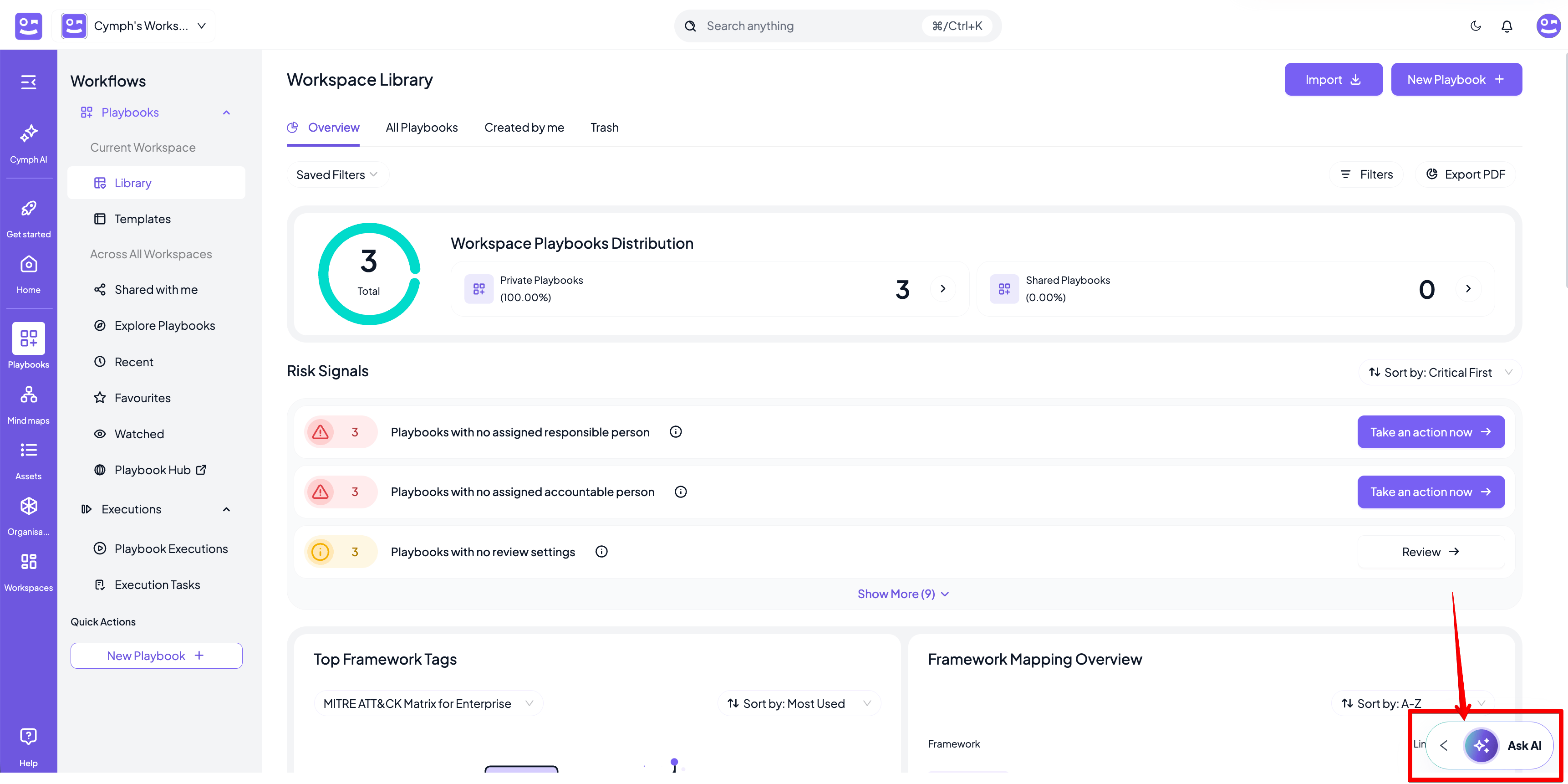
 * Click the **Ask AI** button available on most screens.
 ## Chats
Conversations are saved as **chats** so you can return to them later.
* Click **New chat** to start a fresh conversation.
* Use the **Search chats** box at the top of the chat list to find a previous conversation.
* Chats can be renamed via their inline menu action
* Chats can be deleted
## Attachments and voice
* Click the **+** button to attach a file for additional context.
* Click the **microphone** icon to dictate your message instead of typing.
## Chats
Conversations are saved as **chats** so you can return to them later.
* Click **New chat** to start a fresh conversation.
* Use the **Search chats** box at the top of the chat list to find a previous conversation.
* Chats can be renamed via their inline menu action
* Chats can be deleted
## Attachments and voice
* Click the **+** button to attach a file for additional context.
* Click the **microphone** icon to dictate your message instead of typing.