> ## Documentation Index
> Fetch the complete documentation index at: https://docs.cymph.io/llms.txt
> Use this file to discover all available pages before exploring further.
# Playbook templates
You can save a playbook you have access to as a template so you can re-use it in the future as a starting point.
## How to create a template
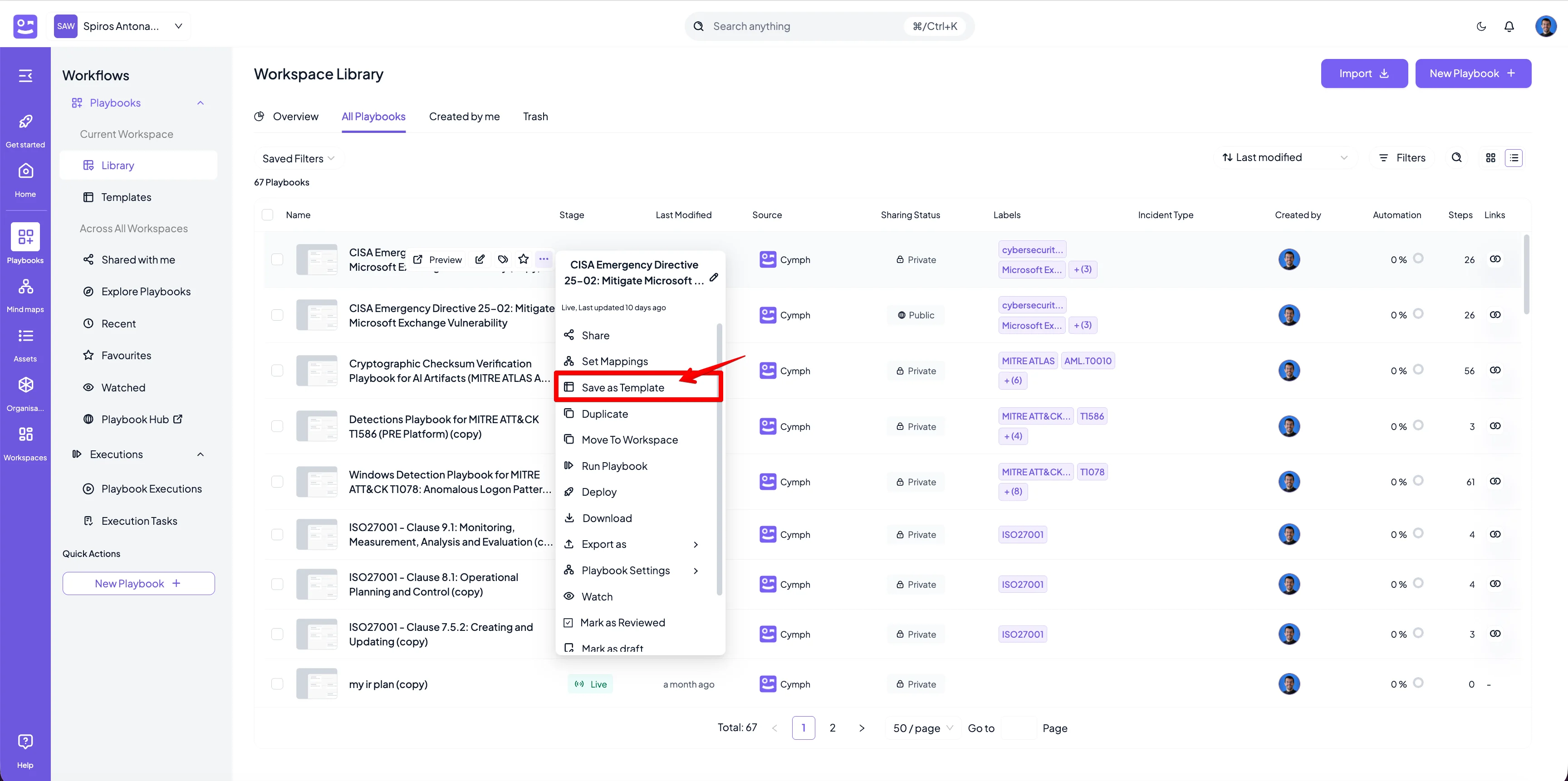
1. For the playbook you want to create a template from, hover over and open the action menu
* Click on the triple dot icon on the hover panel that appears
2. Select the **Save as Template** option from the menu that appears
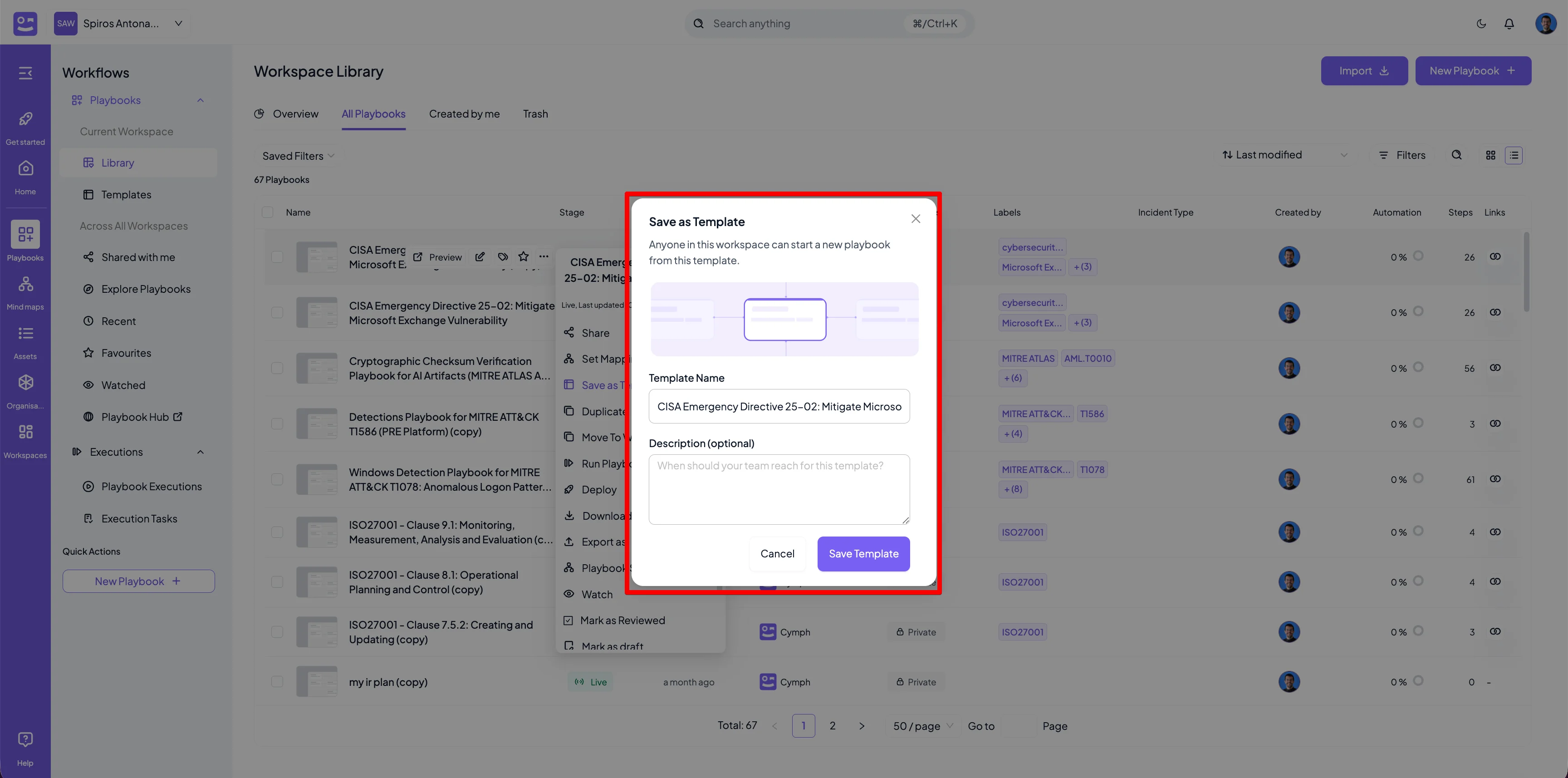
 3. In the popup that appears, provide a name for the template and optionally a description
4. Click on **Save template** to save your template
3. In the popup that appears, provide a name for the template and optionally a description
4. Click on **Save template** to save your template
 Both the workflow and documentation part of the playbook will be saved into the template. Labels and IR stage are also saved.
## How to create a playbook from a template
There are two ways to create a playbook from a template. The first one is via the Templates area of the Playbooks section. The second one is via the New Playbook button
### From Templates area
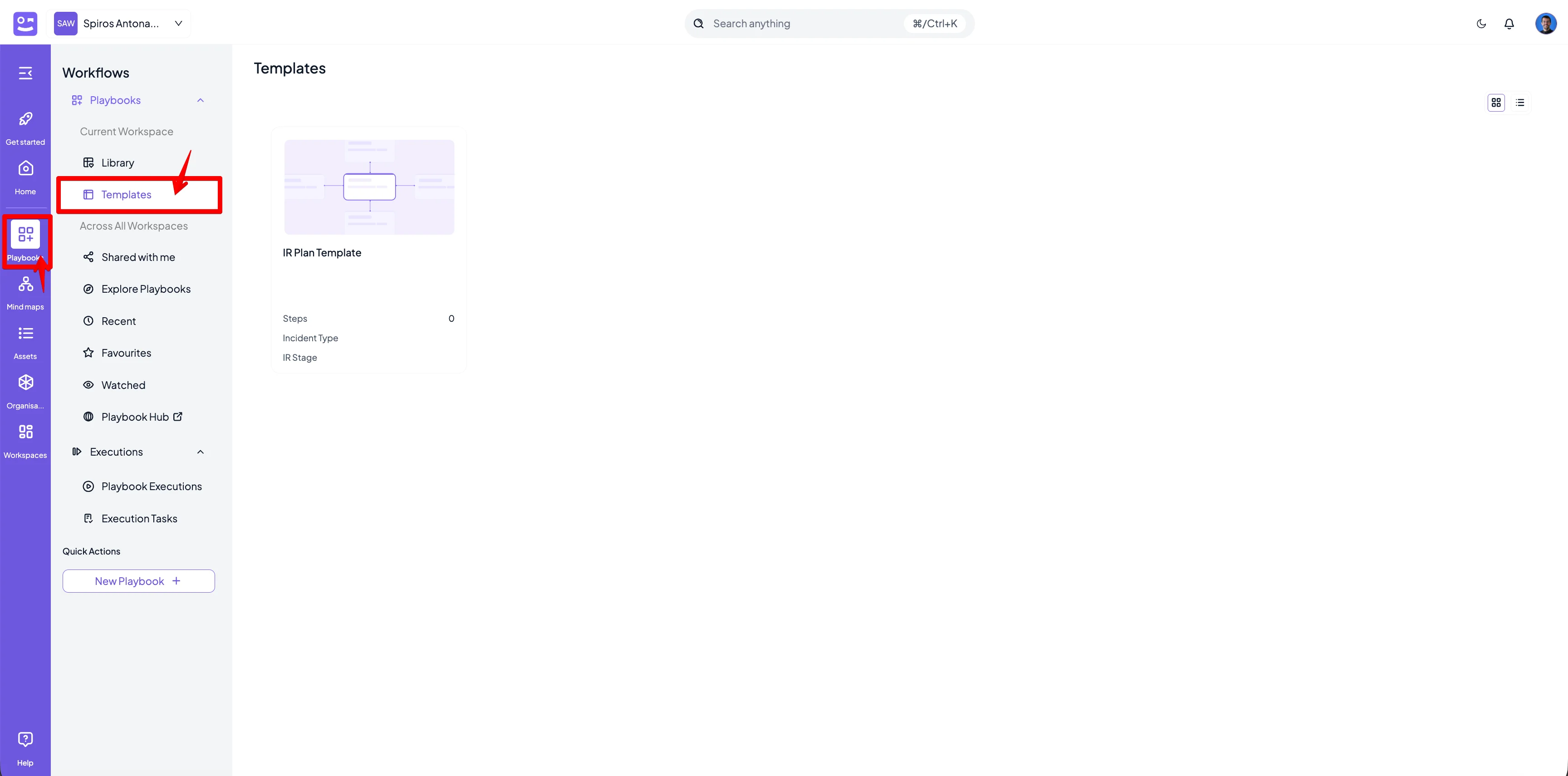
1. Go to the **Templates** area
Both the workflow and documentation part of the playbook will be saved into the template. Labels and IR stage are also saved.
## How to create a playbook from a template
There are two ways to create a playbook from a template. The first one is via the Templates area of the Playbooks section. The second one is via the New Playbook button
### From Templates area
1. Go to the **Templates** area
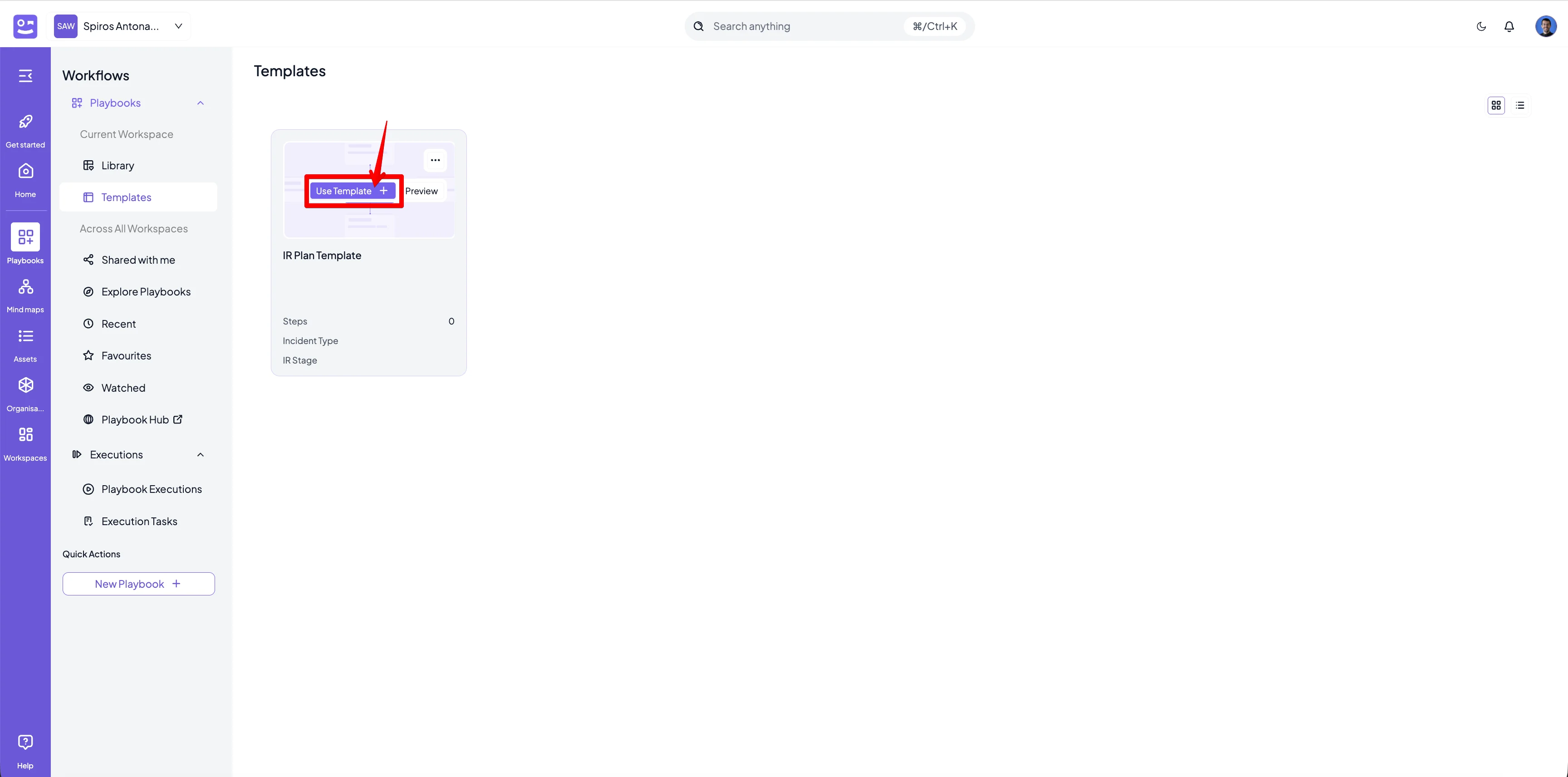
 2. Hover over the template you want to use. The actions menu will appear
3. Select the **Use template** action
2. Hover over the template you want to use. The actions menu will appear
3. Select the **Use template** action
 4. You will be redirected to the editor with the contents of the template being loaded
### From the New Playbook menu
1. Go to the Playbook library
2. Click on the **New Playbook** button from the top right corner and select **Start from template**
4. You will be redirected to the editor with the contents of the template being loaded
### From the New Playbook menu
1. Go to the Playbook library
2. Click on the **New Playbook** button from the top right corner and select **Start from template**
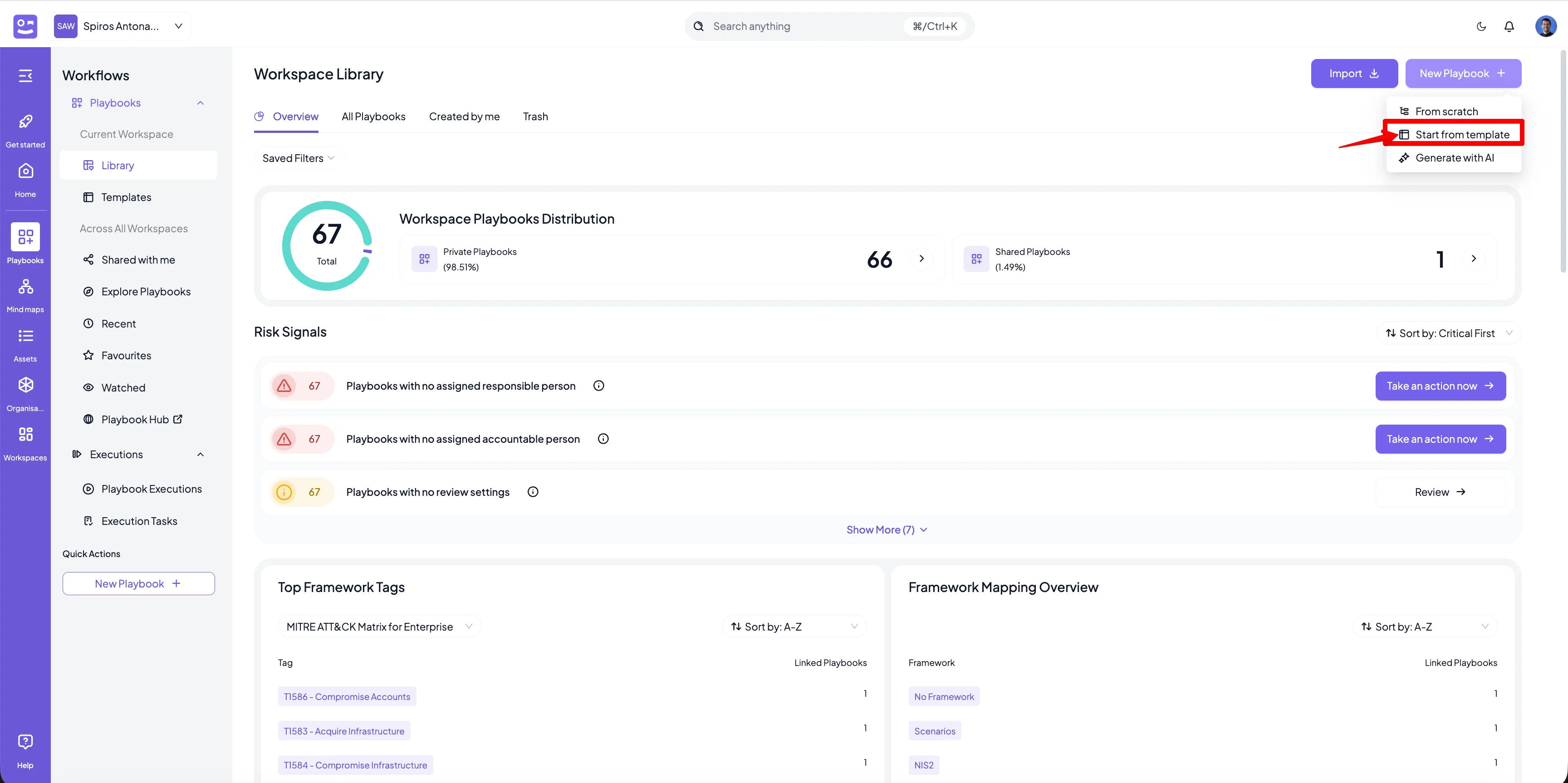 3. From the modal that appears, hover over the template you want to use and click on the **Select template** action
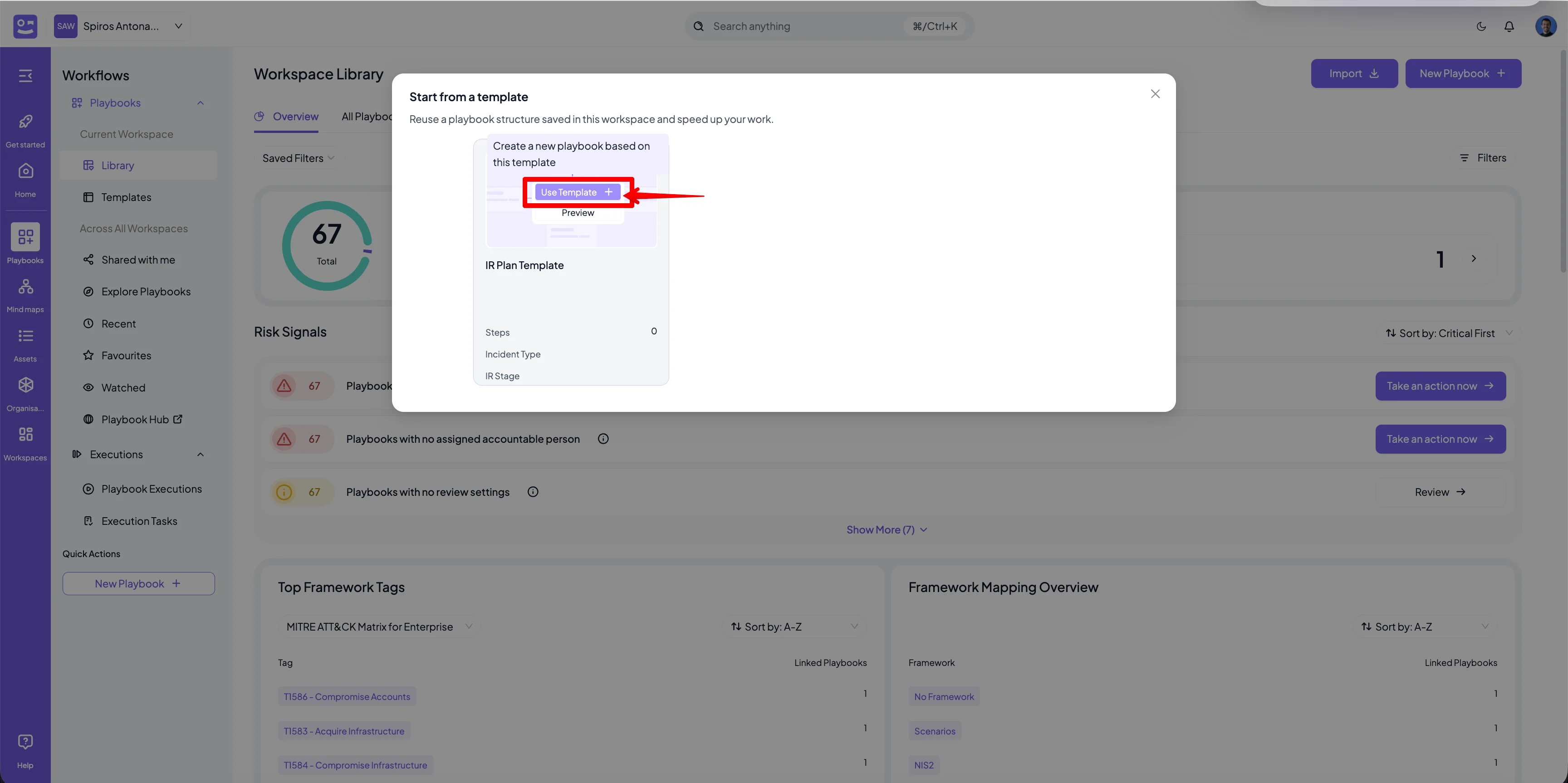 4. You will be redirected to the playbook editor with the contents of the selected template loaded