> ## Documentation Index
> Fetch the complete documentation index at: https://docs.cymph.io/llms.txt
> Use this file to discover all available pages before exploring further.
# Execute playbooks
Cymph supports executing playbooks that consist entirely of manual steps, giving operators a structured, trackable way to carry out procedures that don't rely on automated tooling. Rather than treating manual work as a gap in coverage, Cymph turns it into a first-class workflow: each step is acknowledged, timestamped, and recorded as part of a workbook, creating a full audit trail of what was done, by whom, and when.
For further details about the execution concepts, editor and tasks overview visit the [Executions](/key-features/executions) page
## Executing via the playbook management system
Playbooks can be executed either via the playbook management system or via the editor. Each execution is named.
In order to execute a playbook from the management system:
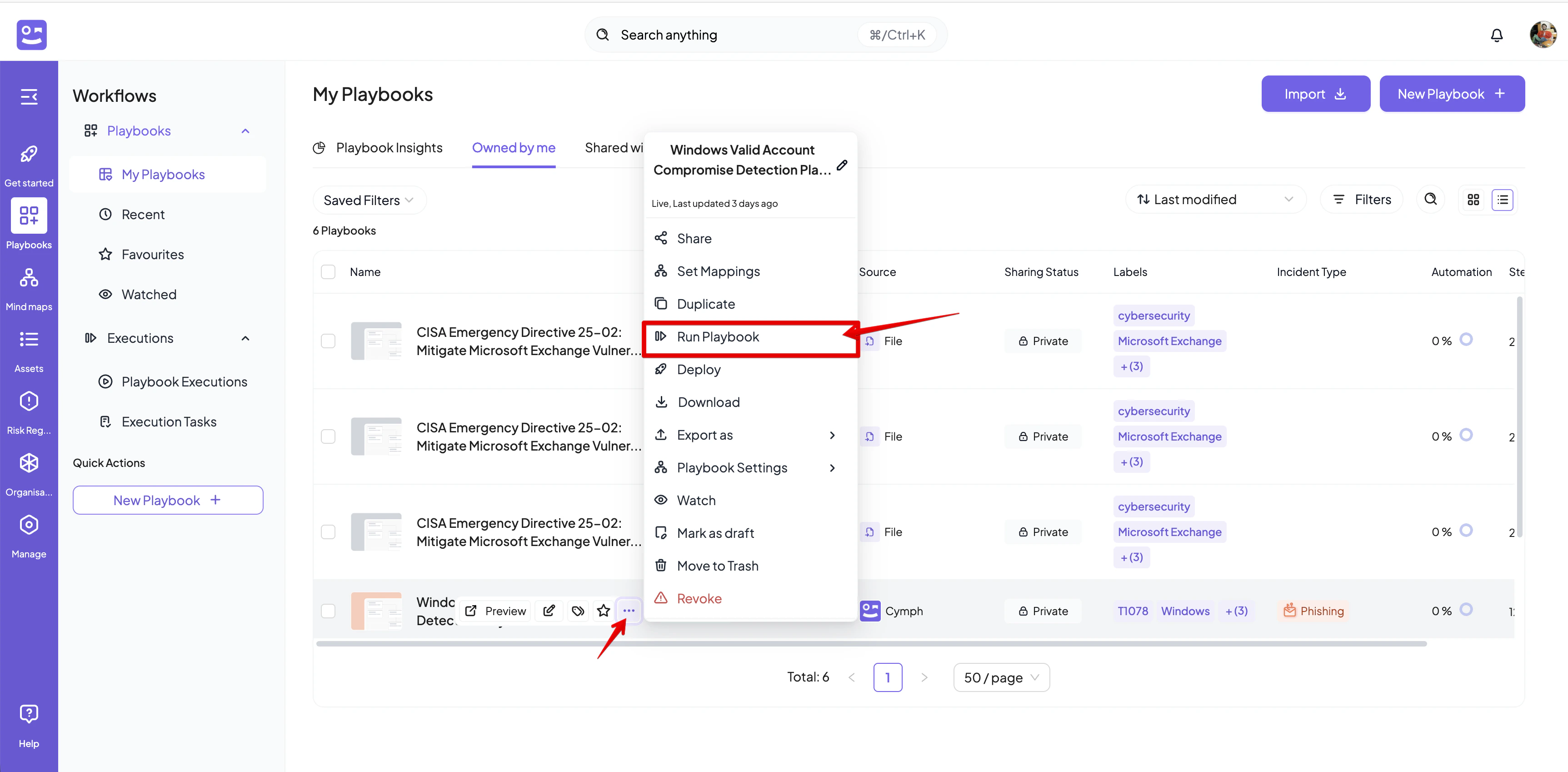
1. Open the action menu for the playbook you want to execute
2. Select **Run Playbook** from the action menu
* If the option is disabled, this means that the playbook is ineligible for execution.
 3. Provide a name for the execution and optionally a description in the dialog that appears
* At this stage you can also change the default assignees. If you have edit access to the playbook, an \*\*Edit Assignees \*\*will appear. By clicking on it, a playbook editor will open in a new tab
4. Click on **Run Playbook** to start the execution. You will be redirected to the execution editor
## Executing via the playbook editor
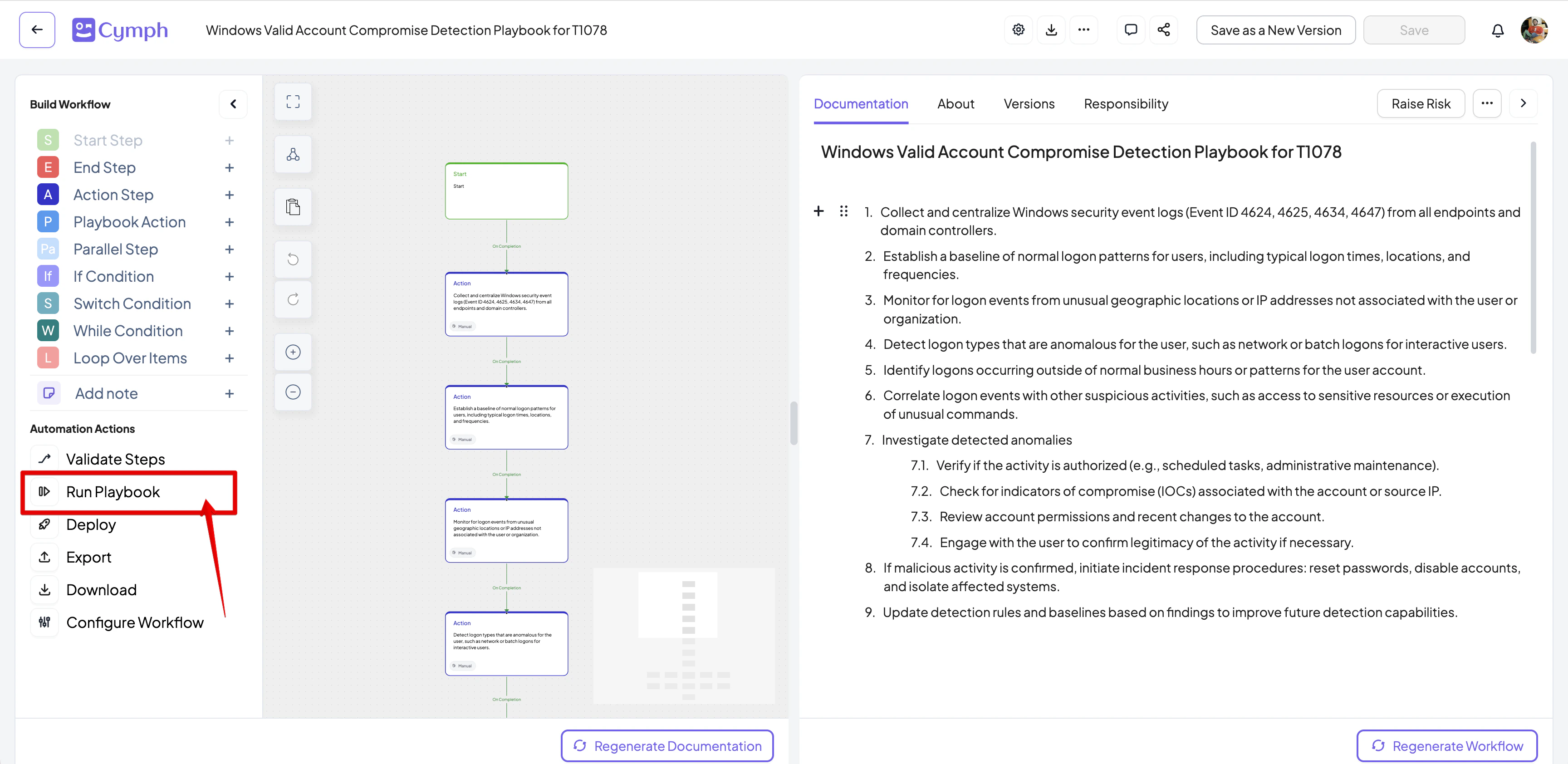
1. From the workflow actions panel on the left side, click on Run Playbook
2. Provide a name for the execution and optionally a description in the dialog that appears
3. Provide a name for the execution and optionally a description in the dialog that appears
* At this stage you can also change the default assignees. If you have edit access to the playbook, an \*\*Edit Assignees \*\*will appear. By clicking on it, a playbook editor will open in a new tab
4. Click on **Run Playbook** to start the execution. You will be redirected to the execution editor
## Executing via the playbook editor
1. From the workflow actions panel on the left side, click on Run Playbook
2. Provide a name for the execution and optionally a description in the dialog that appears