> ## Documentation Index
> Fetch the complete documentation index at: https://docs.cymph.io/llms.txt
> Use this file to discover all available pages before exploring further.
# Manage ensembles
Ensembles are groups of organisations. Users can add or remove one or more organisations to an ensemble and then share playbooks to that ensemble.
# How to create an ensemble
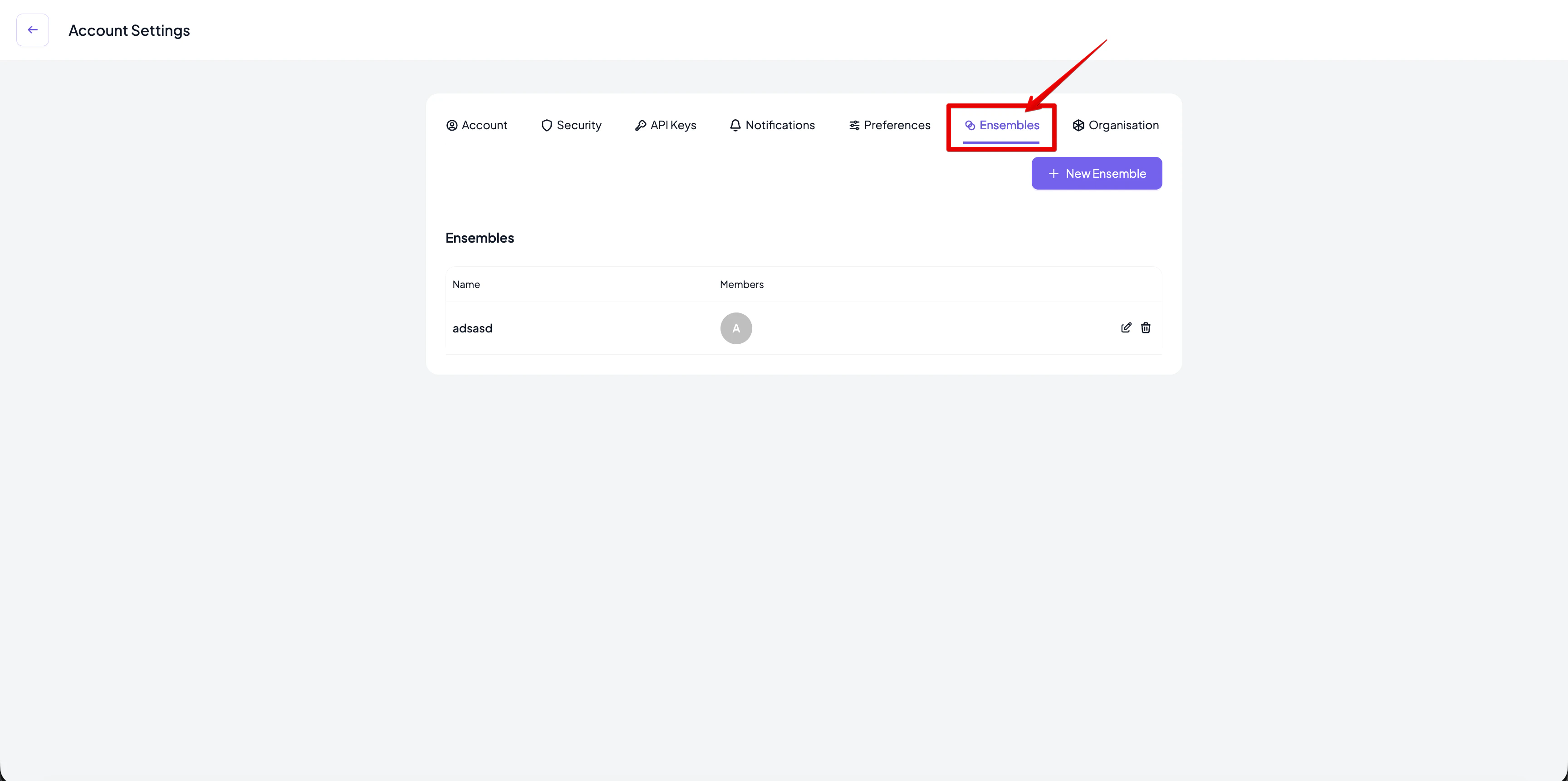
1. Navigate to the **Ensembles** page.
* From the account settings menu, select **Ensembles.**
 1. Click the **New Ensemble** button.
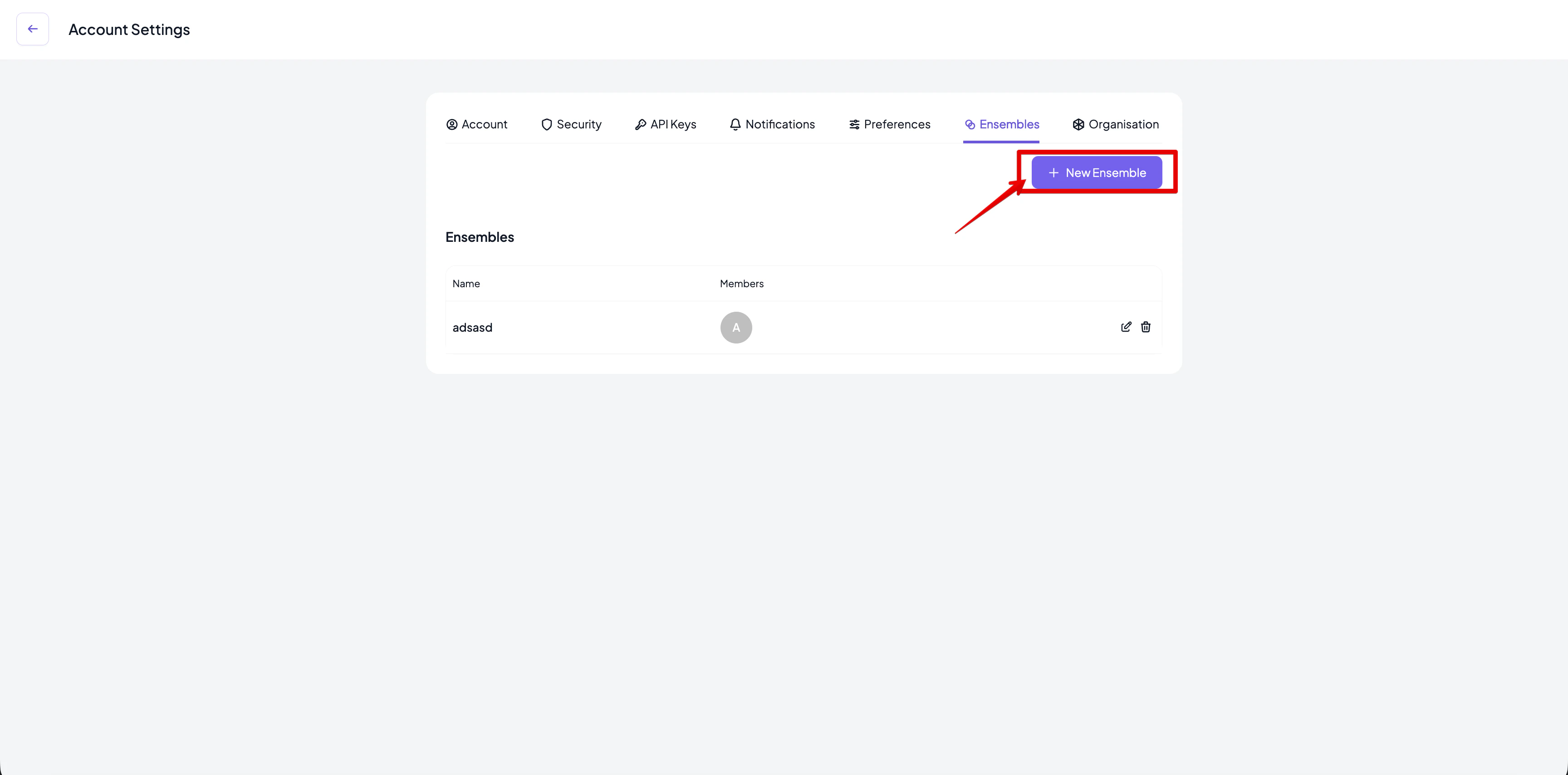 2. Add the information about the ensemble in the **Add Ensemble** dialog box that appears.
* Give it a name. Ensemble names are unique per user.
* Enter the list of organisations that will be part of the ensemble.
3. Add the ensemble.
* Click on **Add Ensemble.**
* The new ensemble will appear in your list of ensembles.
# How to update an existing ensemble
1. Go to the **Ensembles** page of your account settings.
2. Click the **Edit** icon next to the ensemble you want to modify.
* An **Edit ensemble** dialog box with the details of the ensemble will appear.
2. Add the information about the ensemble in the **Add Ensemble** dialog box that appears.
* Give it a name. Ensemble names are unique per user.
* Enter the list of organisations that will be part of the ensemble.
3. Add the ensemble.
* Click on **Add Ensemble.**
* The new ensemble will appear in your list of ensembles.
# How to update an existing ensemble
1. Go to the **Ensembles** page of your account settings.
2. Click the **Edit** icon next to the ensemble you want to modify.
* An **Edit ensemble** dialog box with the details of the ensemble will appear.
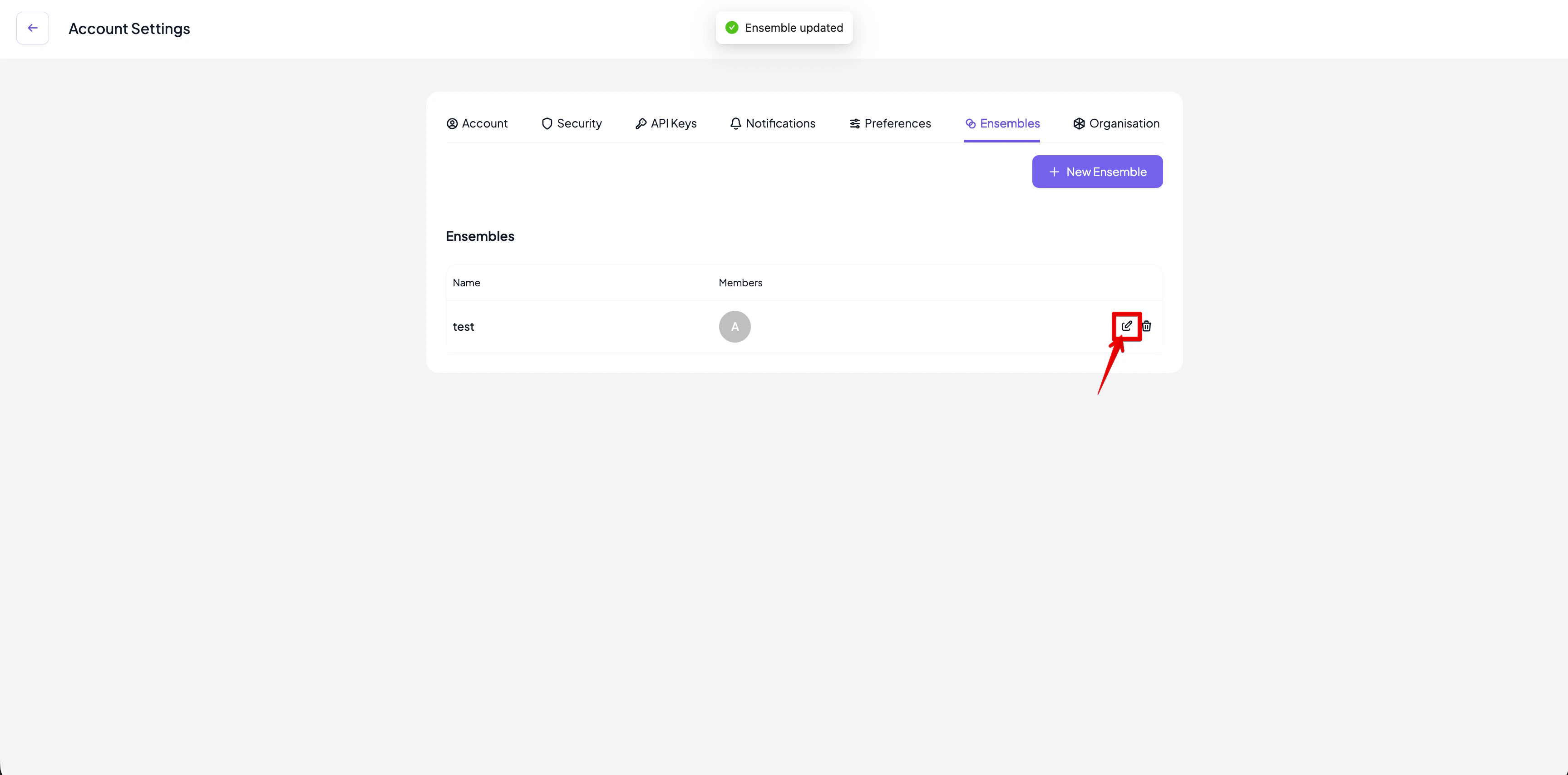 3. Enter the new information for the ensemble.
* Provide a new name (optional).
* Update the list of organisations (optional).
* Click on **Update Ensemble** once the updated information is keyed in.
4. The list of ensembles will be updated with the latest information.
# How to delete an ensemble
1. Go to the **Ensembles** page.
2. Click the **Delete** icon next to the ensemble you want to delete.
3. Enter the new information for the ensemble.
* Provide a new name (optional).
* Update the list of organisations (optional).
* Click on **Update Ensemble** once the updated information is keyed in.
4. The list of ensembles will be updated with the latest information.
# How to delete an ensemble
1. Go to the **Ensembles** page.
2. Click the **Delete** icon next to the ensemble you want to delete.
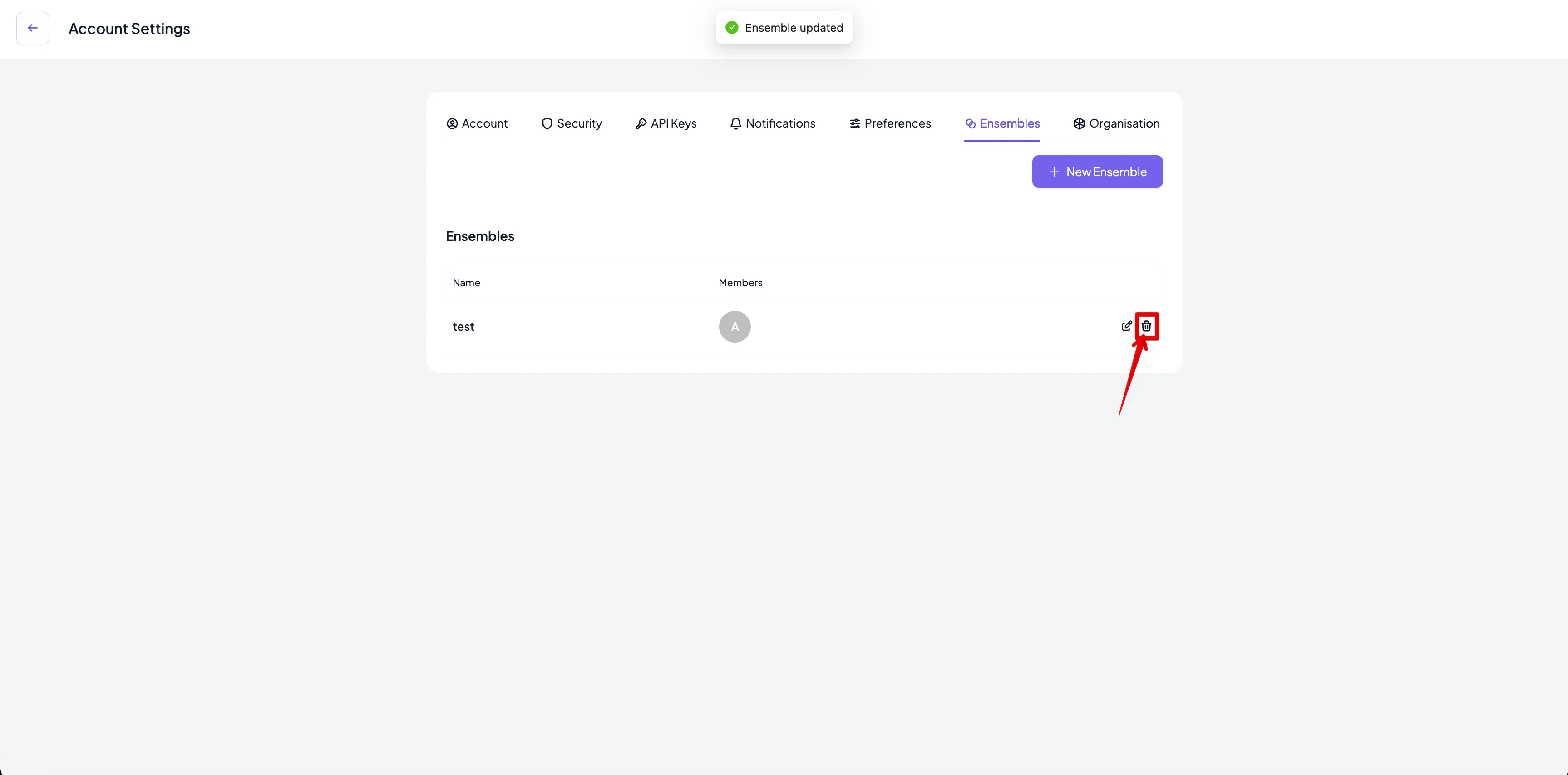 3. Click **Delete** to confirm the deletion.
4. The list of ensembles will be updated automatically.
3. Click **Delete** to confirm the deletion.
4. The list of ensembles will be updated automatically.