> ## Documentation Index
> Fetch the complete documentation index at: https://docs.cymph.io/llms.txt
> Use this file to discover all available pages before exploring further.
# Create a playbook
# How to create a playbook
## Creating a playbook from scratch
1. Go to the **Playbooks** section
* Click on either **My Playbooks, Recent, Favorites, or Watched** from the sidebar menu.
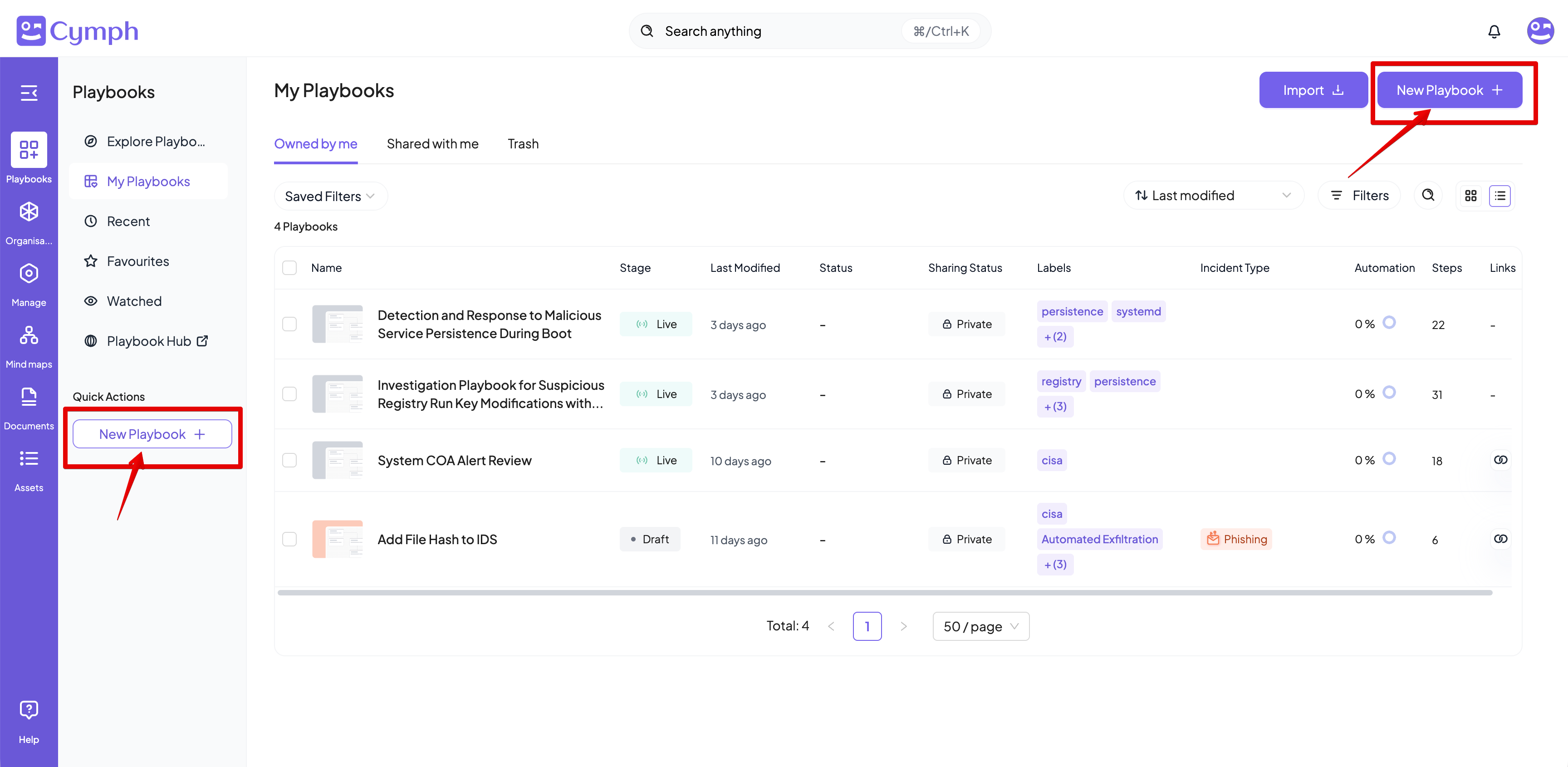
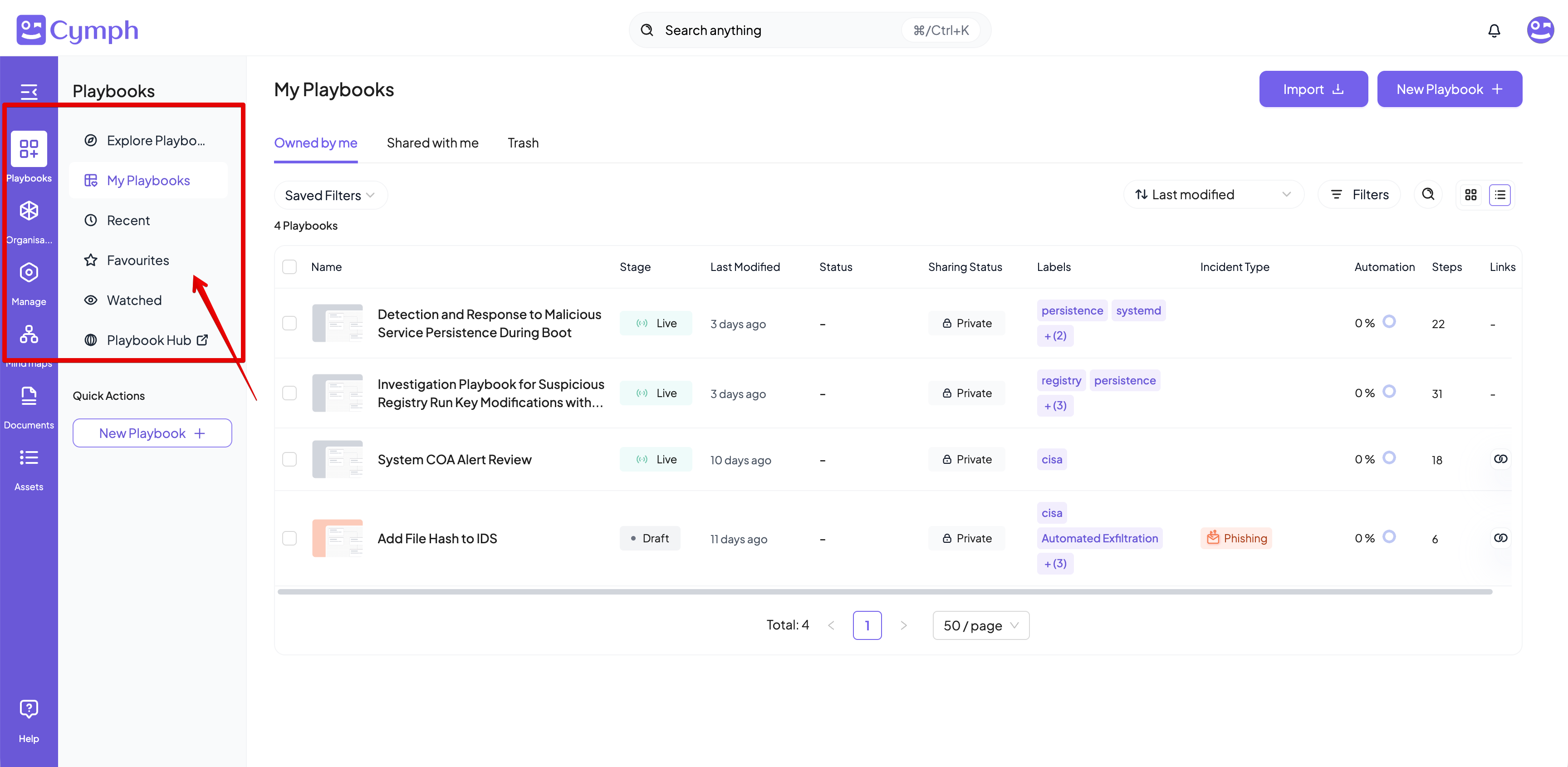 2. Click the **New Playbook** button and then the **From Scratch** option from the menu that appears.
* Alternatively, you can click on the **New Playbook** quick action from the sidebar menu
2. Click the **New Playbook** button and then the **From Scratch** option from the menu that appears.
* Alternatively, you can click on the **New Playbook** quick action from the sidebar menu
 3. You will be redirected to the **Playbook Editor**.
* Your newly created playbook will have a Start Step.
4. Edit your playbook.
**Learn more:** Read the [Playbook Editor](/key-features/editor) page for more details on how to design a playbook in the **Playbook Editor**
3. You will be redirected to the **Playbook Editor**.
* Your newly created playbook will have a Start Step.
4. Edit your playbook.
**Learn more:** Read the [Playbook Editor](/key-features/editor) page for more details on how to design a playbook in the **Playbook Editor**
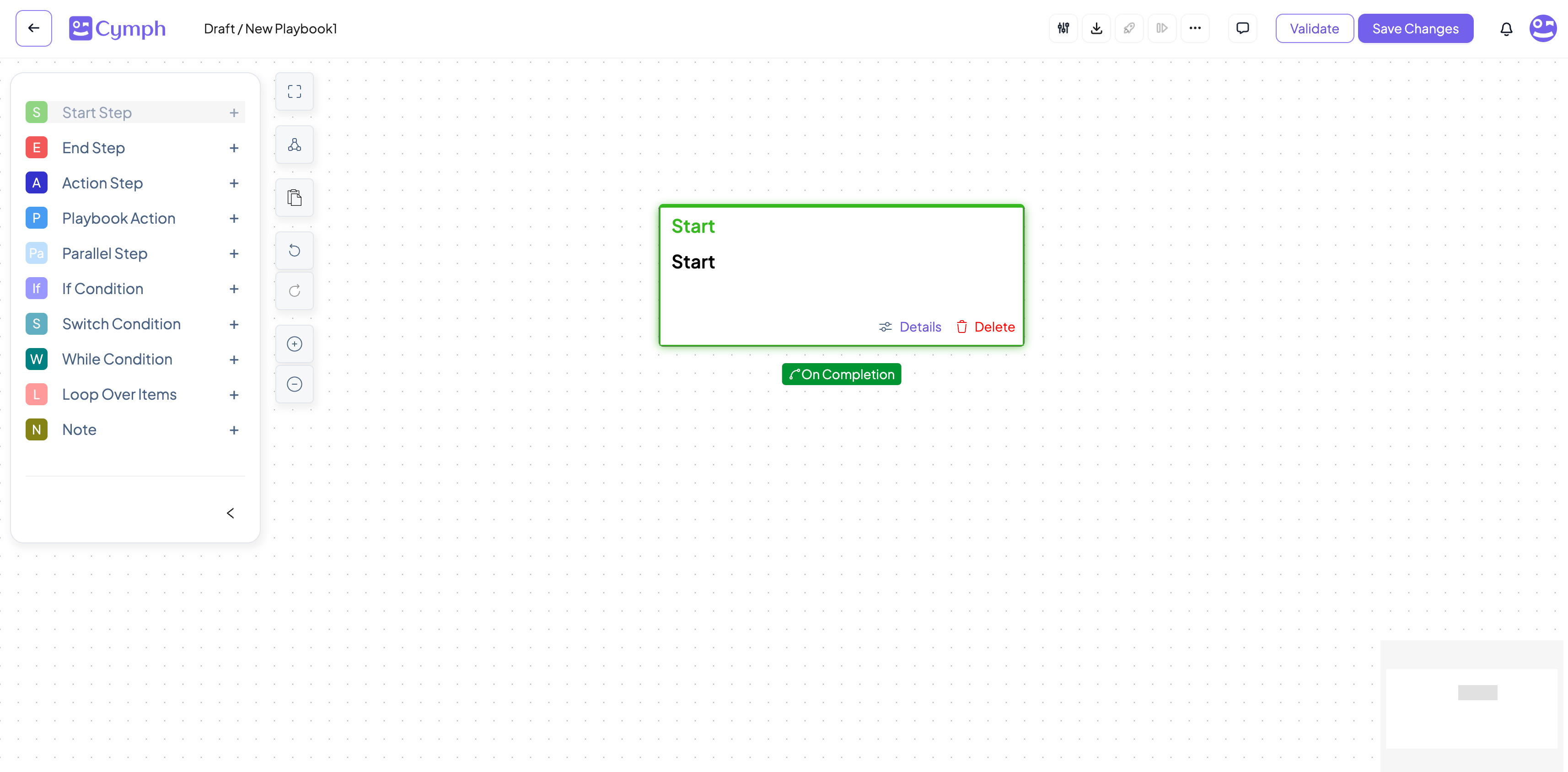 5. Save your changes.
* After making all your changes, click the **Save Changes** button.
**Did you know?** You can also view and [import existing playbooks](/howto/import_playbook).
## AI-assisted playbook generation
In case you dont want to start from scratch, you can provide a description of your playbook so it can be automatically created for you.
1. Go to the **Playbooks** section
* Click on either **My Playbooks, Recent, Favorites, or Watched** from the sidebar menu.
2. Click the **New Playbook** button and then the **AI-assisted Generation** option from the menu that appears.
3. Provide your instructions
4. Click on **Generate Playbook** when you are done
5. Save your changes.
* After making all your changes, click the **Save Changes** button.
**Did you know?** You can also view and [import existing playbooks](/howto/import_playbook).
## AI-assisted playbook generation
In case you dont want to start from scratch, you can provide a description of your playbook so it can be automatically created for you.
1. Go to the **Playbooks** section
* Click on either **My Playbooks, Recent, Favorites, or Watched** from the sidebar menu.
2. Click the **New Playbook** button and then the **AI-assisted Generation** option from the menu that appears.
3. Provide your instructions
4. Click on **Generate Playbook** when you are done
 The playbook generation happens at the background. You can track the generation status from the progress dialog box at the bottom right corner of the application:
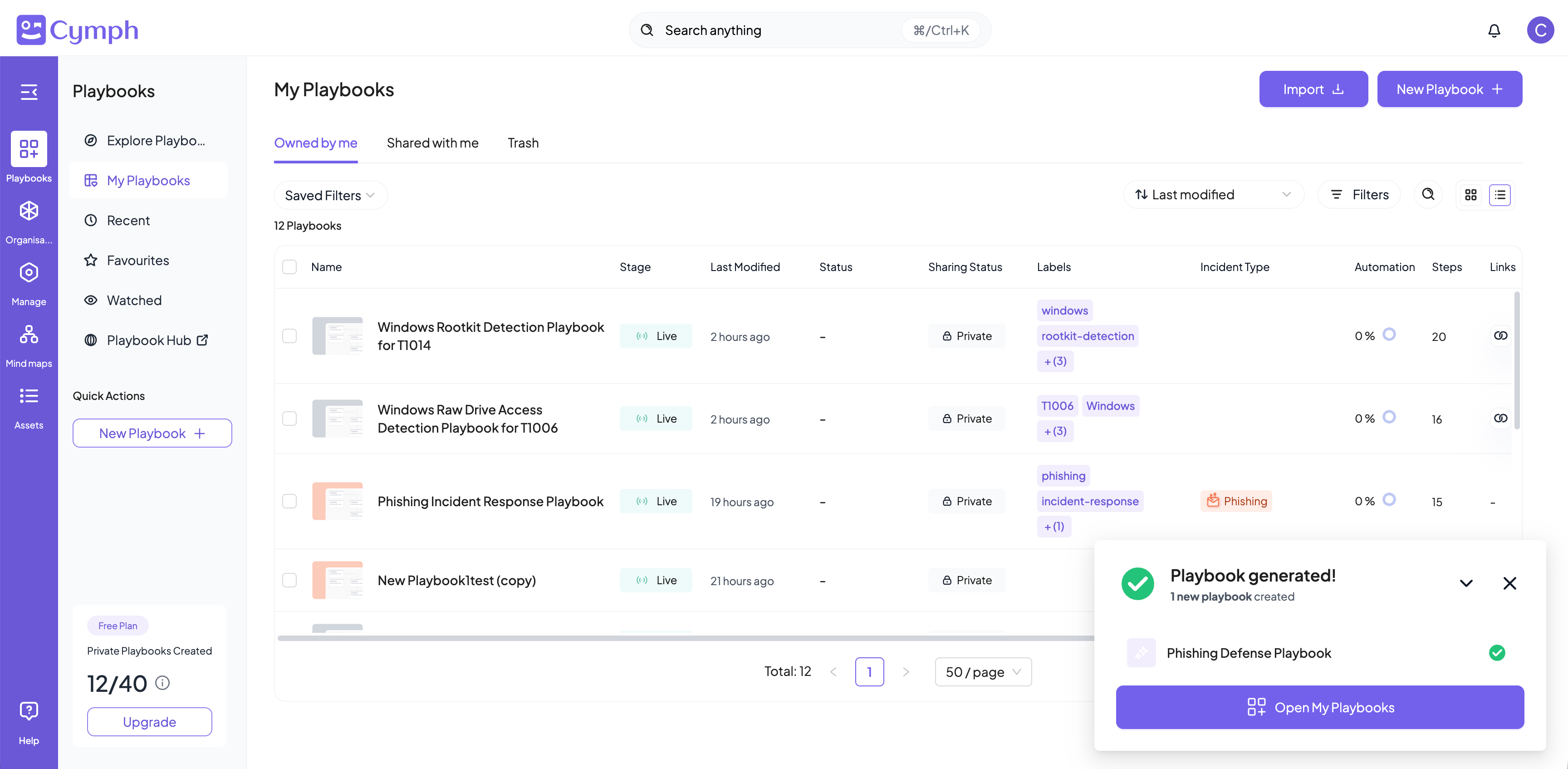 When the playbook is ready, you will be able to see it in your Playbook Management System