> ## Documentation Index
> Fetch the complete documentation index at: https://docs.cymph.io/llms.txt
> Use this file to discover all available pages before exploring further.
# Github backup
GitHub Backup allows you to automatically back up your playbooks to a GitHub repository. This feature ensures your playbooks are safely stored and version-controlled, providing an additional layer of data protection and enabling easy recovery when needed.
### Step 1: Create a GitHub Integration
Navigate to **Integrations** and select **GitHub Backup** to create a new integration.
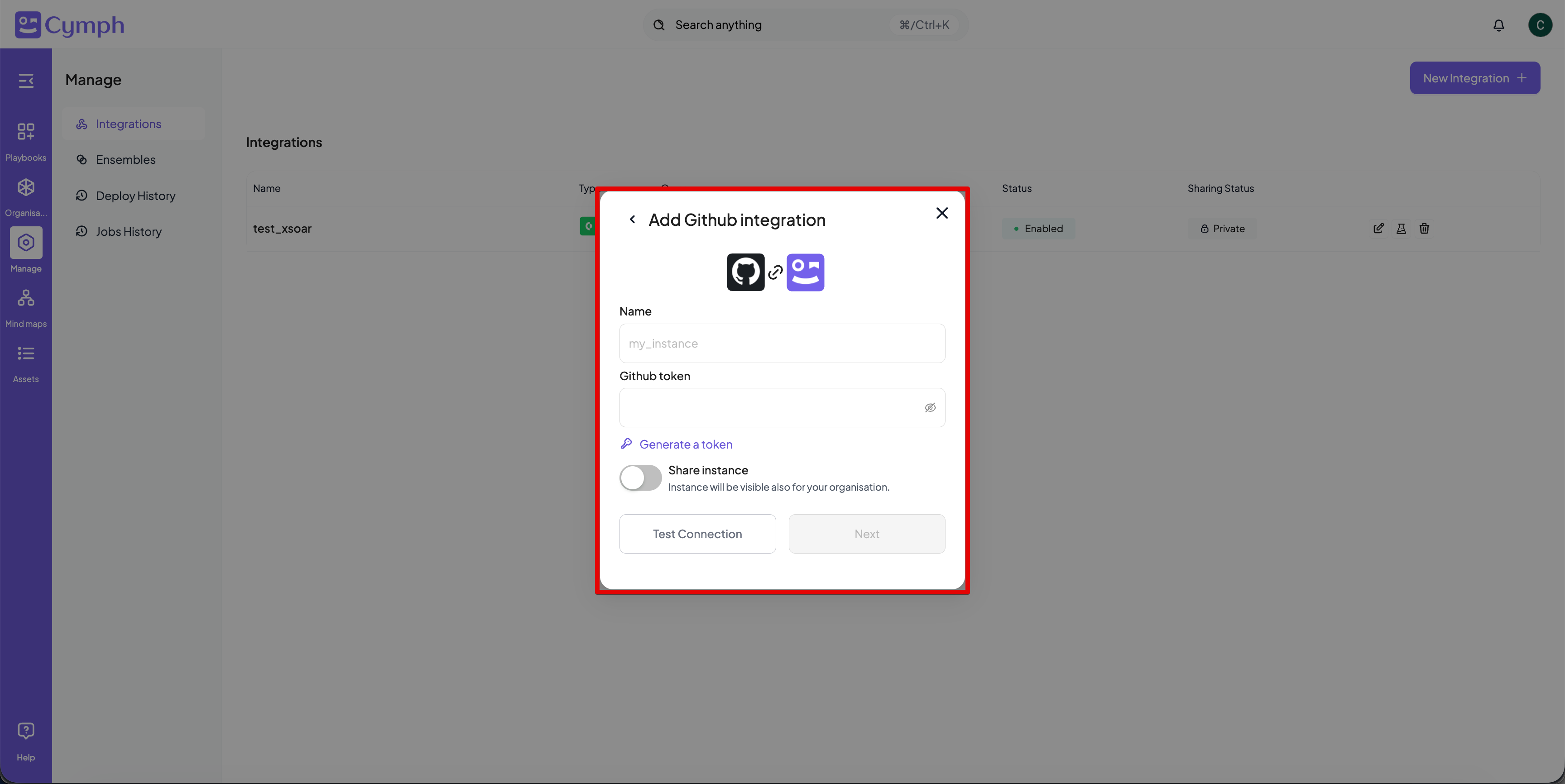 You will need to fill the following configuration fields:
**Name**: a descriptive name for this integration (e.g., "Production Playbooks Backup")
**Github token**: Your GitHub Personal Access Token with `repo` scope
### Generating a GitHub Token
If you don't have a GitHub Personal Access Token:
1. Click the **Generate Token** link below the GitHub Token field
2. You will be redirected to GitHub with the appropriate scopes pre-selected
3. Follow GitHub's instructions to create the token
4. Copy the generated token and paste it into the **GitHub Token** field
Once you've entered the integration name and token, click **Next** to proceed.
You can click on **Test Connection** to make sure everything is working before going to the next step
### Step 2: Configure Backup Settings
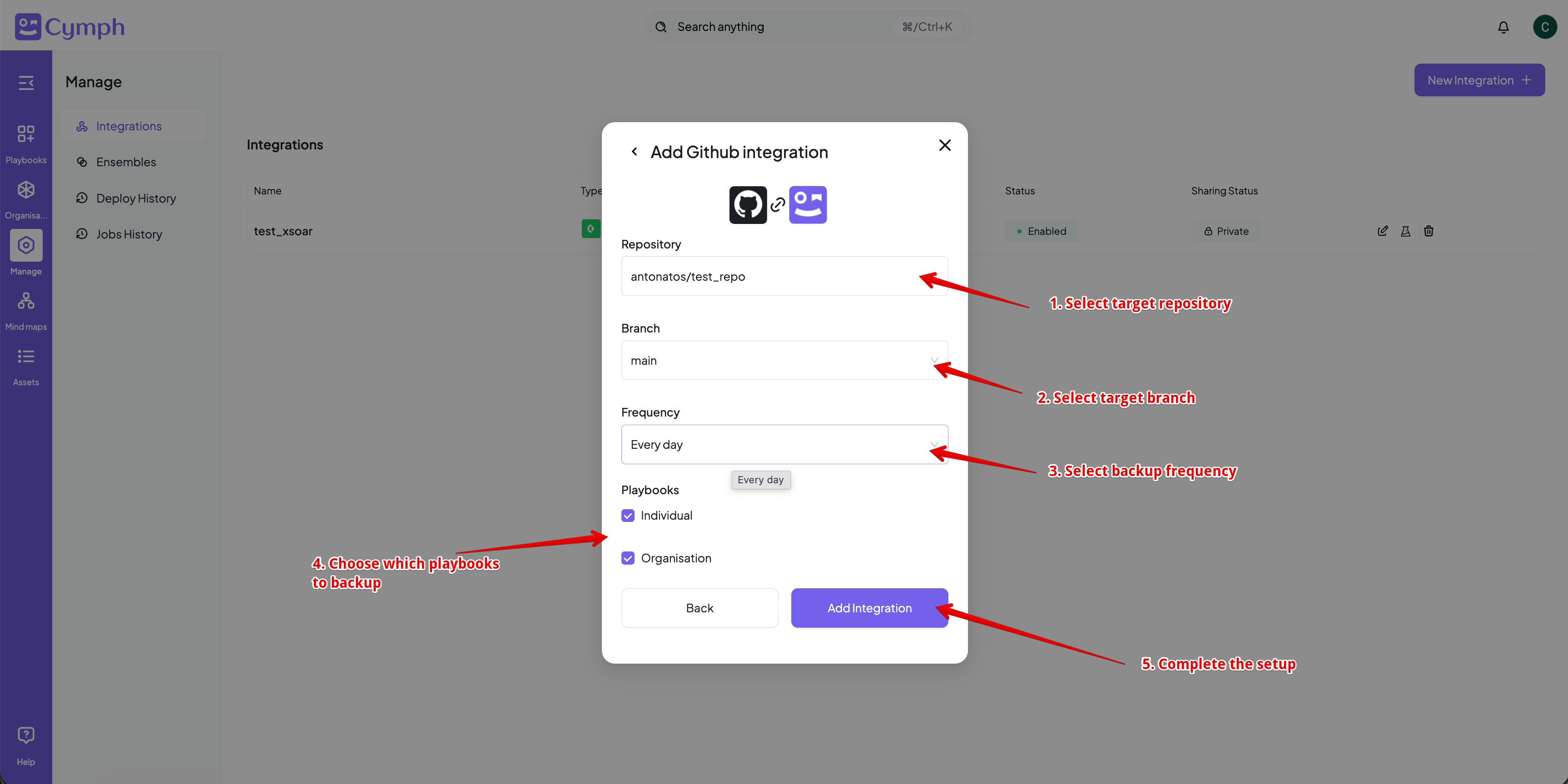
1. Select the repository you want to backup your playbooks to
2. Once you selected a repository, select a target branch
3. Select how often you want your playbooks to be backed up. Available options are:
| Frequency | Description |
| --------------- | ------------------------------- |
| **Every hour** | Backups run once every hour |
| **Every Day** | Backups run once every 24 hours |
| **Every week** | Backups run once every 7 days |
| **Every month** | Backups run once every 30 days |
4. Under the **Playbooks** section, select which playbooks to include in the backup:
* **Individual**: Back up your personal playbooks
* **Organisation**: Back up playbooks belonging to your organisation
You can select both options to back up all playbooks, or select only one to back up a specific set.
You will need to fill the following configuration fields:
**Name**: a descriptive name for this integration (e.g., "Production Playbooks Backup")
**Github token**: Your GitHub Personal Access Token with `repo` scope
### Generating a GitHub Token
If you don't have a GitHub Personal Access Token:
1. Click the **Generate Token** link below the GitHub Token field
2. You will be redirected to GitHub with the appropriate scopes pre-selected
3. Follow GitHub's instructions to create the token
4. Copy the generated token and paste it into the **GitHub Token** field
Once you've entered the integration name and token, click **Next** to proceed.
You can click on **Test Connection** to make sure everything is working before going to the next step
### Step 2: Configure Backup Settings
1. Select the repository you want to backup your playbooks to
2. Once you selected a repository, select a target branch
3. Select how often you want your playbooks to be backed up. Available options are:
| Frequency | Description |
| --------------- | ------------------------------- |
| **Every hour** | Backups run once every hour |
| **Every Day** | Backups run once every 24 hours |
| **Every week** | Backups run once every 7 days |
| **Every month** | Backups run once every 30 days |
4. Under the **Playbooks** section, select which playbooks to include in the backup:
* **Individual**: Back up your personal playbooks
* **Organisation**: Back up playbooks belonging to your organisation
You can select both options to back up all playbooks, or select only one to back up a specific set.
 ## Repository Structure
Once backups are created, your GitHub repository will be organized with the following folder structure:
```
|── individual/
|── .json
|── .json
|── ...
|── organisation/
|── .json
|── .json
|── ...
```
The folder `individual/` contains all your personal playbooks. The folder `organisation/` Contains all playbooks from your organisations
Each playbook is saved as a JSON file with the naming format: `_.json`
### Jobs History
The **Jobs History** panel provides visibility into your backup operations. You can find it under Manage -> Jobs History from the navigation menu
For each backup job, you can view:
* **Status** — Whether the backup completed successfully or failed
* **Duration** — How long the backup operation took to complete
* **Started At** — When the backup was executed
* **Message** — A logging message if something went wrong
Use this panel to verify your backups are running as expected and troubleshoot any issues.
**Organisation membership:** If you leave an organisation, backups for that organisation's playbooks will automatically stop. You will only receive backups for organisations where you are an active member.
**Token expiration:** If your GitHub Personal Access Token expires, you will receive a notification on the next scheduled backup informing you that the token is no longer valid. To resume backups, generate a new token and update the integration settings.
## Repository Structure
Once backups are created, your GitHub repository will be organized with the following folder structure:
```
|── individual/
|── .json
|── .json
|── ...
|── organisation/
|── .json
|── .json
|── ...
```
The folder `individual/` contains all your personal playbooks. The folder `organisation/` Contains all playbooks from your organisations
Each playbook is saved as a JSON file with the naming format: `_.json`
### Jobs History
The **Jobs History** panel provides visibility into your backup operations. You can find it under Manage -> Jobs History from the navigation menu
For each backup job, you can view:
* **Status** — Whether the backup completed successfully or failed
* **Duration** — How long the backup operation took to complete
* **Started At** — When the backup was executed
* **Message** — A logging message if something went wrong
Use this panel to verify your backups are running as expected and troubleshoot any issues.
**Organisation membership:** If you leave an organisation, backups for that organisation's playbooks will automatically stop. You will only receive backups for organisations where you are an active member.
**Token expiration:** If your GitHub Personal Access Token expires, you will receive a notification on the next scheduled backup informing you that the token is no longer valid. To resume backups, generate a new token and update the integration settings.