> ## Documentation Index
> Fetch the complete documentation index at: https://docs.cymph.io/llms.txt
> Use this file to discover all available pages before exploring further.
# Filters
The playbook management system includes a set of filters so you can search through the list of playbooks. Note that search filters will change across views.
# Filtering playbooks
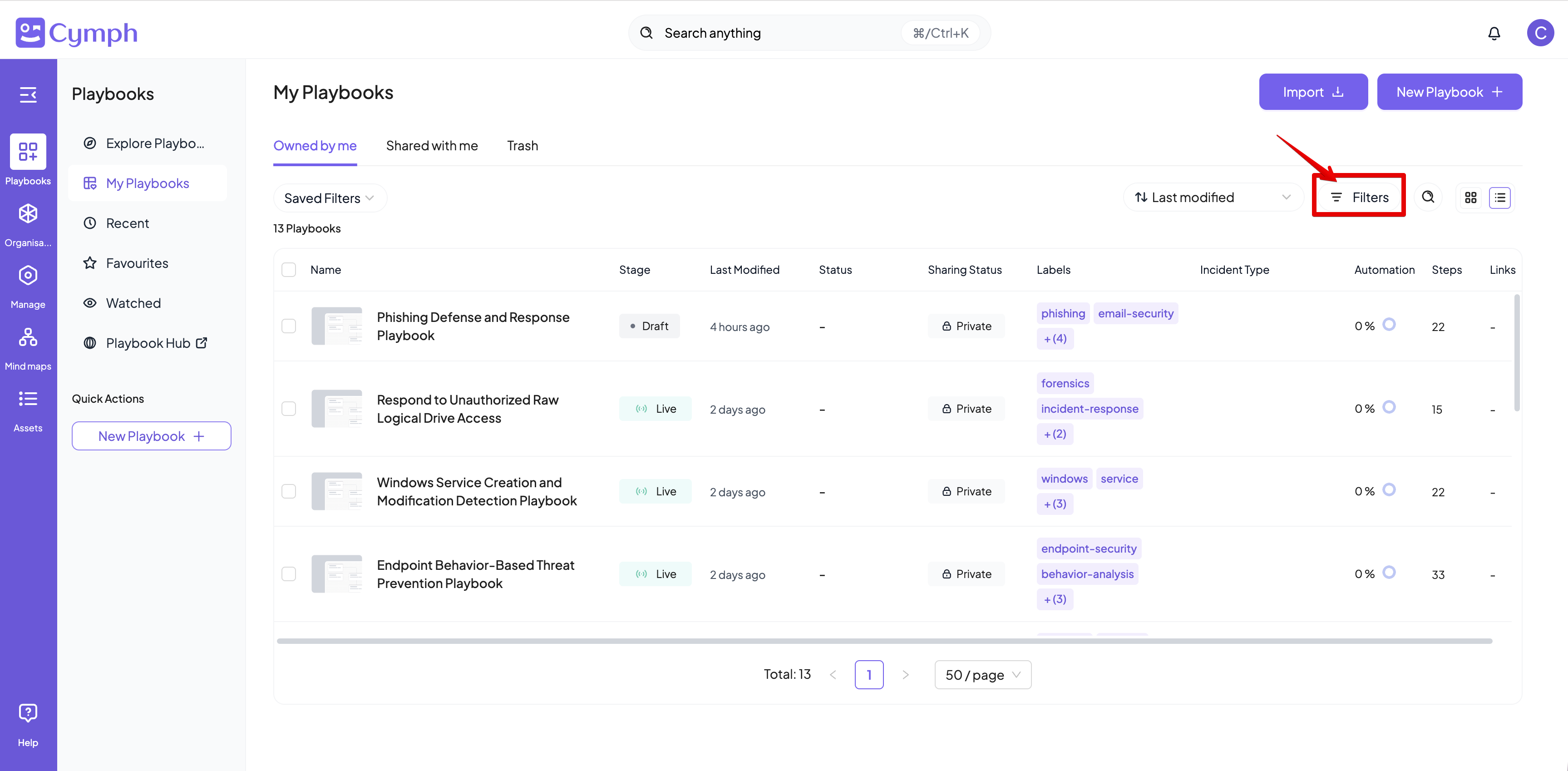
Available filters are displayed by clicking on the Filters bar on top of each playbook table:
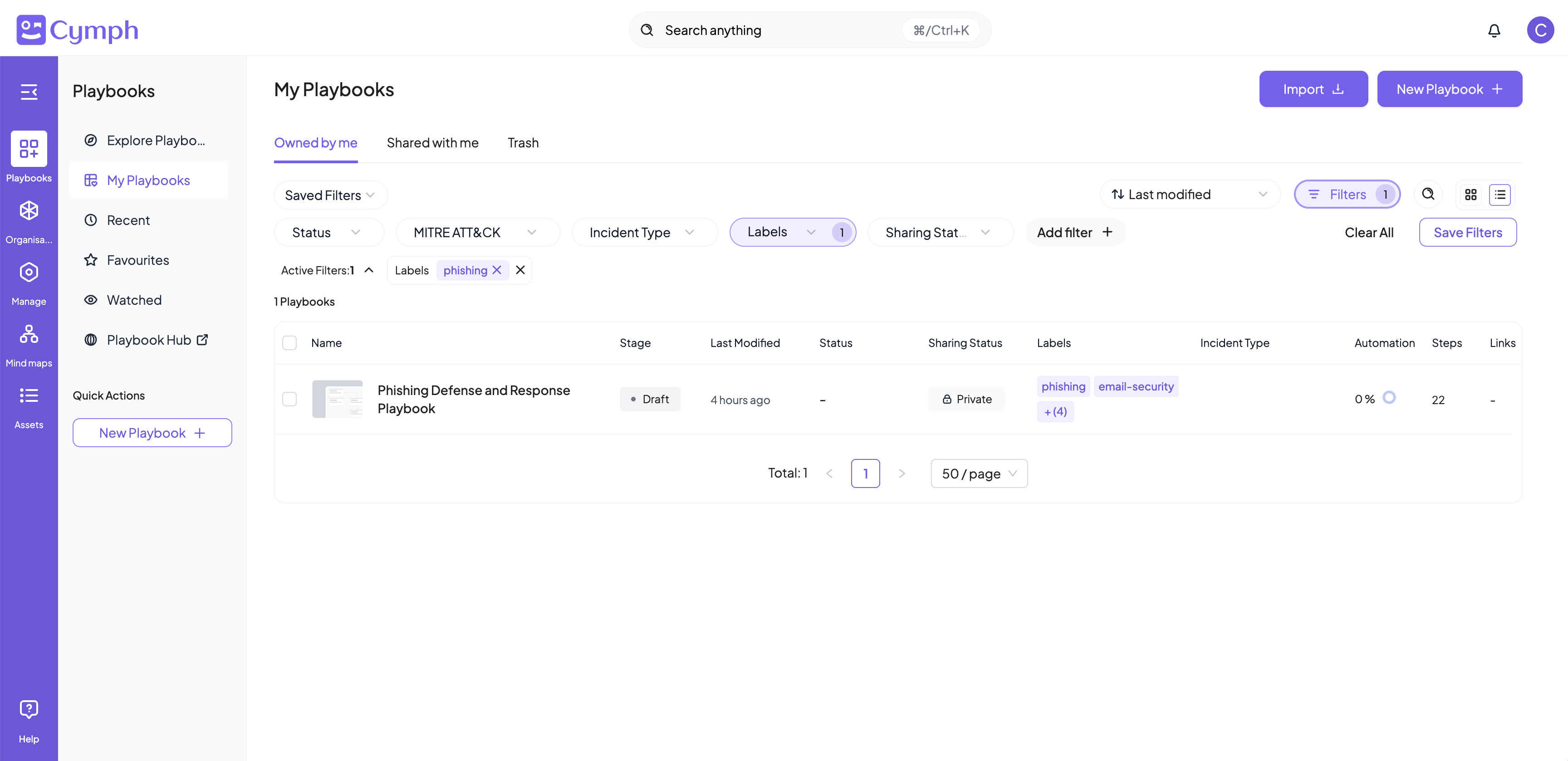
 You can select one or more available filters. An example that filters by the label "phishing" is shown below
 Not all available filters are displayed at once due to space reasons. You can hover over the **Add filter** button to see more filters:
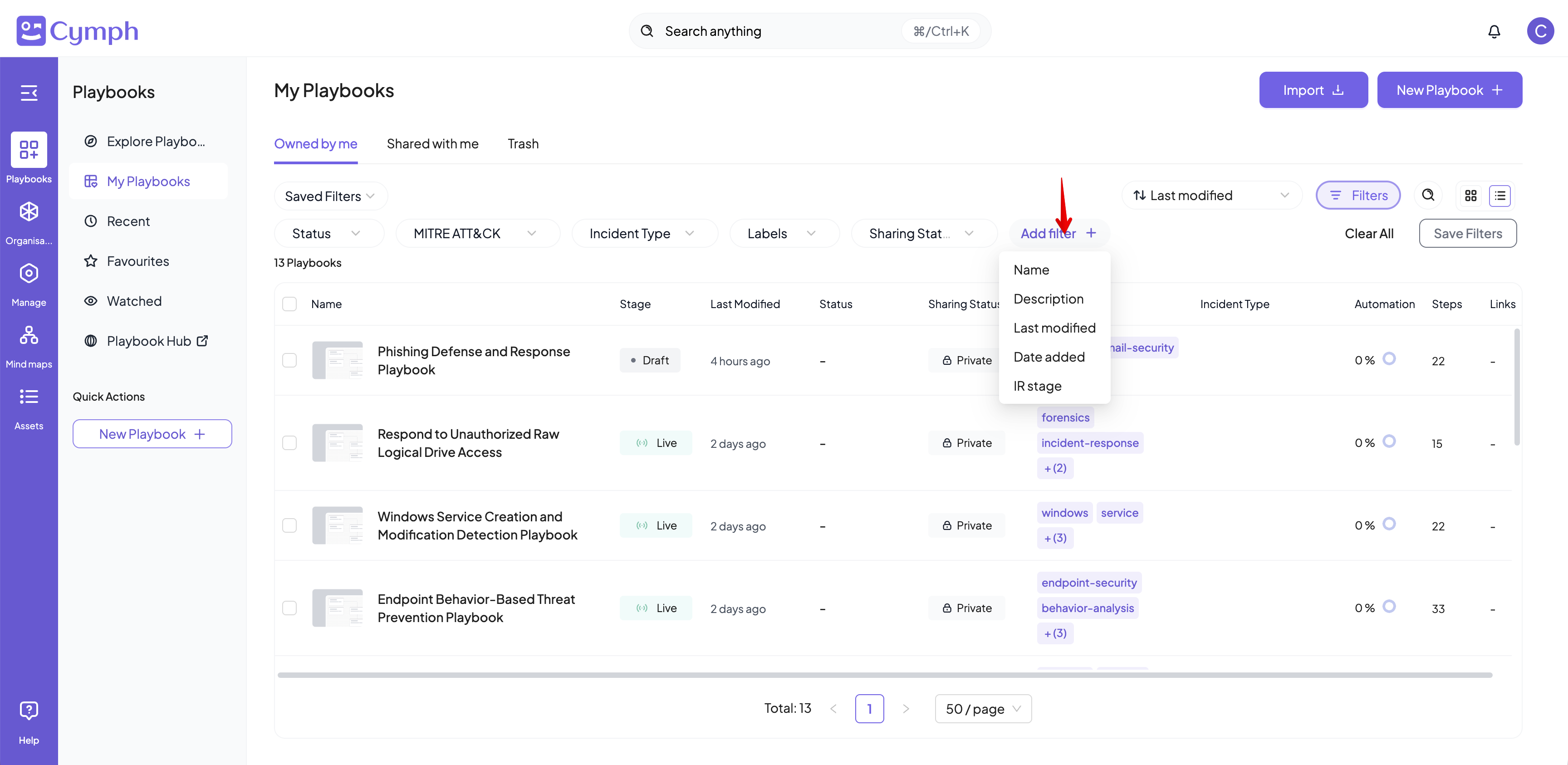 Once you click on one of the filters of the Add filter menu, it will be appended to the list of filters shown.
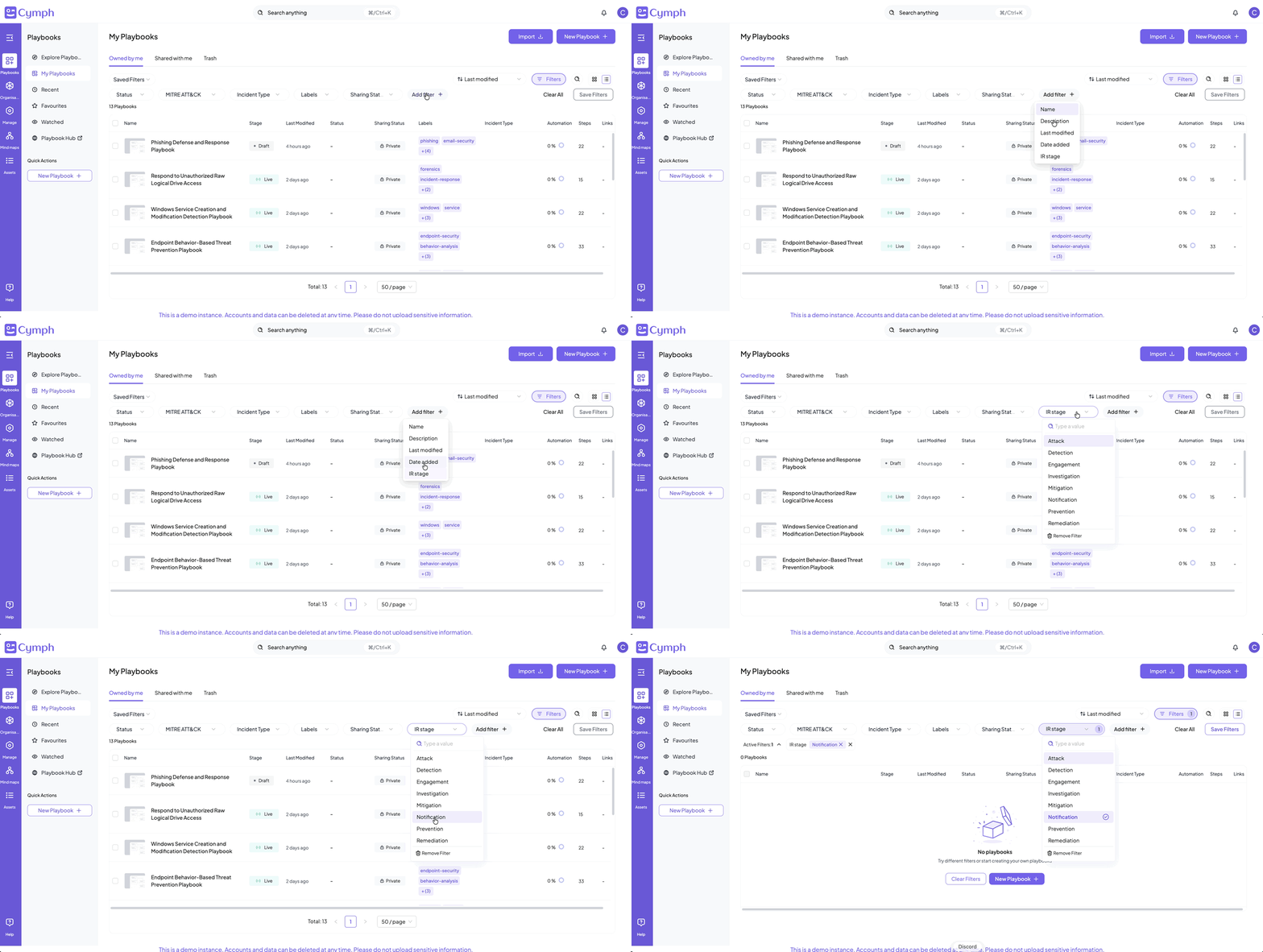 The active filters are displayed below the available filters row:
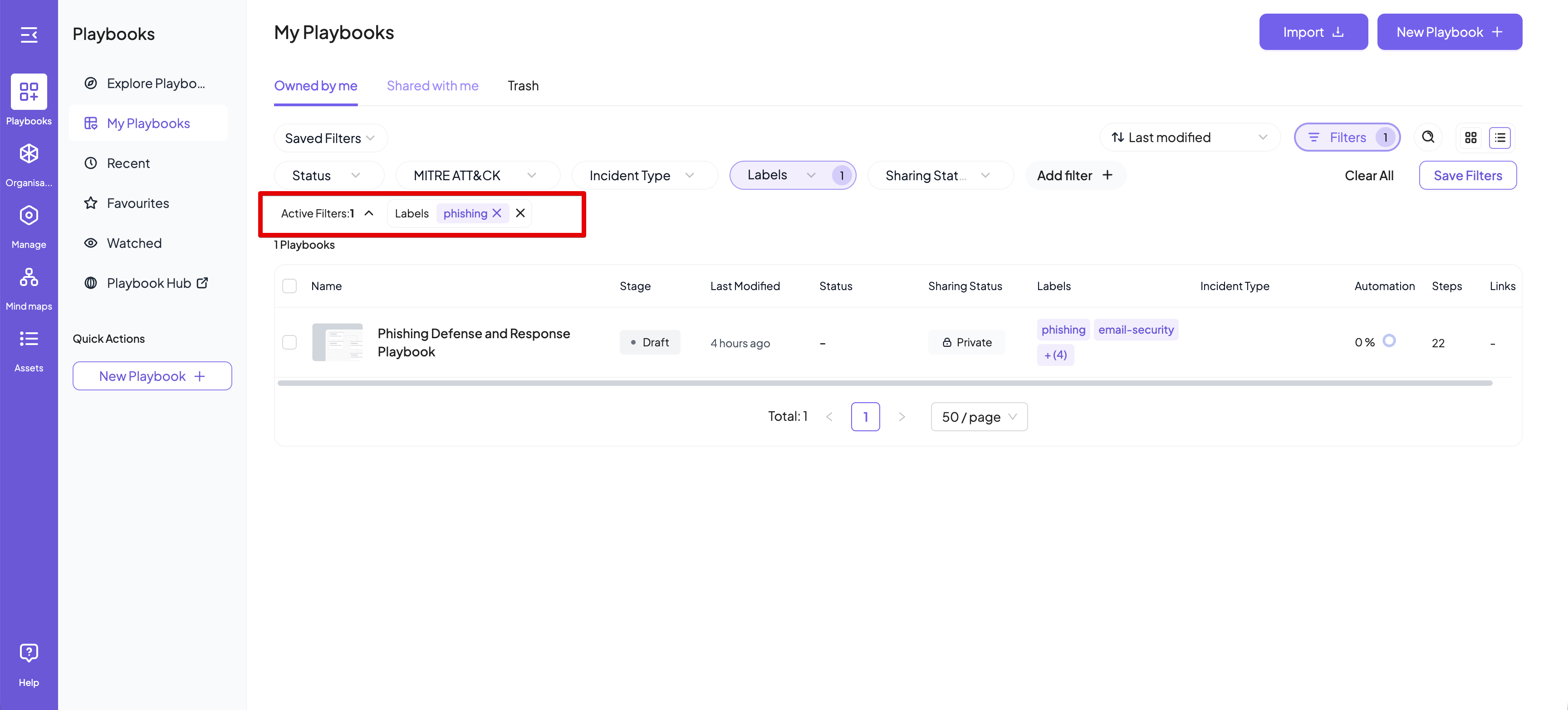 By clicking the close (x) icon next to each active filter, that filter will be removed.
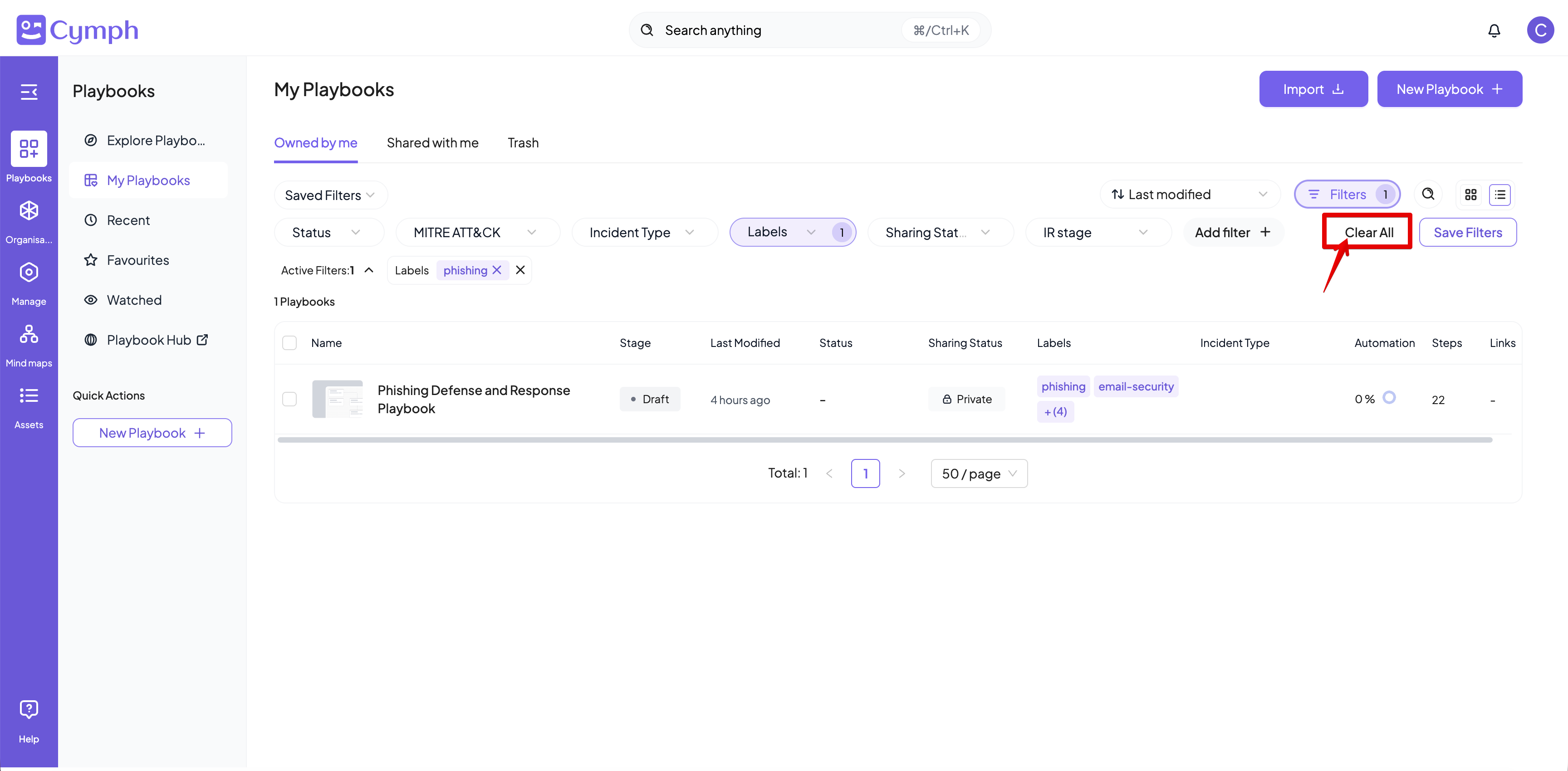
If you want to clear all filters at once, you can click on the **Clear All** button
By clicking the close (x) icon next to each active filter, that filter will be removed.
If you want to clear all filters at once, you can click on the **Clear All** button
 # Saving filters
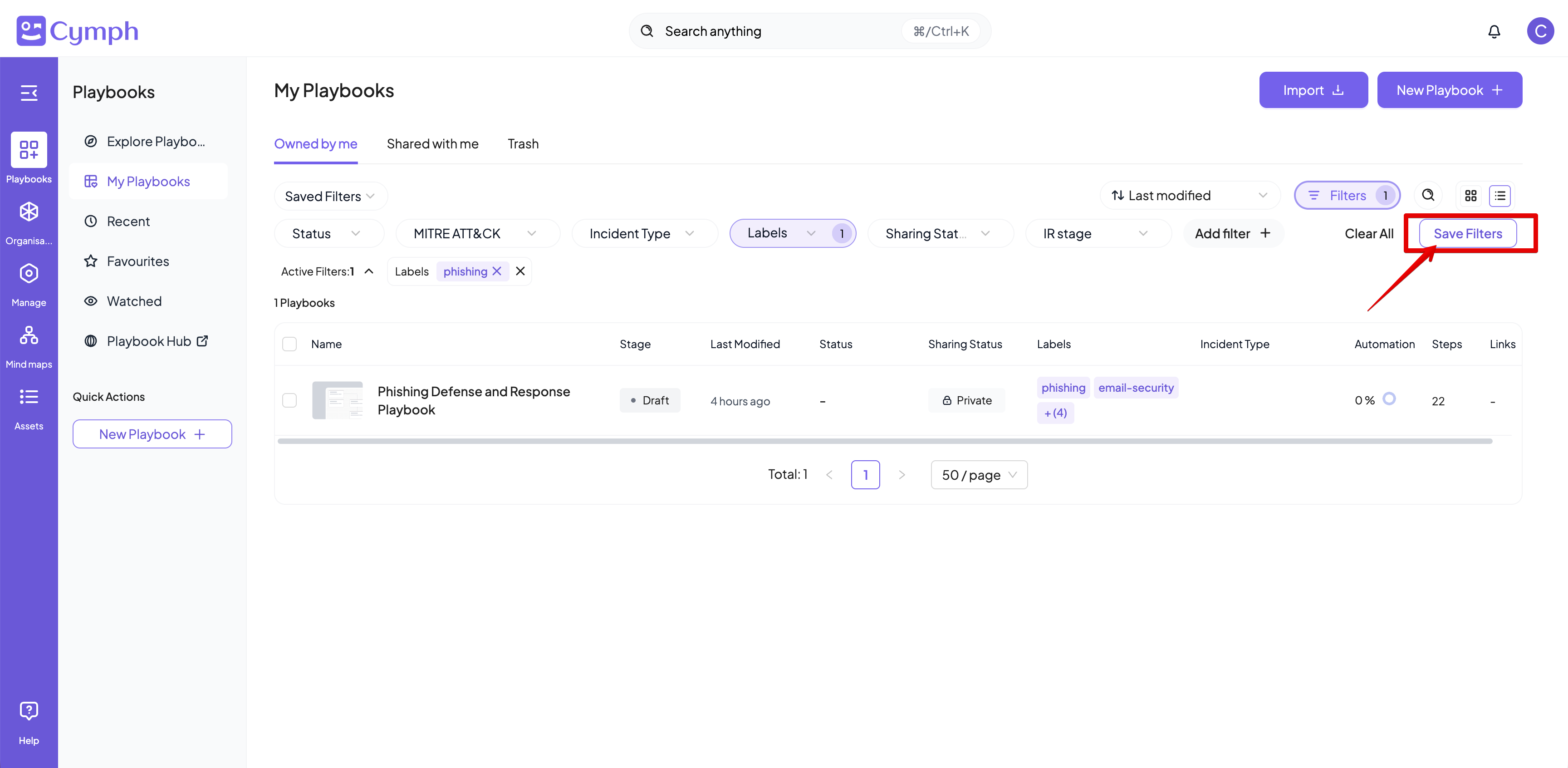
If you use a set of filters frequently, you might find it convenient to save them for further use. Once a set of filters is applied, the **Save Filters** button will become active.
## Creating a new saved filter
1. Click on Save Filters button
# Saving filters
If you use a set of filters frequently, you might find it convenient to save them for further use. Once a set of filters is applied, the **Save Filters** button will become active.
## Creating a new saved filter
1. Click on Save Filters button
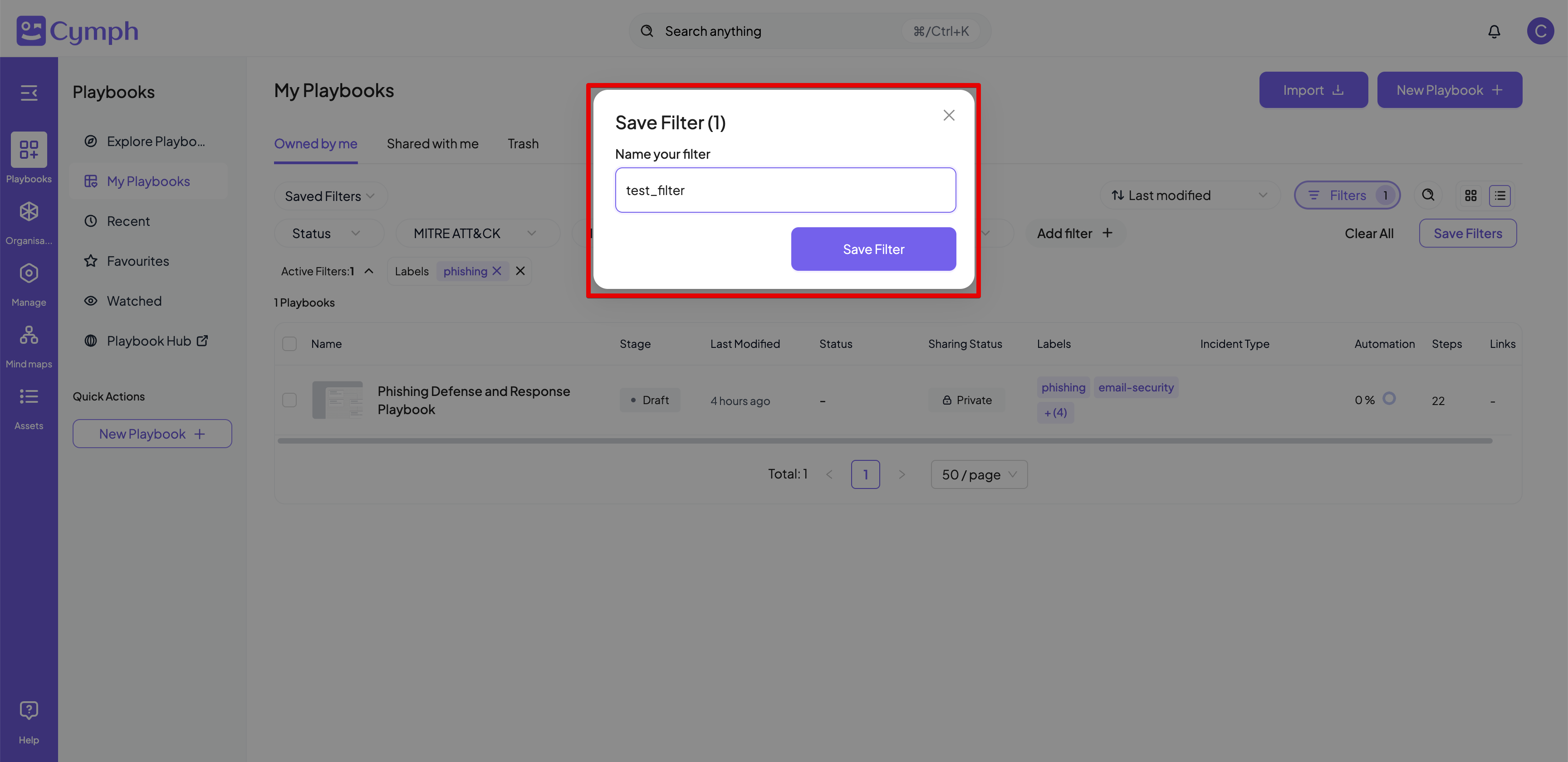
 2. Provide a name for the saved filter in the dialog box that appears
3. **Save filter**
2. Provide a name for the saved filter in the dialog box that appears
3. **Save filter**
 ## Using saved filters
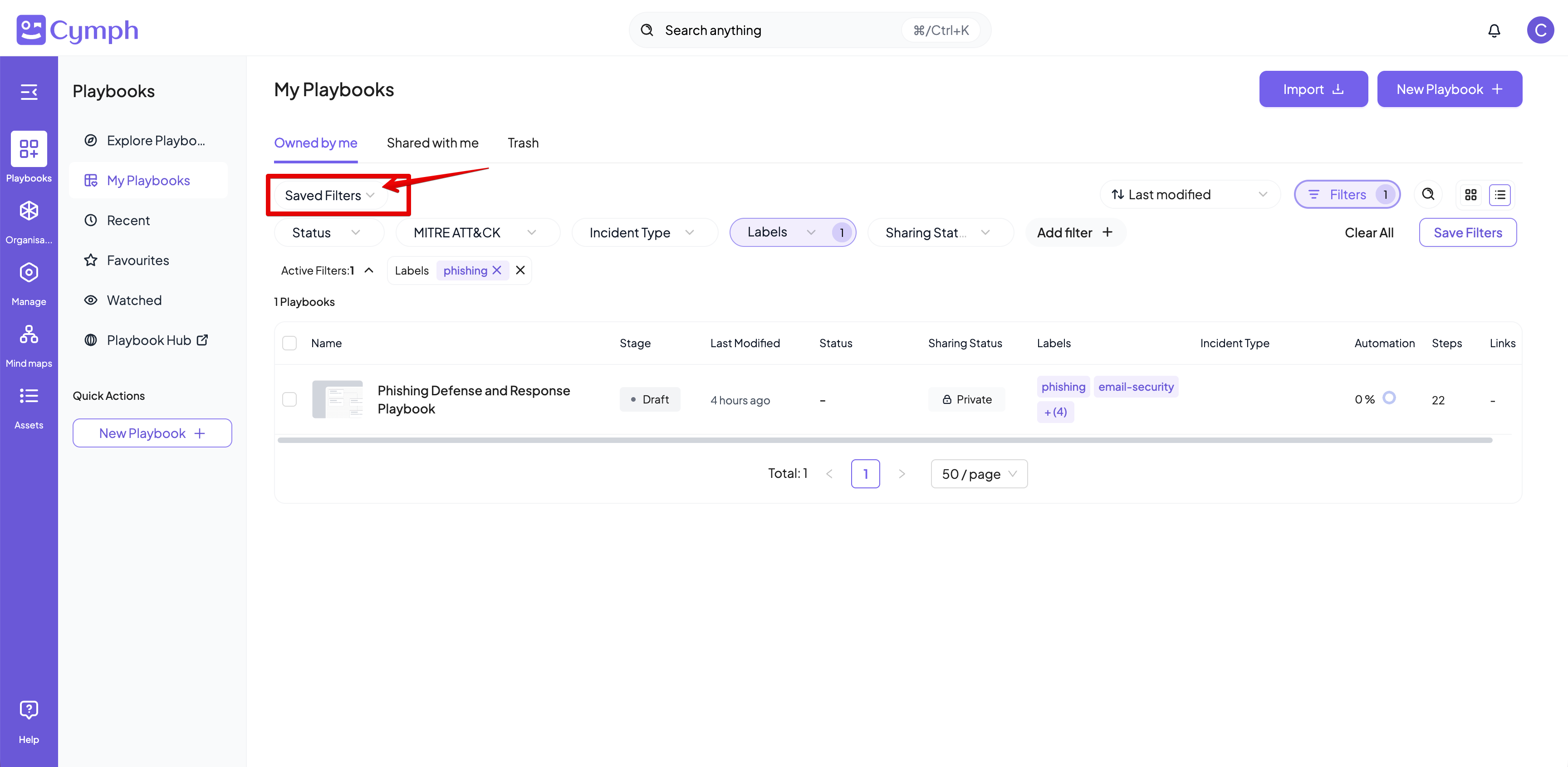
1. From the filter bar, click Saved Filters
* The list of your saved filters will appear
## Using saved filters
1. From the filter bar, click Saved Filters
* The list of your saved filters will appear
 1. Select a saved filter
2. The selected filter will be immediately applied, overriding any existing filters
## Managing saved filters
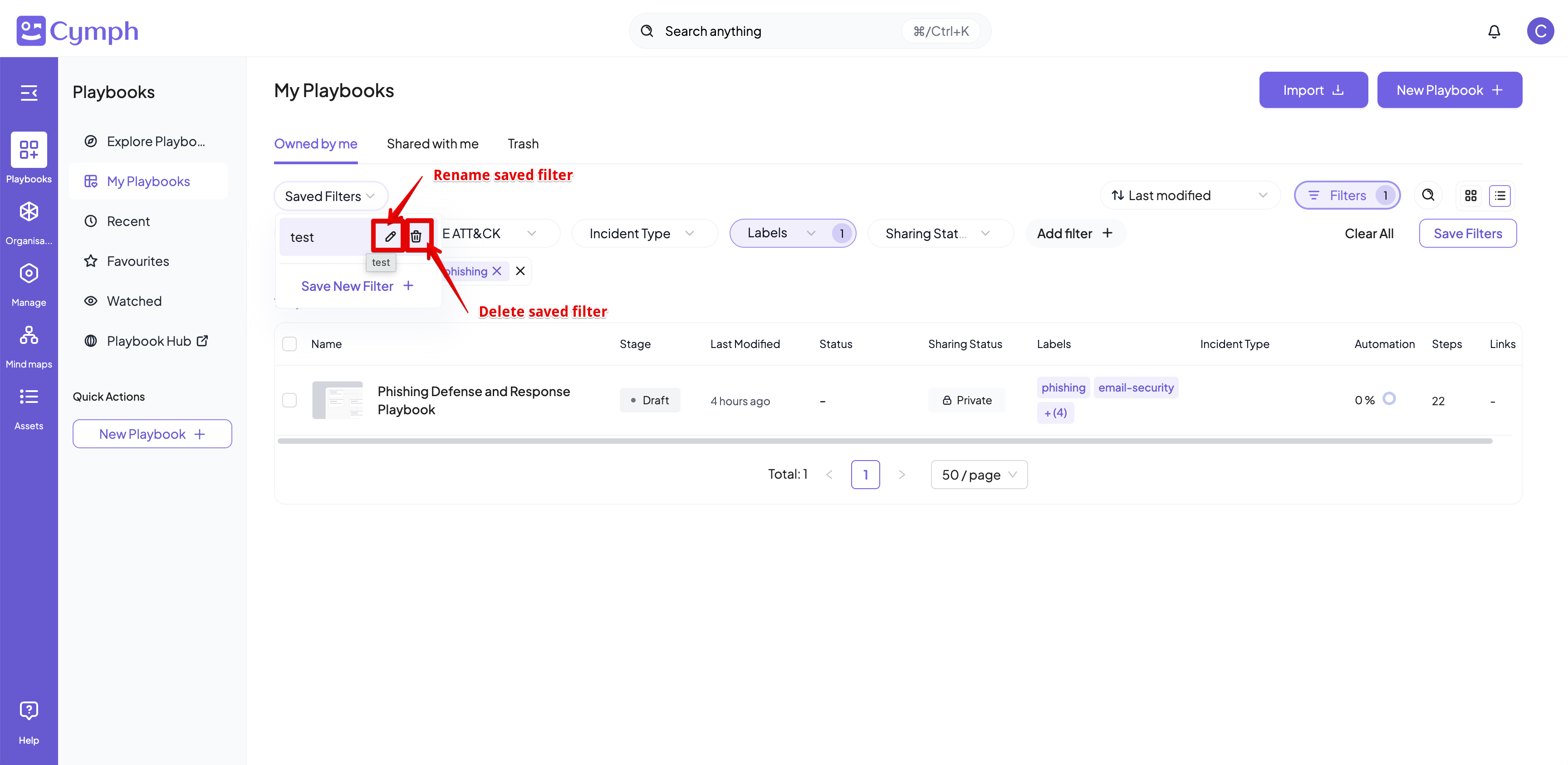
1. From the filter bar, click Saved Filters
* The list of your saved filters will appear
2. Hovering on a saved filter, you will see the options to:
* Rename your saved filter
* Delete it
1. Select a saved filter
2. The selected filter will be immediately applied, overriding any existing filters
## Managing saved filters
1. From the filter bar, click Saved Filters
* The list of your saved filters will appear
2. Hovering on a saved filter, you will see the options to:
* Rename your saved filter
* Delete it