> ## Documentation Index
> Fetch the complete documentation index at: https://docs.cymph.io/llms.txt
> Use this file to discover all available pages before exploring further.
# Deploy playbooks
In order to deploy a playbook, at least one integration with deployment capabilities must be configured. See the documentation in [Manage Integrations](/howto/integrations) to learn how to manage integrations. The guides below are based on the assumption that at least one integration is present.
## Deploy a playbook from the playbook management system
1. Go to the **Playbook Management System**
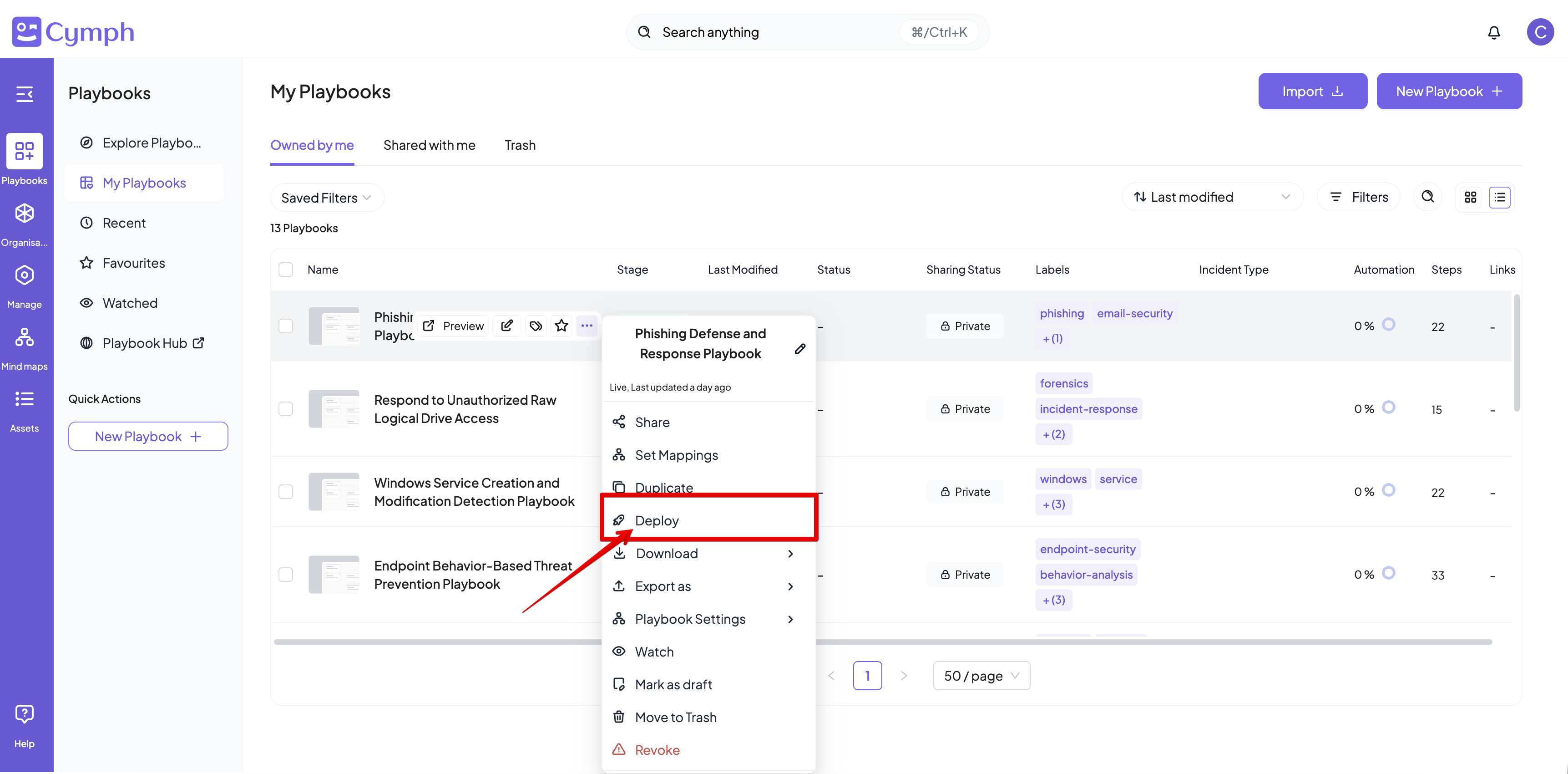
2. Select the **Deploy** action
* Hover over the playbook you want to deploy
* Click on the triple dot icon to open the action menu
 3. Select an integration from the dialog that appears
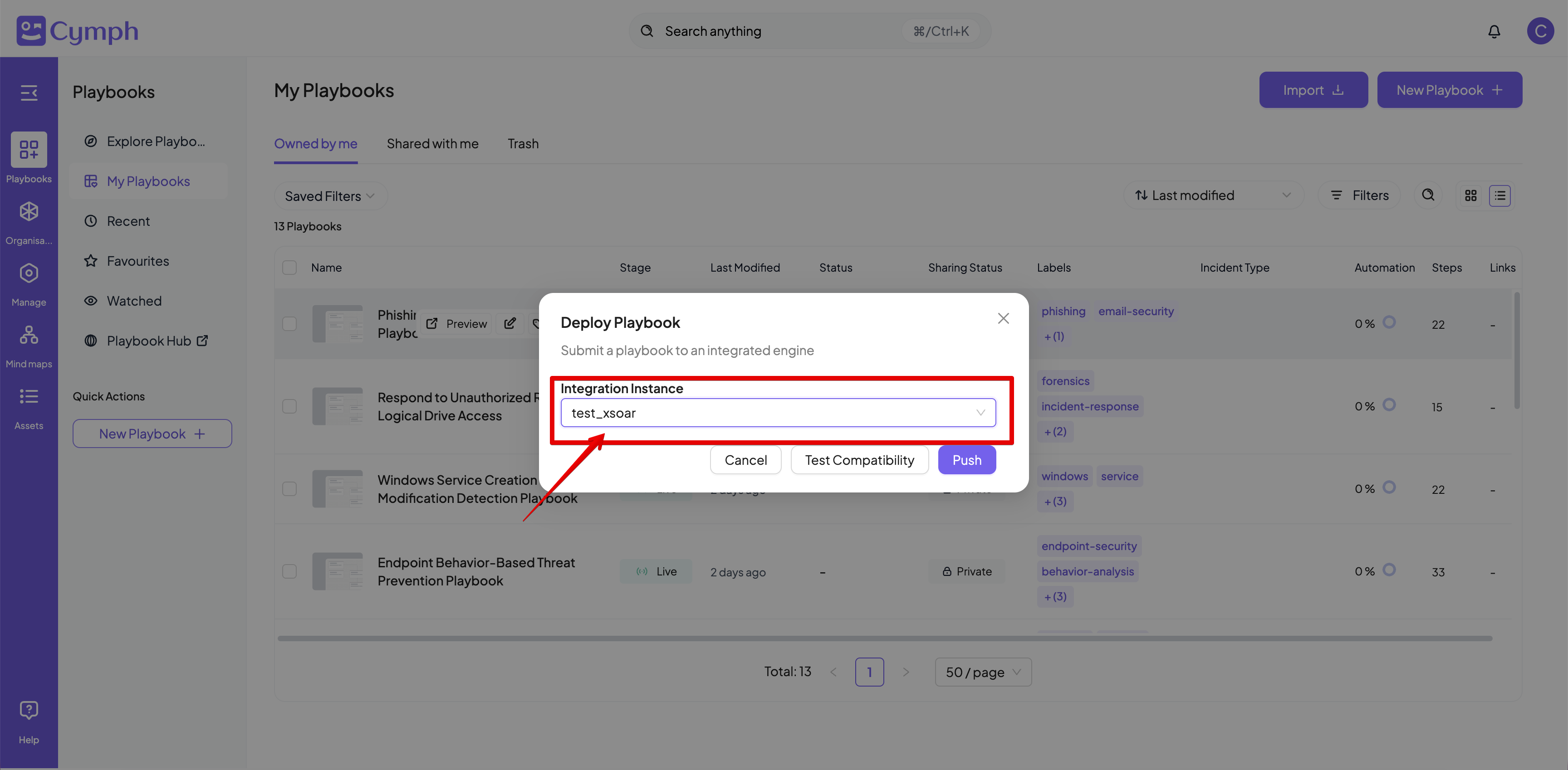 4. Test for compatibility (optional).
* Click the **Test Compatibility** button. If the playbook can be deployed at the selected integration, a message “Playbook can be deployed” will appear.
5. Deploy the playbook
* Click the **Deploy** button
Invalid playbooks cannot be deployed. For invalid playbooks, the deploy icon will be disabled
Users with the Viewer role are not allowed to deploy playbooks. For those users, the deploy icon will be disabled
## Deploy a playbook from the playbook editor
1. Open the playbook you want to deploy in the editor
2. Deploy the playbook
* Click the **Deploy** button from the workflow view
4. Test for compatibility (optional).
* Click the **Test Compatibility** button. If the playbook can be deployed at the selected integration, a message “Playbook can be deployed” will appear.
5. Deploy the playbook
* Click the **Deploy** button
Invalid playbooks cannot be deployed. For invalid playbooks, the deploy icon will be disabled
Users with the Viewer role are not allowed to deploy playbooks. For those users, the deploy icon will be disabled
## Deploy a playbook from the playbook editor
1. Open the playbook you want to deploy in the editor
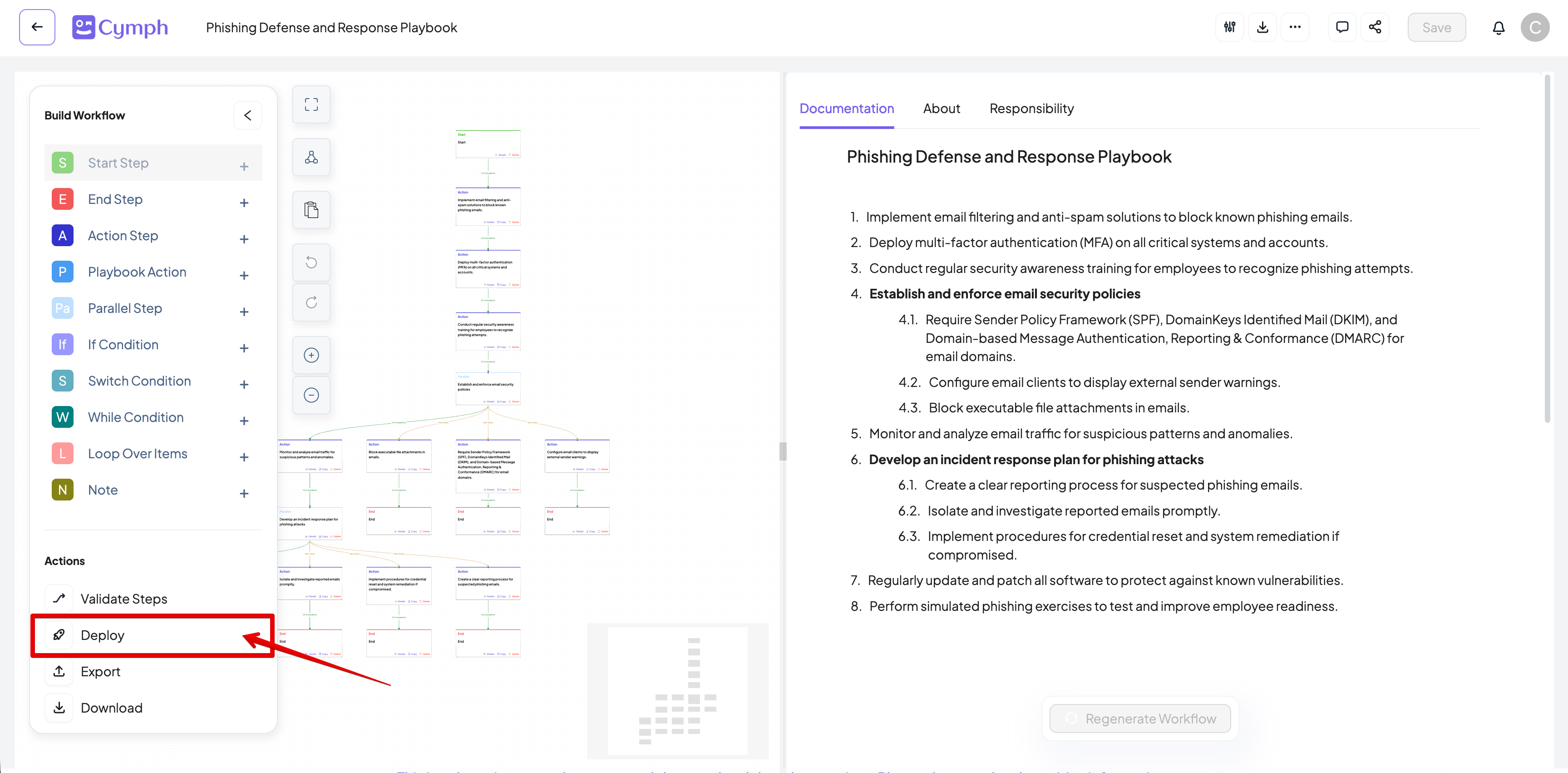
2. Deploy the playbook
* Click the **Deploy** button from the workflow view
 3. Follow the steps as described in the previous section for the deployment
## View the deployment history
1. Go to the \*\*Deploy History \*\*page
* From the main navigation menu click **Manage** **-> Deploy History**
3. Follow the steps as described in the previous section for the deployment
## View the deployment history
1. Go to the \*\*Deploy History \*\*page
* From the main navigation menu click **Manage** **-> Deploy History**
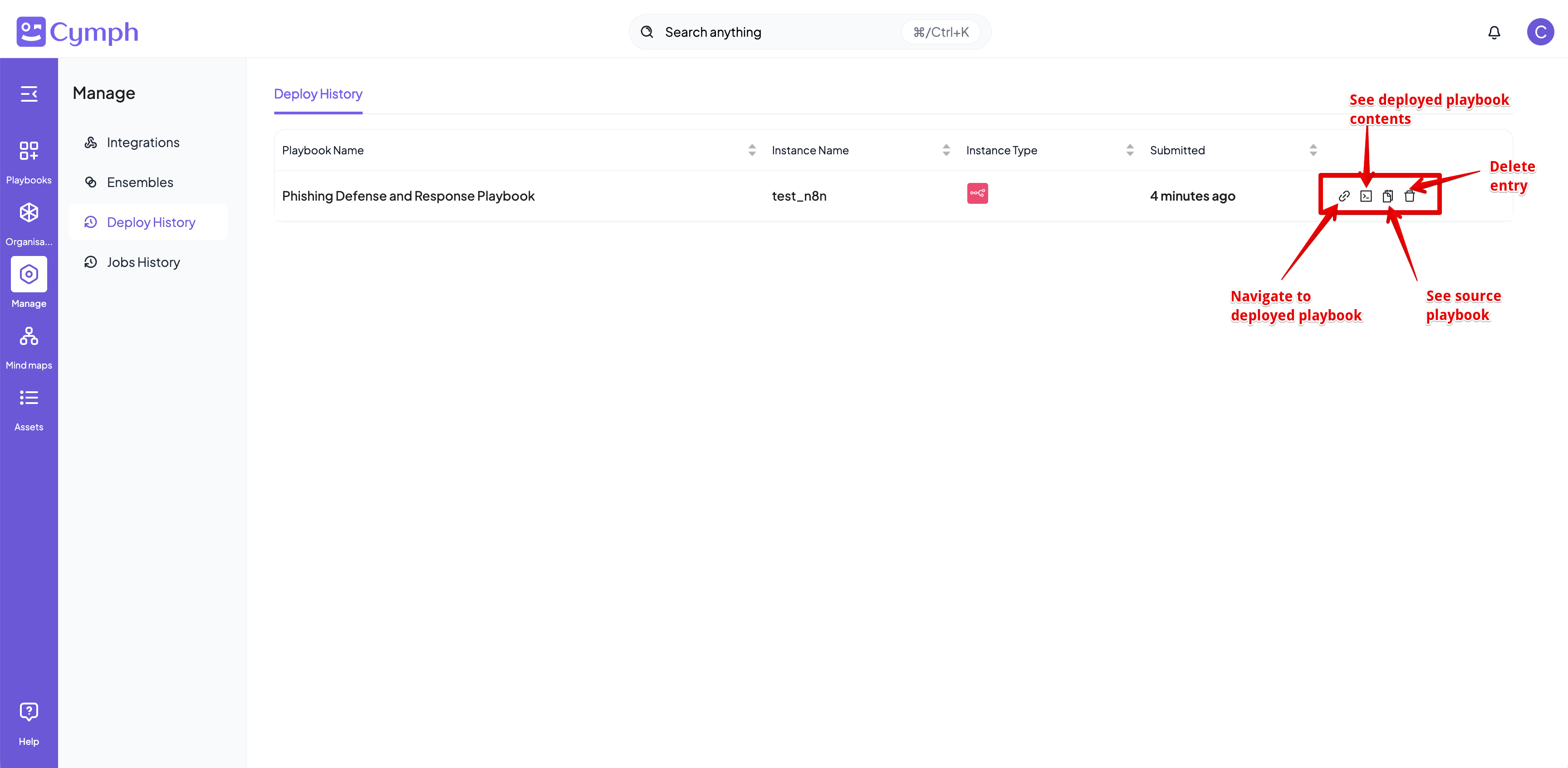
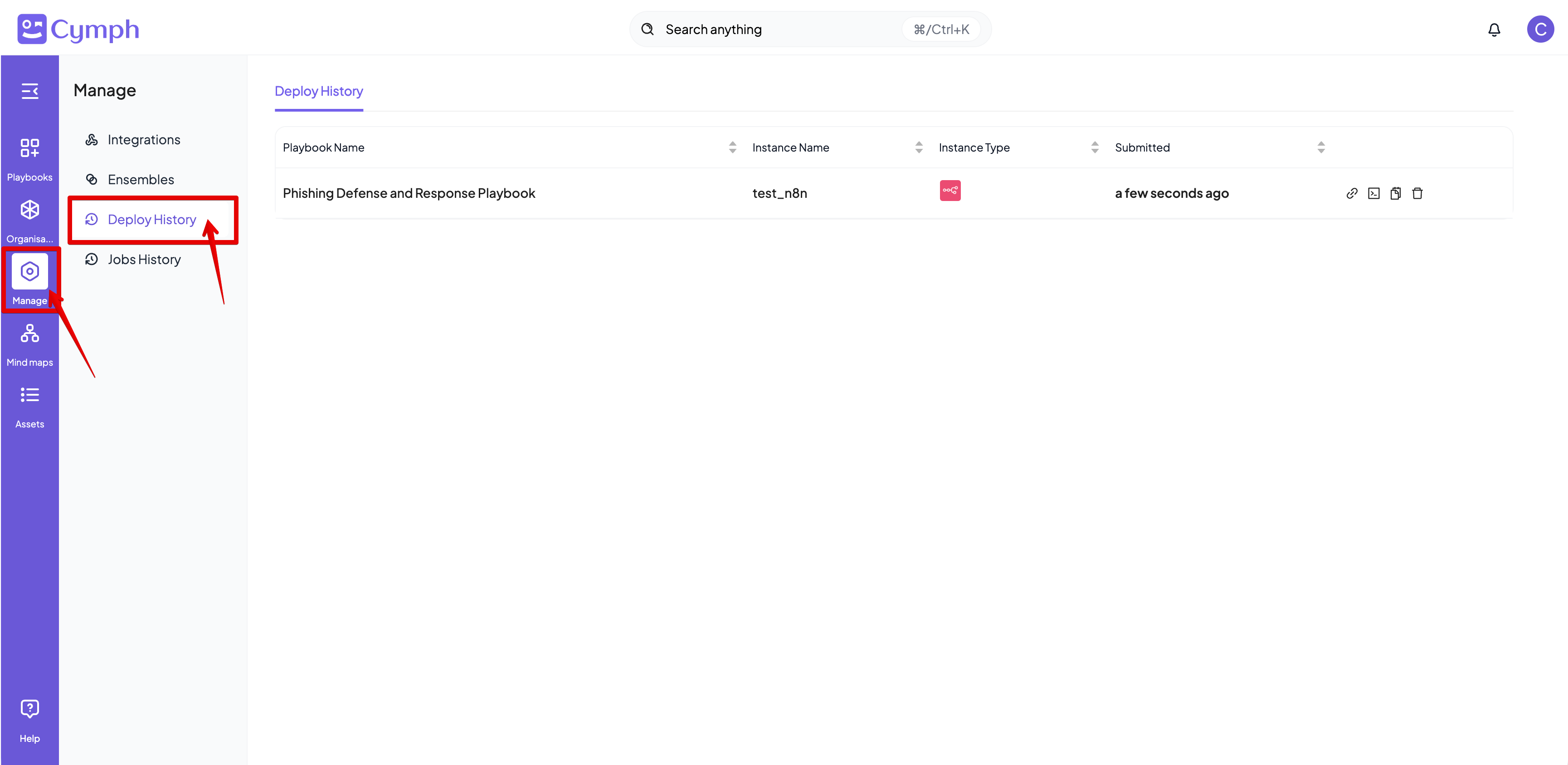 2. The list of deployed playbooks will appear
3. There are several options for each deployed playbook:
* **Navigate the pushed playbook**: this option will open a new tab that will go to the target platform and open the deployed playbook. Not all integrations provide a direct link to playbooks
* **See the deployed playbook**: see the contents of the playbooks as translated for the target integration
* **See the source playbook**: see the contents of the original playbook as of the time of deployment
* **Delete the history entry**
2. The list of deployed playbooks will appear
3. There are several options for each deployed playbook:
* **Navigate the pushed playbook**: this option will open a new tab that will go to the target platform and open the deployed playbook. Not all integrations provide a direct link to playbooks
* **See the deployed playbook**: see the contents of the playbooks as translated for the target integration
* **See the source playbook**: see the contents of the original playbook as of the time of deployment
* **Delete the history entry**