> ## Documentation Index
> Fetch the complete documentation index at: https://docs.cymph.io/llms.txt
> Use this file to discover all available pages before exploring further.
# Navigating the Cymph platform
# Overview
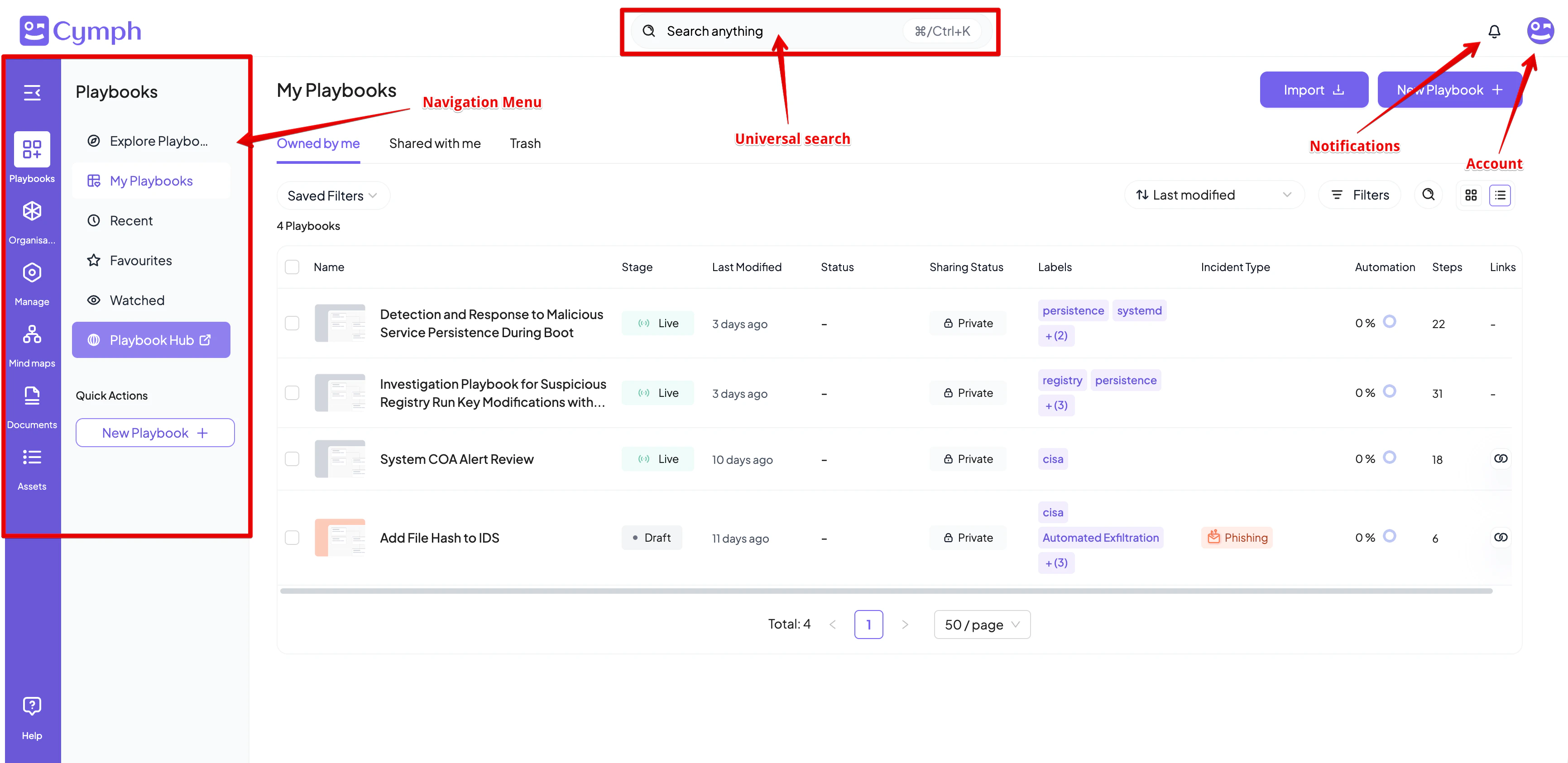
The Cymph main view consists of three main areas:
1. **The top bar**: On the top right of the interface, you can find the Search bar, Notifications, and Account Settings.
2. **The navigation menu**: On the left side of the interface, you can find your playbooks, manage your integrations, view and manage your assets, browse the mindmaps, view your documents and manage your organisations.
3. **The main display area**: The main display area shows the content from the selected navigation feature such as lists of playbooks.
 **Did you know?** By clicking on the Cymph logo on the top left corner, you will be redirected to the Playbooks sections and see all playbooks owned or shared with you.
# Navigating through the platform
The navigation menu includes the following sections:
* The **Playbooks** section where all your playbooks reside. All users will see the Playbooks section.
* The **Organisation** section, that contains the pages to view and manage organisation members and see details about available roles.
* The **Manage** section, that contains the pages for managing Ensembles, Integrations, Execution History and Jobs History.
* The **Mind Maps** section, where you can configure your presets for the frameworks of interest and perform you customised gap analysis
* The **Documents** section, where you can create and share documents
* The **Assets** section, where the pages for Agents and Authentication Information management reside.
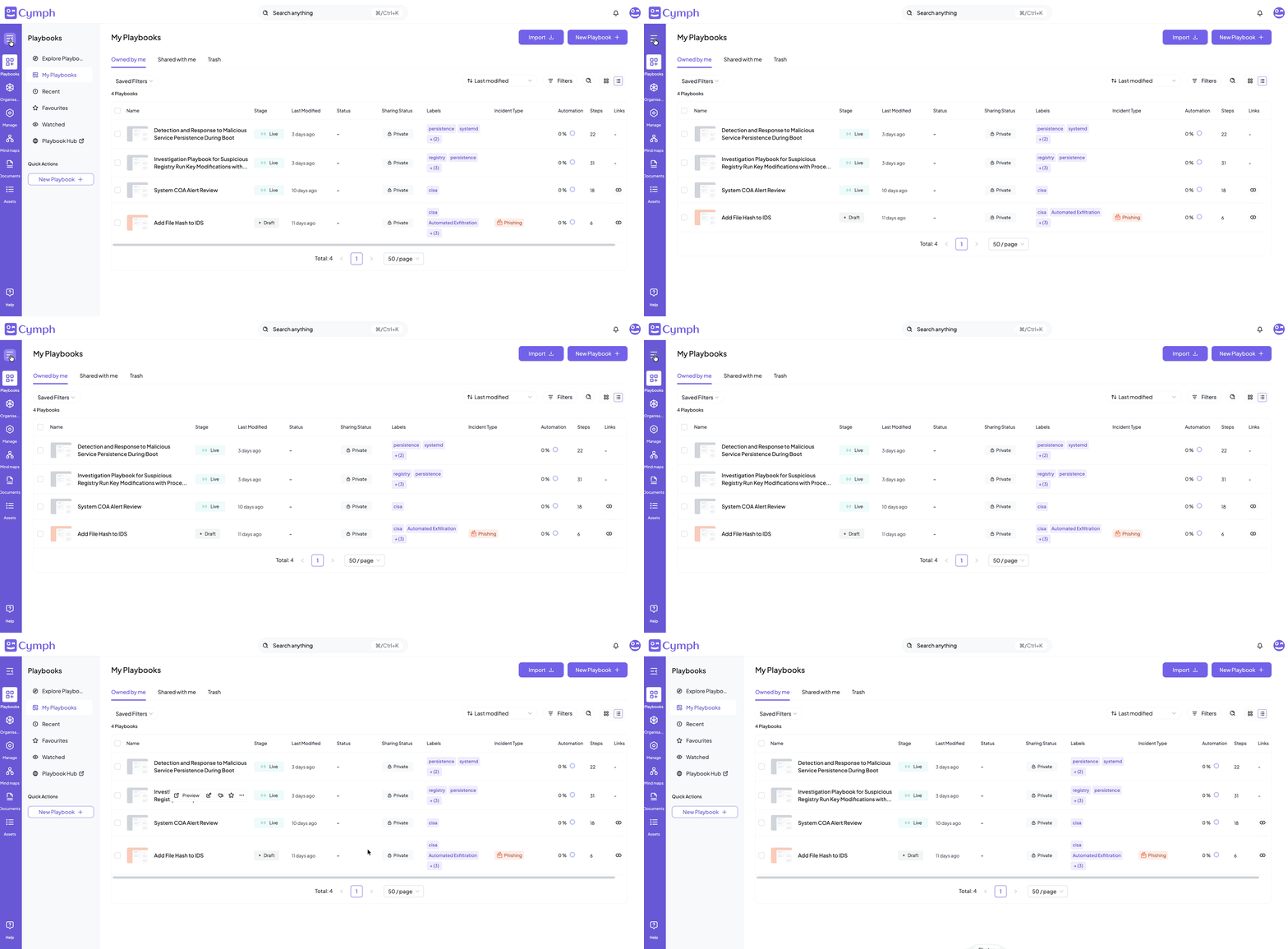
The navigation menu can be collapsed to save space by clicking the Expand/Collapse button at the top of the sidebar:
**Did you know?** By clicking on the Cymph logo on the top left corner, you will be redirected to the Playbooks sections and see all playbooks owned or shared with you.
# Navigating through the platform
The navigation menu includes the following sections:
* The **Playbooks** section where all your playbooks reside. All users will see the Playbooks section.
* The **Organisation** section, that contains the pages to view and manage organisation members and see details about available roles.
* The **Manage** section, that contains the pages for managing Ensembles, Integrations, Execution History and Jobs History.
* The **Mind Maps** section, where you can configure your presets for the frameworks of interest and perform you customised gap analysis
* The **Documents** section, where you can create and share documents
* The **Assets** section, where the pages for Agents and Authentication Information management reside.
The navigation menu can be collapsed to save space by clicking the Expand/Collapse button at the top of the sidebar:
 # Notifications
By clicking on the notifications icon on the top section of the platform, a list of the most recent notifications will appear.
# Notifications
By clicking on the notifications icon on the top section of the platform, a list of the most recent notifications will appear.
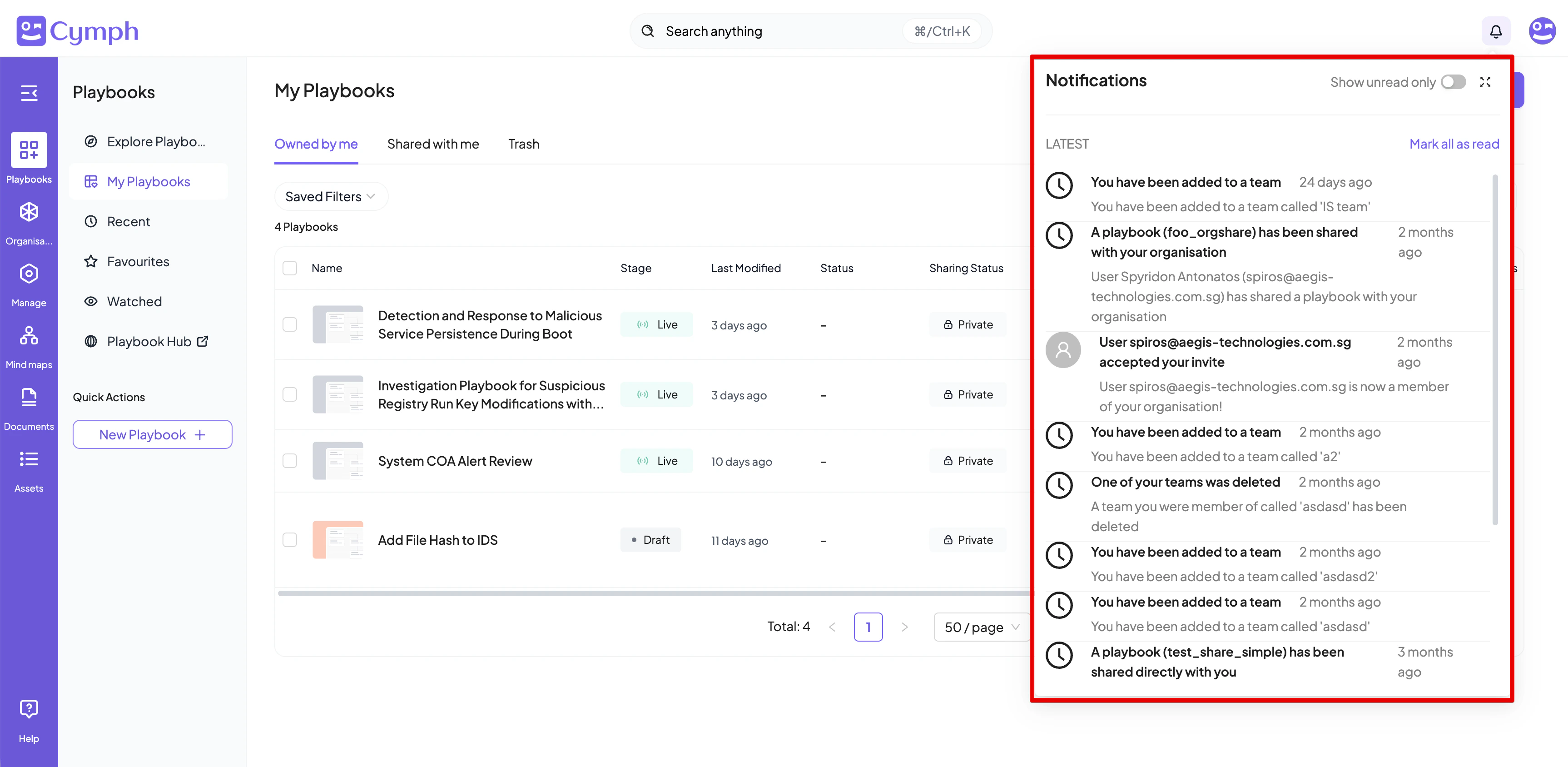 From the notifications panel, you have the options to:
* Show unread only.
* Mark all notifications as read.
* Mark an individual notification as read/unread.
* Delete a notification.
# Help and support
To access the documentation, click the **Help & Support** link in the bottom left corner of the platform.
From the notifications panel, you have the options to:
* Show unread only.
* Mark all notifications as read.
* Mark an individual notification as read/unread.
* Delete a notification.
# Help and support
To access the documentation, click the **Help & Support** link in the bottom left corner of the platform.
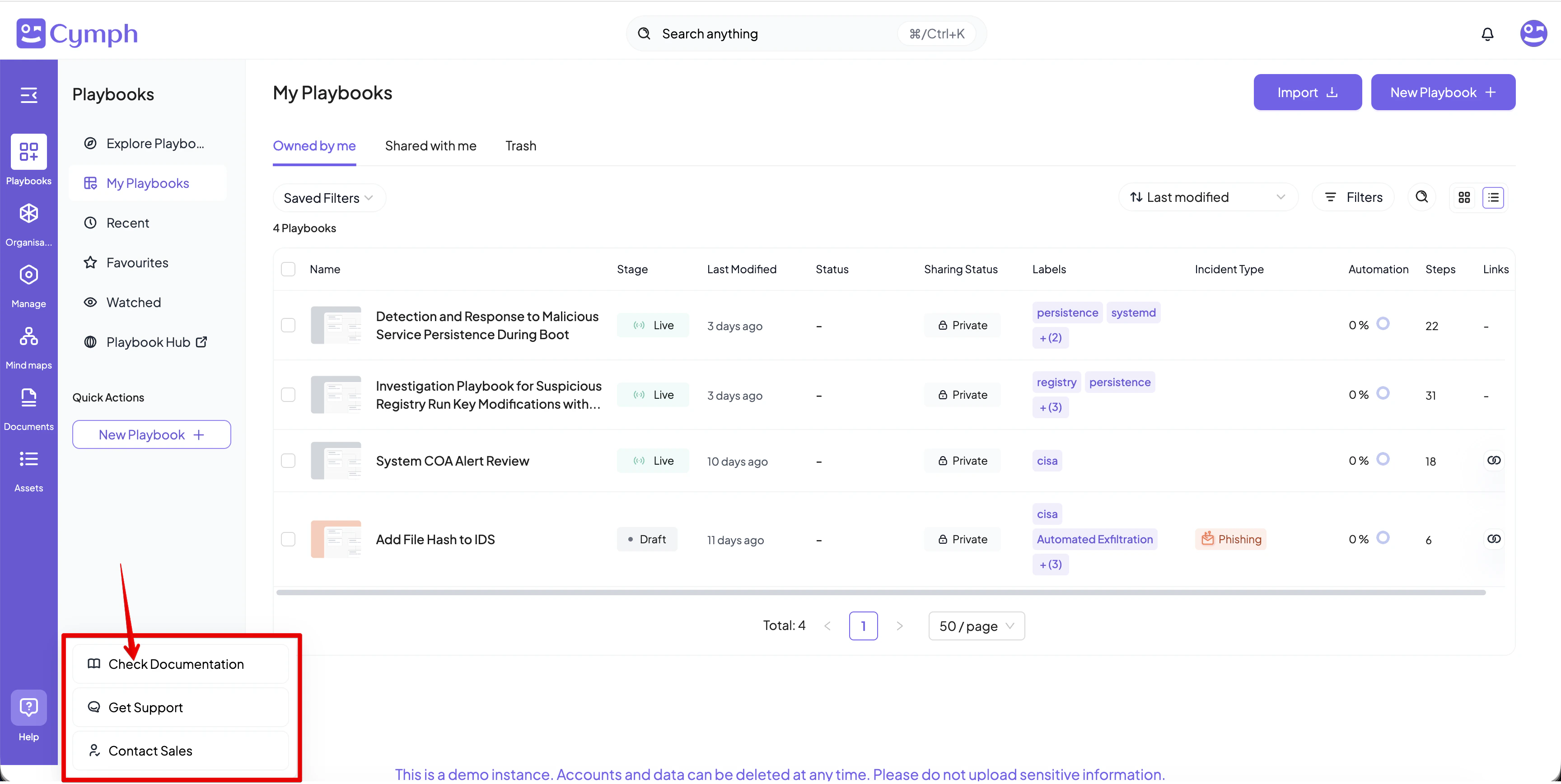 From the menu that appears you have the option to:
* Check the online documentation at [https://docs.cymph.io](https://docs.cymph.io)
* Get support via e-mail. The support e-mail is [support@cymph.io](mailto:support@cymph.io)
* Contact sales. The contact e-mail is [contact@cymph.io](mailto:contact@cymph.io)
From the menu that appears you have the option to:
* Check the online documentation at [https://docs.cymph.io](https://docs.cymph.io)
* Get support via e-mail. The support e-mail is [support@cymph.io](mailto:support@cymph.io)
* Contact sales. The contact e-mail is [contact@cymph.io](mailto:contact@cymph.io)