> ## Documentation Index
> Fetch the complete documentation index at: https://docs.cymph.io/llms.txt
> Use this file to discover all available pages before exploring further.

# AI configuration

> Enable and configure the AI provider for a self-hosted deployment.

<Info>
  Applies to both [deployment models](/deployment/models). The AI provider is supplied by you in a managed cloud tenant just as in a self-hosted deployment — see [AI & data usage](/security/ai-data-usage).
</Info>

## How to modify AI settings

Users with the On-prem Administrator role can modify the AI settings. By enabling AI, users will be able to use the AI capabilities of the platforms, such as playbook generation from prompts and mindmaps and autotagging.

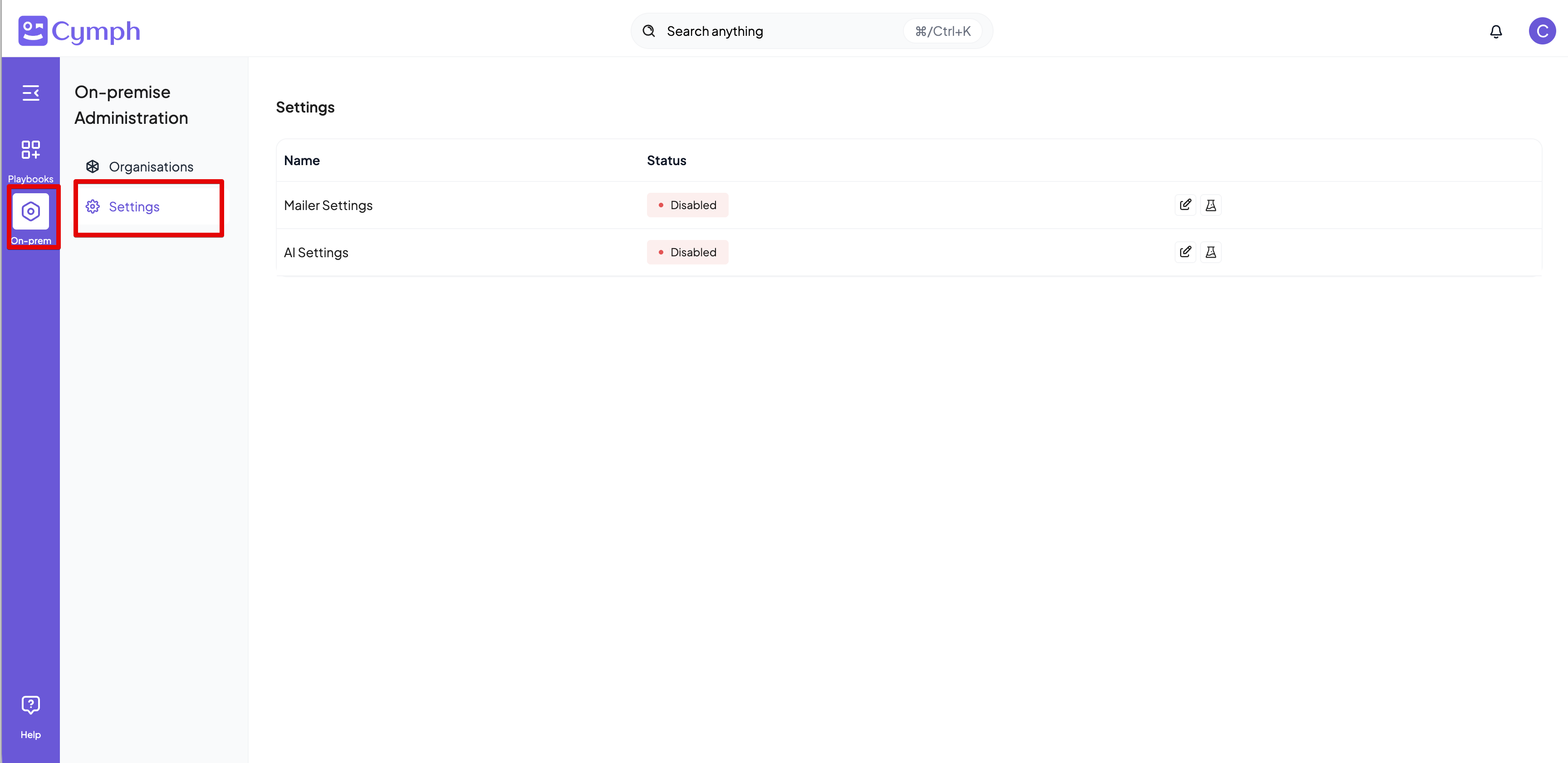
1. Go to **On-prem settings** page
   * Click on **On-prem** from the navigation menu, then **Settings**
<img src="https://mintcdn.com/cymph/KLE0ihOiUkV5roqH/images/onprem_settings_navi.png?fit=max&auto=format&n=KLE0ihOiUkV5roqH&q=85&s=3bafe7c4b53bc93c17e1c82dd28dec2d" alt="Onprem Settings Navi" width="3456" height="1682" data-path="images/onprem_settings_navi.png" />

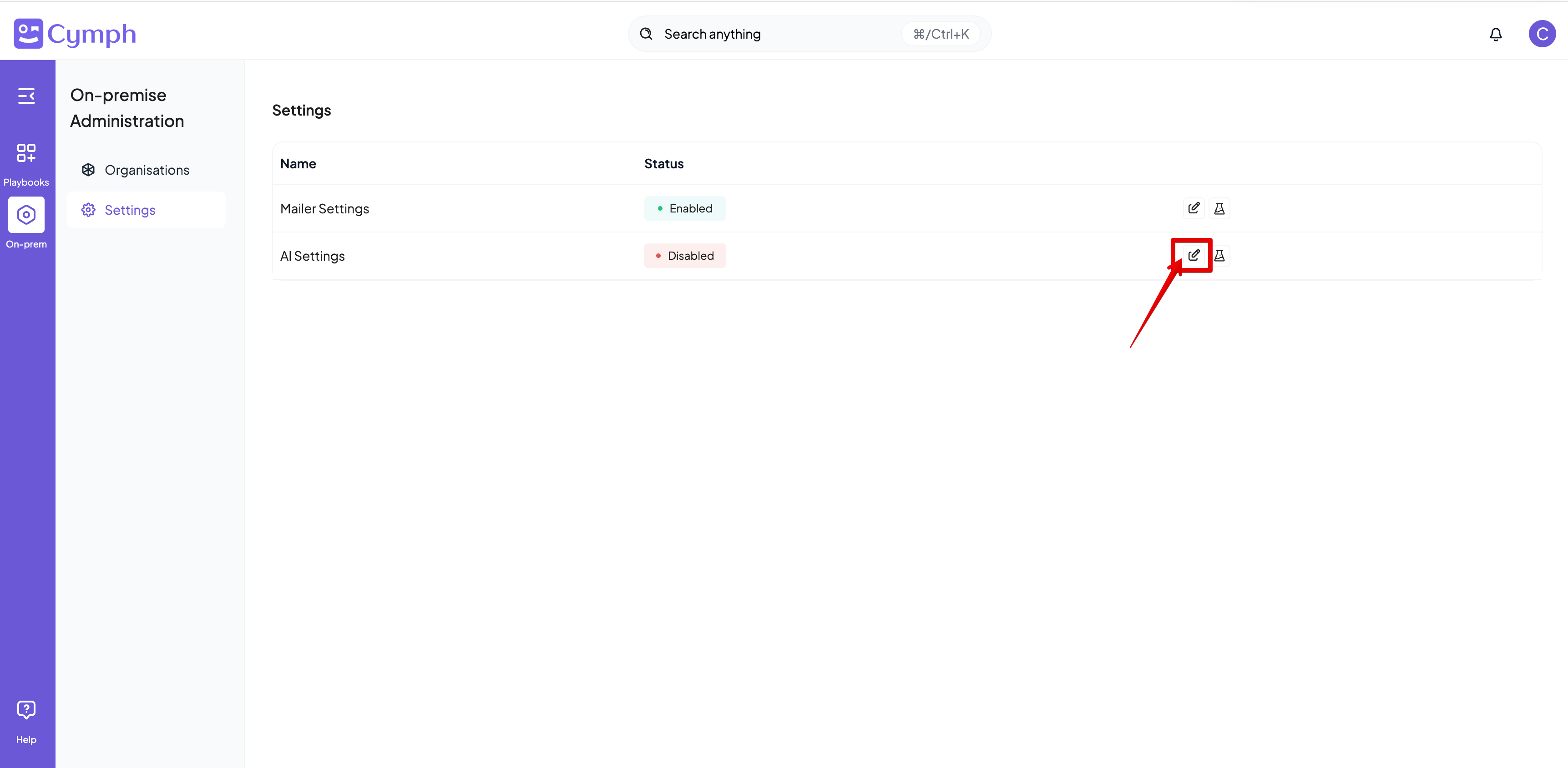
2. Edit the **AI Settings**
   * Click on the **Edit icon** next on the AI settings row
<img src="https://mintcdn.com/cymph/KLE0ihOiUkV5roqH/images/onprem_ai_edit.png?fit=max&auto=format&n=KLE0ihOiUkV5roqH&q=85&s=f840c8331010264746667bc4948ad690" alt="Onprem Ai Edit" width="3446" height="1688" data-path="images/onprem_ai_edit.png" />

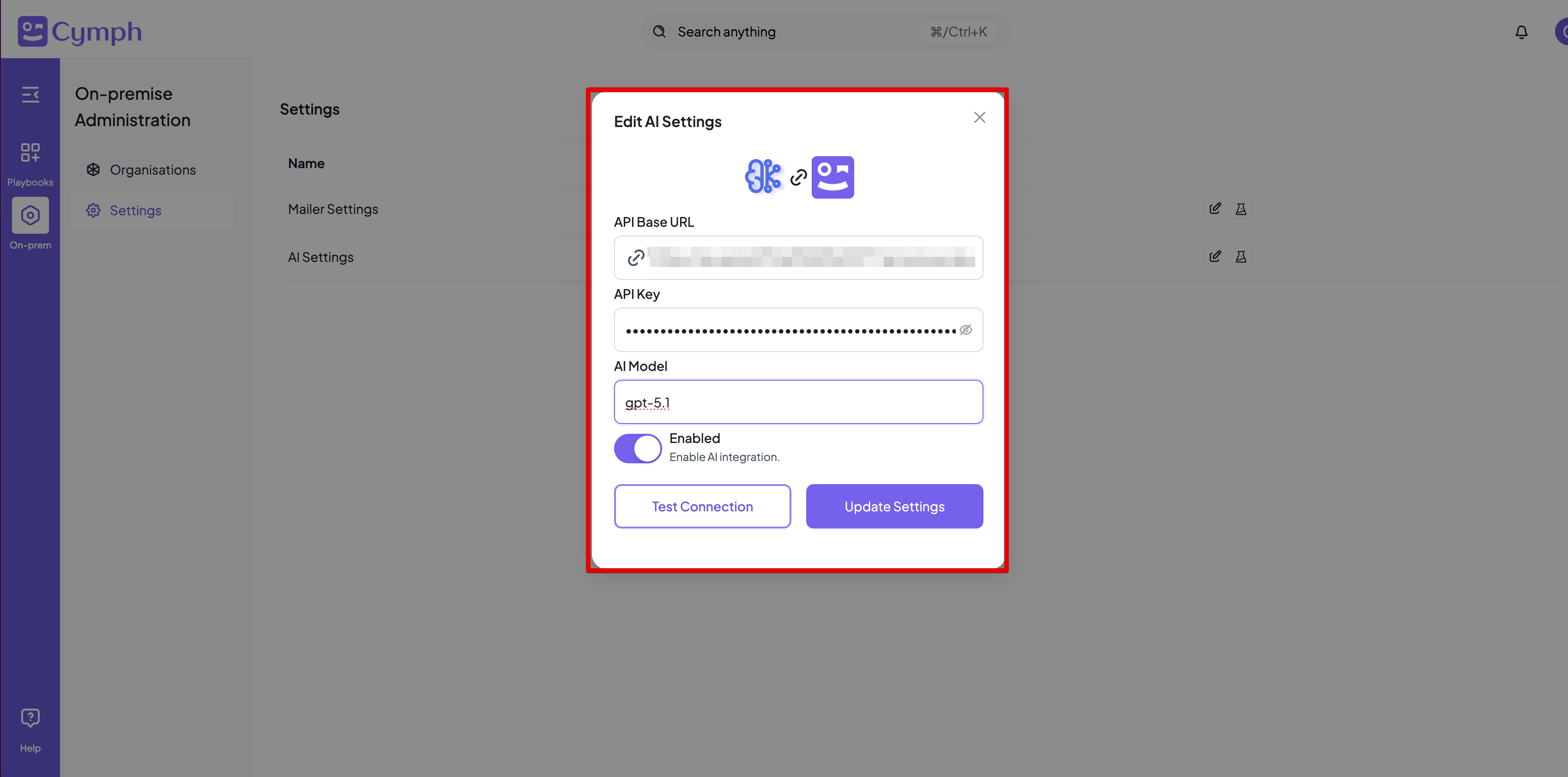
3. Enter the settings for your AI provider
<img src="https://mintcdn.com/cymph/KLE0ihOiUkV5roqH/images/onprem_ai_settings.png?fit=max&auto=format&n=KLE0ihOiUkV5roqH&q=85&s=ffe4372919ade18e0eee341645848573" alt="Onprem Ai Settings" width="3396" height="1682" data-path="images/onprem_ai_settings.png" />

4. Click **Test** to verify the connection before saving. The test sends a minimal chat completion request to the configured endpoint and model — see [How the test works](#how-the-test-works) below.

## Provider compatibility

Cymph does not bundle a model. It calls whatever endpoint you configure using the **OpenAI Chat Completions API** (`POST {base URL}/chat/completions`). Any provider or gateway that implements this API can be used — including OpenAI itself, Azure OpenAI, and self-hosted servers such as vLLM, Ollama, LM Studio or LiteLLM.

The three settings map directly onto that API:

| Setting | What it is used for |
| - | - |
| **Base URL** | The root of the API, e.g. `https://api.openai.com/v1` or `http://llm.internal:8000/v1`. Cymph appends `/chat/completions` to it. Include the version prefix (`/v1`) if your provider expects one. |
| **API key** | Sent as a `Bearer` token in the `Authorization` header. Self-hosted servers that do not check keys still require a non-empty value. |
| **Model** | Passed verbatim as the `model` field in every request. Use the identifier your provider expects (for Azure OpenAI this is the deployment name). |

### What the endpoint must support

Cymph uses only the Chat Completions endpoint. It does not use the Responses API, the Assistants API, streaming, or an embeddings endpoint — semantic search runs on a local embedding model inside the deployment (see [AI & data usage](/security/ai-data-usage)).

Within Chat Completions, the following features are required. Most features work as long as the first two are supported; the AI assistant additionally needs tool calling.

| Capability | Required by | Notes |
| - | - | - |
| Basic chat completion with `system` and `user` messages | All AI features | |
| `max_completion_tokens` parameter | All AI features | Cymph sends `max_completion_tokens`, not the deprecated `max_tokens`. Older servers that only understand `max_tokens` will reject requests. |
| JSON mode — `response_format: { type: "json_object" }` | Playbook generation, mindmap generation, autotagging, translation | The model must honour JSON mode and return a valid JSON object in `choices[0].message.content`. |
| Function / tool calling — `tools` and `tool_calls` | AI assistant | The assistant relies on the model choosing and invoking tools. Models or servers without tool-calling support will not work for the assistant, even if generation works. |
| Completion sizes up to 8,192 output tokens | Playbook generation, AI assistant | Configure the server's output limit accordingly; a lower ceiling truncates long playbook drafts and produces malformed JSON. |

<Tip>
  A good rule of thumb: if the provider works with the official OpenAI SDKs using the same base URL, key and model, it will work with Cymph.
</Tip>

### Known limitations

* **Non-chat endpoints** (legacy text completions, embeddings, images) are not used and cannot be configured here.
* **Models that ignore JSON mode** will cause generation and autotagging to fail with parsing errors even though the connection test passes.
* **Small local models** frequently lack reliable tool calling. They are fine for generation and autotagging, but expect the AI assistant to behave unpredictably.

## How the test works

The **Test** button, available both before and after saving, sends a single chat completion to the configured base URL with the configured model and a one-word user message, limited to 10 output tokens.

The test passes when the endpoint returns a completion. It also passes if the endpoint returns an HTTP 400 whose error message mentions `max_tokens`, because that response proves the base URL, API key and model name are all accepted and only the request size was rejected.

The test fails on any other error, and the response says why.
Every result carries a human-readable `message` and a `details` object so the failure can be diagnosed without server access:


This documentation is built and hosted on [Mintlify](https://mintlify.com), a developer documentation platform.