> ## Documentation Index
> Fetch the complete documentation index at: https://docs.cymph.io/llms.txt
> Use this file to discover all available pages before exploring further.
# Team management
# Overview
Organisation administrations can organise their members into teams. An organisation member can belong to one or multiple teams at once. Each team needs to have a unique name within the context of the organisation.
# How to create a team
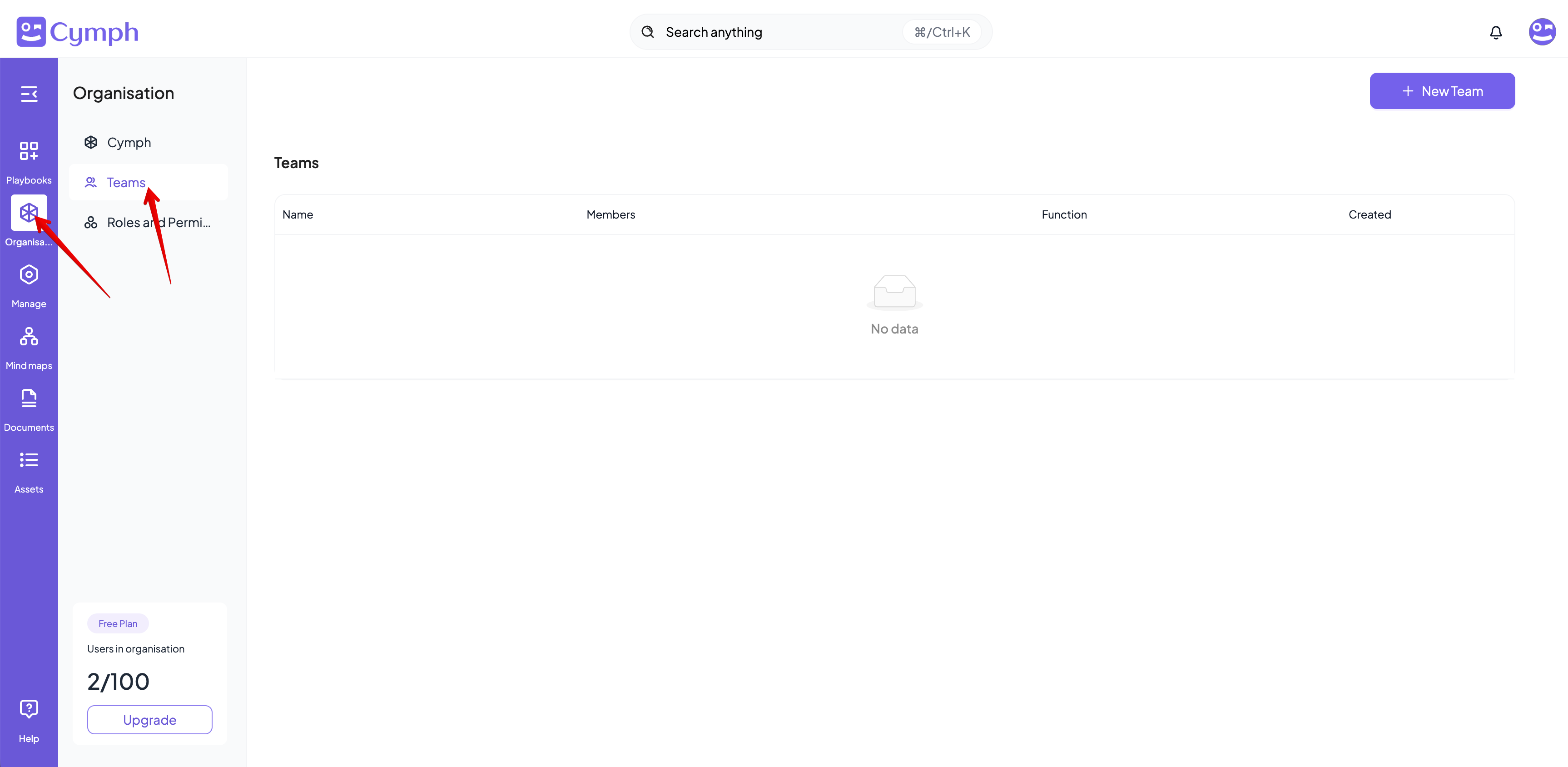
1. Go to your **Teams** page
* From the navigation menu, go to Organisations and then select the **Teams** page.
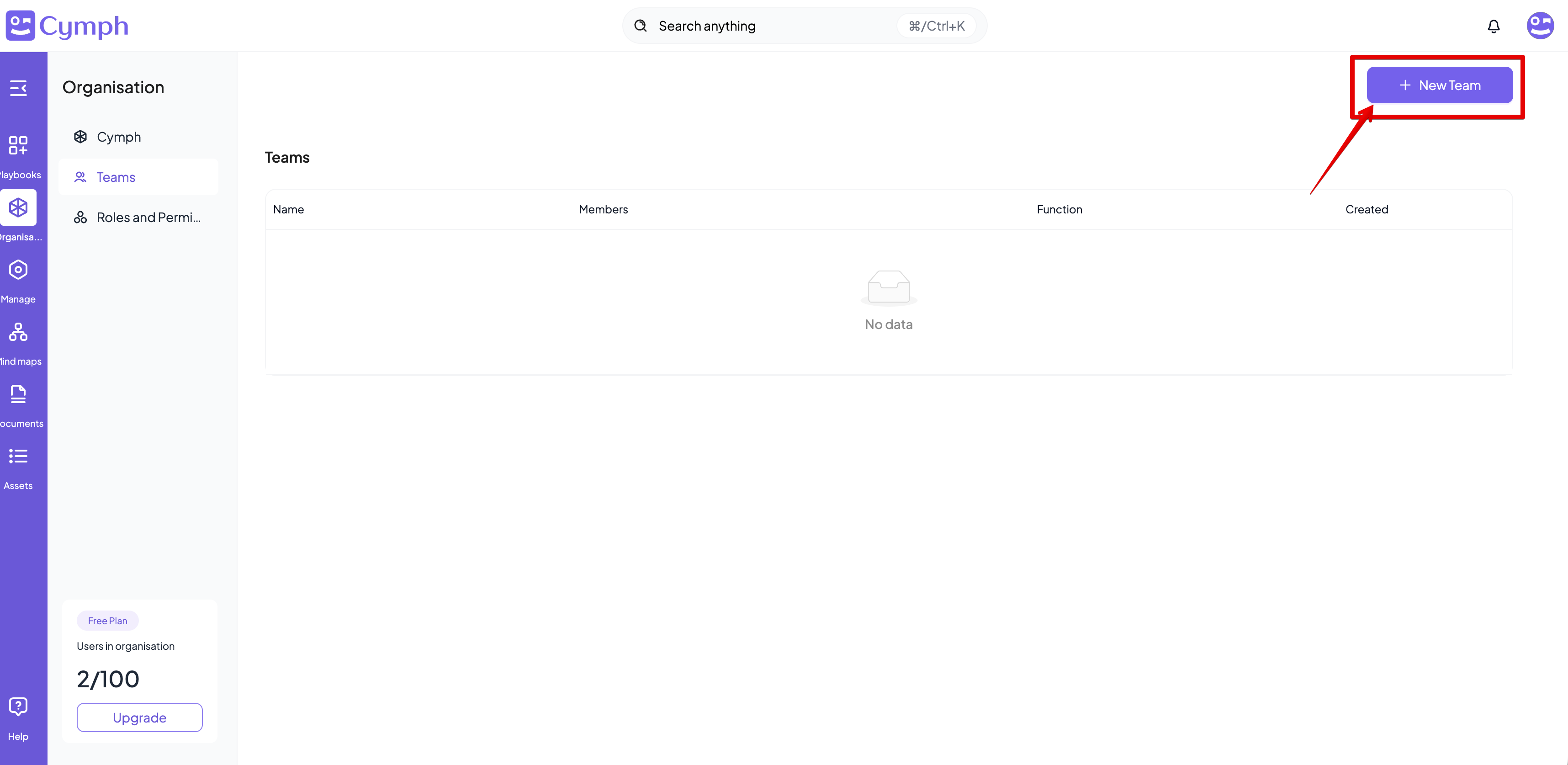
 2. Click on the **New Team** button
* A popup dialog will appear for the settings of the new team
2. Click on the **New Team** button
* A popup dialog will appear for the settings of the new team
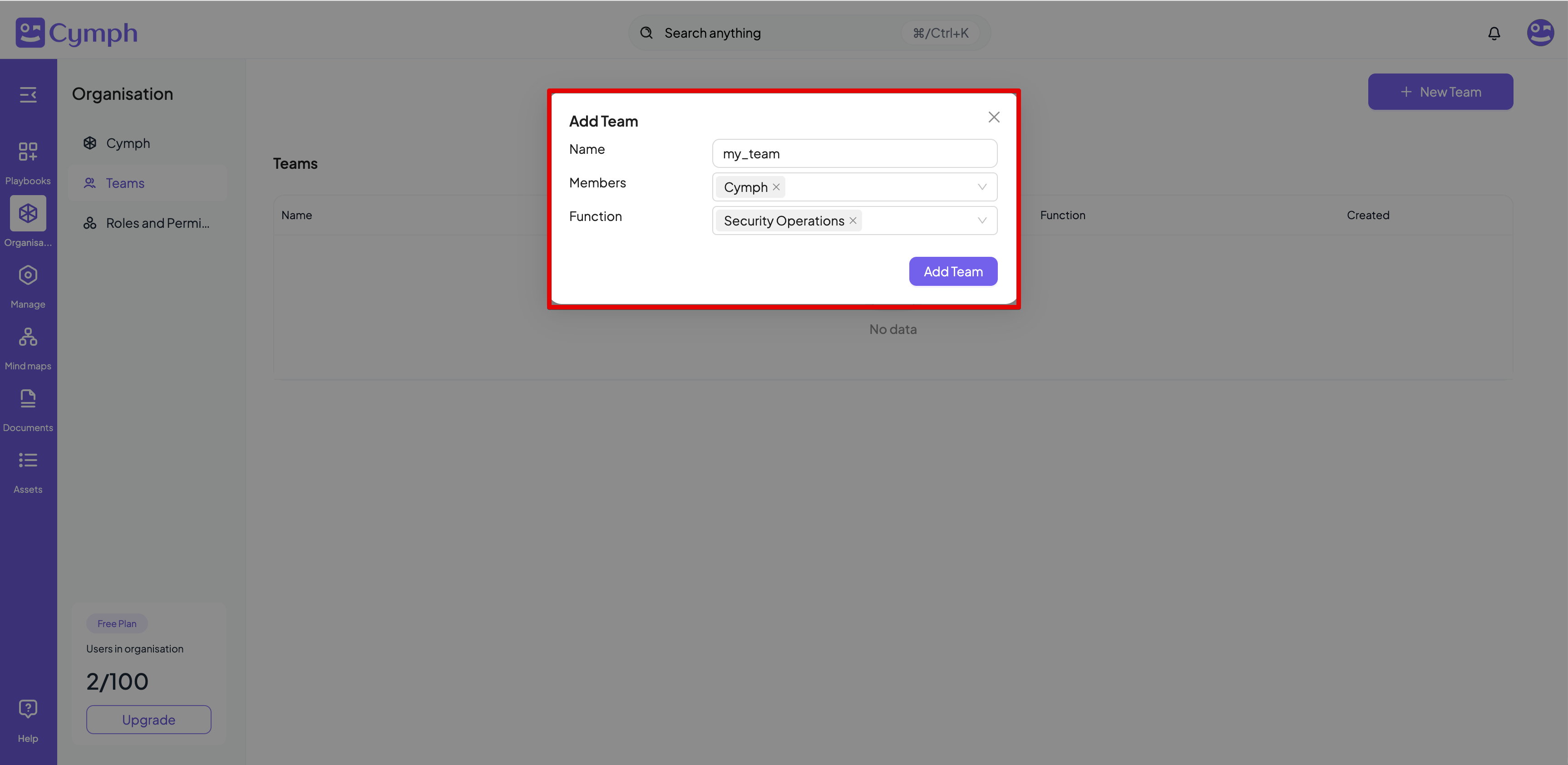
 3. Enter details of the new team
* Name: it is required and must be unique across the organisation’s teams
* Members: it is required
* Function: optional, states the function of your team (e.g. Security Operations team)
3. Enter details of the new team
* Name: it is required and must be unique across the organisation’s teams
* Members: it is required
* Function: optional, states the function of your team (e.g. Security Operations team)
 4. Click on the **Add Team** button
5. The teams page will be automatically refreshed to show the new team
# How to edit a team
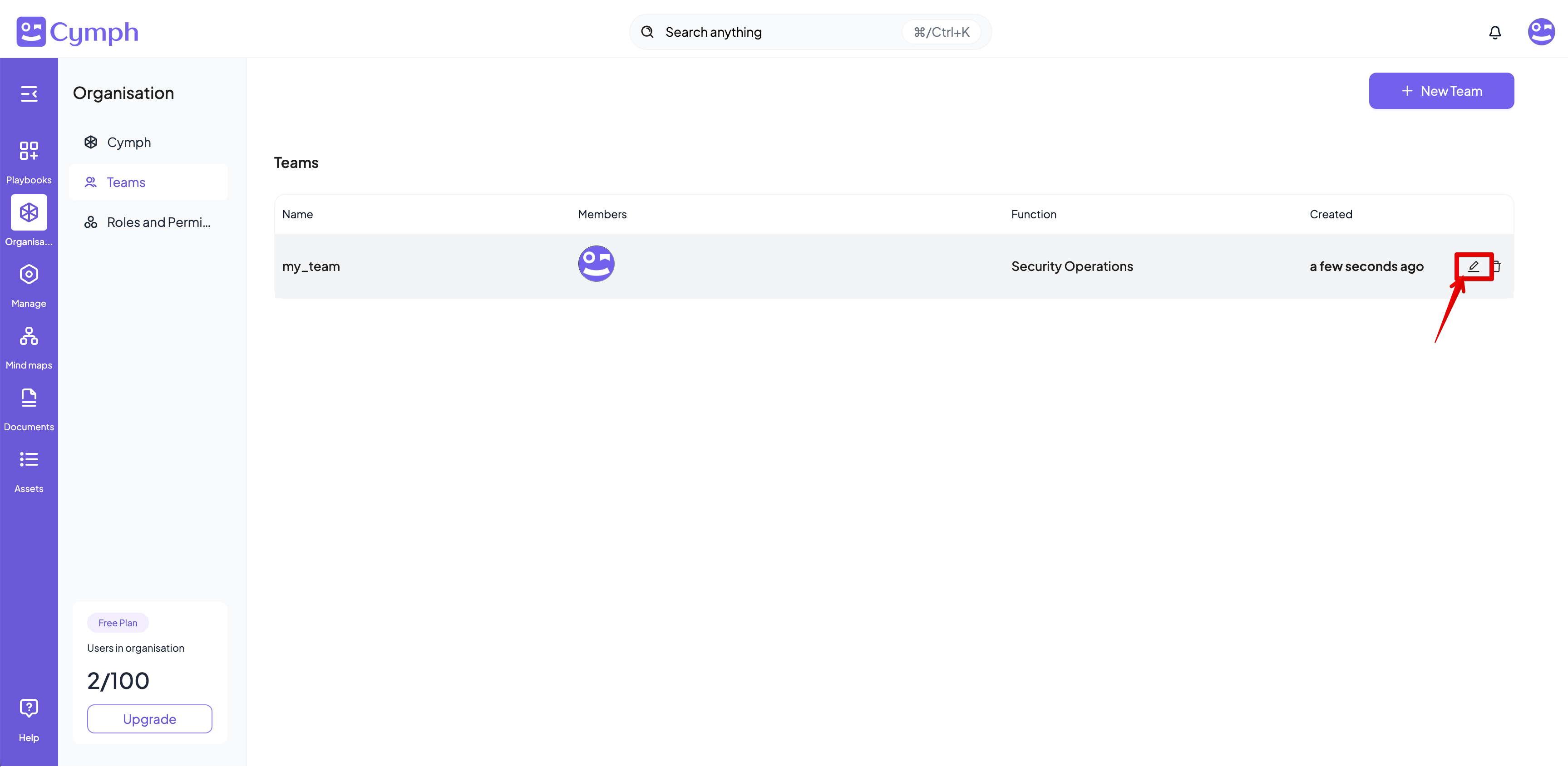
1. Go to your **Teams** page
2. Click the **Edit icon** for the team you want to edit
* A popup dialog will appear with the team details
4. Click on the **Add Team** button
5. The teams page will be automatically refreshed to show the new team
# How to edit a team
1. Go to your **Teams** page
2. Click the **Edit icon** for the team you want to edit
* A popup dialog will appear with the team details
 3. Edit the details of the team
4. Click on the \*\*Update Team \*\*button to save your changes
# How to delete a team
1. Go to your **Teams** page
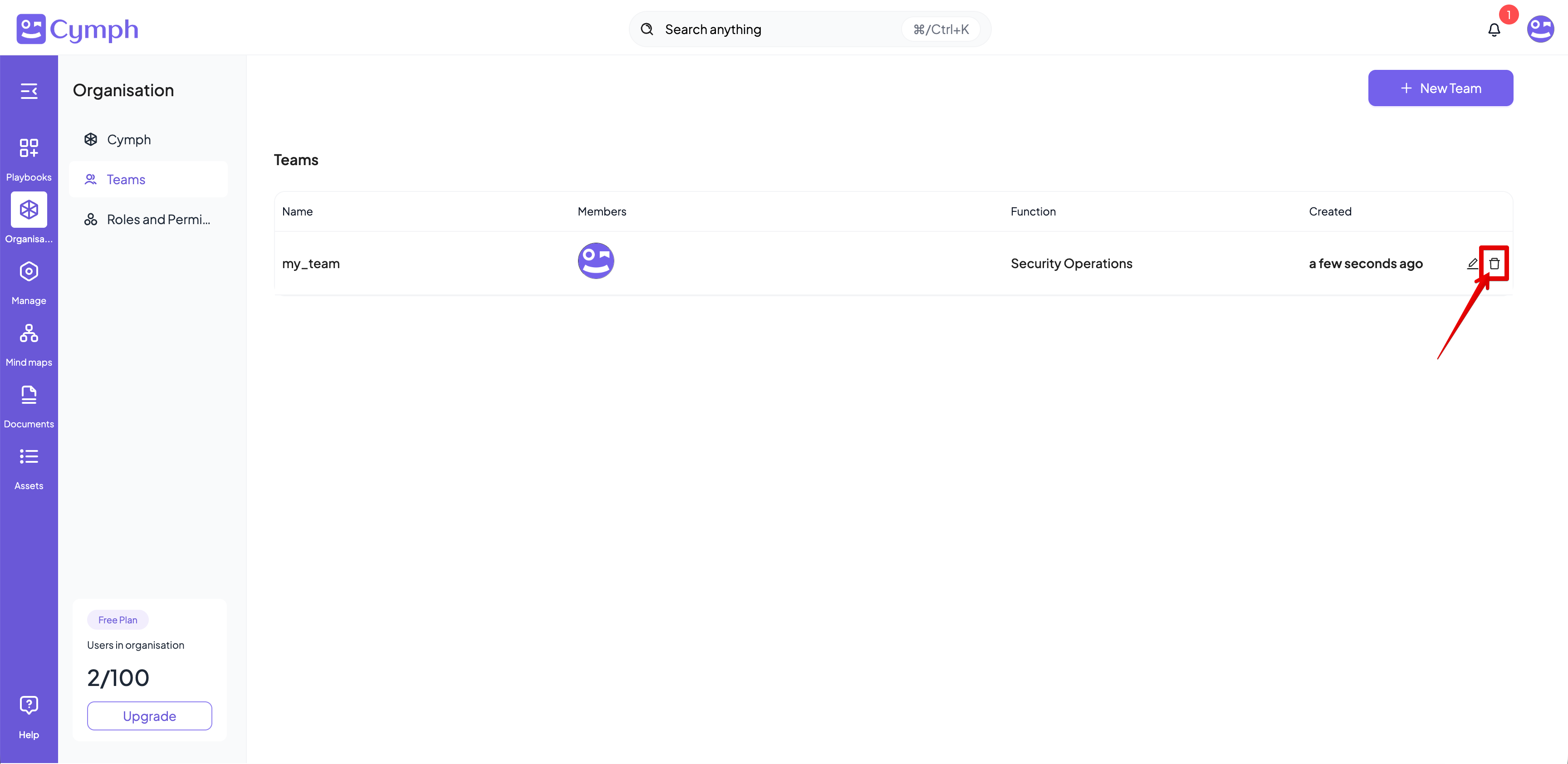
2. Click on the **Delete icon** for the team you want to delete
3. Edit the details of the team
4. Click on the \*\*Update Team \*\*button to save your changes
# How to delete a team
1. Go to your **Teams** page
2. Click on the **Delete icon** for the team you want to delete
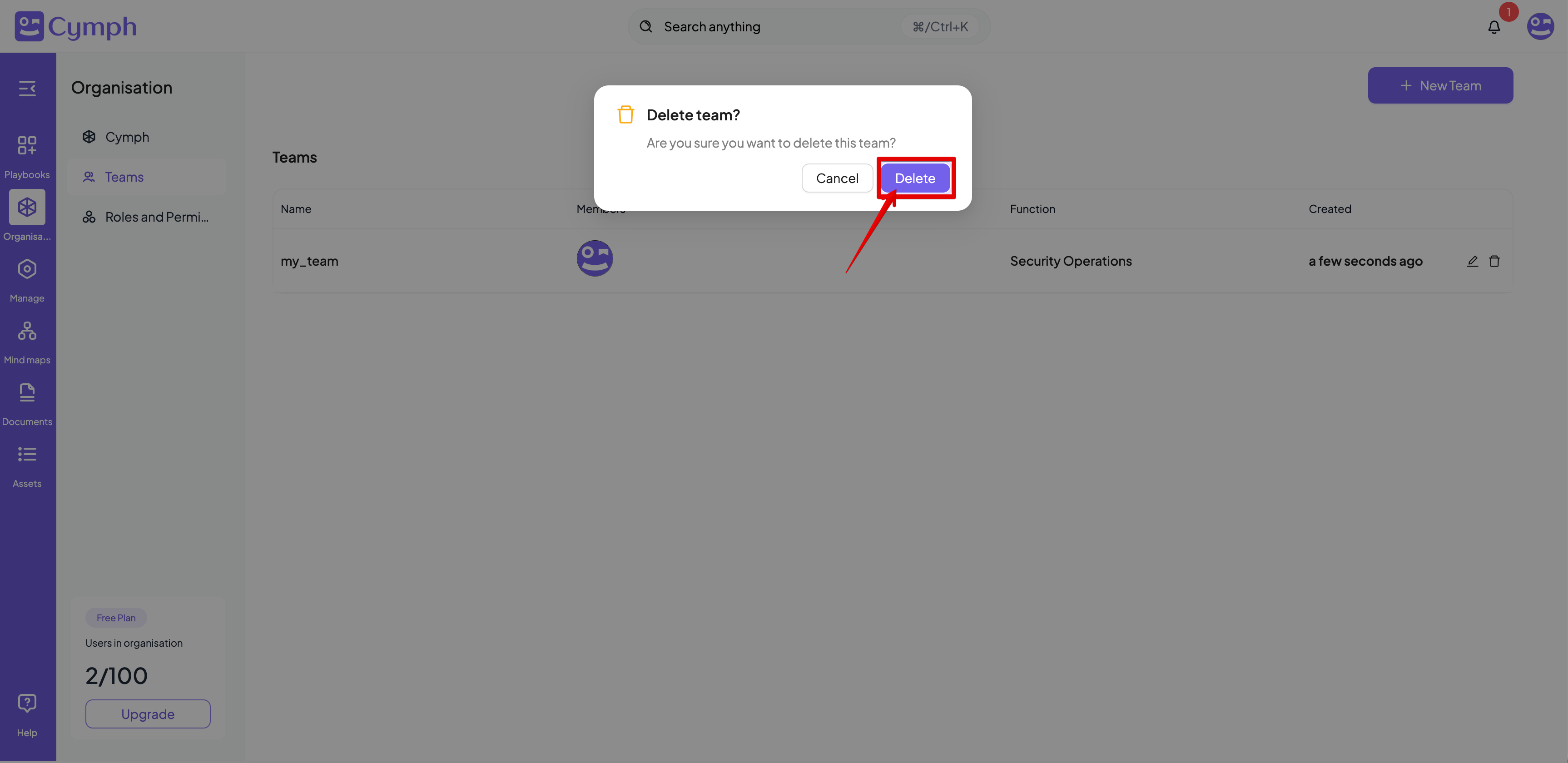
 3. Confirm the deletion by clicking the **Delete** button
 4. The team will be deleted and the **Teams** table will be automatically refreshed